BLOG

Advanced OCI Container Engine (OKE) with Network Security and Observability

Oracle Cloud Infrastructure Container Engine for Kubernetes (OKE) provides enterprise-grade Kubernetes clusters with deep integration into OCI’s native services. This comprehensive guide explores advanced OKE configurations, focusing on network security policies, observability integration, and automated deployment strategies that enterprise teams need for production workloads.

OKE Architecture Deep Dive

OKE operates on a managed control plane architecture where Oracle handles the Kubernetes master nodes, etcd, and API server components. This design eliminates operational overhead while providing high availability across multiple availability domains.

The service integrates seamlessly with OCI’s networking fabric, allowing granular control over pod-to-pod communication, ingress traffic management, and service mesh implementations. Unlike managed Kubernetes services from other providers, OKE provides native integration with Oracle’s enterprise security stack, including Identity and Access Management (IAM), Key Management Service (KMS), and Web Application Firewall (WAF).

Worker nodes run on OCI Compute instances, providing flexibility in choosing instance shapes, including bare metal, GPU-enabled, and ARM-based Ampere processors. The networking layer supports both flannel and OCI VCN-native pod networking, enabling direct integration with existing network security policies.

Advanced Networking Configuration

OKE’s network architecture supports multiple pod networking modes. The VCN-native pod networking mode assigns each pod an IP address from your VCN’s CIDR range, enabling direct application of network security lists and route tables to pod traffic.

This approach provides several advantages over traditional overlay networking. Security policies become more granular since you can apply network security lists directly to pod traffic. Network troubleshooting becomes simpler as pod traffic flows through standard OCI networking constructs. Integration with existing network monitoring tools works seamlessly since pod traffic appears as regular VCN traffic.

Load balancing integrates deeply with OCI’s Load Balancing service, supporting both Layer 4 and Layer 7 load balancing with SSL termination, session persistence, and health checking capabilities.

Production-Ready Implementation Example

Here’s a comprehensive example that demonstrates deploying a highly available OKE cluster with advanced security and monitoring configurations:

Terraform Configuration for OKE Cluster

# OKE Cluster with Enhanced Security
resource "oci_containerengine_cluster" "production_cluster" {
  compartment_id     = var.compartment_id
  kubernetes_version = var.kubernetes_version
  name              = "production-oke-cluster"
  vcn_id            = oci_core_vcn.oke_vcn.id

  endpoint_config {
    is_public_ip_enabled = false
    subnet_id           = oci_core_subnet.oke_api_subnet.id
    nsg_ids             = [oci_core_network_security_group.oke_api_nsg.id]
  }

  cluster_pod_network_options {
    cni_type = "OCI_VCN_IP_NATIVE"
  }

  options {
    service_lb_subnet_ids = [oci_core_subnet.oke_lb_subnet.id]
    
    kubernetes_network_config {
      pods_cidr     = "10.244.0.0/16"
      services_cidr = "10.96.0.0/16"
    }

    add_ons {
      is_kubernetes_dashboard_enabled = false
      is_tiller_enabled              = false
    }

    admission_controller_options {
      is_pod_security_policy_enabled = true
    }
  }

  kms_key_id = oci_kms_key.oke_encryption_key.id
}

# Node Pool with Mixed Instance Types
resource "oci_containerengine_node_pool" "production_node_pool" {
  cluster_id         = oci_containerengine_cluster.production_cluster.id
  compartment_id     = var.compartment_id
  kubernetes_version = var.kubernetes_version
  name              = "production-workers"

  node_config_details {
    placement_configs {
      availability_domain = data.oci_identity_availability_domains.ads.availability_domains[0].name
      subnet_id          = oci_core_subnet.oke_worker_subnet.id
    }
    placement_configs {
      availability_domain = data.oci_identity_availability_domains.ads.availability_domains[1].name
      subnet_id          = oci_core_subnet.oke_worker_subnet.id
    }
    
    size                    = 3
    nsg_ids                = [oci_core_network_security_group.oke_worker_nsg.id]
    is_pv_encryption_in_transit_enabled = true
  }

  node_shape = "VM.Standard.E4.Flex"
  
  node_shape_config {
    ocpus         = 2
    memory_in_gbs = 16
  }

  node_source_details {
    image_id                = data.oci_containerengine_node_pool_option.oke_node_pool_option.sources[0].image_id
    source_type            = "IMAGE"
    boot_volume_size_in_gbs = 100
  }

  initial_node_labels {
    key   = "environment"
    value = "production"
  }

  ssh_public_key = var.ssh_public_key
}

# Network Security Group for API Server
resource "oci_core_network_security_group" "oke_api_nsg" {
  compartment_id = var.compartment_id
  vcn_id        = oci_core_vcn.oke_vcn.id
  display_name  = "oke-api-nsg"
}

resource "oci_core_network_security_group_security_rule" "oke_api_ingress" {
  network_security_group_id = oci_core_network_security_group.oke_api_nsg.id
  direction                 = "INGRESS"
  protocol                  = "6"
  source                   = "10.0.0.0/16"
  source_type              = "CIDR_BLOCK"
  
  tcp_options {
    destination_port_range {
      max = 6443
      min = 6443
    }
  }
}

# Network Security Group for Worker Nodes
resource "oci_core_network_security_group" "oke_worker_nsg" {
  compartment_id = var.compartment_id
  vcn_id        = oci_core_vcn.oke_vcn.id
  display_name  = "oke-worker-nsg"
}

# Allow pod-to-pod communication
resource "oci_core_network_security_group_security_rule" "worker_pod_communication" {
  network_security_group_id = oci_core_network_security_group.oke_worker_nsg.id
  direction                 = "INGRESS"
  protocol                  = "all"
  source                   = oci_core_network_security_group.oke_worker_nsg.id
  source_type              = "NETWORK_SECURITY_GROUP"
}

# KMS Key for Cluster Encryption
resource "oci_kms_key" "oke_encryption_key" {
  compartment_id = var.compartment_id
  display_name   = "oke-cluster-encryption-key"
  
  key_shape {
    algorithm = "AES"
    length    = 256
  }
  
  management_endpoint = oci_kms_vault.oke_vault.management_endpoint
}

resource "oci_kms_vault" "oke_vault" {
  compartment_id = var.compartment_id
  display_name   = "oke-vault"
  vault_type     = "DEFAULT"
}

Kubernetes Manifests with Network Policies


# Network Policy for Application Isolation
apiVersion: networking.k8s.io/v1
kind: NetworkPolicy
metadata:
name: webapp-network-policy
namespace: production
spec:
podSelector:
matchLabels:
app: webapp
policyTypes:
- Ingress
- Egress
ingress:
- from:
- namespaceSelector:
matchLabels:
name: ingress-nginx
- podSelector:
matchLabels:
app: webapp-frontend
ports:
- protocol: TCP
port: 8080
egress:
- to:
- podSelector:
matchLabels:
app: database
ports:
- protocol: TCP
port: 5432
- to: []
ports:
- protocol: TCP
port: 443
- protocol: TCP
port: 53
- protocol: UDP
port: 53

---
# Pod Security Policy
apiVersion: policy/v1beta1
kind: PodSecurityPolicy
metadata:
name: restricted-psp
spec:
privileged: false
allowPrivilegeEscalation: false
requiredDropCapabilities:
- ALL
volumes:
- 'configMap'
- 'emptyDir'
- 'projected'
- 'secret'
- 'downwardAPI'
- 'persistentVolumeClaim'
runAsUser:
rule: 'MustRunAsNonRoot'
seLinux:
rule: 'RunAsAny'
fsGroup:
rule: 'RunAsAny'

---
# Deployment with Security Context
apiVersion: apps/v1
kind: Deployment
metadata:
name: secure-webapp
namespace: production
spec:
replicas: 3
selector:
matchLabels:
app: webapp
template:
metadata:
labels:
app: webapp
spec:
securityContext:
runAsNonRoot: true
runAsUser: 65534
fsGroup: 65534
containers:
- name: webapp
image: nginx:1.21-alpine
ports:
- containerPort: 8080
securityContext:
allowPrivilegeEscalation: false
readOnlyRootFilesystem: true
capabilities:
drop:
- ALL
resources:
limits:
cpu: 500m
memory: 512Mi
requests:
cpu: 250m
memory: 256Mi
volumeMounts:
- name: tmp-volume
mountPath: /tmp
- name: cache-volume
mountPath: /var/cache/nginx
volumes:
- name: tmp-volume
emptyDir: {}
- name: cache-volume
emptyDir: {}

Monitoring and Observability Integration

OKE integrates natively with OCI Monitoring, Logging, and Logging Analytics services. This integration provides comprehensive observability without requiring additional third-party tools or complex configurations.

The monitoring integration automatically collects cluster-level metrics including CPU utilization, memory consumption, network throughput, and storage IOPS across all worker nodes. Custom metrics can be published using the OCI Monitoring SDK, enabling application-specific dashboards and alerting rules.

Logging integration captures both system logs from Kubernetes components and application logs from pods. The unified logging agent automatically forwards logs to OCI Logging service, where they can be searched, filtered, and analyzed using structured queries.

Security Best Practices Implementation

Enterprise OKE deployments require multiple layers of security controls. Network-level security starts with proper subnet segmentation, placing API servers in private subnets accessible only through bastion hosts or VPN connections.

Pod Security Policies enforce runtime security constraints, preventing privileged containers and restricting volume types. Network policies provide microsegmentation within the cluster, controlling pod-to-pod communication based on labels and namespaces.

Image security scanning integrates with OCI Container Registry’s vulnerability scanning capabilities, automatically checking container images for known vulnerabilities before deployment.

Automated CI/CD Integration

OKE clusters integrate seamlessly with OCI DevOps service for automated application deployment pipelines. The integration supports GitOps workflows, blue-green deployments, and automated rollback mechanisms.

Pipeline configurations can reference OCI Vault secrets for secure credential management, ensuring sensitive information never appears in deployment manifests or pipeline configurations.

Performance Optimization Strategies

Production OKE deployments benefit from several performance optimization techniques. Node pool configurations should match application requirements, using compute-optimized instances for CPU-intensive workloads and memory-optimized instances for data processing applications.

Pod disruption budgets ensure application availability during cluster maintenance operations. Horizontal Pod Autoscaling automatically adjusts replica counts based on CPU or memory utilization, while Cluster Autoscaling adds or removes worker nodes based on resource demands.

This comprehensive approach to OKE deployment provides enterprise-grade container orchestration with robust security, monitoring, and automation capabilities, enabling organizations to run production workloads confidently in Oracle Cloud Infrastructure.

DELETE All the VCNs in THE OCI Using BASH SCRIPT

The script below will allow you to list all VCNs in OCI and delete all attached resources to the COMPARTMENT_OCID.

Note: I wrote the scripts to perform the tasks mentioned below, which can be updated and expanded based on the needs. Feel free to do that and say the source

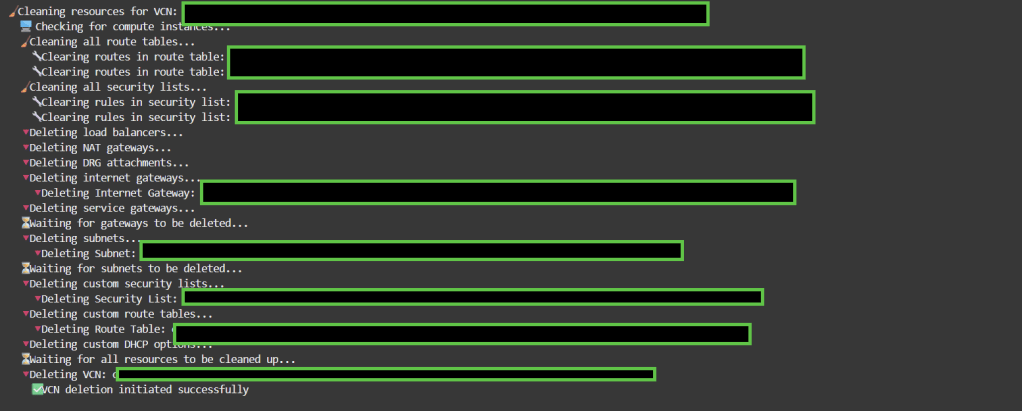
Complete Resource Deletion Chain: The script now handles the proper order of deletion:

  • Compute instances first
  • Clean route tables and security lists
  • Load balancers
  • Gateways (NAT, Internet, Service, DRG attachments)
  • Subnets
  • Custom security lists, route tables, and DHCP options
  • Finally, the VCN itself
#!/bin/bash

# ✅ Set this to the target compartment OCID
COMPARTMENT_OCID="Set Your OCID Here"

# (Optional) Force region
export OCI_CLI_REGION=me-jeddah-1

echo "📍 Region: $OCI_CLI_REGION"
echo "📦 Compartment: $COMPARTMENT_OCID"
echo "⚠️  WARNING: This will delete ALL VCNs and related resources in the compartment!"
echo "Press Ctrl+C within 10 seconds to cancel..."
sleep 10

# Function to wait for resource deletion
wait_for_deletion() {
    local resource_id=$1
    local resource_type=$2
    local max_attempts=30
    local attempt=1
    
    echo "    ⏳ Waiting for $resource_type deletion..."
    while [ $attempt -le $max_attempts ]; do
        if ! oci network $resource_type get --${resource_type//-/}-id "$resource_id" &>/dev/null; then
            echo "    ✅ $resource_type deleted successfully"
            return 0
        fi
        sleep 10
        ((attempt++))
    done
    echo "    ⚠️  Timeout waiting for $resource_type deletion"
    return 1
}

# Function to check if resource is default
is_default_resource() {
    local resource_id=$1
    local resource_type=$2
    
    case $resource_type in
        "security-list")
            result=$(oci network security-list get --security-list-id "$resource_id" --query "data.\"display-name\"" --raw-output 2>/dev/null)
            [[ "$result" == "Default Security List"* ]]
            ;;
        "route-table")
            result=$(oci network route-table get --rt-id "$resource_id" --query "data.\"display-name\"" --raw-output 2>/dev/null)
            [[ "$result" == "Default Route Table"* ]]
            ;;
        "dhcp-options")
            result=$(oci network dhcp-options get --dhcp-id "$resource_id" --query "data.\"display-name\"" --raw-output 2>/dev/null)
            [[ "$result" == "Default DHCP Options"* ]]
            ;;
        *)
            false
            ;;
    esac
}

# Function to clean all route tables in a VCN
clean_all_route_tables() {
    local VCN_ID=$1
    echo "  🧹 Cleaning all route tables..."
    
    local RT_IDS=$(oci network route-table list \
        --compartment-id "$COMPARTMENT_OCID" \
        --vcn-id "$VCN_ID" \
        --query "data[?\"lifecycle-state\" == 'AVAILABLE'].id" \
        --raw-output 2>/dev/null | jq -r '.[]' 2>/dev/null)
    
    for RT_ID in $RT_IDS; do
        if [ -n "$RT_ID" ]; then
            echo "    🔧 Clearing routes in route table: $RT_ID"
            oci network route-table update --rt-id "$RT_ID" --route-rules '[]' --force &>/dev/null || true
        fi
    done
    
    # Wait a bit for route updates to propagate
    sleep 5
}

# Function to clean all security lists in a VCN
clean_all_security_lists() {
    local VCN_ID=$1
    echo "  🧹 Cleaning all security lists..."
    
    local SL_IDS=$(oci network security-list list \
        --compartment-id "$COMPARTMENT_OCID" \
        --vcn-id "$VCN_ID" \
        --query "data[?\"lifecycle-state\" == 'AVAILABLE'].id" \
        --raw-output 2>/dev/null | jq -r '.[]' 2>/dev/null)
    
    for SL_ID in $SL_IDS; do
        if [ -n "$SL_ID" ]; then
            echo "    🔧 Clearing rules in security list: $SL_ID"
            oci network security-list update \
                --security-list-id "$SL_ID" \
                --egress-security-rules '[]' \
                --ingress-security-rules '[]' \
                --force &>/dev/null || true
        fi
    done
    
    # Wait a bit for security list updates to propagate
    sleep 5
}

# Function to delete compute instances in subnets
delete_compute_instances() {
    local VCN_ID=$1
    echo "  🖥️  Checking for compute instances..."
    
    local INSTANCES=$(oci compute instance list \
        --compartment-id "$COMPARTMENT_OCID" \
        --query "data[?\"lifecycle-state\" != 'TERMINATED'].id" \
        --raw-output 2>/dev/null | jq -r '.[]' 2>/dev/null)
    
    for INSTANCE_ID in $INSTANCES; do
        if [ -n "$INSTANCE_ID" ]; then
            # Check if instance is in this VCN
            local INSTANCE_VCN=$(oci compute instance list-vnics \
                --instance-id "$INSTANCE_ID" \
                --query "data[0].\"vcn-id\"" \
                --raw-output 2>/dev/null)
            
            if [[ "$INSTANCE_VCN" == "$VCN_ID" ]]; then
                echo "    🔻 Terminating compute instance: $INSTANCE_ID"
                oci compute instance terminate --instance-id "$INSTANCE_ID" --force &>/dev/null || true
            fi
        fi
    done
}

# Main cleanup function for a single VCN
cleanup_vcn() {
    local VCN_ID=$1
    echo -e "\n🧹 Cleaning resources for VCN: $VCN_ID"
    
    # Step 1: Delete compute instances first
    delete_compute_instances "$VCN_ID"
    
    # Step 2: Clean route tables and security lists
    clean_all_route_tables "$VCN_ID"
    clean_all_security_lists "$VCN_ID"
    
    # Step 3: Delete Load Balancers
    echo "  🔻 Deleting load balancers..."
    local LBS=$(oci lb load-balancer list \
        --compartment-id "$COMPARTMENT_OCID" \
        --query "data[?\"lifecycle-state\" == 'ACTIVE'].id" \
        --raw-output 2>/dev/null | jq -r '.[]' 2>/dev/null)
    
    for LB_ID in $LBS; do
        if [ -n "$LB_ID" ]; then
            echo "    🔻 Deleting Load Balancer: $LB_ID"
            oci lb load-balancer delete --load-balancer-id "$LB_ID" --force &>/dev/null || true
        fi
    done
    
    # Step 4: Delete NAT Gateways
    echo "  🔻 Deleting NAT gateways..."
    local NAT_GWS=$(oci network nat-gateway list \
        --compartment-id "$COMPARTMENT_OCID" \
        --vcn-id "$VCN_ID" \
        --query "data[?\"lifecycle-state\" == 'AVAILABLE'].id" \
        --raw-output 2>/dev/null | jq -r '.[]' 2>/dev/null)
    
    for NAT_ID in $NAT_GWS; do
        if [ -n "$NAT_ID" ]; then
            echo "    🔻 Deleting NAT Gateway: $NAT_ID"
            oci network nat-gateway delete --nat-gateway-id "$NAT_ID" --force &>/dev/null || true
        fi
    done
    
    # Step 5: Delete DRG Attachments
    echo "  🔻 Deleting DRG attachments..."
    local DRG_ATTACHMENTS=$(oci network drg-attachment list \
        --compartment-id "$COMPARTMENT_OCID" \
        --query "data[?\"vcn-id\" == '$VCN_ID' && \"lifecycle-state\" == 'ATTACHED'].id" \
        --raw-output 2>/dev/null | jq -r '.[]' 2>/dev/null)
    
    for DRG_ATTACHMENT_ID in $DRG_ATTACHMENTS; do
        if [ -n "$DRG_ATTACHMENT_ID" ]; then
            echo "    🔻 Deleting DRG Attachment: $DRG_ATTACHMENT_ID"
            oci network drg-attachment delete --drg-attachment-id "$DRG_ATTACHMENT_ID" --force &>/dev/null || true
        fi
    done
    
    # Step 6: Delete Internet Gateways
    echo "  🔻 Deleting internet gateways..."
    local IGWS=$(oci network internet-gateway list \
        --compartment-id "$COMPARTMENT_OCID" \
        --vcn-id "$VCN_ID" \
        --query "data[?\"lifecycle-state\" == 'AVAILABLE'].id" \
        --raw-output 2>/dev/null | jq -r '.[]' 2>/dev/null)
    
    for IGW_ID in $IGWS; do
        if [ -n "$IGW_ID" ]; then
            echo "    🔻 Deleting Internet Gateway: $IGW_ID"
            oci network internet-gateway delete --ig-id "$IGW_ID" --force &>/dev/null || true
        fi
    done
    
    # Step 7: Delete Service Gateways
    echo "  🔻 Deleting service gateways..."
    local SGWS=$(oci network service-gateway list \
        --compartment-id "$COMPARTMENT_OCID" \
        --vcn-id "$VCN_ID" \
        --query "data[?\"lifecycle-state\" == 'AVAILABLE'].id" \
        --raw-output 2>/dev/null | jq -r '.[]' 2>/dev/null)
    
    for SGW_ID in $SGWS; do
        if [ -n "$SGW_ID" ]; then
            echo "    🔻 Deleting Service Gateway: $SGW_ID"
            oci network service-gateway delete --service-gateway-id "$SGW_ID" --force &>/dev/null || true
        fi
    done
    
    # Step 8: Wait for gateways to be deleted
    echo "  ⏳ Waiting for gateways to be deleted..."
    sleep 30
    
    # Step 9: Delete Subnets
    echo "  🔻 Deleting subnets..."
    local SUBNETS=$(oci network subnet list \
        --compartment-id "$COMPARTMENT_OCID" \
        --vcn-id "$VCN_ID" \
        --query "data[?\"lifecycle-state\" == 'AVAILABLE'].id" \
        --raw-output 2>/dev/null | jq -r '.[]' 2>/dev/null)
    
    for SUBNET_ID in $SUBNETS; do
        if [ -n "$SUBNET_ID" ]; then
            echo "    🔻 Deleting Subnet: $SUBNET_ID"
            oci network subnet delete --subnet-id "$SUBNET_ID" --force &>/dev/null || true
        fi
    done
    
    # Step 10: Wait for subnets to be deleted
    echo "  ⏳ Waiting for subnets to be deleted..."
    sleep 30
    
    # Step 11: Delete non-default Security Lists
    echo "  🔻 Deleting custom security lists..."
    local SL_IDS=$(oci network security-list list \
        --compartment-id "$COMPARTMENT_OCID" \
        --vcn-id "$VCN_ID" \
        --query "data[?\"lifecycle-state\" == 'AVAILABLE'].id" \
        --raw-output 2>/dev/null | jq -r '.[]' 2>/dev/null)
    
    for SL_ID in $SL_IDS; do
        if [ -n "$SL_ID" ] && ! is_default_resource "$SL_ID" "security-list"; then
            echo "    🔻 Deleting Security List: $SL_ID"
            oci network security-list delete --security-list-id "$SL_ID" --force &>/dev/null || true
        fi
    done
    
    # Step 12: Delete non-default Route Tables
    echo "  🔻 Deleting custom route tables..."
    local RT_IDS=$(oci network route-table list \
        --compartment-id "$COMPARTMENT_OCID" \
        --vcn-id "$VCN_ID" \
        --query "data[?\"lifecycle-state\" == 'AVAILABLE'].id" \
        --raw-output 2>/dev/null | jq -r '.[]' 2>/dev/null)
    
    for RT_ID in $RT_IDS; do
        if [ -n "$RT_ID" ] && ! is_default_resource "$RT_ID" "route-table"; then
            echo "    🔻 Deleting Route Table: $RT_ID"
            oci network route-table delete --rt-id "$RT_ID" --force &>/dev/null || true
        fi
    done
    
    # Step 13: Delete non-default DHCP Options
    echo "  🔻 Deleting custom DHCP options..."
    local DHCP_IDS=$(oci network dhcp-options list \
        --compartment-id "$COMPARTMENT_OCID" \
        --vcn-id "$VCN_ID" \
        --query "data[?\"lifecycle-state\" == 'AVAILABLE'].id" \
        --raw-output 2>/dev/null | jq -r '.[]' 2>/dev/null)
    
    for DHCP_ID in $DHCP_IDS; do
        if [ -n "$DHCP_ID" ] && ! is_default_resource "$DHCP_ID" "dhcp-options"; then
            echo "    🔻 Deleting DHCP Options: $DHCP_ID"
            oci network dhcp-options delete --dhcp-id "$DHCP_ID" --force &>/dev/null || true
        fi
    done
    
    # Step 14: Wait before attempting VCN deletion
    echo "  ⏳ Waiting for all resources to be cleaned up..."
    sleep 60
    
    # Step 15: Finally, delete the VCN
    echo "  🔻 Deleting VCN: $VCN_ID"
    local max_attempts=5
    local attempt=1
    
    while [ $attempt -le $max_attempts ]; do
        if oci network vcn delete --vcn-id "$VCN_ID" --force &>/dev/null; then
            echo "    ✅ VCN deletion initiated successfully"
            break
        else
            echo "    ⚠️  VCN deletion attempt $attempt failed, retrying in 30 seconds..."
            sleep 30
            ((attempt++))
        fi
    done
    
    if [ $attempt -gt $max_attempts ]; then
        echo "    ❌ Failed to delete VCN after $max_attempts attempts"
        echo "    💡 You may need to manually check for remaining dependencies"
    fi
}

# Main execution
echo -e "\n🚀 Starting VCN cleanup process..."

# Fetch all VCNs in the compartment
VCN_IDS=$(oci network vcn list \
    --compartment-id "$COMPARTMENT_OCID" \
    --query "data[?\"lifecycle-state\" == 'AVAILABLE'].id" \
    --raw-output 2>/dev/null | jq -r '.[]' 2>/dev/null)

if [ -z "$VCN_IDS" ]; then
    echo "📭 No VCNs found in compartment $COMPARTMENT_OCID"
    exit 0
fi

echo "📋 Found VCNs to delete:"
for VCN_ID in $VCN_IDS; do
    VCN_NAME=$(oci network vcn get --vcn-id "$VCN_ID" --query "data.\"display-name\"" --raw-output 2>/dev/null)
    echo "  - $VCN_NAME ($VCN_ID)"
done

# Process each VCN
for VCN_ID in $VCN_IDS; do
    if [ -n "$VCN_ID" ]; then
        cleanup_vcn "$VCN_ID"
    fi
done

echo -e "\n✅ Cleanup complete for compartment: $COMPARTMENT_OCID"
echo "🔍 You may want to verify in the OCI Console that all resources have been deleted."

Output example

Regards

Implementing OCI Logging Analytics for Proactive Incident Detection

Oracle Cloud Infrastructure (OCI) Logging Analytics is a powerful service that helps organizations aggregate, analyze, and act on log data from across their OCI resources. In this guide, we’ll walk through setting up Logging Analytics to detect and alert on suspicious activities, using Terraform for automation and a real-world example for context.

Step 1: Enable OCI Logging Analytics

  1. Navigate to the OCI Console:
    Go to Observability & Management > Logging Analytics.

2. Create a Log Group:

oci logging-analytics log-group create \
  --compartment-id <your-compartment-ocid> \
  --display-name "Security-Logs" \
  --description "Logs for security monitoring"

Step 2: Ingest Logs from OCI Audit Service
Configure the OCI Audit service to forward logs to Logging Analytics:

Create a Service Connector:

resource "oci_sch_service_connector" "audit_to_la" {
  compartment_id = var.compartment_ocid
  display_name  = "Audit-to-Logging-Analytics"
  source {
    kind = "logging"
    log_sources {
      compartment_id = var.tenant_ocid
      log_group_id   = oci_logging_log_group.audit_logs.id
    }
  }
  target {
    kind = "loggingAnalytics"
    log_group_id = oci_logging_analytics_log_group.security_logs.id
  }
}

Step 3: Create Custom Detection Rules

Example: Detect repeated failed login attempts (brute-force attacks).

  1. Use OCI Query Language (OCIQL):
SELECT * 
FROM AuditLogs 
WHERE eventName = 'Login' AND action = 'FAIL' 
GROUP BY actorName 
HAVING COUNT(*) > 5
  1. Set Up Alerts:
    Configure an OCI Notification topic to trigger emails or PagerDuty alerts when the rule matches.

Step 4: Visualize with Dashboards

Create a dashboard to monitor security events:

  • Metrics: Failed logins, API calls from unusual IPs.

Enjoy
Osama

Building a Serverless Event-Driven Architecture with AWS EventBridge, SQS, and Lambda

In this blog, we’ll design a system where:

  1. Events (e.g., order placements, file uploads) are published to EventBridge.
  2. SQS queues act as durable buffers for downstream processing.
  3. Lambda functions consume events and take action (e.g., send notifications, update databases).

Architecture Overview

![EventBridge → SQS → Lambda Architecture]
(Visual: Producers → EventBridge → SQS → Lambda Consumers)

  1. Event Producers (e.g., API Gateway, S3, custom apps) emit events.
  2. EventBridge routes events to targets (e.g., SQS queues).
  3. SQS ensures reliable delivery and decoupling.
  4. Lambda processes events asynchronously.

Step-by-Step Implementation

1. Set Up an EventBridge Event Bus

Create a custom event bus (or use the default one):

aws events create-event-bus --name MyEventBus

2. Define an Event Rule to Route Events to SQS

Create a rule to forward events matching a pattern (e.g., order_placed) to an SQS queue:

aws events put-rule \
  --name "OrderPlacedRule" \
  --event-pattern '{"detail-type": ["order_placed"]}' \
  --event-bus-name "MyEventBus"

3. Create an SQS Queue and Link It to EventBridge

Create a queue and grant EventBridge permission to send messages:

aws sqs create-queue --queue-name OrderProcessingQueue

Attach the queue as a target to the EventBridge rule:

aws events put-targets \
  --rule "OrderPlacedRule" \
  --targets "Id"="OrderQueueTarget","Arn"="arn:aws:sqs:us-east-1:123456789012:OrderProcessingQueue" \
  --event-bus-name "MyEventBus"

4. Write a Lambda Function to Process SQS Messages

Create a Lambda function (process_order.py) to poll the queue and process orders:

import json
import boto3

def lambda_handler(event, context):
    for record in event['Records']:
        message = json.loads(record['body'])
        order_id = message['detail']['orderId']
        
        print(f"Processing order: {order_id}")
        # Add business logic (e.g., update DynamoDB, send SNS notification)
        
    return {"status": "processed"}

5. Configure SQS as a Lambda Trigger

In the AWS Console:

  • Go to Lambda → Add Trigger → SQS.
  • Select OrderProcessingQueue and set batch size (e.g., 10 messages per invocation).

6. Test the Flow

Emit a test event to EventBridge:

aws events put-events \
  --entries '[{
    "EventBusName": "MyEventBus",
    "Source": "my.app",
    "DetailType": "order_placed",
    "Detail": "{ \"orderId\": \"123\", \"amount\": 50 }"
  }]'

Verify the flow:

  1. EventBridge routes the event to SQS.
  2. Lambda picks up the message and logs:
Processing order: 123  

Use Cases

  • Order processing (e.g., e-commerce workflows).
  • File upload pipelines (e.g., resize images after S3 upload).
  • Notifications (e.g., send emails/SMS for system events).

Enjoy
Thank you
Osama

Real-Time Data Processing with AWS Kinesis, Lambda, and DynamoDB

Many applications today require real-time data processing—whether it’s for analytics, monitoring, or triggering actions. AWS provides powerful services like Amazon Kinesis for streaming data, AWS Lambda for serverless processing, and DynamoDB for scalable storage.

In this blog, we’ll build a real-time data pipeline that:

  1. Ingests streaming data (e.g., clickstream, IoT sensor data, or logs) using Kinesis Data Streams.
  2. Processes records in real-time using Lambda.
  3. Stores aggregated results in DynamoDB for querying.

Architecture Overview

![AWS Kinesis + Lambda + DynamoDB Architecture]
(Visual: Kinesis → Lambda → DynamoDB)

  1. Kinesis Data Stream – Captures high-velocity data.
  2. Lambda Function – Processes records as they arrive.
  3. DynamoDB Table – Stores aggregated results (e.g., counts, metrics).

Step-by-Step Implementation

1. Set Up a Kinesis Data Stream

Create a Kinesis stream to ingest data:

aws kinesis create-stream --stream-name ClickStream --shard-count 1

Producers (e.g., web apps, IoT devices) can send data like:

{
  "userId": "user123",
  "action": "click",
  "timestamp": "2024-05-20T12:00:00Z"
}

2. Create a Lambda Function to Process Streams

Write a Python Lambda function (process_stream.py) to:

  • Read records from Kinesis.
  • Aggregate data (e.g., count clicks per user).
  • Update DynamoDB.
import json
import boto3

dynamodb = boto3.resource('dynamodb')
table = dynamodb.Table('UserClicks')

def lambda_handler(event, context):
    for record in event['Records']:
        payload = json.loads(record['kinesis']['data'])
        user_id = payload['userId']
        
        # Update DynamoDB (increment click count)
        table.update_item(
            Key={'userId': user_id},
            UpdateExpression="ADD clicks :incr",
            ExpressionAttributeValues={':incr': 1}
        )
    return {"status": "success"}

3. Configure Lambda as a Kinesis Consumer

In the AWS Console:

  • Go to Lambda → Create Function → Python.
  • Add Kinesis as the trigger (select your stream).
  • Set batch size (e.g., 100 records per invocation).

4. Set Up DynamoDB for Aggregations

Create a table with userId as the primary key:

aws dynamodb create-table \
    --table-name UserClicks \
    --attribute-definitions AttributeName=userId,AttributeType=S \
    --key-schema AttributeName=userId,KeyType=HASH \
    --billing-mode PAY_PER_REQUEST

5. Test the Pipeline

Send test data to Kinesis:

aws kinesis put-record \
    --stream-name ClickStream \
    --data '{"userId": "user123", "action": "click"}' \
    --partition-key user123

Check DynamoDB for aggregated results:

aws dynamodb get-item --table-name UserClicks --key '{"userId": {"S": "user123"}}'

Output:

{ "userId": "user123", "clicks": 1 }

Use Cases

  • Real-time analytics (e.g., dashboard for user activity).
  • Fraud detection (trigger alerts for unusual patterns).
  • IoT monitoring (process sensor data in real-time).

Enjoy
Thank you
Osama

Building a Scalable Web Application Using AWS Lambda, API Gateway, and DynamoDB

s?

Let’s imagine we want to build a To-Do List Application where users can:

  • Add tasks to their list.
  • View all tasks.
  • Mark tasks as completed.

We’ll use the following architecture:

  1. API Gateway to handle HTTP requests.
  2. Lambda Functions to process business logic.
  3. DynamoDB to store task data.

Step 1: Setting Up DynamoDB

First, we need a database to store our tasks. DynamoDB is an excellent choice because it scales automatically and provides low-latency access.

Creating a DynamoDB Table

  1. Open the AWS Management Console and navigate to DynamoDB .
  2. Click Create Table .
    • Table Name : TodoList
    • Primary Key : id (String)
  3. Enable Auto Scaling for read/write capacity units to ensure the table scales based on demand.

Sample Table Structure

id (Primary Key)task_namestatus
1Buy groceriesPending
2Read a bookCompleted

Step 2: Creating Lambda Functions

Next, we’ll create Lambda functions to handle CRUD operations for our To-Do List application.

Lambda Function: Create Task

This function will insert a new task into the TodoList table.

import json
import boto3

dynamodb = boto3.resource('dynamodb')
table = dynamodb.Table('TodoList')

def lambda_handler(event, context):
    # Extract task details from the event
    task_name = event['task_name']
    
    # Generate a unique ID for the task
    import uuid
    task_id = str(uuid.uuid4())
    
    # Insert the task into DynamoDB
    table.put_item(
        Item={
            'id': task_id,
            'task_name': task_name,
            'status': 'Pending'
        }
    )
    
    return {
        'statusCode': 200,
        'body': json.dumps({'message': 'Task created successfully!', 'task_id': task_id})
    }

Lambda Function: Get All Tasks

This function retrieves all tasks from the TodoList table.

import json
import boto3

dynamodb = boto3.resource('dynamodb')
table = dynamodb.Table('TodoList')

def lambda_handler(event, context):
    # Scan the DynamoDB table
    response = table.scan()
    
    # Return the list of tasks
    return {
        'statusCode': 200,
        'body': json.dumps(response['Items'])
    }

Lambda Function: Update Task Status

This function updates the status of a task (e.g., mark as completed).

import json
import boto3

dynamodb = boto3.resource('dynamodb')
table = dynamodb.Table('TodoList')

def lambda_handler(event, context):
    # Extract task ID and new status from the event
    task_id = event['id']
    new_status = event['status']
    
    # Update the task in DynamoDB
    table.update_item(
        Key={'id': task_id},
        UpdateExpression='SET #status = :new_status',
        ExpressionAttributeNames={'#status': 'status'},
        ExpressionAttributeValues={':new_status': new_status}
    )
    
    return {
        'statusCode': 200,
        'body': json.dumps({'message': 'Task updated successfully!'})
    }

Step 3: Configuring API Gateway

Now that we have our Lambda functions, we’ll expose them via API Gateway.

Steps to Set Up API Gateway

  1. Open the AWS Management Console and navigate to API Gateway .
  2. Click Create API and select HTTP API .
  3. Define the following routes:
    • POST /tasks : Maps to the “Create Task” Lambda function.
    • GET /tasks : Maps to the “Get All Tasks” Lambda function.
    • PUT /tasks/{id} : Maps to the “Update Task Status” Lambda function.
  4. Deploy the API and note the endpoint URL.

Step 4: Testing the Application

Once everything is set up, you can test the application using tools like Postman or cURL .

Example Requests

  1. Create a Task
curl -X POST https://<api-id>.execute-api.<region>.amazonaws.com/tasks \
-H "Content-Type: application/json" \
-d '{"task_name": "Buy groceries"}'

Get All Tasks

curl -X GET https://<api-id>.execute-api.<region>.amazonaws.com/tasks

Update Task Status

curl -X PUT https://<api-id>.execute-api.<region>.amazonaws.com/tasks/<task-id> \
-H "Content-Type: application/json" \
-d '{"status": "Completed"}'

Benefits of This Architecture

  1. Scalability : DynamoDB and Lambda automatically scale to handle varying loads.
  2. Cost Efficiency : You only pay for the compute time and storage you use.
  3. Low Maintenance : AWS manages the underlying infrastructure, reducing operational overhead.

Enjoy the cloud 😁
Osama

Setting up a High-Availability (HA) Architecture with OCI Load Balancer and Compute Instances

Ensuring high availability (HA) for your applications is critical in today’s cloud-first environment. Oracle Cloud Infrastructure (OCI) provides robust tools such as Load Balancers and Compute Instances to help you create a resilient, highly available architecture for your applications. In this post, we’ll walk through the steps to set up an HA architecture using OCI Load Balancer with multiple compute instances across availability domains for fault tolerance.

Prerequisites

  • OCI Account: A working Oracle Cloud Infrastructure account.
  • OCI CLI: Installed and configured with necessary permissions.
  • Terraform: Installed and set up for provisioning infrastructure.
  • Basic knowledge of Load Balancers and Compute Instances in OCI.

Step 1: Set Up a Virtual Cloud Network (VCN)

A VCN is required to house your compute instances and load balancers. To begin, create a new VCN with subnets in different availability domains (ADs) for high availability.

Terraform Configuration (vcn.tf):

resource "oci_core_virtual_network" "vcn" {
  compartment_id = "<compartment_ocid>"
  cidr_block     = "10.0.0.0/16"
  display_name   = "HA-Virtual-Network"
}

resource "oci_core_subnet" "subnet1" {
  compartment_id      = "<compartment_ocid>"
  vcn_id              = oci_core_virtual_network.vcn.id
  cidr_block          = "10.0.1.0/24"
  availability_domain = "AD-1"
  display_name        = "HA-Subnet-AD1"
}

resource "oci_core_subnet" "subnet2" {
  compartment_id      = "<compartment_ocid>"
  vcn_id              = oci_core_virtual_network.vcn.id
  cidr_block          = "10.0.2.0/24"
  availability_domain = "AD-2"
  display_name        = "HA-Subnet-AD2"
}

Step 2: Provision Compute Instances

Create two compute instances (one in each subnet) to ensure redundancy.

Terraform Configuration (compute.tf):

resource "oci_core_instance" "instance1" {
  compartment_id = "<compartment_ocid>"
  availability_domain = "AD-1"
  shape = "VM.Standard2.1"
  display_name = "HA-Instance-1"
  
  create_vnic_details {
    subnet_id = oci_core_subnet.subnet1.id
    assign_public_ip = true
  }

  source_details {
    source_type = "image"
    source_id = "<image_ocid>"
  }
}

resource "oci_core_instance" "instance2" {
  compartment_id = "<compartment_ocid>"
  availability_domain = "AD-2"
  shape = "VM.Standard2.1"
  display_name = "HA-Instance-2"
  
  create_vnic_details {
    subnet_id = oci_core_subnet.subnet2.id
    assign_public_ip = true
  }

  source_details {
    source_type = "image"
    source_id = "<image_ocid>"
  }
}

Step 3: Set Up the OCI Load Balancer

Now, configure the OCI Load Balancer to distribute traffic between the compute instances in both availability domains.

Terraform Configuration (load_balancer.tf):

resource "oci_load_balancer_load_balancer" "ha_lb" {
  compartment_id = "<compartment_ocid>"
  display_name   = "HA-Load-Balancer"
  shape           = "100Mbps"

  subnet_ids = [
    oci_core_subnet.subnet1.id,
    oci_core_subnet.subnet2.id
  ]

  backend_sets {
    name = "backend-set-1"

    backends {
      ip_address = oci_core_instance.instance1.private_ip
      port = 80
    }

    backends {
      ip_address = oci_core_instance.instance2.private_ip
      port = 80
    }

    policy = "ROUND_ROBIN"
    health_checker {
      port = 80
      protocol = "HTTP"
      url_path = "/health"
      retries = 3
      timeout_in_seconds = 10
      interval_in_seconds = 5
    }
  }
}

resource "oci_load_balancer_listener" "ha_listener" {
  load_balancer_id = oci_load_balancer_load_balancer.ha_lb.id
  name = "http-listener"
  default_backend_set_name = "backend-set-1"
  port = 80
  protocol = "HTTP"
}

Step 4: Set Up Health Checks for High Availability

Health checks are critical to ensure that the load balancer sends traffic only to healthy instances. The health check configuration is included in the backend set definition above, but you can customize it as needed.
Step 5: Testing and Validation

Once all resources are provisioned, test the HA architecture:

Verify Load Balancer Health: Ensure that the backend instances are marked as healthy by checking the load balancer’s health checks.

oci load-balancer backend-set get --load-balancer-id <load_balancer_id> --name backend-set-1
  1. Access the Application: Test accessing your application through the Load Balancer’s public IP. The Load Balancer should evenly distribute traffic across the two compute instances.
  2. Failover Testing: Manually shut down one of the instances to verify that the Load Balancer reroutes traffic to the other instance.

Automating Oracle Cloud Networking with OCI Service Gateway and Terraform

Oracle Cloud Infrastructure (OCI) offers a wide range of services that enable users to create secure, scalable cloud environments. One crucial aspect of a cloud deployment is ensuring secure connectivity between services without relying on public internet access. In this blog post, we’ll walk through how to set up and manage OCI Service Gateway for secure, private access to OCI services using Terraform. This step-by-step guide is intended for cloud engineers looking to leverage automation to create robust networking configurations in OCI.

Step 1: Setting up Your Environment

Before deploying the OCI Service Gateway and other networking components with Terraform, you need to set up a few prerequisites:

  1. Terraform Installation: Make sure Terraform is installed on your local machine. You can download it from Terraform’s official site.
  2. OCI CLI and API Key: Install the OCI CLI and set up your authentication key. The key must be configured in your OCI console.
  3. OCI Terraform Provider: You will also need to download the OCI Terraform provider by adding the following configuration to your provider.tf file:
provider "oci" {
  tenancy_ocid     = "<TENANCY_OCID>"
  user_ocid        = "<USER_OCID>"
  fingerprint      = "<FINGERPRINT>"
  private_key_path = "<PRIVATE_KEY_PATH>"
  region           = "us-ashburn-1"
}

Step 2: Defining the Infrastructure

The key to deploying the Service Gateway and related infrastructure is defining the resources in a main.tf file. Below is an example to create a VCN, subnets, and a Service Gateway:

resource "oci_core_vcn" "example_vcn" {
  cidr_block     = "10.0.0.0/16"
  compartment_id = "<COMPARTMENT_OCID>"
  display_name   = "example-vcn"
}

resource "oci_core_subnet" "example_subnet" {
  vcn_id             = oci_core_vcn.example_vcn.id
  compartment_id     = "<COMPARTMENT_OCID>"
  cidr_block         = "10.0.1.0/24"
  availability_domain = "<AVAILABILITY_DOMAIN>"
  display_name       = "example-subnet"
  prohibit_public_ip_on_vnic = true
}

resource "oci_core_service_gateway" "example_service_gateway" {
  vcn_id         = oci_core_vcn.example_vcn.id
  compartment_id = "<COMPARTMENT_OCID>"
  services {
    service_id = "all-oracle-services-in-region"
  }
  display_name  = "example-service-gateway"
}

resource "oci_core_route_table" "example_route_table" {
  vcn_id         = oci_core_vcn.example_vcn.id
  compartment_id = "<COMPARTMENT_OCID>"
  display_name   = "example-route-table"
  route_rules {
    destination       = "all-oracle-services-in-region"
    destination_type  = "SERVICE_CIDR_BLOCK"
    network_entity_id = oci_core_service_gateway.example_service_gateway.id
  }
}

Explanation:

  • oci_core_vcn: Defines the Virtual Cloud Network (VCN) where all resources will reside.
  • oci_core_subnet: Creates a subnet within the VCN to host compute instances or other resources.
  • oci_core_service_gateway: Configures a Service Gateway to allow private access to Oracle services such as Object Storage.
  • oci_core_route_table: Configures the route table to direct traffic through the Service Gateway for services within OCI.

Step 3: Variables for Reusability

To make the code reusable, it’s best to define variables in a variables.tf file:

variable "compartment_ocid" {
  description = "The OCID of the compartment to create resources in"
  type        = string
}

variable "availability_domain" {
  description = "The Availability Domain to launch resources in"
  type        = string
}

variable "vcn_cidr" {
  description = "The CIDR block for the VCN"
  type        = string
  default     = "10.0.0.0/16"
}

This allows you to easily modify parameters like compartment ID, availability domain, and VCN CIDR without touching the core logic.

Step 4: Running the Terraform Script

  1. Initialize TerraformTo start using Terraform with OCI, initialize your working directory using:
terraform init
  1. This command downloads the necessary providers and prepares your environment.
  2. Plan the DeploymentBefore applying changes, always run the terraform plan command. This will provide an overview of what resources will be created.
terraform plan -var-file="config.tfvars"

Apply the Changes

Once you’re confident with the plan, apply it to create your Service Gateway and networking resources:

terraform apply -var-file="config.tfvars"

Step 5: Verification

After deployment, you can verify your resources via the OCI Console. Navigate to Networking > Virtual Cloud Networks to see your VCN, subnets, and the Service Gateway. You can also validate the route table settings to ensure that the traffic routes correctly to Oracle services.

Step 6: Destroy the Infrastructure

To clean up the resources and avoid any unwanted charges, you can use the terraform destroy command:

terraform destroy -var-file="config.tfvars"

Regards
Osama

Oracle Autonomous Database (ADB): A Technical Guide

Oracle Autonomous Database (ADB) on Oracle Cloud Infrastructure (OCI) is a cloud service that leverages machine learning to automate routine database tasks, offering users a self-driving, self-securing, and self-repairing database solution. This blog post will delve into setting up and interacting with an Autonomous Transaction Processing (ATP) instance, showcasing how to deploy a sample application to demonstrate its capabilities.

Overview of Oracle Autonomous Database

Self-Driving: Automates performance tuning and scaling.

Self-Securing: Applies security patches automatically.

Self-Repairing: Offers built-in high availability and backup solutions.

Step 1: Creating an Autonomous Database

Log into OCI Console: Go to console.oracle.com and log in to your account.

Create Autonomous Database:

  • Navigate to the Database section and click on Autonomous Database.
  • Click on Create Autonomous Database.
  • Fill in the required details:
    • Display Name: MyATPDB
    • Database Name: MYATPDB
    • Database Type: Autonomous Transaction Processing
    • CPU Count: 1 (can be adjusted later)
    • Storage: 1 TB (adjust as necessary)
  • Configure the Admin Password and ensure you store it securely.
  • Click Create Autonomous Database.

Step 2: Setting Up the Network

2.1: Create a Virtual Cloud Network (VCN)
  1. Navigate to the Networking Section.
  2. Click on Create VCN and fill in the necessary details:
    • VCN Name: MyVCN
    • CIDR Block: 10.0.0.0/16
    • Subnets: Create a public subnet with a CIDR block of 10.0.0.0/24.
2.2: Configure Security Lists
  1. In the VCN settings, add a security rule to allow traffic to your database:
    • Source CIDR: Your public IP address (for SQL Developer access).
    • IP Protocol: TCP
    • Source Port Range: All
    • Destination Port Range: 1522 (default for ADB)
Step 3: Connecting to the Autonomous Database
3.1: Download Wallet
  1. In the ADB console, navigate to your database and click on DB Connection.
  2. Download the Client Credentials (Wallet). This will be a zip file containing the wallet and connection files.
3.2: Set Up SQL Developer
  1. Open Oracle SQL Developer.
  2. Go to Tools > Preferences > Database > Advanced and set the Use Wallet option to true.
  3. In the Connections pane, click on the green + icon to create a new connection.
  4. Set the connection type to Cloud Wallet, then specify:
    • Connection Name: MyATPConnection
    • Username: ADMIN
    • Password: Your admin password
    • Wallet Location: Path to the unzipped wallet directory
  5. Click Test to verify the connection, then click Save.

Step 4: Creating a Sample Schema and Table

Once connected to your database, execute the following SQL commands to create a sample schema and a table:

-- Create a new user/schema
CREATE USER sample_user IDENTIFIED BY SamplePassword;
GRANT ALL PRIVILEGES TO sample_user;

-- Connect as the new user
ALTER SESSION SET CURRENT_SCHEMA = sample_user;

-- Create a sample table
CREATE TABLE employees (
employee_id NUMBER GENERATED ALWAYS AS IDENTITY PRIMARY KEY,
first_name VARCHAR2(50) NOT NULL,
last_name VARCHAR2(50) NOT NULL,
email VARCHAR2(100) NOT NULL UNIQUE,
hire_date DATE DEFAULT CURRENT_DATE
);

-- Insert sample data
INSERT INTO employees (first_name, last_name, email)
VALUES ('John', 'Doe', 'john.doe@example.com');

INSERT INTO employees (first_name, last_name, email)
VALUES ('Jane', 'Smith', 'jane.smith@example.com');

COMMIT;

Querying the Data

To verify the data insertion, run:

SELECT * FROM employees;

Step 5: Using Autonomous Database Features

5.1: Auto-Scaling

ADB allows you to scale compute and storage resources automatically. To enable auto-scaling:

  1. Navigate to your Autonomous Database instance in the OCI console.
  2. Click on Edit.
  3. Enable Auto Scaling for both CPU and storage.
  4. Specify the minimum and maximum resources.

5.2: Monitoring Performance

Utilize the Performance Hub feature to monitor real-time database performance. You can view metrics like:

  • Active Sessions
  • Wait Events
  • Resource Consumption

Regads
Osama

Automating Block Volume Backups in Oracle Cloud Infrastructure (OCI) using CLI and Terraform

Briefly introduce the importance of block volumes in OCI and why automated backups are essential.Mention that this blog will cover two methods: using the OCI CLI and Terraform for automation.

Automating Block Volume Backups using OCI CLI

Prerequisites:

  • Set up OCI CLI on your machine (brief steps with links).
  • Ensure that you have the right permissions to manage block volumes.

Step-by-step guide:

  • Command to create a block volume
oci bv volume create --compartment-id <your_compartment_ocid> --availability-domain <your_ad> --display-name "MyVolume" --size-in-gbs 50

Command to take a backup of the block volume:

oci bv backup create --volume-id <your_volume_ocid> --display-name "MyVolumeBackup"

Scheduling backups using cron jobs for automation.

  • Example cron job configuration
0 2 * * * /usr/local/bin/oci bv backup create --volume-id <your_volume_ocid> --display-name "ScheduledBackup" >> /var/log/oci_backup.log 2>&1

Automating Block Volume Backups using Terraform

Prerequisites

  1. OCI Credentials: Make sure you have the proper API keys and permissions configured in your OCI tenancy.
  2. Terraform Setup: Terraform should be installed and configured to interact with OCI, including the OCI provider setup in your environment.
Step 1: Define the OCI Block Volume Resource

First, define the block volume that you want to automate backups for. Here’s an example of a simple block volume resource in Terraform:

resource "oci_core_volume" "my_block_volume" {
  availability_domain = "your-availability-domain"
  compartment_id      = "ocid1.compartment.oc1..your-compartment-id"
  display_name        = "my_block_volume"
  size_in_gbs         = 50
}
Step 2: Define a Backup Policy

OCI provides predefined backup policies such as gold, silver, and bronze, which define how frequently backups are taken. You can create a custom backup policy as well, but for simplicity, we’ll use one of the predefined policies in this example. The Terraform resource oci_core_volume_backup_policy_assignment will assign a backup policy to the block volume.

Here’s an example to assign the gold backup policy to the block volume:

resource "oci_core_volume_backup_policy_assignment" "backup_assignment" {
  volume_id       = oci_core_volume.my_block_volume.id
  policy_id       = data.oci_core_volume_backup_policy.gold.id
}

data "oci_core_volume_backup_policy" "gold" {
  name = "gold"
}
Step 3: Custom Backup Policy (Optional)

If you need a custom backup policy rather than using the predefined gold, silver, or bronze policies, you can define a custom backup policy using OCI’s native scheduling.

You can create a custom schedule by combining these elements in your oci_core_volume_backup_policy resource.

resource "oci_core_volume_backup_policy" "custom_backup_policy" {
  compartment_id = "ocid1.compartment.oc1..your-compartment-id"
  display_name   = "CustomBackupPolicy"

  schedules {
    backup_type = "INCREMENTAL"
    period      = "ONE_DAY"
    retention_duration = "THIRTY_DAYS"
  }

  schedules {
    backup_type = "FULL"
    period      = "ONE_WEEK"
    retention_duration = "NINETY_DAYS"
  }
}

You can then assign this policy to the block volume using the same method as earlier.

Step 4: Apply the Terraform Configuration

Once your Terraform configuration is ready, apply it using the standard Terraform workflow:

  1. Initialize Terraform:
terraform init

Plan the Terraform deployment:

terraform plan

Apply the Terraform plan:

terraform apply

This process will automatically provision your block volumes and assign the specified backup policy.


Regards
Osama