Extend LVM Disk Linux

This Article Will Describe step by step how to extend LVM Disk On Linux :-

1- After adding New Harddisk to the server you have to ReScan The Scsi using 

echo “- – -” > /sys/class/scsi_host/host?/scan

? :- Depend on you host number. 

2-  Use Fdisk to create new partition.

>fdisk -l
Disk /dev/sda: 107.3 GB, 107374182400 bytes
255 heads, 63 sectors/track, 13054 cylinders
Units = cylinders of 16065 * 512 = 8225280 bytes
   Device Boot      Start         End      Blocks   Id  System
/dev/sda1   *           1          13      104391   83  Linux
/dev/sda2              14       13054   104751832+  8e  Linux LVM
Disk /dev/sdb: 10.7 GB, 10737418240 bytes
255 heads, 63 sectors/track, 1305 cylinders
Units = cylinders of 16065 * 512 = 8225280 bytes

Disk /dev/sdb doesn’t contain a valid partition table

 Check the below :-

#fdisk /dev/sdb
Device contains neither a valid DOS partition table, nor Sun, SGI or OSF disklab el
Building a new DOS disklabel. Changes will remain in memory only,
until you decide to write them. After that, of course, the previous
content won’t be recoverable.

The number of cylinders for this disk is set to 1305.
There is nothing wrong with that, but this is larger than 1024,
and could in certain setups cause problems with:
1) software that runs at boot time (e.g., old versions of LILO)
2) booting and partitioning software from other OSs
(e.g., DOS FDISK, OS/2 FDISK)
Warning: invalid flag 0x0000 of partition table 4 will be corrected by w(rite)

Command (m for help): n
Command action
e extended
p primary partition (1-4)
p
Partition number (1-4): 1
First cylinder (1-1305, default 1):
Using default value 1
Last cylinder or +size or +sizeM or +sizeK (1-1305, default 1305):
Using default value 1305

Command (m for help): w
The partition table has been altered!

Calling ioctl() to re-read partition table.

WARNING: Re-reading the partition table failed with error 16: Device or resource busy.
The kernel still uses the old table.
The new table will be used at the next reboot.
Syncing disks.

3-  Lets start increasing :-

pvcreate /dev/sdb1
Writing physical volume data to disk “/dev/sdb1”
Physical volume “/dev/sdb1” successfully created

vgdisplay
— Volume group —
VG Name Oracle
System ID
Format lvm2
Metadata Areas 1
Metadata Sequence No 4
VG Access read/write
VG Status resizable
MAX LV 0
Cur LV 3
Open LV 3
Max PV 0
Cur PV 1
Act PV 1
VG Size 99.88 GB
PE Size 32.00 MB
Total PE 3196
Alloc PE / Size 3196 / 99.88 GB
Free PE / Size 0 / 0
VG UUID MZ04D3-jZLy-0BWi-2WSP-oi9E-hBkl-e3a08d

vgextend Oracle /dev/sdb1  Volume group “Oracle” successfully extended

 pvscan
  PV /dev/sda2   VG Oracle   lvm2 [99.88 GB / 0    free]
  PV /dev/sdb1   VG Oracle   lvm2 [9.97 GB / 9.97 GB free]
  Total: 2 [109.84 GB] / in use: 2 [109.84 GB] / in no VG: 0 [0   ]

###

lvdisplay
— Logical volume —
LV Name /dev/Oracle/LogVol00
VG Name Oracle
LV UUID wKMZ16-LHsc-ktsc-3dTT-ieiq-pEfT-tODhqc
LV Write Access read/write
LV Status available
# open 1
LV Size 9.75 GB
Current LE 312
Segments 1
Allocation inherit
Read ahead sectors auto
– currently set to 256
Block device 253:0

— Logical volume —
LV Name /dev/Oracle/LogVol02
VG Name Oracle
LV UUID UabZCO-G8ID-dh1a-xv6t-Ss4O-QqEx-fnIy5g
LV Write Access read/write
LV Status available
# open 1
LV Size 82.34 GB
Current LE 2635
Segments 1
Allocation inherit
Read ahead sectors auto
– currently set to 256
Block device 253:1

— Logical volume —
LV Name /dev/Oracle/LogVol01
VG Name Oracle
LV UUID 78Y3bv-UZZI-Iu2w-gAyD-HXe1-Fx25-gmGuKn
LV Write Access read/write
LV Status available
# open 1
LV Size 7.78 GB
Current LE 249
Segments 1
Allocation inherit
Read ahead sectors auto
– currently set to 256
Block device 253:2

Now Let’s Extend :-

lvextend /dev/Oracle/LogVol00 /dev/sdb1 Extending logical volume LogVol00 to 19.72 GB
Logical volume LogVol00 successfully resized

 Finally :-

resize2fs /dev/Oracle/LogVol00resize2fs 1.39 (29-May-2006)
Filesystem at /dev/Oracle/LogVol00 is mounted on /; on-line resizing required
Performing an on-line resize of /dev/Oracle/LogVol00 to 5169152 (4k) blocks.

Notes :

  1. The Red Color for Command Line.
  2. The Brown Color For necessary Output. 
  3. /dev/Oracle/LogVol00 it’s the name for LVM Disk.
  4. /dev/sdb1 disk that we created using fdisk.

Thank you
Osama Mustafa
Middle east Tour 2014

Courtesy of the Oracle Technology Network (OTN) and the ARABOUG ( Arab Oracle User Group ), the inaugural 2014 OTN MENA Tour brings a star-studded cast, consisting of some of the world’s best Oracle ACEs, ACE Directors and Rock Star Speakers to the region. The tour aims at sharing cutting edge knowledge and independent research in the MENA region, by accomplished Oracle experts from all over the world – “The 2014 OTN Middle East & North Africa (MENA) Tour” – 5 Cities, 3 Countries, 2 Continents with more than 50 Action-Packed Oracle Sessions, last stop at Dubai June 1 – Dubai, UAE.
Speakers List :-
Bjoern Rost
Michael Ault
Syed Jaffar Hussain
Edward Roske
Osama Mustafa.
Dr.Mohammad Houri 
Joel Perez
Tariq Farooq
Jim Czuprynski
We Are Glad to see you there and chatting with you.

Link Here

Thank you 
Osama Mustafa

OTech Magazine 2014

Independent magazine for Oracle technology professionals. OTech Magazine will be published digitally four times a year. Every season. 

The first edition will be published Fall 2013. OTech Magazine articles are written by the Top-100 consultants in the Oracle-field around the globe. Only selected authors can publish in OTech Magazine.

OTech Magazine offers insight in complex Oracle projects and solutions.

My Article Included in this Version of OTech Magazine You Can Check The Magazine Here

 I Want to take this Opportunity to Thanks Douwe Pieter for his great efforts.

Thank you 
Osama Mustafa 

Weblogic 12c installation

there are over 200 new features in weblogic 12c, some of this features
are:-

 Simplified Deployment and Management with Virtualization
 Integrated Traffic Management
 Integrated WebLogic/RAC Clusters
 Seamless Upgrade From WebLogic, iAS and Others

This Document Describe steps to install Oracle weblogic 12c, operating system Oracle Linux 6.4, You can Download Document here

Thank you
Osama Mustafa 

Managed Server ERROR: transport error 202: bind failed: Address already in use

ERROR: transport error 202: bind failed: Address already in use
ERROR: JDWP Transport dt_socket failed to initialize, TRANSPORT_INIT(510)
JDWP exit error AGENT_ERROR_TRANSPORT_INIT(197): No transports initialized [../../../src/share/back/debugInit.c:750]

This Error Appeared when trying to start Managed server the Log Shown the above error, which already clear, in my case i have 2 managed server SOA and OSB in the same AdminServer each of them trying to access on the same PID process using Node Manager to solve this issue please follow the below steps.
Solutions :-
  • Inside Domain Path for example /u01/app/fmw/domains/Base_domain/bin
  • Edit setDomainEnv.sh and search for the below :-

if [ “${DEBUG_PORT}” = “” ] ; then
        DEBUG_PORT=”8453″
        export DEBUG_PORT
fi

if [ “${SERVER_NAME}” = “” ] ; then
        SERVER_NAME=”AdminServer”
        export SERVER_NAME
fi

  •  Add New Lines under the above to contain server name and available DEBUG_PORT on the server like the below:-

if [ “${SERVER_NAME}” = “soa_server1” ] ; then
   DEBUG_PORT=”7453″
   export DEBUG_PORT
fi

if [ “${SERVER_NAME}” = “osb_server1” ] ; then
   DEBUG_PORT=”7454″
   export DEBUG_PORT
fi

 Now Restart AdminServer and Try to start Managed Server, Take Backup from setDomainEvn.sh before editing.

Thank you
Osama mustafa

Oracle Solaris 11.2 Launch On 29/04

Today 29/04/2014 Oracle Launched new version of operating system Solaris 11.2, This Version will contain significant Features and it’s fully supported for Cloud

Some of the new features :-

  • Reduce management effort via OpenStack integration
  • Further increase the flexibility of Solaris system virtualization
  • Add unique software-defined networking (SDN) capabilities
  • Simplify the creation of private and public clouds

The Link for the Event Here.

Thank you 
Osama mustafa

Unable to Determine Console Port when Trying to Run emctl start iasconsole

The Situation for me like this, Database version 11.2.0.3, Real Application Cluster two nodes, Enterprise manager working and configured without any problem,

emctl start dbcsonole 

Working without any errors, metrics collected, but when trying to run

emctl start iasconsole

Or

emctl istart iasconsole  

The Error ” Unable to determine console port, default-web-site.xml : no such file or directory”

The File is exists, and configured to run oc4j on port 8888, http://hostname:888/em not working with error “iasconsole service should be stopped”. Weird !!!!!

 Operating system Oracle Linux 64bit, After investigation i discovered that binary/files for oc4j in ORACLE_HOME was corrupted and not working correctly however this is what i did to fix this error :-

First Download OC4J_extend.zip from here, this zip file contain same directory files ( xml,config ) in oc4j ($ORACLE_HOME/oc4j) so extract this file inside this path, if oc4j not exist create one and extract the zip file into this directory.

But this is will not make oc4j works, complete the below steps to make sure everything is working fine.

[oracle@PROD bin]$ ./java -jar /u01/app/oraclenew/product/11.2.0/dbhome_1/oc4j/j2ee/home/oc4j.jar

Apr 3, 2014 2:51:51 PM com.evermind.server.XMLApplicationServerConfig randomizeJtaAdminPassword
INFO: Updating JtaAdmin account

14/04/03 14:52:30 Set OC4J administrator’s password (password text will not be displayed as it is entered)
Enter password:            
Confirm password:          
The password for OC4J administrator “oc4jadmin” has been set.
14/04/03 14:52:35 The OC4J administrator “oc4jadmin” account is activated.
14/04/03 14:52:39 Oracle Containers for J2EE 10g (10.1.3.3.0)  initialized

Now Test the Link –> Http://localhost:8888/em and it’s working
Thank you 
Osama Mustafa

Enable SSH On Windows EM12C Purpose

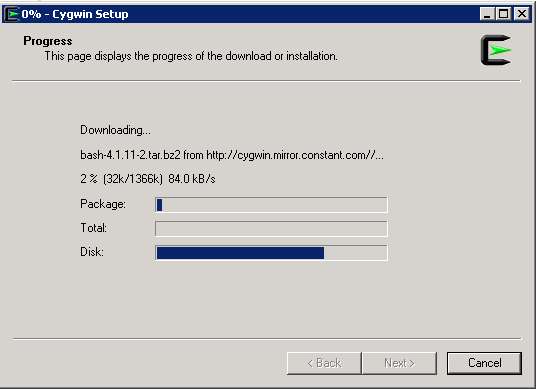
Uploading Agent to windows/Linux needs ssh Port to be open and enabled, ssh not enabled on windows by default and do it Cygwin should be installed.

Configure Cygwin so simple, follow the below steps :-

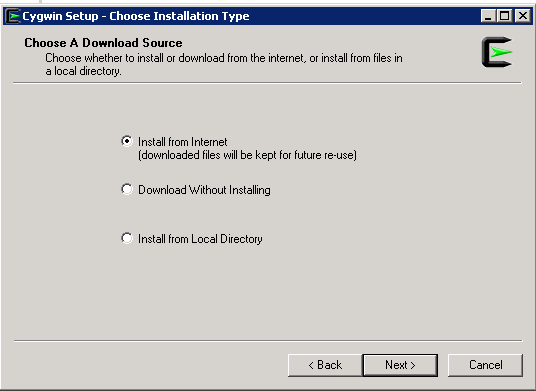
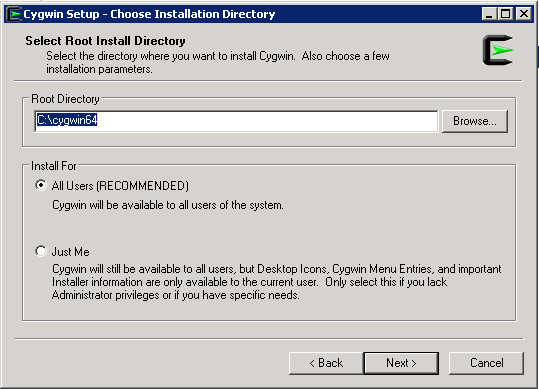
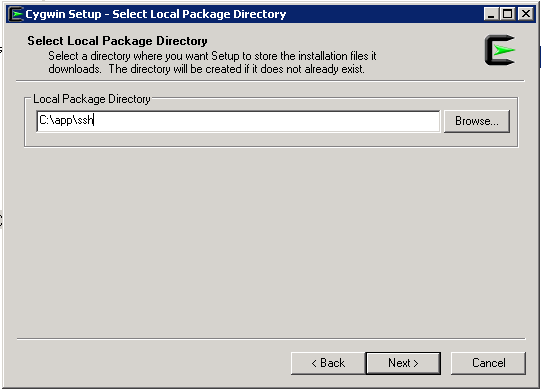
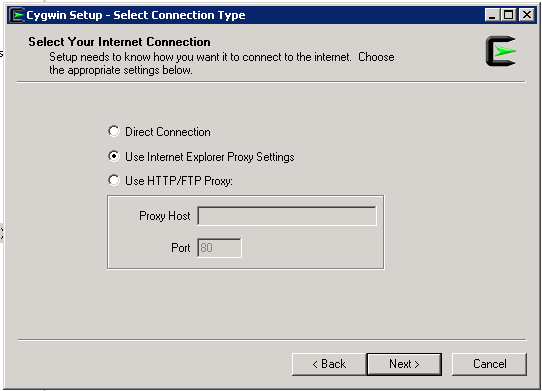
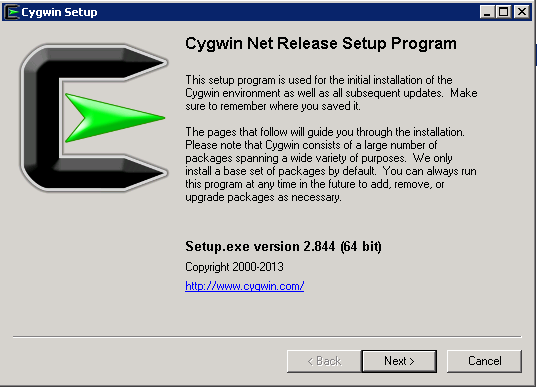
Download Cygwin from Here, Upload File to the windows Server and Run the setup.

SSH Package should be chosen while installation.
After Installation Run cygwin terminal as Administration ( Right click on the icon and Choose the option )
Now Enable ssh should be done by run below command :-

/usr/bin/ssh-host-config

Should privilege separation be used? (yes/no) yes
new local account ‘sshd’? (yes/no) yes
Do you want to install sshd as a server? Yes
Enter the value of CYGWIN for the daemon: [] (DON’T ENTER ANYTHING, PRESS ENTER)
Do you want to use a different name? (yes/no) no
Create new privileged user account ‘cyg_server’? (yes/no) yes
Please enter the password: ENTER YOUR PASSWORD HERE
Reenter: RE-ENTER YOUR PASSWORD

Using Command Prompt ( cmd )

Start ssh by –> net start sshd
Stop ssh by –> net stop sshd

Another way posted by my friend Maaz you can check it here.

Thank you 
Osama Mustafa