Apply Jdeveloper Patch

This blog post will show you how to apply Patch on Jdeveloper :-

  • Download the latest version of Opatch from http://support.oracle.com
  • Unzip the Patch Folder.
  • Set/export ORACLE_HOME to Jdeveloper hope depend on Operating system
  • Finally Opatch Apply to Jdeveloper Home.
If you faced any error with opatch commad try the below :-

opatch apply -jdk /u01/app/oracle/JDK/160_24

Cheers
Osama Mustafa

Configure E-mail For Oracle Enterprise manager DB 11gR2

Sometimes you will be not be able to check the database out of the office, sick ….

Regarding to oracle documentation :-

The notification system allows you to notify Enterprise Manager administrators of alerts, policy violations, and the status changes of job executions. In addition to notifying administrators, the notification system can perform actions such as executing operating system commands (including scripts) and PL/SQL procedures when an alert is triggered.

Before Enterprise Manager can send e-mail notifications, you must first specify the Outgoing Mail (SMTP) servers to be used by the notification system. Once set, you can then define e-mail notifications for yourself or, if you have Super Administrator privileges, you can also define notifications for other Enterprise Manager administrators.

For More about E-Mail Notification Read here.

If everything is ready please follow the screen shot :-

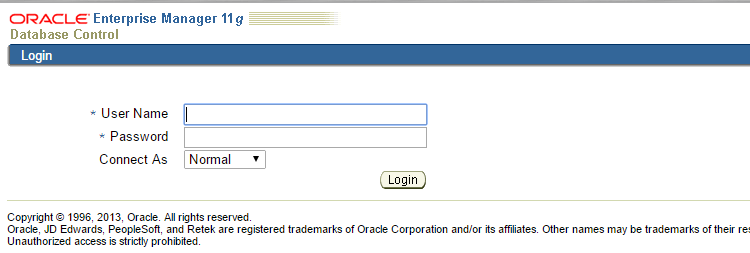
Welcome Screen/Login Page

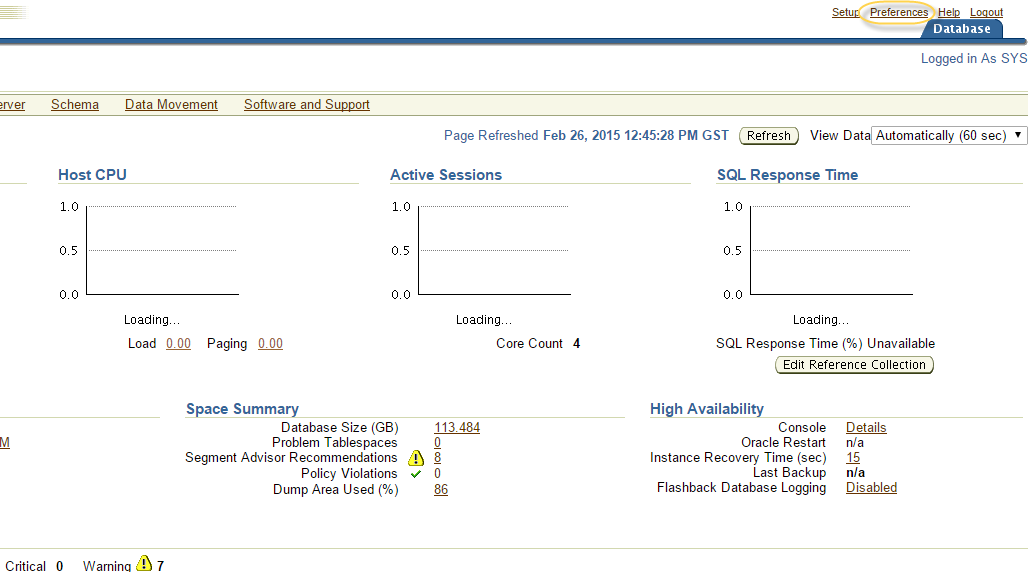
The Main Page, Click On preference on Upper Right :-
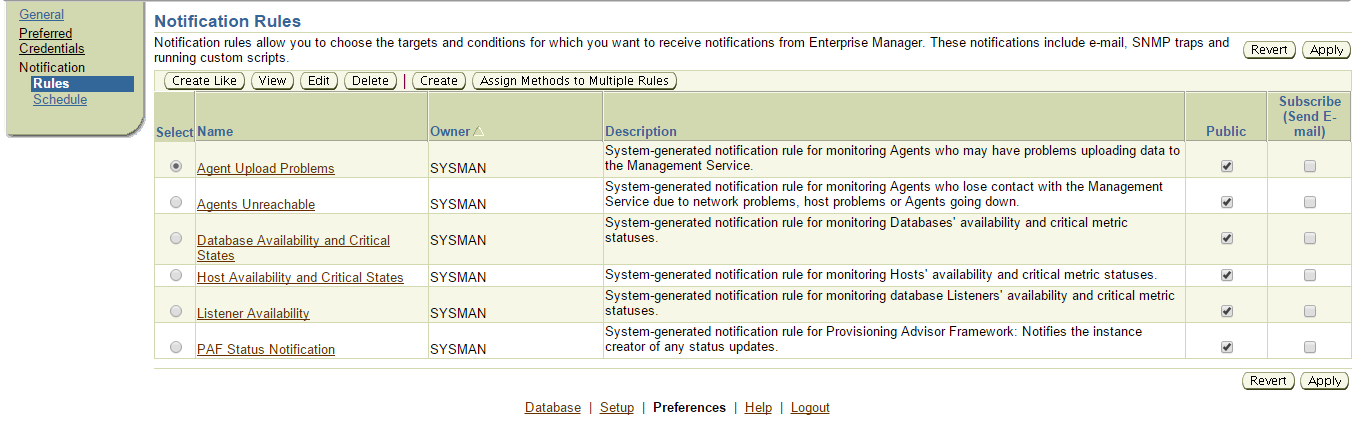
Add the E-mail below :-

If you need to schedule any Rule Just add it like the below :-

Cheers
Osama Mustafa
Cannot Integrated JDeveloper with SOA Server

When trying to integrated JDeveloper with SOA server the below error Appeared :-

Testing JSR-160 Runtime … failed.
Cannot establish connection.
Testing JSR-160 DomainRuntime … skipped.
Testing JSR-88 … skipped.
Testing JSR-88-LOCAL … skipped.
Testing JNDI … skipped.
Testing JSR-160 Edit … skipped.
Testing HTTP … success.
Testing Server MBeans Model … skipped.

all my searching on internet not working most of the blogs indicate it’s proxy setting which is already disables in my case.

After invesgtation and check logs on the both side adminserver and Jdeveloper i found it’s DNS server issue therefore i edited hosts in windows like the below

Adminserver-IP   Hostname

After do this and put hostname instead of IP it’s worked Successfully.

Cheers
Osama Mustafa

OWB GUI Is Slow

Sometimes the default setting is not enough , therefore you need to apply some changes depend on your requirement and the work load. Today while working on OWB I faced huge slowness while open , mapping or even press any button.

to solve this issue all you have to do increasing JVM, to do this follow the below steps :-

  • Depend on OS, Open the following File :- 
    • Windows :- C:\oracle\product\owb11_1\owb\bin\win32\owbclient.bat

Or

    • Linux : $ORACLE_HOME/owb11_1\owb\bin\win32\owbclient.bat.

This file will indicate to setownenv.sh or setowbenv.bat usually in the same path. Open it with any editor.

be careful while adding this file  If you notice or read this file there is more than one line looking the same, these lines only depend on OS for example in my case i am working on LINUX then i have to add Line that indicate for Linux only.

Next to the line -d64 add new parameter -Xmx=1024M or depend on your work.

Restart OWB now.

Cheers.

Osama Mustafa

Enable SSH On Windows EM12C Purpose

Uploading Agent to windows/Linux needs ssh Port to be open and enabled, ssh not enabled on windows by default and do it Cygwin should be installed.

Configure Cygwin so simple, follow the below steps :-

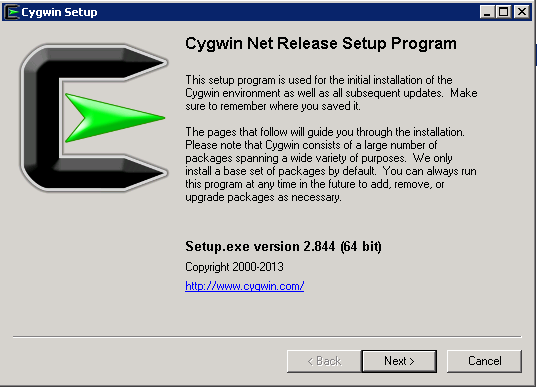
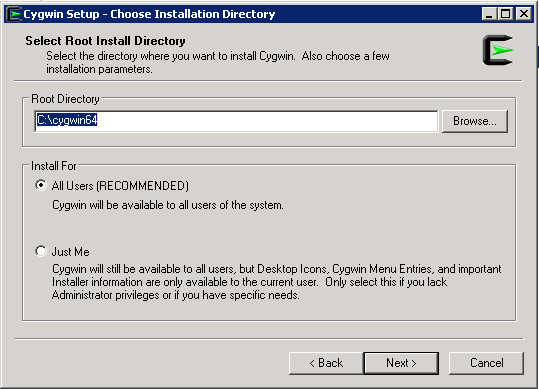
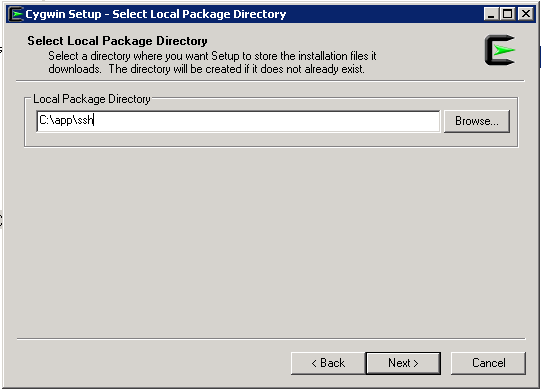
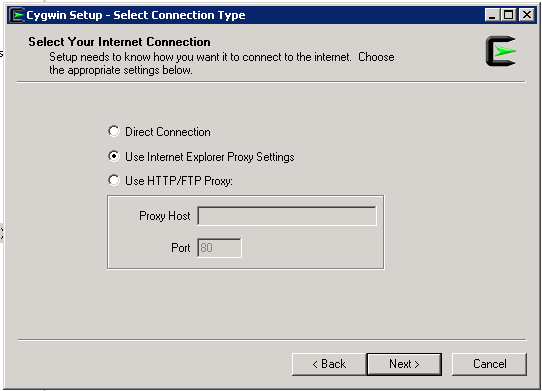
Download Cygwin from Here, Upload File to the windows Server and Run the setup.

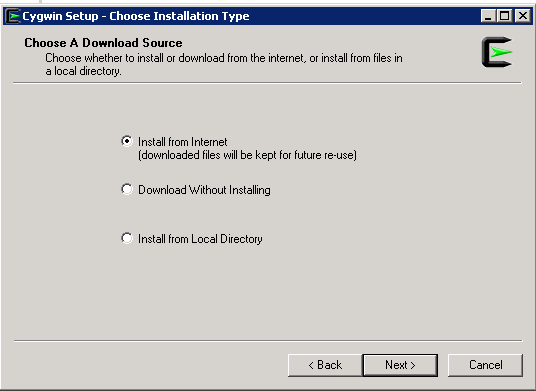
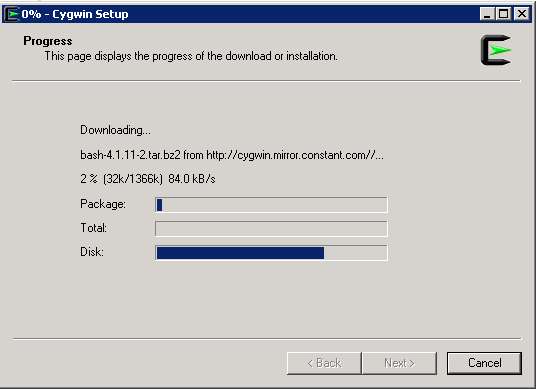
SSH Package should be chosen while installation.
After Installation Run cygwin terminal as Administration ( Right click on the icon and Choose the option )
Now Enable ssh should be done by run below command :-

/usr/bin/ssh-host-config

Should privilege separation be used? (yes/no) yes
new local account ‘sshd’? (yes/no) yes
Do you want to install sshd as a server? Yes
Enter the value of CYGWIN for the daemon: [] (DON’T ENTER ANYTHING, PRESS ENTER)
Do you want to use a different name? (yes/no) no
Create new privileged user account ‘cyg_server’? (yes/no) yes
Please enter the password: ENTER YOUR PASSWORD HERE
Reenter: RE-ENTER YOUR PASSWORD

Using Command Prompt ( cmd )

Start ssh by –> net start sshd
Stop ssh by –> net stop sshd

Another way posted by my friend Maaz you can check it here.

Thank you 
Osama Mustafa

Download Agent in EM12C manually

Adding target to EM12C needs to install agent to the Target Host Depend on Operating system, the agent is now always available which mean install Agent for this operating system is necessary, the below picture describe the above case :-

Enterprise manager cloud 12c contains two different type of Connection mode online and offline, this blog describe how to install manually :-

From Setup –> extensibility –> Self Update

Press On Agent Software., The below screen will appear :-

By pressing any of those agent new pop up will open included with link to download, copy the link and upload the file to OMS Host and run the below command :-

[oracle@EM12C emcli]$ ./emcli import_update -omslocal -file=….

File Path should be provided in the above command.

The output :-

Processing update: Agent Software – Agent Software (12.1.0.1.0) for Microsoft Windows x64 (64-bit)
Successfully uploaded the update to Enterprise Manager. Use the Self Update Console to manage this update.

After Run the above command Successfully, Back to Self Update screen –> Agent Software and Apply the Download Catalog by press apply.

Thank you
Osama mustafa