Building a Scalable Data Pipeline on OCI with Data Flow

In this blog, we will explore how to build a scalable data pipeline on Oracle Cloud Infrastructure (OCI) using OCI Data Flow. We’ll cover the end-to-end process, from setting up OCI Data Flow to processing large datasets, and integrating with other OCI services.

Introduction to OCI Data Flow

  • Overview of OCI Data Flow and its key features.
  • Benefits of using a serverless, scalable data processing service.
  • Common use cases for OCI Data Flow, including ETL, real-time analytics, and machine learning.

Setting Up OCI Data Flow

Prerequisites

  • An active Oracle Cloud account.
  • Necessary permissions and quotas for creating OCI resources.

Configuration Steps

  1. Create a Data Flow Application:
    • Navigate to the OCI Console and open the Data Flow service.
    • Click on “Create Application” and provide the necessary details.
    • Define your application’s parameters and Spark version.
  2. Configure Networking:
    • Set up Virtual Cloud Network (VCN) and subnets.
    • Ensure proper security lists and network security groups (NSGs) for secure communication.

3. Creating a Scalable Data Pipeline

Designing the Data Pipeline

  • Outline the flow of data from source to target.
  • Example pipeline: Ingest data from OCI Object Storage, process it using Data Flow, and store results in an Autonomous Database.

Developing Data Flow Jobs

  • Write Spark jobs in Scala, Python, or Java.
  • Example Spark job to process data:
val df = spark.read.json("oci://<bucket_name>@<namespace>/data/")
df.filter("age > 30").write.csv("oci://<bucket_name>@<namespace>/output/")

Deploying and Running Jobs

  • Deploy the Spark job to OCI Data Flow.
  • Schedule and manage job runs using OCI Console or CLI.

Processing Large Datasets

Handling Big Data

  • Techniques for optimizing Spark jobs for large datasets.
  • Using partitions and caching to improve performance.

Example: Processing a 1TB Dataset

  • Step-by-step guide to ingest, process, and analyze a 1TB dataset using OCI Data Flow.

5. Integrating with Other OCI Services

OCI Object Storage

  • Use Object Storage for data ingestion and storing intermediate results.
  • Configure Data Flow to directly access Object Storage buckets.

OCI Autonomous Database

  • Store processed data in an Autonomous Database.
  • Example of loading data from Data Flow to Autonomous Database.

OCI Streaming

  • Integrate with OCI Streaming for real-time data processing.
  • Example: Stream processing pipeline using OCI Streaming and Data Flow.

Optimizing Data Flow Jobs

Performance Tuning

  • Tips for optimizing resource usage and job execution times.
  • Adjusting executor memory, cores, and dynamic allocation settings.

Cost Management

  • Strategies for minimizing costs while running Data Flow jobs.
  • Monitor job execution and cost metrics using the OCI Console.

Implementing Serverless Architectures with OCI Functions

This blog will guide you through setting up and managing serverless architectures using Oracle Cloud Infrastructure (OCI) Functions. We will cover creating, deploying, and managing serverless functions, integrating them with other OCI services, and best practices for efficient serverless deployments.

Introduction to Serverless Computing

  • Overview of serverless computing concepts.
  • Benefits of using serverless architectures.
  • Key features of OCI Functions.

2. Setting Up OCI Functions

Prerequisites

  • Oracle Cloud account with appropriate permissions.
  • OCI CLI installed and configured.

Configuration Steps

  1. Set Up OCI CLI:
    • Install OCI CLI and configure with your credentials.
    • Example command to set up the CLI:
oci setup config

Create an Application for Functions:

  • Navigate to the Functions service in the OCI Console.
  • Click “Create Application” and fill in the required details.
  • Select a compartment and provide a name for the application.

Creating and Deploying Serverless Functions

Writing a Function

  • Example of a simple Python function:
def handler(ctx, data: io.BytesIO = None):
    name = "World"
    if data:
        name = json.loads(data.getvalue()).get("name", "World")
    return "Hello, {}!".format(name)

Deploying the Function

  1. Create a Dockerfile:
    • Define the Dockerfile for the function:
FROM fnproject/python:3.8
ADD . /function/
WORKDIR /function/
RUN pip install -r requirements.txt
ENTRYPOINT ["python3", "func.py"]

Build and Deploy:

  • Build the Docker image and deploy the function:
fn build
fn deploy --app <your_app_name>

Integrating OCI Functions with Other Services

Using OCI Events

  • Configure OCI Events to trigger functions.
  • Example: Trigger a function when a new object is uploaded to OCI Object Storage.

Using OCI API Gateway

  • Set up an API Gateway to expose functions as APIs.
  • Define routes and integrate with functions.

Monitoring and Logging

Using OCI Monitoring

  • Set up metrics and alarms for function invocations.
  • Example command to create an alarm:
oci monitoring alarm create --compartment-id <compartment_OCID> --display-name "FunctionErrors" --metric-name "Errors" --threshold 1 --comparison ">" --enabled true

Logging with OCI Logging

  • Enable logging for functions.
  • Access logs via the OCI Console or CLI.

Regards

Osama

Automating Infrastructure Deployment with OCI Terraform

In this blog, we will delve into automating the deployment of Oracle Cloud Infrastructure (OCI) resources using Terraform. We will cover setting up Terraform, writing infrastructure as code, and managing OCI resources efficiently.

Configuration Steps

  1. Install Terraform:
    • Download and install Terraform from the official website.
    • Verify installation using the terraform -version command.
  2. Set Up OCI CLI:
    • Install OCI CLI and configure with your credentials.
    • Example command to set up the CLI:
oci setup config

Create Terraform Configuration File:

  • Create a directory for your Terraform project.
  • Define provider settings in a provider.tf file:
provider "oci" {
  tenancy_ocid = "<your_tenancy_ocid>"
  user_ocid    = "<your_user_ocid>"
  fingerprint  = "<your_api_key_fingerprint>"
  private_key_path = "<path_to_your_private_key>"
  region       = "<your_region>"
}

3. Writing Terraform Configurations

Defining Resources

  • Example configuration for creating a Virtual Cloud Network (VCN):
resource "oci_core_vcn" "example_vcn" {
  cidr_block = "10.0.0.0/16"
  display_name = "example_vcn"
  compartment_id = "<your_compartment_ocid>"
}

Organizing Configurations

  • Use modules for reusability and better organization.
  • Example module structure:
modules/
  vcn/
    main.tf
    variables.tf
    outputs.tf
main.tf
variables.tf
outputs.tf

Deploying OCI Resources with Terraform

Initialize Terraform

  • Run terraform init to initialize the configuration.

Plan Deployment

  • Use terraform plan to preview the changes:
terraform plan

Apply Configuration

  • Deploy the resources using terraform apply:
terraform apply

Managing and Updating Resources

Updating Resources

  • Modify the configuration files as needed.
  • Apply changes with terraform apply.

Destroying Resources

  • Clean up resources with terraform destroy:
terraform destroy

Implementing Terraform Best Practices

  • Use remote state storage for collaboration.
  • Implement state locking to prevent concurrent modifications.

Regards
Osama

Implementing High Availability and Disaster Recovery with OCI Autonomous Database

In this blog, we will explore the advanced configurations need to implement high availability (HA) and disaster recovery (DR) for Oracle Cloud Infrastructure (OCI) Autonomous Database. We will cover setting up Data Guard, configuring cross-region replication, and performing failover and switchover operations.

Understanding High Availability and Disaster Recovery

  • Overview of HA and DR concepts.
  • Importance of HA and DR in cloud environments.
  • Key features of OCI Autonomous Database for HA/DR.

. Setting Up Data Guard for HA

Prerequisites

  • An active Oracle Cloud account.
  • Autonomous Database instance created.

Step-by-Step Configuration

  1. Enable Data Guard:
    • Navigate to the Autonomous Database details page.
    • Select “Data Guard” from the menu.
    • Click “Enable Data Guard” and choose the standby type (local or remote).
  2. Configure Standby Database:
    • Select the standby database configuration options.
    • Review and create the standby database.

3. Configuring Cross-Region Replication

Setting Up Cross-Region Replication

  1. Create a Remote Standby Database:
    • Navigate to the Autonomous Database details page.
    • Select “Data Guard” and choose “Remote Standby”.
  2. Set up Network Connectivity:
    • Set up a secure network connection between regions.
    • Make sure appropriate IAM policies are in place for cross-region access.
  3. Start Replication:
    • Turn on replication and check the first data synchronization.

4. Performing Failover and Switchover Operations

Failover Operations

  • Navigate to the Autonomous Database details page.
  • Select “Data Guard” and click “Failover”.
  • Confirm the failover operation and check the process.

Switchover Operations

  • Navigate to the Autonomous Database details page.
  • Select “Data Guard” and click “Switchover”.
  • Confirm the switchover operation and make sure of a seamless transition.

5. Monitoring and Managing HA/DR Configurations

Using OCI Console for Monitoring

  • Access the Autonomous Database details page.
  • Use Performance Hub and Data Guard metrics for monitoring.

Automating with OCI CLI

  • Install and set up OCI CLI.
  • Example command to check Data Guard status:
oci db autonomous-database get --autonomous-database-id <database_OCID>

Thank you
Osama

Advanced Data Security with OCI Autonomous Database

Introduction

This blog will focus on implementing advanced data security measures with Oracle Cloud Infrastructure (OCI) Autonomous Database. We’ll cover provisioning, security configurations, and monitoring to make sure robust data protection.

Table of Contents

  1. Introduction to OCI Autonomous Database Security
  2. Provisioning an Autonomous Database
  3. Configuring Network Security
  4. Implementing Data Encryption
  5. Setting Up Access Control
  6. Monitoring and Auditing
  7. Case Study: Securing a Financial Database
  8. Conclusion

1. Introduction to OCI Autonomous Database Security

  • Overview of OCI Autonomous Database’s security features.
  • Importance of data security in cloud environments.

2. Provisioning an Autonomous Database

Step-by-Step Provisioning

  • Login to OCI Console.
  • Navigate to “Autonomous Database”.
  • Click “Create Autonomous Database” and fill in the required details.
  • Set up network access.

3. Configuring Network Security

Setting Up Virtual Cloud Network (VCN)

  • Create a VCN and subnets.
  • Set up security lists and network security groups (NSGs).

4. Implementing Data Encryption

Encryption at Rest

  • Make sure Transparent Data Encryption (TDE) is enabled by default.
  • Managing TDE keys with Oracle Key Vault.

Encryption in Transit

  • Set up SSL/TLS for secure data transmission.
  • Download and set up client username and password.

5. Setting Up Access Control

Identity and Access Management (IAM)

  • Define IAM policies for resource access control.
  • Assign roles and permissions.

Database Access Control

  • Set up database user accounts and roles.
  • Implement fine-grained access control (FGAC).

6. Monitoring and Auditing

Using Oracle Data Safe

  • Turn on Oracle Data Safe for comprehensive security management.
  • Set up activity auditing and user assessment.

Monitoring Tools

  • Use OCI Monitoring for setting alarms and alerts.
  • Example command to create an alarm:
oci monitoring alarm create --compartment-id <compartment_OCID> --display-name "HighCPUUsage" --metric-name "CpuUtilization" --threshold 85 --comparison ">" --enabled true

Thank you
Osama

Leveraging OCI’s AI and Machine Learning Services for Predictive Analytics

Setting Up Oracle AI Services

  • Creating an AI Service Instance:
    • Log in to the OCI Console.
    • Navigate to AI ServicesCreate Service.
    • Select the service (e.g., Data Science, AI Platform) and follow the prompts to create an instance.
  • Building a Machine Learning Model with OCI Data Science
    • Creating a Data Science Project:
oci data-science project create --compartment-id <compartment_OCID> --display-name "MyMLProject" --description "Project for predictive analytics"

Creating and Uploading Datasets:

oci data-science dataset create --compartment-id <compartment_OCID> --display-name "MyDataset" --data-location <object_storage_location> --format CSV

Creating a Model Training Job:

oci data-science job create --compartment-id <compartment_OCID> --project-id <project_OCID> --display-name "MyModelTrainingJob" --job-type "CUSTOM" --arguments '{"training_script":"<script_location>", "hyperparameters": {"learning_rate": 0.01}}'

Deploying and Using the Model

Deploying the Model:

oci data-science model-deployment create --compartment-id <compartment_OCID> --display-name "MyModelDeployment" --model-id <model_OCID> --deployment-config '{"instance_type": "VM.Standard2.2"}'

Invoking the Model Endpoint:

curl -X POST <model_endpoint_url> -H "Content-Type: application/json" -d '{"features": [value1, value2, ...]}'

Integrating Predictive Analytics into Business Workflows

  • Creating Dashboards and Visualizations:
    • Use OCI Analytics Cloud or Oracle Analytics for visualization.
    • Example: Create a dashboard to visualize predictions and trends based on model output.

Automating Predictions:

  • Set up automated workflows using OCI Functions to trigger model predictions based on new data.
  • Example Function Deployment:

fn deploy --app myapp --image <docker_image> --env "MODEL_ENDPOINT_URL=<model_endpoint_url>"

Monitoring and Managing Models

  • Monitoring Model Performance:
    • Use OCI Monitoring to track model performance metrics (e.g., accuracy, latency).
    • Example
oci monitoring metric-data list --compartment-id <compartment_OCID> --metric-name "model_accuracy"

Updating and Retraining Models:

  • Periodically retrain the model with new data to improve performance.
  • Example:
oci data-science job create --compartment-id <compartment_OCID> --project-id <project_OCID> --display-name "ModelRetrainingJob" --job-type "CUSTOM" --arguments '{"training_script":"<new_script_location>", "hyperparameters": {"learning_rate": 0.001}}'

Thank you
Osama

Building a Secure Data Pipeline with OCI Data Flow and OCI Data Integration

Setting Up OCI Data Flow

Creating a Data Flow Application:

oci data-flow application create --compartment-id <compartment_OCID> --display-name "MyDataFlowApp" --image-id <image_OCID> --description "Data processing application"

Creating a Data Flow Run:

oci data-flow run create --application-id <application_OCID> --display-name "MyDataFlowRun" --compartment-id <compartment_OCID> --arguments '{"input":"<input_data_location>", "output":"<output_data_location>"}' --wait-for-state SUCCEEDED

Setting Up OCI Data Integration

  • Creating a Data Integration Task:
    • Go to Data IntegrationData TasksCreate Task.
    • Define your task type (e.g., Copy Data, Data Mapping) and configure source and target data stores.
  • Setting Up Data Flows:
  • Define and configure data flows that transform and move data between different sources and targets.
  • Example: Copy data from an OCI Object Storage bucket to a database
  • Securing Your Data Pipeline
  • Data Encryption:
    • At Rest: Ensure data stored in OCI Object Storage is encrypted using server-side encryption.
    • In Transit: Use HTTPS for secure data transfers between services.
  • Access Control:
    • Configure IAM policies to restrict access to data sources and pipelines.
    • Example IAM Policy:
allow group <group_name> to manage data-integrations in compartment <compartment_OCID>

Network Security:

  • Use VCNs and subnets to isolate data processing environments.
  • Example: Set up a private endpoint for data flow applications.

Monitoring and Managing Data Pipelines

Monitoring Data Flow Runs:

oci data-flow run list --compartment-id <compartment_OCID> --application-id <application_OCID>

Setting Up Alarms:

  • Use OCI Monitoring to create alarms based on metrics from data flows and integration tasks.

Example Alarm:

oci monitoring alarm create --compartment-id <compartment_OCID> --display-name "HighErrorRate" --metric-compartment-id <compartment_OCID> --metric-name "error_rate" --threshold 5 --comparison "<" --enabled true

putting in place a safe data pipeline that uses OCI Data Integration to import log data into an OCI Autonomous Database, OCI Data Flow to process the log data, and OCI Object Storage bucket to modify it. To protect the security and integrity of the data, the pipeline has access controls, encryption, and monitoring.

Thank you
Osama

Create IAM Users – OCI

You have the ability to establish users for Oracle Cloud Infrastructure Identity and Access Management (IAM) for user situations that are not as common.

  • Open the navigation menu and click Identity & Security. Under Identity, click Users.
  • Click Create user and then select IAM User.
  • Fill the required fields, and click Create.
  • Add the user to an IAM group with specific access.
    • Under Identity, select Groups
    • From the groups list, click the group to which you want to add the user.
    • Click Add User to Group.
    • In the Add User to Group dialog, select the user you created from the drop-down list in the Users field, and click Add.
  • Create the user’s password.
    • From the Group Members table on the Group Details screen, select the user you added.
    • Click Create/Reset Password. The Create/Reset Password dialog is displayed with a one-time password listed.
    • Click Copy, then Close.
  • Welcome to OCI

Regards

Osama

Create a Bastion – OCI

What is a Bastion?

It’s essential to consider the security implications before allowing direct access to cloud services and resources, particularly as the latter expands. Some individuals get around this problem by setting up a virtual machine within the virtual cloud network and linking it to all the cloud services. This cuts down on publicly accessible services while facilitating connections for developers and system administrators. This virtual machine (VM) is like a manual bastion or leap box.

Create a Bastion

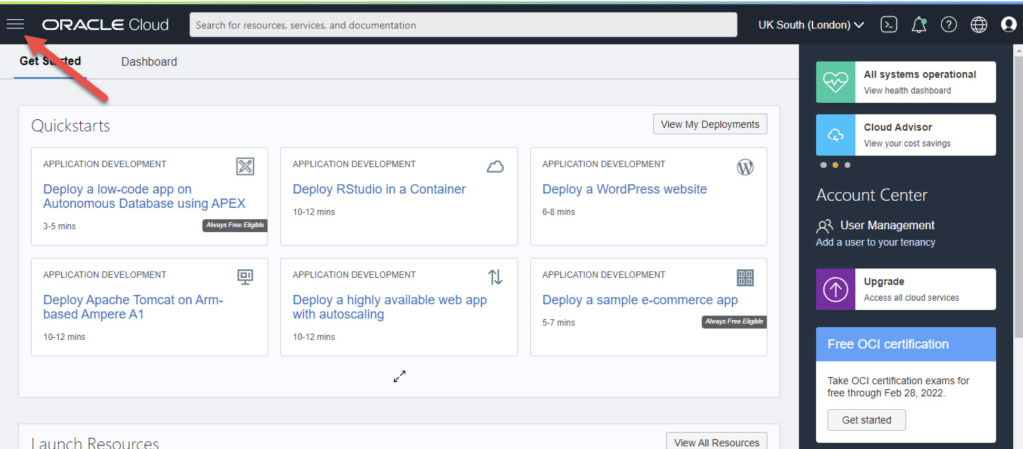
  • Connect to Oracle’s cloud service. To access the main menu, choose the hamburger icon in the upper left corner.
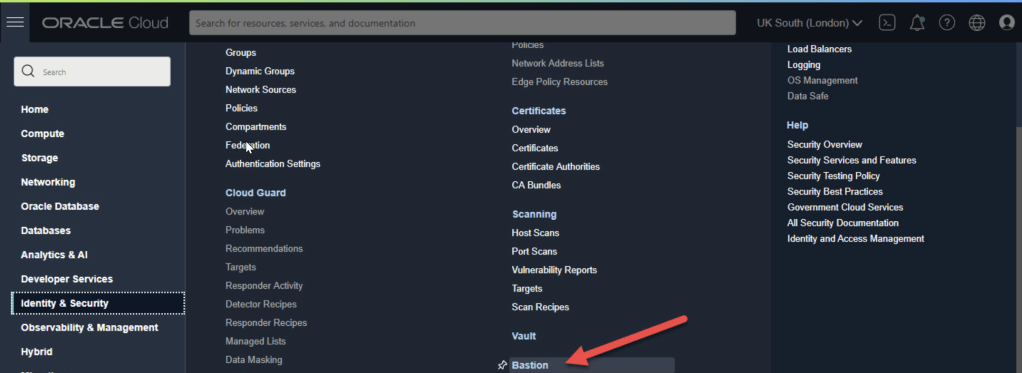
  • On the menu select “Identity & Security > Bastion”.
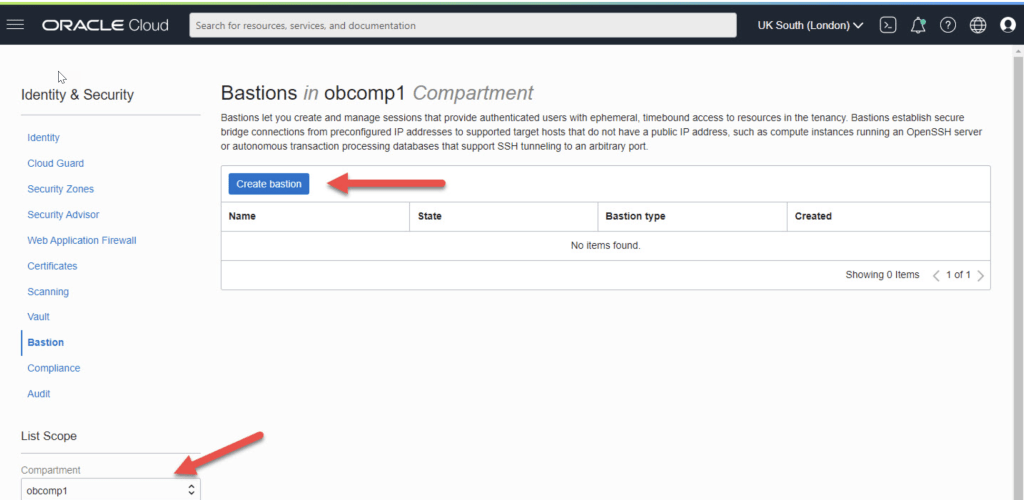
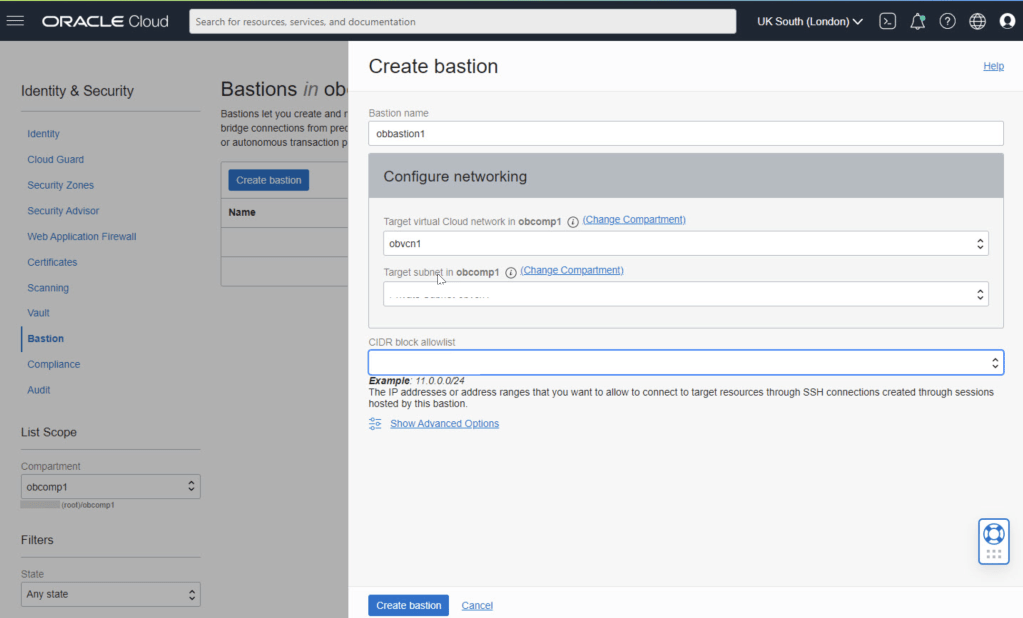
  • Select the compartment and click the “Create bastion” button.
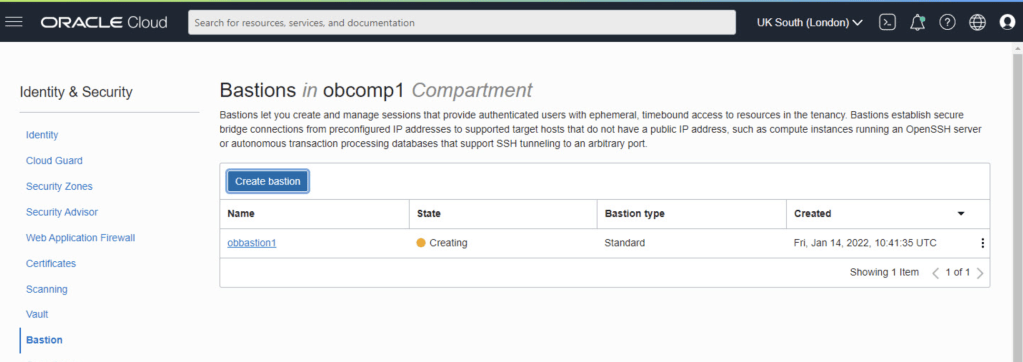
  • Enter the bastion name and select the VCN and subnet for the bastion. We need to enter a CIDR block allowlist. In this case I’ve used the subnet for my IP address from my internet service provider. Click the “Create bastion” button.
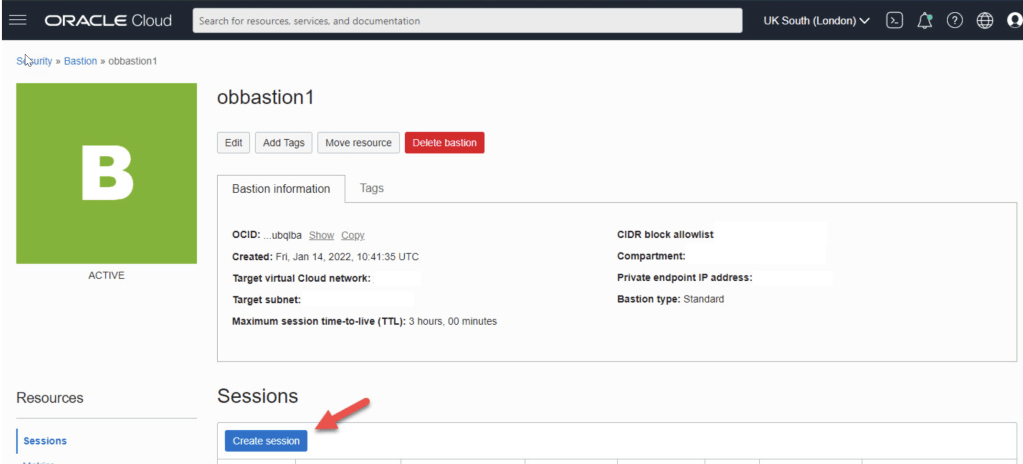
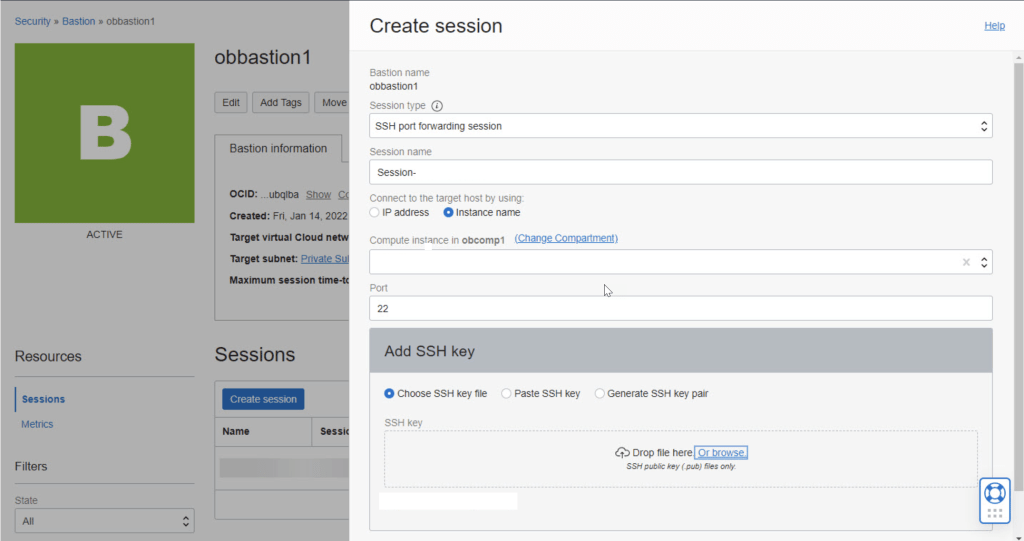
  • Click on the “Create session” button.
  • Connect

Our previously copied connection information should look something like this at this point.

ssh -i  -N -L :ip-connection:22 -p 22 ocid1.bastionsession.oc1.uk-london-1.amaa...3acq@host.bastion.uk-london-1.oci.oraclecloud.com

Regards

Osama

OCI Basics – Putting Data into Object Storage OCI

The Object Storage service provides reliable, secure, and scalable object storage. Object storage is a storage architecture that stores and manages data as objects. Some typical use cases include data backup, file sharing, and storing unstructured data like logs and sensor-generated data.

Creating a Bucket

  1. Open the navigation menu and click Storage. Under Object Storage, click Buckets.A list of the buckets in the compartment you’re viewing is displayed.
  2. Select a compartment from the Compartment list on the left side of the page.A list of existing buckets is displayed.
  3. Click Create Bucket.
    • Bucket Name
    • Default Storage Tier: Select the default tier in which you want to store your data
      • Standard is the primary, default storage tier Use the Standard tier for storing frequently accessed data that requires fast and immediate access.
      • Archive is the default storage tier used for archive storage, Use the Archive tier for storing rarely accessed data that requires long retention periods. Access to data in the Archive tier is not immediate. Archived data must be restored before the data is accessible.
      • Object Events: Select Emit Object Events if you want to enable the bucket to emit events for object state changes. For more information about events.
      • Encryption: Buckets are encrypted with keys managed by Oracle by default, but you can optionally encrypt the data in this bucket using your own Vault encryption key. To use Vault for your encryption needs, select Encrypt Using Customer-Managed Keys

Uploading Files to a Bucket

To upload files to your bucket using the Console:

  1. From the Object Storage Buckets screen, click the bucket name to view its details.
  2. Click Upload.
  3. In the Object Name Prefix field, optionally specify a file name prefix for the files that you plan to upload.
  4. If the Storage Tier field displays Standard, you can optionally change the storage tier to upload objects to.

Cheers

Osama