Weblogic 12c installation

there are over 200 new features in weblogic 12c, some of this features
are:-

 Simplified Deployment and Management with Virtualization
 Integrated Traffic Management
 Integrated WebLogic/RAC Clusters
 Seamless Upgrade From WebLogic, iAS and Others

This Document Describe steps to install Oracle weblogic 12c, operating system Oracle Linux 6.4, You can Download Document here

Thank you
Osama Mustafa 

Managed Server ERROR: transport error 202: bind failed: Address already in use

ERROR: transport error 202: bind failed: Address already in use
ERROR: JDWP Transport dt_socket failed to initialize, TRANSPORT_INIT(510)
JDWP exit error AGENT_ERROR_TRANSPORT_INIT(197): No transports initialized [../../../src/share/back/debugInit.c:750]

This Error Appeared when trying to start Managed server the Log Shown the above error, which already clear, in my case i have 2 managed server SOA and OSB in the same AdminServer each of them trying to access on the same PID process using Node Manager to solve this issue please follow the below steps.
Solutions :-
  • Inside Domain Path for example /u01/app/fmw/domains/Base_domain/bin
  • Edit setDomainEnv.sh and search for the below :-

if [ “${DEBUG_PORT}” = “” ] ; then
        DEBUG_PORT=”8453″
        export DEBUG_PORT
fi

if [ “${SERVER_NAME}” = “” ] ; then
        SERVER_NAME=”AdminServer”
        export SERVER_NAME
fi

  •  Add New Lines under the above to contain server name and available DEBUG_PORT on the server like the below:-

if [ “${SERVER_NAME}” = “soa_server1” ] ; then
   DEBUG_PORT=”7453″
   export DEBUG_PORT
fi

if [ “${SERVER_NAME}” = “osb_server1” ] ; then
   DEBUG_PORT=”7454″
   export DEBUG_PORT
fi

 Now Restart AdminServer and Try to start Managed Server, Take Backup from setDomainEvn.sh before editing.

Thank you
Osama mustafa

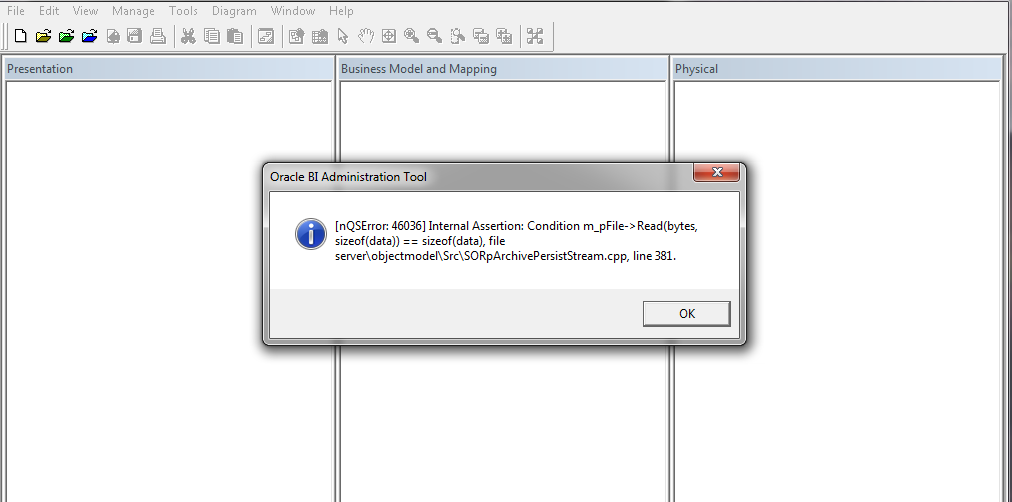
NQSError 46036 Oracle BI Administration Tools Client

when trying to open oracle bi administration tool client, You can download oracle bi administration tool client from here.

Cause :-

Most probably this error related to version mismatch between OBIEE Server and Administration Tool Client in my case OBIEE Version 11.1.1.7.1 and Administration Tool client 11.1.1.7.0

Solution :-

1- Download Upgrade Patch 17530796 From http://support.oracle.com depend on operating system
2- Patch contain multiple file search for this one :- p17463403_111170_Generic.zip
3- inside this zip file browse

17463403\files\clients\biserver\

4- you will find two files biee_client_install_x64.exe Or biee_client_install.exe depend on version.
5- Install One of this file to upgrade Administration tools, Use Repair Option.

Thank you
Osama Mustafa

Configure PHP With Oracle HTTP Server (OHS)

Regarding to Oracle Documentation :-

Oracle HTTP Server is the web server component in Oracle Fusion Middleware. Based on the Apache infrastructure, Oracle HTTP Server allows developers to program their site in a variety of languages and technologies.

PHP (recursive acronym for “PHP: Hypertext Preprocessor”) is a general-purpose scripting language often used for generating web sites. The object model of PHP 5 facilitates project development using standard object-oriented methodologies.

To Configure PHP with Oracle OHS Follow the below steps :-

Step #1:-

export ORACLE_HOME=/Siebel/ohs/Middleware/Oracle_WT1/
export ORACLE_INSTANCE=/Siebel/ohs/Middleware/Oracle_WT1/instances/instance1/
export CONFIG_FILE_PATH=/Siebel/ohs/Middleware/Oracle_WT1/instances/instance1/config/OHS/ohs1/

Step #2:

Download PHP From here.
Upload the file to the server ( should be on the same OHS Server).

gunzip php-5.4.27.tar.gz
tar -xvf php-5.4.27.tar
cd /Siebel/php-5.4.27

Note :-
I Used this version because older version contains bugs
conflicting types for ‘zendparse’

Step #3:-

$./configure –with-apxs2=$ORACLE_HOME/ohs/bin/apxs –prefix=$ORACLE_HOME –with-config-file-path=$CONFIG_FILE_PATH

make
make install

Don’t Run the Above command if nothing not complied successfully.
Once Complied successfully :-

libphp5.so is generated inside php/libs

Step #4:
Inside php folder 

cp php.ini-production $CONFIG_FILE_PATH/php.ini

cd $CONFIG_FILE_PATH
vi httpd.conf
add the below line:-

AddType application/x-httpd-php .php .phtml

Step #5:-
Restart OHS 

./opmnctl stopall
./opmnctl startall

Test PHP :

Install Demo Files HereExtract demo file to $CONFIG_FILE_PATH/htdocs

Using Browser :-

http://:/demo/phpinfo.php

Thank you 
Osama Mustafa
Reference :-
1- Oracle Document Here

Unable to Determine Console Port when Trying to Run emctl start iasconsole

The Situation for me like this, Database version 11.2.0.3, Real Application Cluster two nodes, Enterprise manager working and configured without any problem,

emctl start dbcsonole 

Working without any errors, metrics collected, but when trying to run

emctl start iasconsole

Or

emctl istart iasconsole  

The Error ” Unable to determine console port, default-web-site.xml : no such file or directory”

The File is exists, and configured to run oc4j on port 8888, http://hostname:888/em not working with error “iasconsole service should be stopped”. Weird !!!!!

 Operating system Oracle Linux 64bit, After investigation i discovered that binary/files for oc4j in ORACLE_HOME was corrupted and not working correctly however this is what i did to fix this error :-

First Download OC4J_extend.zip from here, this zip file contain same directory files ( xml,config ) in oc4j ($ORACLE_HOME/oc4j) so extract this file inside this path, if oc4j not exist create one and extract the zip file into this directory.

But this is will not make oc4j works, complete the below steps to make sure everything is working fine.

[oracle@PROD bin]$ ./java -jar /u01/app/oraclenew/product/11.2.0/dbhome_1/oc4j/j2ee/home/oc4j.jar

Apr 3, 2014 2:51:51 PM com.evermind.server.XMLApplicationServerConfig randomizeJtaAdminPassword
INFO: Updating JtaAdmin account

14/04/03 14:52:30 Set OC4J administrator’s password (password text will not be displayed as it is entered)
Enter password:            
Confirm password:          
The password for OC4J administrator “oc4jadmin” has been set.
14/04/03 14:52:35 The OC4J administrator “oc4jadmin” account is activated.
14/04/03 14:52:39 Oracle Containers for J2EE 10g (10.1.3.3.0)  initialized

Now Test the Link –> Http://localhost:8888/em and it’s working
Thank you 
Osama Mustafa
HTTP3094: 1 listen sockets could not be created / Oracle IPlant

When Trying to Startup iplant Instance the below error Appearing every-time :

TEST siebel: :/Siebel/iPlanet/webserver7/https-Osama_TST/bin\>./startserv
Oracle iPlanet Web Server 7.0.15 B04/19/2012 21:52
info: CORE5076: Using [Java HotSpot(TM) 64-Bit Server VM, Version 1.6.0_24] from [Sun Microsystems Inc.]
startup failure: could not bind to port 8080 (Address already in use)
failure: HTTP3127: http-listener-1: http://TEST:8080: Error creating socket (Address already in use)
failure: HTTP3094: 1 listen sockets could not be created
failure: server initialization failed

From the above error you notice that Port 8080 is already in use.

The Solution :

ps -ef |grep webservd

and Use Kill -9

Try Again Now

Thank you
Osama Mustafa

Change OHS Port On Linux to Work on 80

Operating system : Oracle Linux 6.4
Oracle WebTier OHS 11.1.1.7

if you want to configure OHS ( WT ) to work on port 80 ( http ) avoiding insert Port.

For Example :

OHS default Port is 7777, if you want to leave it like this any call for the server should be like this :

http://:7777/console  

But if you are using port 80 you have to do the below :

http:///console 

But on Linux if you need to use port 80 you have to be root, to do this follow the below step :

  • As root user :

[root@TST-WT1 bin]# pwd
/u01/fmw/Oracle_WT1/ohs/bin 

[root@TST-WT1 bin]# chown root .apachectl
[root@TST-WT1 bin]# chmod 6750 .apachectl

  • As Oracle User

[oracle@TST-WT1 ~]$ cd /u01/fmw/admin/config/OHS/ohs1/ 

[oracle@SCADNP-WT1 ohs1]$ ls http*
 httpd.conf      

  • Edit the file using any Editor and modify Listen from 7777 to 80
  • Restart OHS using opmnctl command.

——–+———-+———–+——
ohs1                             | OHS                |   15732 | Alive    |  677601509 |   510840 |   0:00:11 | https:9999,https:4443,http:80
Thank you 
Osama Mustafa