Flush Linux Buffer Cache

Cache is used to keep data to use frequently by operating system,  But sometimes memory is getting low linux provide some memory Command line to monitor Memory status Check the below link :-

1- Linux Check Memory Usage Here.
2- 18 Command Line Tools to Monitor Linux Performance here.

There are options available to flush cache of linux memeory :-

Flush everything ( Pagecache, dentries and inodes )  :-

 sync; echo 3 > /proc/sys/vm/drop_caches.

Flash dentries and inodes :-

 sync; echo 2 > /proc/sys/vm/drop_caches

Flash PageCache only

sync; echo 1 > /proc/sys/vm/drop_caches

All the command should be Run As root.

Schudle the above command as job using crontab , choose from the above command what you need :-

0  *  *  *  *  /root/memory.sh

Memorysh –> should be contain one the above script run as root.

Thank you
Osama mustafa
 

Unable to Determine Console Port when Trying to Run emctl start iasconsole

The Situation for me like this, Database version 11.2.0.3, Real Application Cluster two nodes, Enterprise manager working and configured without any problem,

emctl start dbcsonole 

Working without any errors, metrics collected, but when trying to run

emctl start iasconsole

Or

emctl istart iasconsole  

The Error ” Unable to determine console port, default-web-site.xml : no such file or directory”

The File is exists, and configured to run oc4j on port 8888, http://hostname:888/em not working with error “iasconsole service should be stopped”. Weird !!!!!

 Operating system Oracle Linux 64bit, After investigation i discovered that binary/files for oc4j in ORACLE_HOME was corrupted and not working correctly however this is what i did to fix this error :-

First Download OC4J_extend.zip from here, this zip file contain same directory files ( xml,config ) in oc4j ($ORACLE_HOME/oc4j) so extract this file inside this path, if oc4j not exist create one and extract the zip file into this directory.

But this is will not make oc4j works, complete the below steps to make sure everything is working fine.

[oracle@PROD bin]$ ./java -jar /u01/app/oraclenew/product/11.2.0/dbhome_1/oc4j/j2ee/home/oc4j.jar

Apr 3, 2014 2:51:51 PM com.evermind.server.XMLApplicationServerConfig randomizeJtaAdminPassword
INFO: Updating JtaAdmin account

14/04/03 14:52:30 Set OC4J administrator’s password (password text will not be displayed as it is entered)
Enter password:            
Confirm password:          
The password for OC4J administrator “oc4jadmin” has been set.
14/04/03 14:52:35 The OC4J administrator “oc4jadmin” account is activated.
14/04/03 14:52:39 Oracle Containers for J2EE 10g (10.1.3.3.0)  initialized

Now Test the Link –> Http://localhost:8888/em and it’s working
Thank you 
Osama Mustafa

Enable SSH On Windows EM12C Purpose

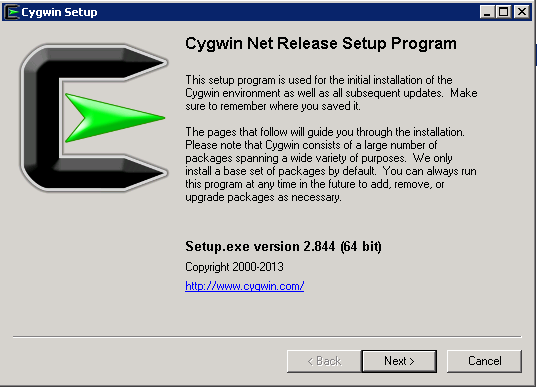
Uploading Agent to windows/Linux needs ssh Port to be open and enabled, ssh not enabled on windows by default and do it Cygwin should be installed.

Configure Cygwin so simple, follow the below steps :-

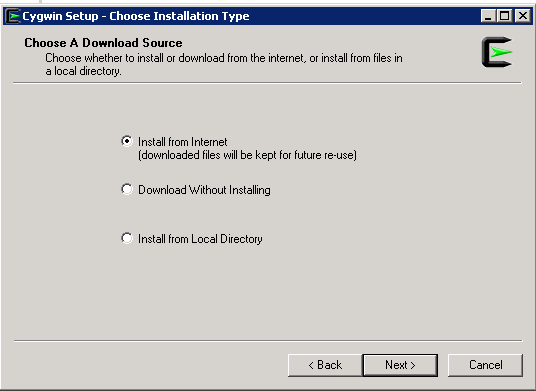
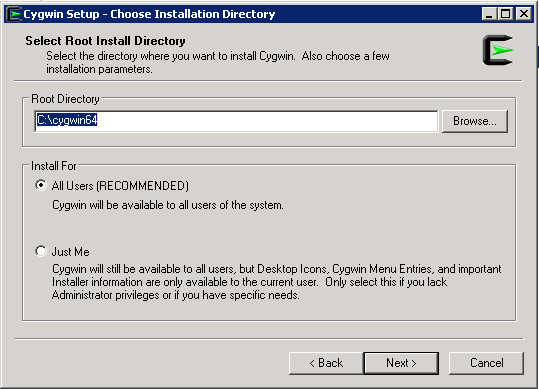
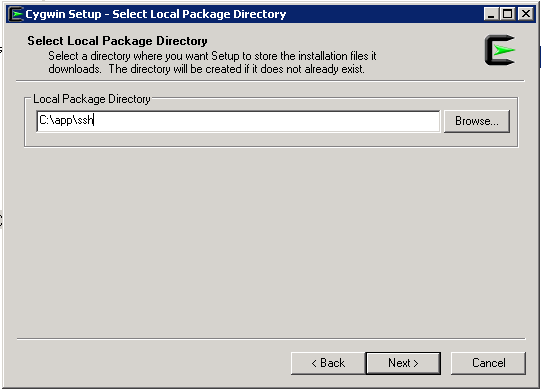
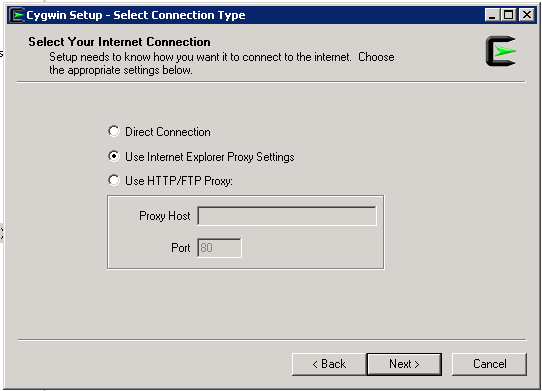
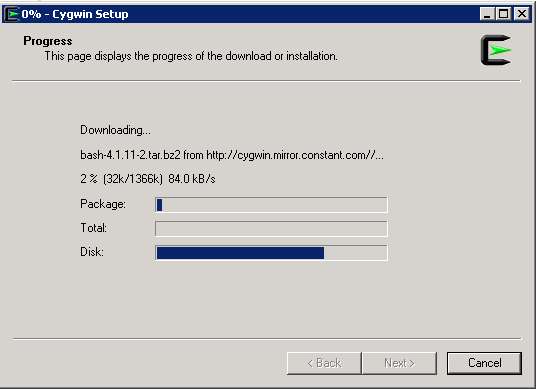
Download Cygwin from Here, Upload File to the windows Server and Run the setup.

SSH Package should be chosen while installation.
After Installation Run cygwin terminal as Administration ( Right click on the icon and Choose the option )
Now Enable ssh should be done by run below command :-

/usr/bin/ssh-host-config

Should privilege separation be used? (yes/no) yes
new local account ‘sshd’? (yes/no) yes
Do you want to install sshd as a server? Yes
Enter the value of CYGWIN for the daemon: [] (DON’T ENTER ANYTHING, PRESS ENTER)
Do you want to use a different name? (yes/no) no
Create new privileged user account ‘cyg_server’? (yes/no) yes
Please enter the password: ENTER YOUR PASSWORD HERE
Reenter: RE-ENTER YOUR PASSWORD

Using Command Prompt ( cmd )

Start ssh by –> net start sshd
Stop ssh by –> net stop sshd

Another way posted by my friend Maaz you can check it here.

Thank you 
Osama Mustafa

Download Agent in EM12C manually

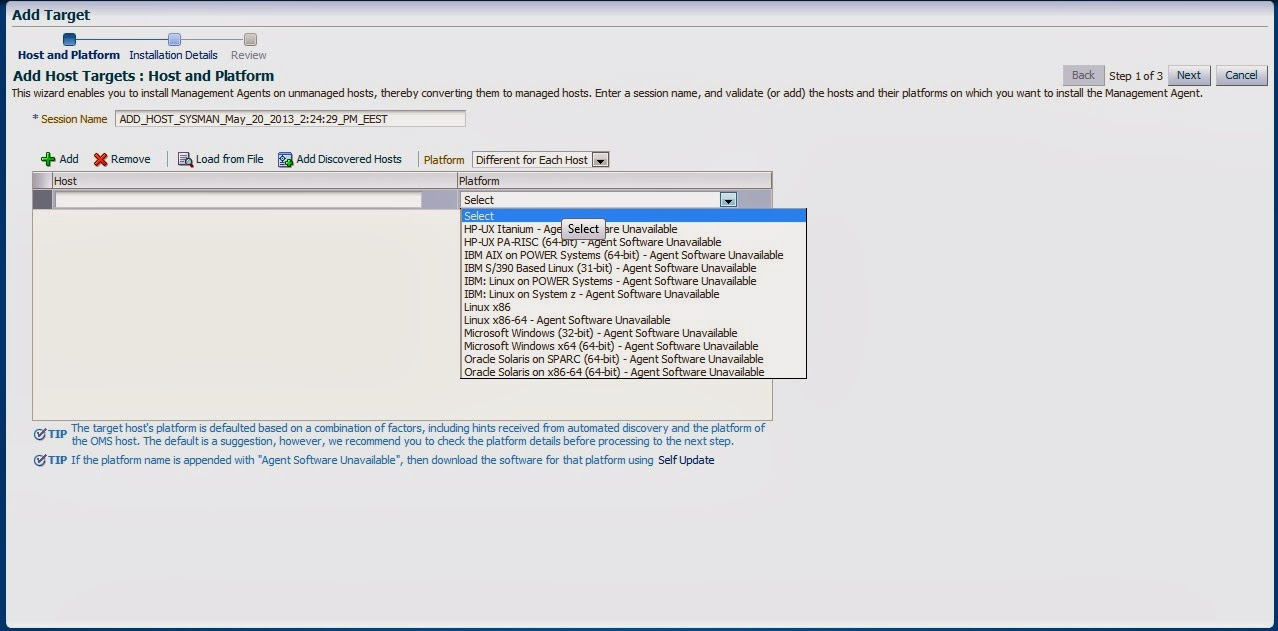
Adding target to EM12C needs to install agent to the Target Host Depend on Operating system, the agent is now always available which mean install Agent for this operating system is necessary, the below picture describe the above case :-

Enterprise manager cloud 12c contains two different type of Connection mode online and offline, this blog describe how to install manually :-

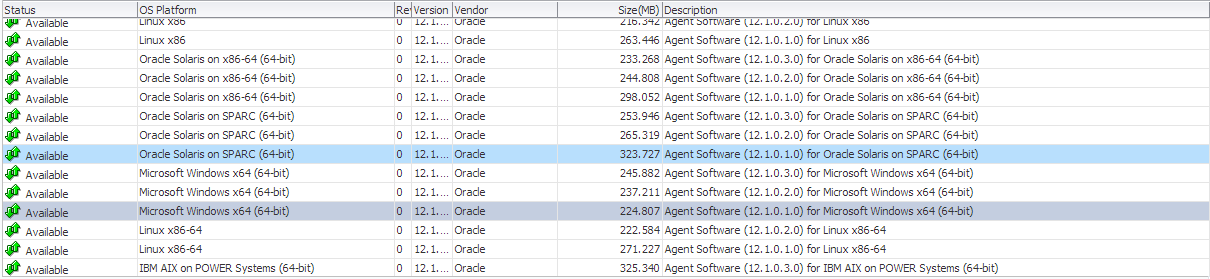
From Setup –> extensibility –> Self Update

Press On Agent Software., The below screen will appear :-

By pressing any of those agent new pop up will open included with link to download, copy the link and upload the file to OMS Host and run the below command :-

[oracle@EM12C emcli]$ ./emcli import_update -omslocal -file=….

File Path should be provided in the above command.

The output :-

Processing update: Agent Software – Agent Software (12.1.0.1.0) for Microsoft Windows x64 (64-bit)
Successfully uploaded the update to Enterprise Manager. Use the Self Update Console to manage this update.

After Run the above command Successfully, Back to Self Update screen –> Agent Software and Apply the Download Catalog by press apply.

Thank you
Osama mustafa

Install EMCLI For EM12C

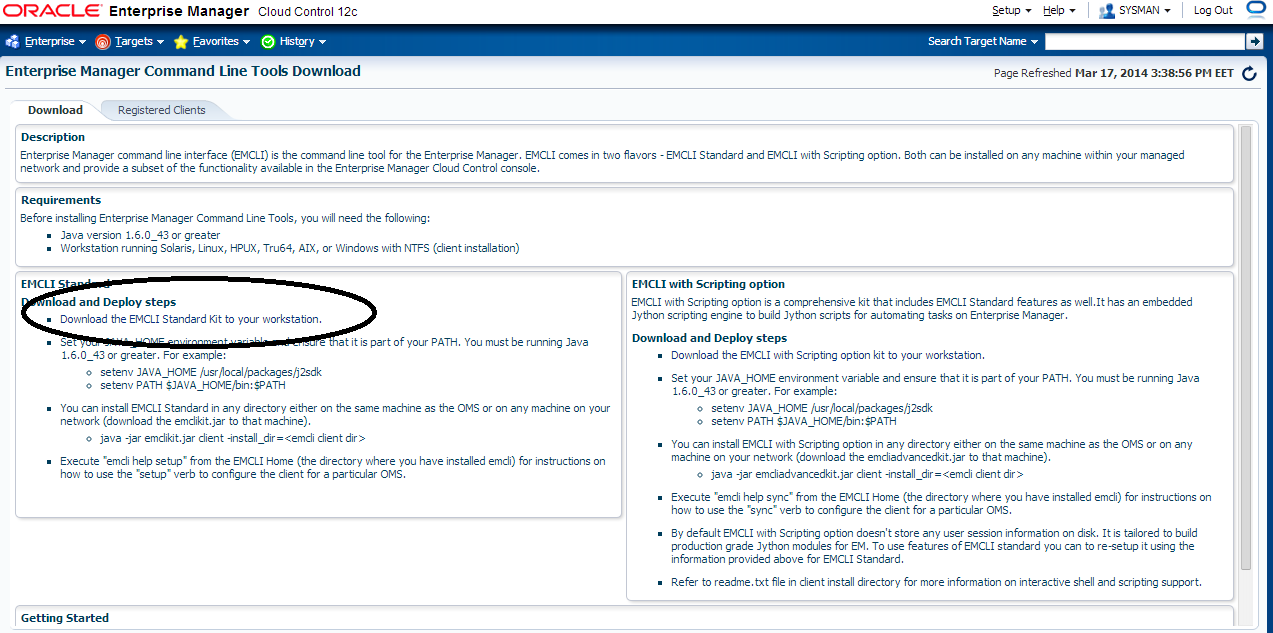
The Enterprise Manager Command Line Interface (EM CLI) enables users to access Enterprise Manager functionality through a command-line interface or scripts. It is accessible through classic programming language constructs, enabling tasks to be created and run either from the command-line or programatically. EM CLI enables you to access Enterprise Manager Cloud Control functionality from text-based consoles (shells and command-line windows) for a variety of operating systems.

For Overview and concept about it Read Oracle Documentation Here

The Setup to enable emcli so simple and already provided with Enterprise manager 12c,

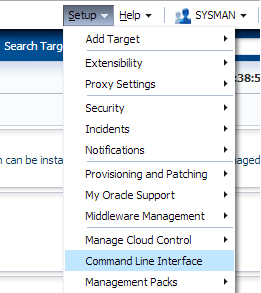
From Setup –> Command Line Interface.

After Access Command Line Interface you should be able to install emcli kit by press the below :

Jar File will be installed,Upload it to the server.

Create New Folder On the Server Using :

mkdir /u01/emcli 

Set The Variable:-

export JAVA_HOME=/u01/app/fmw/jdk
export PATH=$JAVA_HOME/bin:$PATH 

Run the Below Command

java -jar emcliadvancedkit.jar client -install_dir=/u01/emcli 

cd /u01/emcli  

emcli setup -url=https://EM12c:7802/em -username=sysman -trustall -autologin

Thank you
Osama Mustafa

OUG Ireland 2014

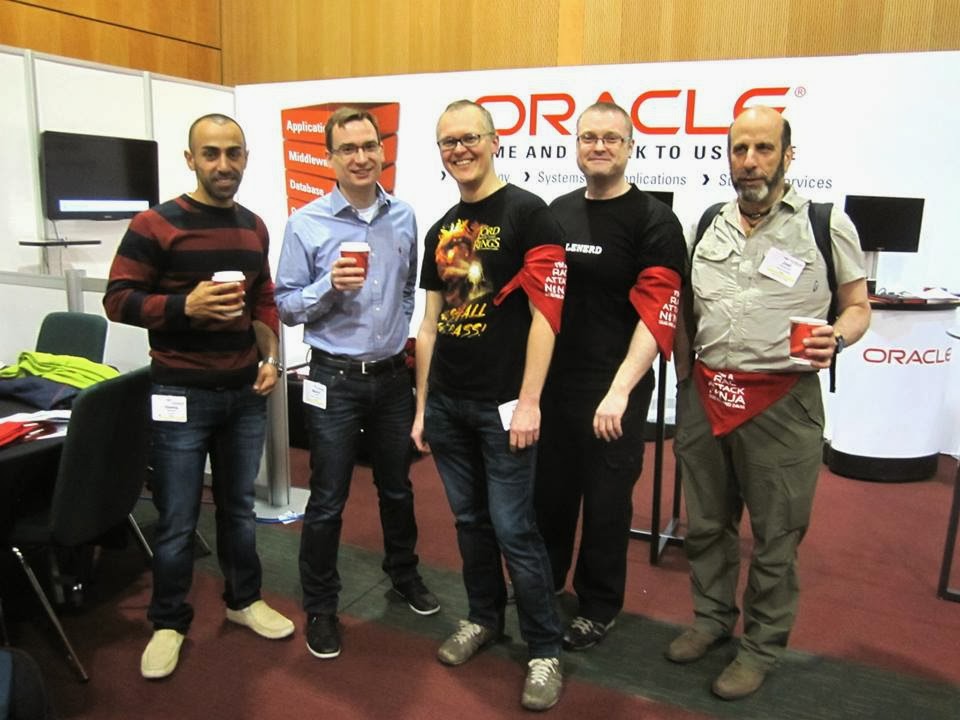
11/03 it’s Date For Oracle User Group Ireland.
Location : Dublin Convention Center.

Like any other Flights it’s took me 10 hours to be in Dublin,After Checked in the hotel First thing I did is attending Oracle ACE dinner and meet some Folks.

There was lot of Oracle Experts Speaker, Once the conference started I spent most of my day in RAC ATTACK Location and I would thank Mina Zadeh for this amazing Arrangement. it was really nice to meet her in person.

 Presentations was really amazing and useful, I would thank Oracle User Group Ireland for organizing and running this event so well.

Thank you
Osama Mustafa

soft limit maximum user processes/Oracle Linux

As Root User access to
[root@EM12C Packages]# vi /etc/security/limits.conf

Then add the below line or modify it :

oracle              soft    nproc   2047
oracle              hard    nproc   16384
oracle              soft    nofile  4096
oracle              hard    nofile  65536
oracle              soft    stack   10240

Thank you
Osama Mustafa 

HTTP3094: 1 listen sockets could not be created / Oracle IPlant

When Trying to Startup iplant Instance the below error Appearing every-time :

TEST siebel: :/Siebel/iPlanet/webserver7/https-Osama_TST/bin\>./startserv
Oracle iPlanet Web Server 7.0.15 B04/19/2012 21:52
info: CORE5076: Using [Java HotSpot(TM) 64-Bit Server VM, Version 1.6.0_24] from [Sun Microsystems Inc.]
startup failure: could not bind to port 8080 (Address already in use)
failure: HTTP3127: http-listener-1: http://TEST:8080: Error creating socket (Address already in use)
failure: HTTP3094: 1 listen sockets could not be created
failure: server initialization failed

From the above error you notice that Port 8080 is already in use.

The Solution :

ps -ef |grep webservd

and Use Kill -9

Try Again Now

Thank you
Osama Mustafa