BLOG

K8s Example

Create a Service Account

It’s super simple command

kubectl create sa webautomation -n web

Create a ClusterRole That Provides Read Access to Pods

  1. Define the ClusterRole
apiVersion: rbac.authorization.k8s.io/v1
kind: ClusterRole
metadata:
  name: pod-reader
rules:
- apiGroups: [""]
  resources: ["pods"]
  verbs: ["get", "watch", "list"]

Bind the ClusterRole to the Service Account to Only Read Pods in the web Namespace

apiVersion: rbac.authorization.k8s.io/v1
kind: RoleBinding
metadata:
  name: rb-pod-reader
  namespace: web
subjects:
- kind: ServiceAccount
  name: webautomation
roleRef:
  kind: ClusterRole
  name: pod-reader
  apiGroup: rbac.authorization.k8s.io

Cheers

Osama

OCI Basics – Putting Data into Object Storage OCI

The Object Storage service provides reliable, secure, and scalable object storage. Object storage is a storage architecture that stores and manages data as objects. Some typical use cases include data backup, file sharing, and storing unstructured data like logs and sensor-generated data.

Creating a Bucket

  1. Open the navigation menu and click Storage. Under Object Storage, click Buckets.A list of the buckets in the compartment you’re viewing is displayed.
  2. Select a compartment from the Compartment list on the left side of the page.A list of existing buckets is displayed.
  3. Click Create Bucket.
    • Bucket Name
    • Default Storage Tier: Select the default tier in which you want to store your data
      • Standard is the primary, default storage tier Use the Standard tier for storing frequently accessed data that requires fast and immediate access.
      • Archive is the default storage tier used for archive storage, Use the Archive tier for storing rarely accessed data that requires long retention periods. Access to data in the Archive tier is not immediate. Archived data must be restored before the data is accessible.
      • Object Events: Select Emit Object Events if you want to enable the bucket to emit events for object state changes. For more information about events.
      • Encryption: Buckets are encrypted with keys managed by Oracle by default, but you can optionally encrypt the data in this bucket using your own Vault encryption key. To use Vault for your encryption needs, select Encrypt Using Customer-Managed Keys

Uploading Files to a Bucket

To upload files to your bucket using the Console:

  1. From the Object Storage Buckets screen, click the bucket name to view its details.
  2. Click Upload.
  3. In the Object Name Prefix field, optionally specify a file name prefix for the files that you plan to upload.
  4. If the Storage Tier field displays Standard, you can optionally change the storage tier to upload objects to.

Cheers

Osama

Launching Windows Instance on OCI

In this post  I will show you how to launch and connect to a Windows instance.

  • Create a cloud network and subnet that enables internet access
  • Launch an instance
  • Connect to the instance
  • Add and attach a block volume

I already posted a post how to Launch Linux Instance on OCI here, in the post you will have to follow the first two steps which is creating

  • Choose a compartment for your resources.
  • Create a cloud network.

Once you are done, you can start with steps #3 which will allow you to launch a instance – windows one.

  1. Open the navigation menu and click Compute. Under Compute, click Instances.
  2. Click Create instance.
  3. In the Placement section, accept the default Availability domain.
  4. In the Image and shape section, do the following:
    • In the Image source list, select Platform images.
    • Select Windows. Then, in the OS version list, select Server 2019 Standard.
    • Review and accept the terms of use, and then click Select image.
  5. In the Shape section, click Change Shape. Then, do the following:
    • For Instance type, accept the default, Virtual machine.
    • For Shape series, select AMD, and then choose either the VM.Standard.E4.Flex shape or the VM.Standard.E3.Flex shape (it doesn’t matter which). Accept the default values for OCPUs and memory.
    • The shape defines the number of CPUs and amount of memory allocated to the instance.
  6. In the Networking section, configure the network details for the instance. Do not accept the defaults.
    • For Primary network, leave Select existing virtual cloud network selected.
    • Select the cloud network that you created. If necessary, click Change Compartment to switch to the compartment containing the cloud network that you created.
  7. In the Boot volume section, leave all the options cleared.

Your instance now is ready.

Connect to the windows instance done by using Remote desktop, enter the public ip, username which is (opc), and the password.

Cheers

Osama

Using PersistentVolumes in Kubernetes

PersistentVolumes provide a way to treat storage as a dynamic resource in Kubernetes. This lab will allow you to demonstrate your knowledge of PersistentVolumes. You will mount some persistent storage to a container using a PersistentVolume and a PersistentVolumeClaim.

Create a custom Storage Class by using “`vi localdisk.yml`.

apiVersion: storage.k8s.io/v1 
kind: StorageClass 
metadata: 
  name: localdisk 
provisioner: kubernetes.io/no-provisioner
allowVolumeExpansion: true

Finish creating the Storage Class by using kubectl create -f localdisk.yml.
Create the PersistentVolume by using vi host-pv.yml.

kind: PersistentVolume 
apiVersion: v1 
metadata: 
   name: host-pv 
spec: 
   storageClassName: localdisk
   persistentVolumeReclaimPolicy: Recycle 
   capacity: 
      storage: 1Gi 
   accessModes: 
      - ReadWriteOnce 
   hostPath: 
      path: /var/output

Finish creating the PersistentVolume by using kubectl create -f host-pv.yml.

Check the status of the PersistenVolume by using kubectl get pv

Create a PersistentVolumeClaim

Start creating a PersistentVolumeClaim for the PersistentVolume to bind to by using vi host-pvc.yml.

apiVersion: v1 
kind: PersistentVolumeClaim 
metadata: 
   name: host-pvc 
spec: 
   storageClassName: localdisk 
   accessModes: 
      - ReadWriteOnce 
   resources: 
      requests: 
         storage: 100Mi

Finish creating the PersistentVolumeClaim by using kubectl create -f host-pvc.yml.

Check the status of the PersistentVolume and PersistentVolumeClaim to verify that they have been bound:

kubectl get pv
kubectl get pvc

Create a Pod That Uses a PersistentVolume for Storage

Create a Pod that uses the PersistentVolumeClaim by using vi pv-pod.yml.

apiVersion: v1 
kind: Pod 
metadata: 
   name: pv-pod 
spec: 
   containers: 
      - name: busybox 
        image: busybox 
        command: ['sh', '-c', 'while true; do echo Success! > /output/success.txt; sleep 5; done'] 

Mount the PersistentVolume to the /output location by adding the following, which should be level with the containers spec in terms of indentation:

volumes: 
 - name: pv-storage 
   persistentVolumeClaim: 
      claimName: host-pvc

In the containers spec, below the command, set the list of volume mounts by using:

volumeMounts: 
- name: pv-storage 
  mountPath: /output 

Finish creating the Pod by using kubectl create -f pv-pod.yml.

Check that the Pod is up and running by using kubectl get pods.

If you wish, you can log in to the worker node and verify the output data by using cat /var/output/success.txt.

Tutorial – Launching OCI Linux Instance

Steps:

  • Create a key pair.
  • Choose a compartment for your resources.
  • Create a cloud network.
  • Launch an instance.

Choosing a Compartment

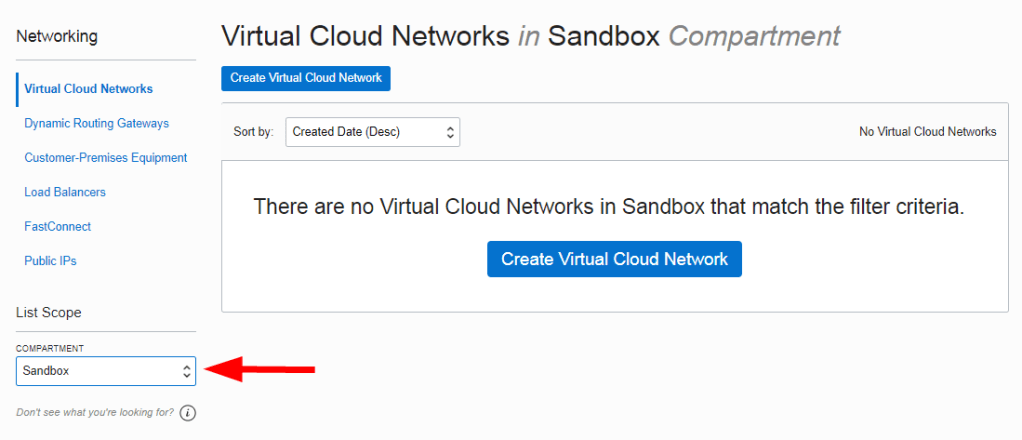
  1. The first resource you create is the cloud network. Open the navigation menu, click Networking, and then click Virtual Cloud Networks.
  2. Select the Sandbox compartment (or the compartment designated by your administrator) from the list on the left, as shown in the image. If the Sandbox compartment does not exist, you can create it as described in Creating a Compartment.

Create a cloud network.

  1. Open the navigation menu, click Networking, and then click Virtual Cloud Networks.
  2. Click Start VCN Wizard.
  3. Select Create VCN with Internet Connectivity, and then click Start VCN Wizard.
  4. Enter the values depends on what you want press next.

Launch an instance.

  1. Open the navigation menu and click Compute. Under Compute, click Instances.
  2. Click Create instance.
  3. Enter a name for the instance, for example: <your initials>-Instance. Avoid entering confidential information.
  4. In the Placement section, accept the default Availability domain.
  5. In the Image and shape section, make the following selections:
  6. In the Image section, accept the default, Oracle Linux.
  7. In the Shape section, click Change shape. which will allow you to choose the instance size.
  8. In the Networking section, For Primary network, leave Select existing virtual cloud network selected and For Subnet, leave Select existing subnet selected.
  9. Select the Assign a public IPv4 address option. This creates a public IP address for the instance, which you need to access the instance. If you have trouble selecting this option, confirm that you selected the public subnet that was created with your VCN, not a private subnet.
  10. In  Add SSH keys section, generate an SSH key pair or upload your own public key

Enjoy
osama

Managing Container Storage with Kubernetes Volumes

Kubernetes volumes offer a simple way to mount external storage to containers. This lab will test your knowledge of volumes as you provide storage to some containers according to a provided specification. This will allow you to practice what you know about using Kubernetes volumes.

Create a Pod That Outputs Data to the Host Using a Volume

  • Create a Pod that will interact with the host file system by using vi maintenance-pod.yml.
apiVersion: v1
kind: Pod
metadata:
    name: maintenance-pod
spec:
    containers:
    - name: busybox
      image: busybox
      command: ['sh', '-c', 'while true; do echo Success! >> /output/output.txt; sleep 5; done']
  • Under the basic YAML, begin creating volumes, which should be level with the containers spec:
volumes:
- name: output-vol
  hostPath:
      path: /var/data
  • In the containers spec of the basic YAML, add a line for volume mounts:
volumeMounts:
- name: output-vol
  mountPath: /output

The complete YAML will be

apiVersion: v1
kind: Pod
metadata:
    name: maintenance-pod
spec:
  containers:
    - name: busybox
      image: busybox
      command: ['sh', '-c', 'while true; do echo Success! >> /output/output.txt; sleep 5; done']
      volumeMounts:
      - name: output-vol
        mountPath: /output
  volumes:
   - name: output-vol
     hostPath:
      path: /var/data

Create a Multi-Container Pod That Shares Data Between Containers Using a Volume

  1. Create another YAML file for a shared-data multi-container Pod by using vi shared-data-pod.yml
  2. Start with the basic Pod definition and add multiple containers, where the first container will write the output.txt file and the second container will read the output.txt file:
apiVersion: v1
kind: Pod
metadata:
    name: shared-data-pod
spec:
    containers:
    - name: busybox1
      image: busybox
      command: ['sh', '-c', 'while true; do echo Success! >> /output/output.txt; sleep 5; done']
    - name: busybox2
      image: busybox
      command: ['sh', '-c', 'while true; do cat /input/output.txt; sleep 5; done']

Set up the volumes, again at the same level as containers with an emptyDir volume that only exists to share data between two containers in a simple way:

volumes:
- name: shared-vol
  emptyDir: {}

Mount that volume between the two containers by adding the following lines under command for the busybox1 container:

volumeMounts:
- name: shared-vol
  mountPath: /output

For the busybox2 container, add the following lines to mount the same volume under command to complete creating the shared file:

volumeMounts:
- name: shared-vol
  mountPath: /input

The complete file

Finish creating the multi-container Pod using kubectl create -f shared-data-pod.yml.

apiVersion: v1
kind: Pod
metadata:
    name: shared-data-pod
spec:
    containers:
    - name: busybox1
      image: busybox
      command: ['sh', '-c', 'while true; do echo Success! >> /output/output.txt; sleep 5; done']
      volumeMounts:
        - name: shared-vol
          mountPath: /output
    - name: busybox2
      image: busybox
      command: ['sh', '-c', 'while true; do cat /input/output.txt; sleep 5; done']
      volumeMounts:
        - name: shared-vol
          mountPath: /input
    volumes:
    - name: shared-vol
    emptyDir: {}

And you can now apply the YAML file.

Cheers

Osama

Exposing Kubernetes Pods Using Services

Kubernetes Services are a great way to combine Kubernetes networking with the dynamic and often automated nature of Kubernetes applications. In this lab, you will use Services to expose existing Kubernetes Pods. This will allow you to practice your skills with Kubernetes Services.

Expose the Pods f as an Internal Service

apiVersion: v1 
kind: Service 
metadata: 
  name: user-db-svc 
spec: 
  type: ClusterIP 
  selector: 
    app: user-db 
  ports: 
  - protocol: TCP 
    port: 80 
    targetPort: 80

Expose the Pods as an External Service

apiVersion: v1 
kind: Service 
metadata: 
  name: web-frontend-svc 
spec: 
  type: NodePort 
  selector: 
    app: web-frontend 
  ports: 
  - protocol: TCP 
    port: 80 
    targetPort: 80 
    nodePort: 30080

Create a Manifest for a Static Pod

Static pods are a great way to run a pod on a single node without the involvement of the Kubernetes control plane. In this lab, you will have a chance to exercise your knowledge of static pods by creating them in an existing cluster.

sudo vi /etc/kubernetes/manifests/example.yml

Anything under this path will be managed by kubelet.

Add the following line

apiVersion: v1
kind: Pod
metadata:
  name: beebox-diagnostic
spec:
  containers:
  - name: nginx
    image: nginx:1.14
    ports:
    - containerPort: 80

Restart kubelet to start the static pod:

sudo systemctl restart kubelet

Now if you try to delete it will work because it’s managed by kubelet.

Cheers
Osama

DaemonSets Example

Configure the cluster to create a pod on each worker node that periodically deleted the contents of the /etc/beebox/tmp on the worker node.

Very Simple by applying the following

apiVersion: apps/v1
kind: DaemonSet
metadata:
  name: beebox-cleanup
spec:
  selector:
    matchLabels:
      app: beebox-cleanup
  template:
    metadata:
      labels:
        app: beebox-cleanup
    spec:
      containers:
      - name: busybox
        image: busybox:1.27
        command: ['sh', '-c', 'while true; do rm -rf /beebox-temp/*; sleep 60; done']
        volumeMounts:
        - name: beebox-tmp
          mountPath: /beebox-temp
      volumes:
      - name: beebox-tmp
        hostPath:
          path: /etc/beebox/tmp

Apply

kubectl apply -f daemonset.yml

Cheers

Osama

K8s Types of probe 

A probe is a diagnostic performed periodically by the kubelet on a container. To perform a diagnostic, the kubelet either executes code within the container, or makes a network request.

Probe outcome

Each probe has one of three results:

  • Success :- The container passed the diagnostic.
  • Failure :- The container failed the diagnostic.
  • Unknown :- The diagnostic failed (no action should be taken, and the kubelet will make further checks).

Types of probe 

The kubelet can optionally perform and react to three kinds of probes on running containers:

  • livenessProbe

Indicates whether the container is running. If the liveness probe fails, the kubelet kills the container, and the container is subjected to its restart policy. If a container does not provide a liveness probe, the default state is Success.

  • readinessProbe

Indicates whether the container is ready to respond to requests. If the readiness probe fails, the endpoints controller removes the Pod’s IP address from the endpoints of all Services that match the Pod. The default state of readiness before the initial delay is Failure. If a container does not provide a readiness probe, the default state is Success.

  • startupProbe

Indicates whether the application within the container is started. All other probes are disabled if a startup probe is provided, until it succeeds. If the startup probe fails, the kubelet kills the container, and the container is subjected to its restart policy. If a container does not provide a startup probe, the default state is Success.

When should you use a liveness probe

If the process in your container is able to crash on its own whenever it encounters an issue or becomes unhealthy, you do not necessarily need a liveness probe; the kubelet will automatically perform the correct action in accordance with the Pod’s restartPolicy.

If you’d like your container to be killed and restarted if a probe fails, then specify a liveness probe, and specify a restartPolicy of Always or OnFailure.

When should you use a readiness probe

If you’d like to start sending traffic to a Pod only when a probe succeeds, specify a readiness probe. In this case, the readiness probe might be the same as the liveness probe, but the existence of the readiness probe in the spec means that the Pod will start without receiving any traffic and only start receiving traffic after the probe starts succeeding.

If you want your container to be able to take itself down for maintenance, you can specify a readiness probe that checks an endpoint specific to readiness that is different from the liveness probe.

If your app has a strict dependency on back-end services, you can implement both a liveness and a readiness probe. The liveness probe passes when the app itself is healthy, but the readiness probe additionally checks that each required back-end service is available. This helps you avoid directing traffic to Pods that can only respond with error messages.

If your container needs to work on loading large data, configuration files, or migrations during startup, you can use a startup probe. However, if you want to detect the difference between an app that has failed and an app that is still processing its startup data, you might prefer a readiness probe.

When should you use a startup probe

Startup probes are useful for Pods that have containers that take a long time to come into service. Rather than set a long liveness interval, you can configure a separate configuration for probing the container as it starts up, allowing a time longer than the liveness interval would allow.

If your container usually starts in more than initialDelaySeconds + failureThreshold × periodSeconds, you should specify a startup probe that checks the same endpoint as the liveness probe. The default for periodSeconds is 10s. You should then set its failureThreshold high enough to allow the container to start, without changing the default values of the liveness probe. This helps to protect against deadlocks.

Cheers
Osama