BLOG

Change SQL Developer Java Home

If you want to change the Java Home for SQL Developer , You Have to Locate product.conf and set JAVAHOME to the new one.

On Linux :

Usually it’s Located in /home/oracle

cd ./sqldeveloper/4.0.0/
Edit Product.conf
and Search For setJavaHome to new One

 On Windows : 

It’s Depend on user :

C:\Users\Osama\AppData\Roaming\sqldeveloper\4.0.0
and edit the same file.

Thank you
Osama Mustafa

Change OHS Port On Linux to Work on 80

Operating system : Oracle Linux 6.4
Oracle WebTier OHS 11.1.1.7

if you want to configure OHS ( WT ) to work on port 80 ( http ) avoiding insert Port.

For Example :

OHS default Port is 7777, if you want to leave it like this any call for the server should be like this :

http://:7777/console  

But if you are using port 80 you have to do the below :

http:///console 

But on Linux if you need to use port 80 you have to be root, to do this follow the below step :

  • As root user :

[root@TST-WT1 bin]# pwd
/u01/fmw/Oracle_WT1/ohs/bin 

[root@TST-WT1 bin]# chown root .apachectl
[root@TST-WT1 bin]# chmod 6750 .apachectl

  • As Oracle User

[oracle@TST-WT1 ~]$ cd /u01/fmw/admin/config/OHS/ohs1/ 

[oracle@SCADNP-WT1 ohs1]$ ls http*
 httpd.conf      

  • Edit the file using any Editor and modify Listen from 7777 to 80
  • Restart OHS using opmnctl command.

——–+———-+———–+——
ohs1                             | OHS                |   15732 | Alive    |  677601509 |   510840 |   0:00:11 | https:9999,https:4443,http:80
Thank you 
Osama Mustafa

Configure Linux NFS File System

NFS : Network File System

Before Start Configure NFS you have to Understand When to use it ? and What is it ?

NFS file system usually read from Source Called Server , If this server goes down, it will not be available for the other resource, From this we understand that i should configure NFS On both Side Server and Client.

Read More About it Here.

Note : 

Server IP : 192.168.1.100
Client IP : 192.168.1.101

In this Blog I will Use NFSV4 

1- You need to install two Package ( as root user )
**nfs-ultis-lib
**portmap ( if you are asking nfs4 this is not needed anymore )

2-  As Root Run the below Command to Start nfs Serivces :

[root@TEST share]# /etc/init.d/nfs start
Starting NFS services:                                     [  OK  ]
Starting NFS quotas:                                       [  OK  ]
Starting NFS mountd:                                      [  OK  ]
Stopping RPC idmapd:                                    [  OK  ]
Starting RPC idmapd:                                      [  OK  ]
Starting NFS daemon:                                     [  OK  ]

3- Create folder under /u01/app/shared , give permission to oracle and chmod 775 
4- on NFS Server ( you will own the folder ) , vi /etc/exports add the below line :

/u01/app/shared [Client-IP] (rw,sync,no_root_squash) 

5- NFS Server is done , Go to NFS Client ( Node 2 )  as root user run the below command :

#/etc/init.d/nfs start
#showmount -e 192.168.1.101

The Output Will be like the below :

Export list for 192.168.1.100:
/u01/app/shared 192.168.1.101

6-On Node 2 ( As Root User ) –> #  mount -t nfs 192.168.1.100:/u01/app/shared/ /u01/app/shared/
7- Check using df -h 

**Remove:-

8- umount /u01/app/shared ( on Node 2 ) 

Important Command :
showmount -e : Shows the available shares on your local machine
exportfs -v : Displays a list of shares files and options on a server

Thank you
Osama Mustafa
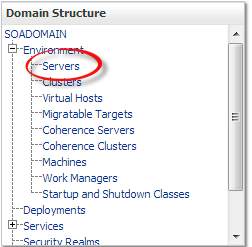
WorkFlowCA: NullError : Could not Connect to the Remote Server

This Error Appear When Trying to Run Oracle Ware-House Builder On Linux , in this tools you are connecting to Database to Setup some configuration for Workflow in DWH, Every Thing Run Successfully Till i received the error in the picture :

WorkFlowCA: NullError : Could not Connect to the Remote Server

You Can ignore this error simply , I didn’t configure Oracle Enterprise manager in my database , which is the reason for this Error.if you want create enterprise manager and re run the tool again.

Thank you
Osama Mustafa