BLOG

Database 12c Installation

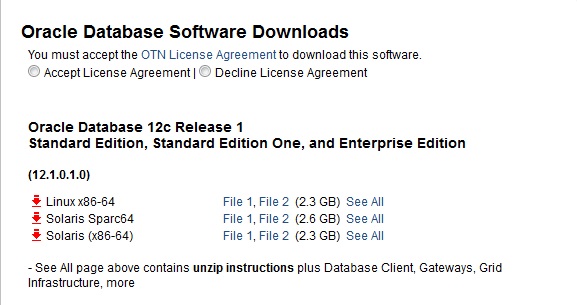
1. Download the Oracle Database 12.1 Software from OTN
2. Make sure Oracle Database Software and OS are certified using https://support.oracle.com
3. Make sure of the following

Hardware

you need to configure Swap Memory And make sure you RAM is enough to avoid Out Of memory during the installation.

Software

as i mention before check certified OS with database, in my case i will use Redhat 6 update 4.

install Packages :

binutils-2.20.51.0.2-5.11.el6 (x86_64)
glibc-2.12-1.7.el6 (x86_64)
libgcc-4.4.4-13.el6 (x86_64)
libstdc++-4.4.4-13.el6 (x86_64)
libaio-0.3.107-10.el6 (x86_64)
libXext-1.1 (x86_64)
libXtst-1.0.99.2 (x86_64)
libX11-1.3 (x86_64)
libXau-1.0.5 (x86_64)
libxcb-1.5 (x86_64)
libXi-1.3 (x86_64)
make-3.81-19.el6sysstat-9.0.4-11.el6 (x86_64)
compat-libcap1-1.10-1 (x86_64)
compat-libstdc++-33-3.2.3-69.el6 (x86_64)
gcc-4.4.4-13.el6 (x86_64)
gcc-c++-4.4.4-13.el6 (x86_64)
glibc-devel-2.12-1.7.el6 (x86_64)
ksh  <== any version of ksh is acceptable
libstdc++-devel-4.4.4-13.el6 (x86_64)
libaio-devel-0.3.107-10.el6 (x86_64)

inside /etc/sysctl.conf

fs.file-max = 6815744
kernel.sem = 250 32000 100 128
kernel.shmmni = 4096
kernel.shmall = 1073741824
kernel.shmmax = 4398046511104
net.core.rmem_default = 262144
net.core.rmem_max = 4194304
net.core.wmem_default = 262144
net.core.wmem_max = 1048576
fs.aio-max-nr = 1048576
net.ipv4.ip_local_port_range = 9000 65500

Use this command to restart kernel  /sbin/sysctl -p

/etc/hosts

  Serverip                Hostname

 /etc/security/limits.conf

oracle   soft   nofile    1024
oracle   hard   nofile    65536
oracle   soft   nproc    2047
oracle   hard   nproc    16384
oracle   soft   stack    10240
oracle   hard   stack    32768

/etc/pam.d/login

session required pam_limits.so

after edit OS parameter you need to create Oracle user :

groupadd -g 101 oinstall
groupadd -g 102 dba
groupadd -g 103 oper

 useradd -u 100 -g oinstall -G dba,oper oracle

passwd oracle

copy media to your Server , and do the following :

chown -R oracle:oinstall /u01/database
chmod -R 775 /u0/database
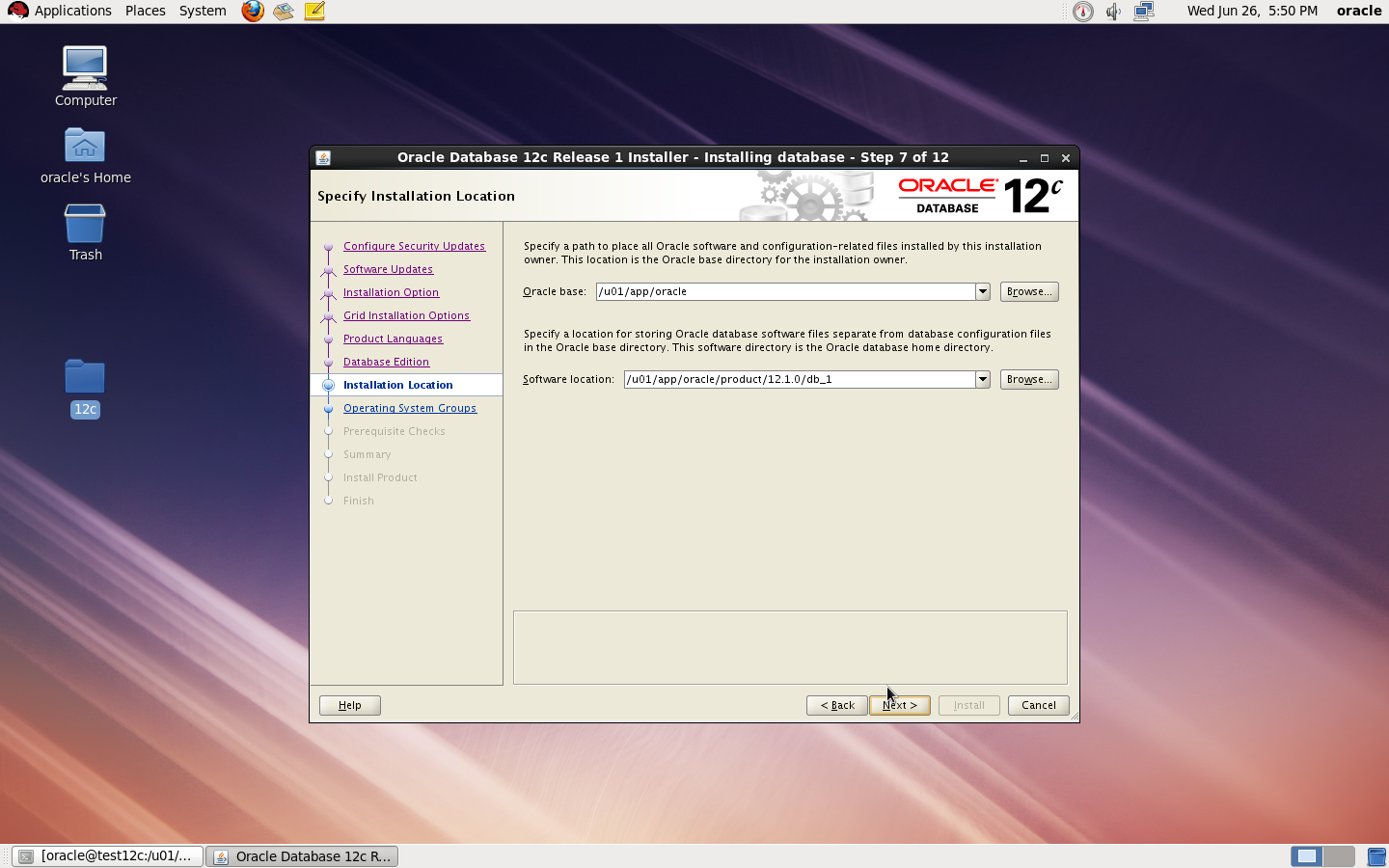
mkdir -p /u01/app/oracle/product/12.1.0/db_1
chown -R oracle:oinstall /u01
chmod -R 775 /u01

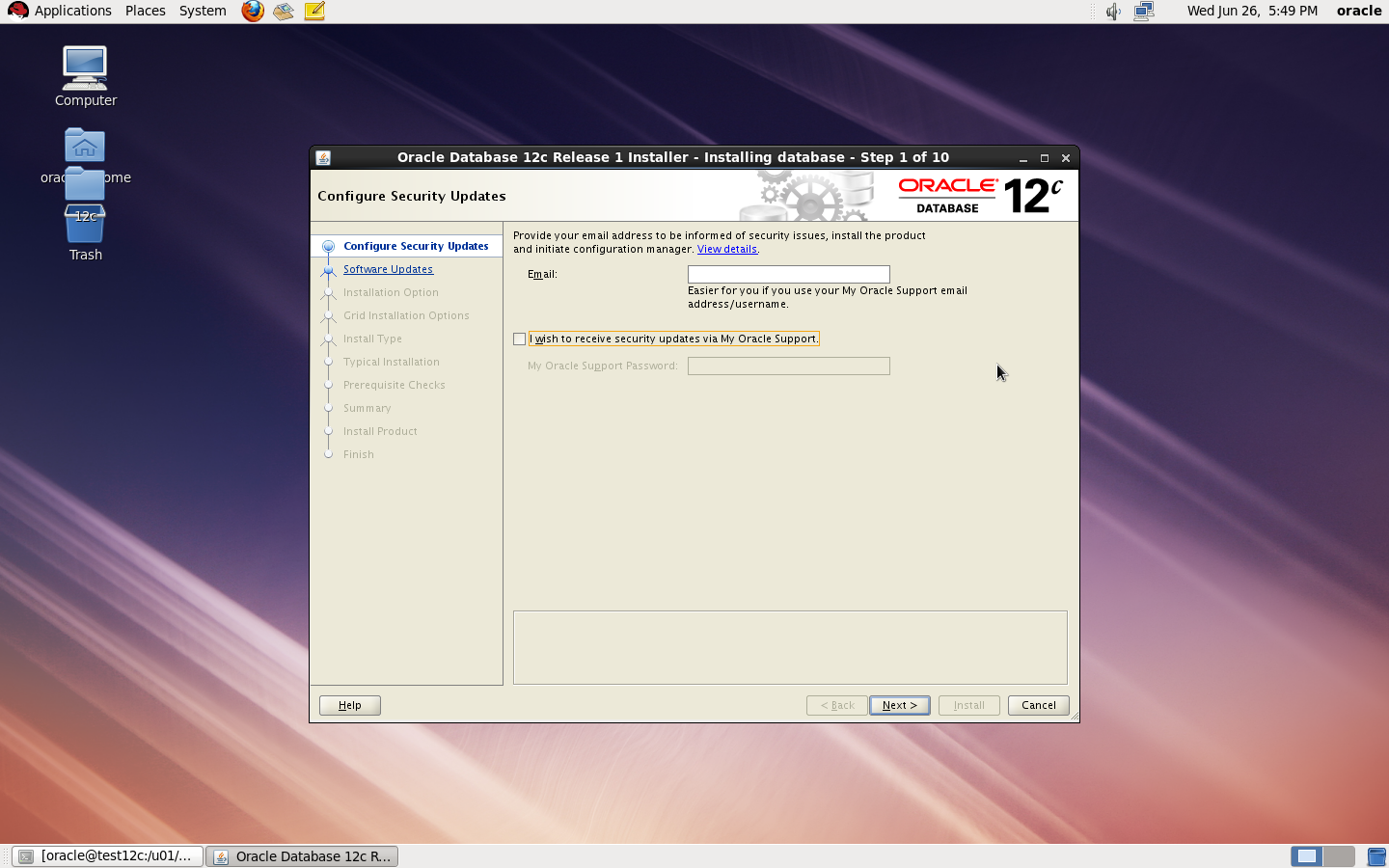
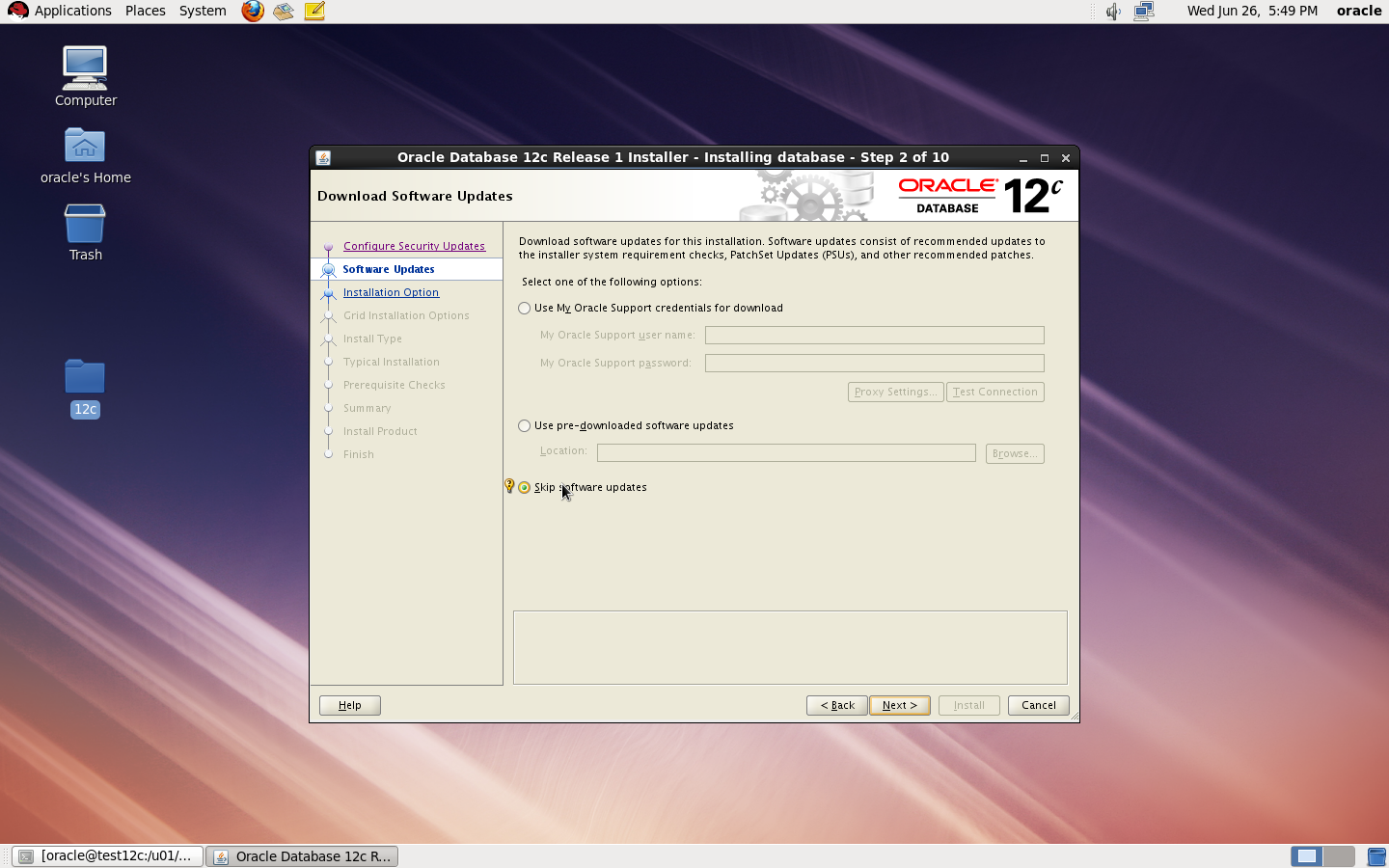
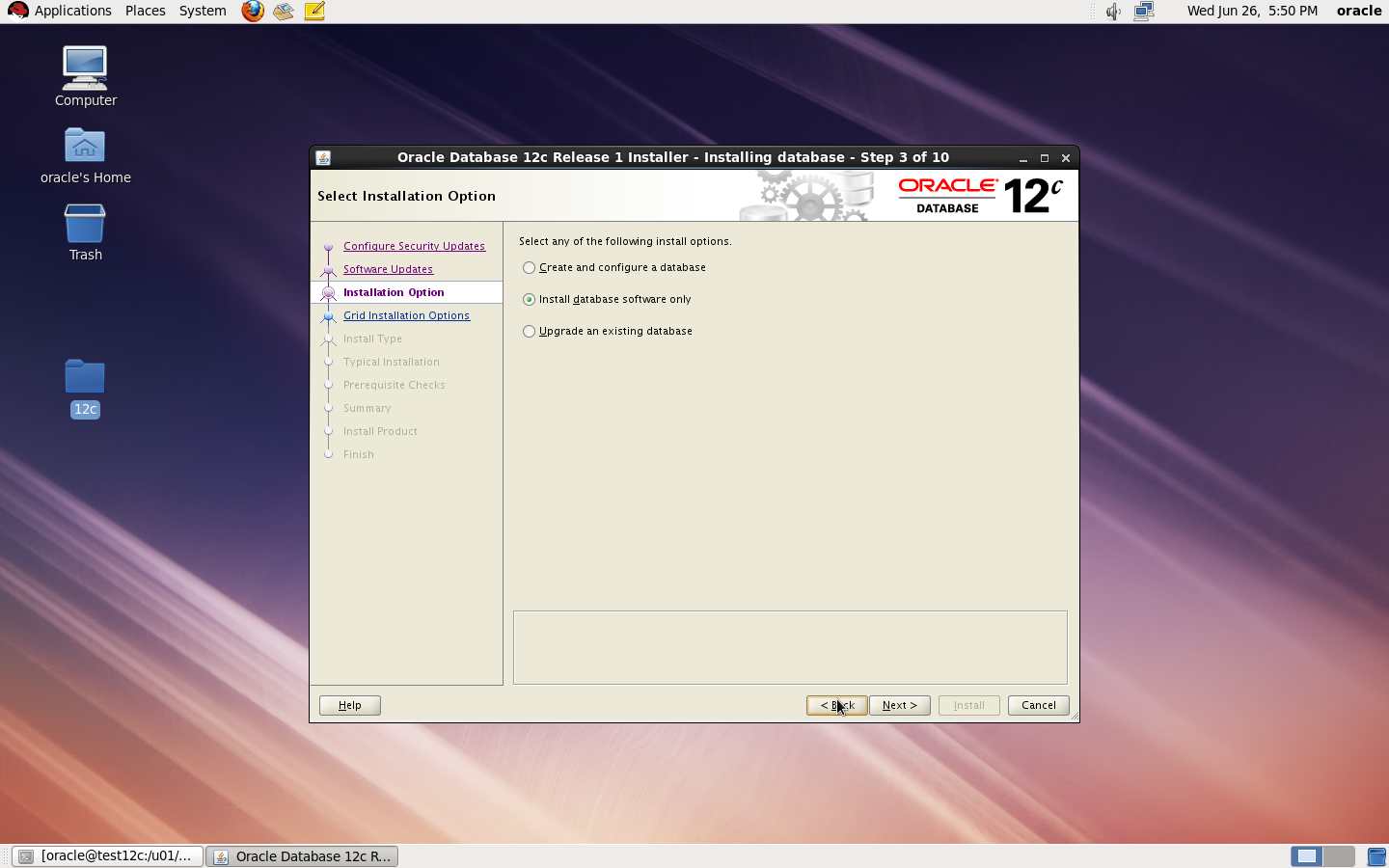
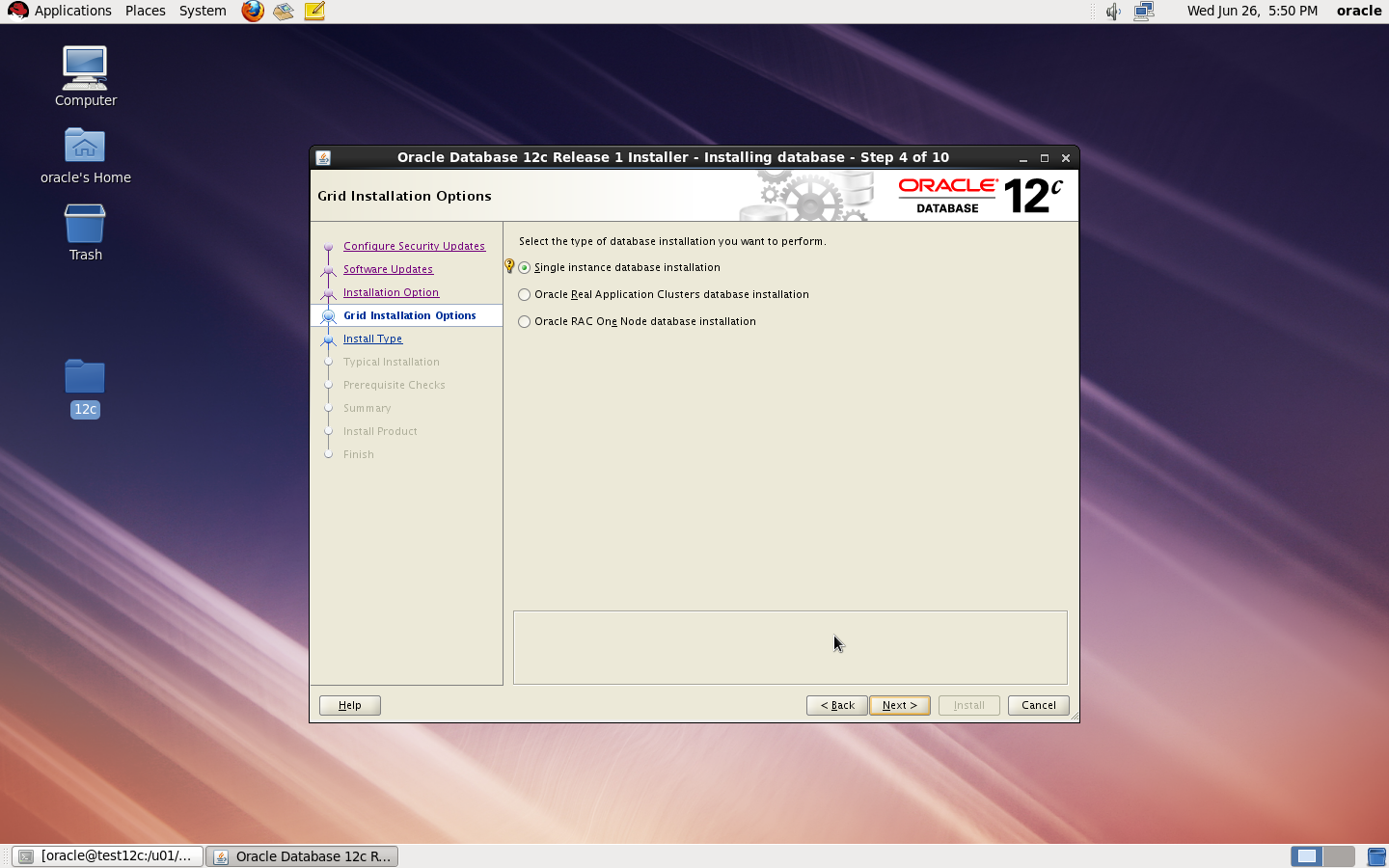
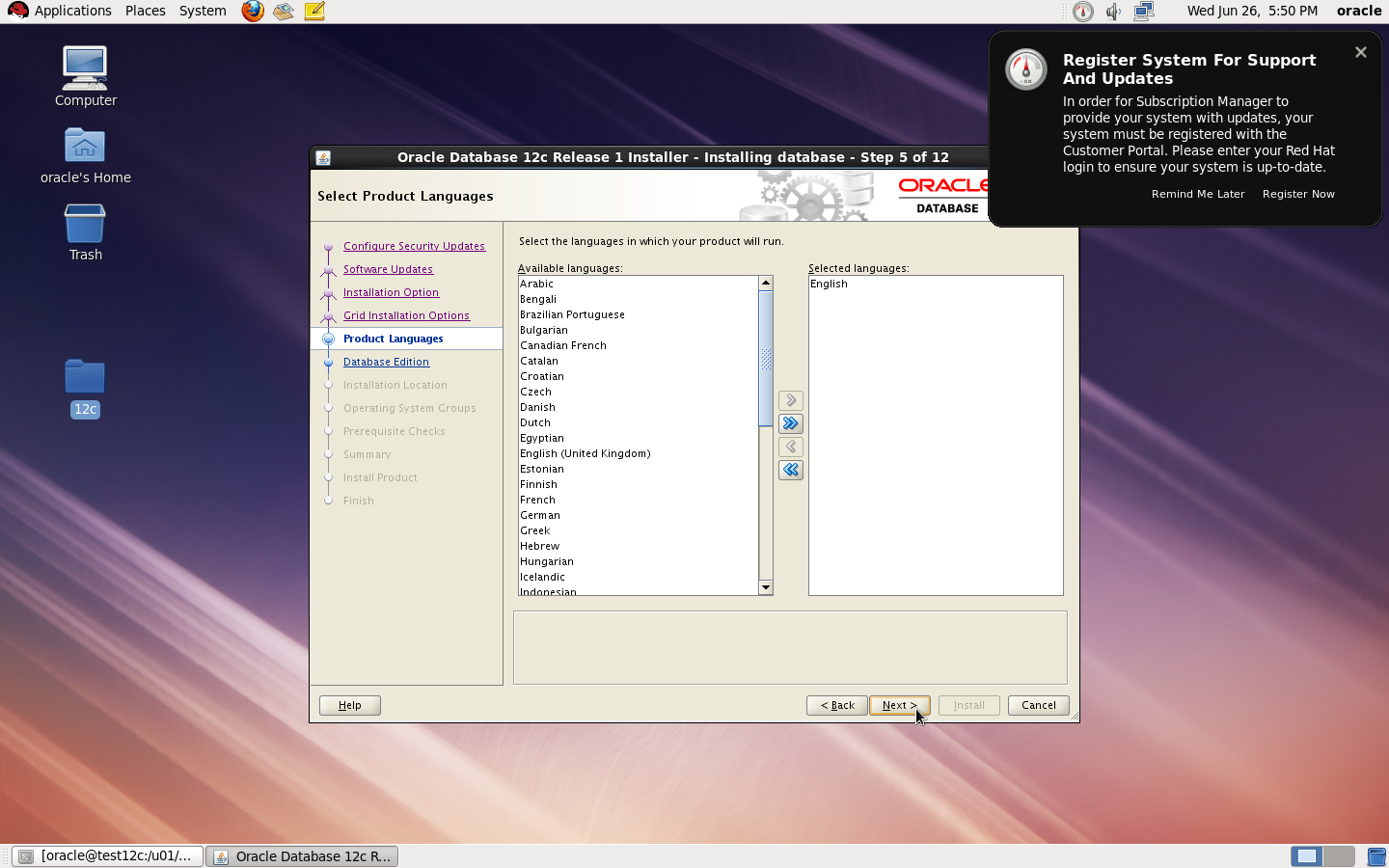
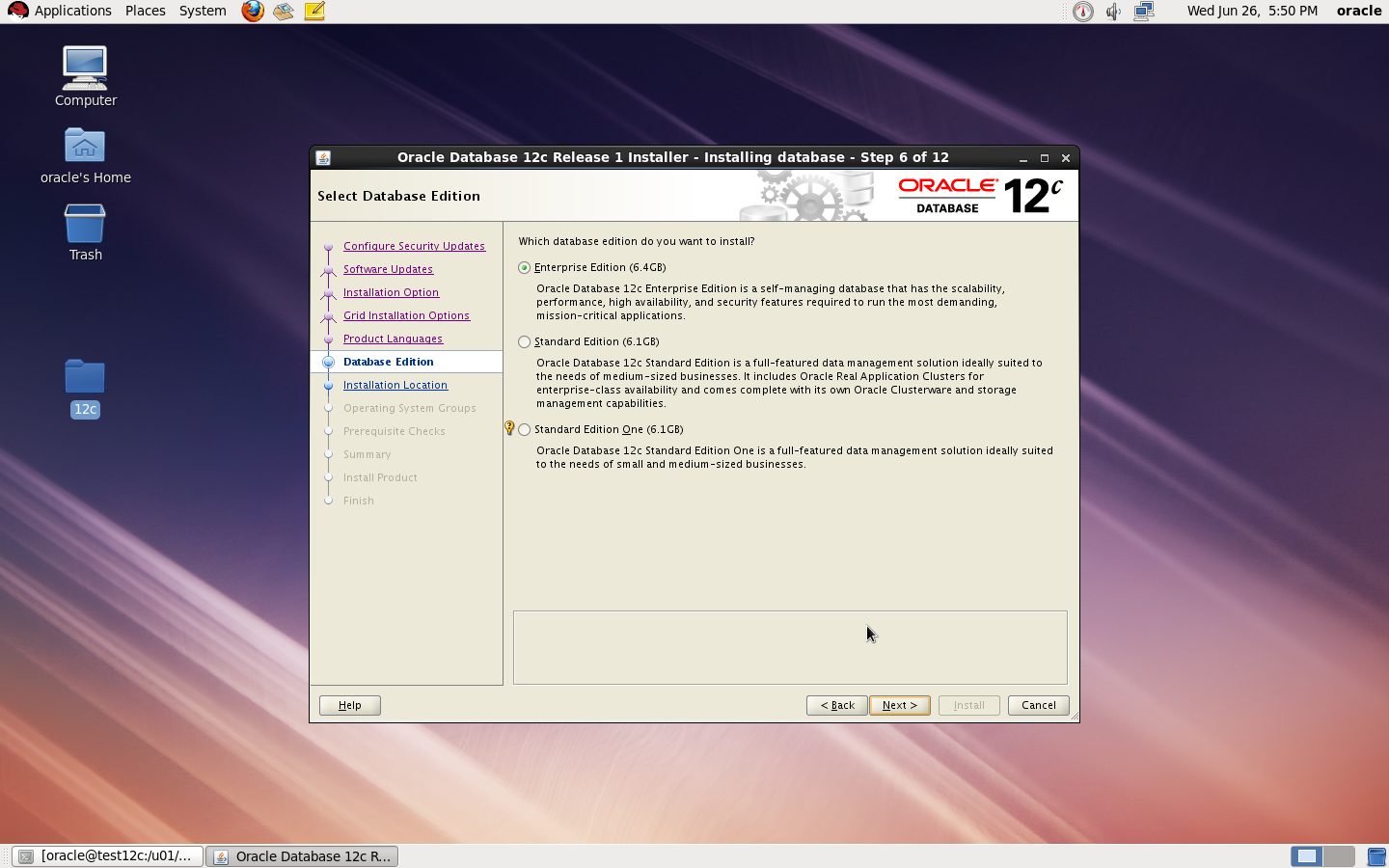
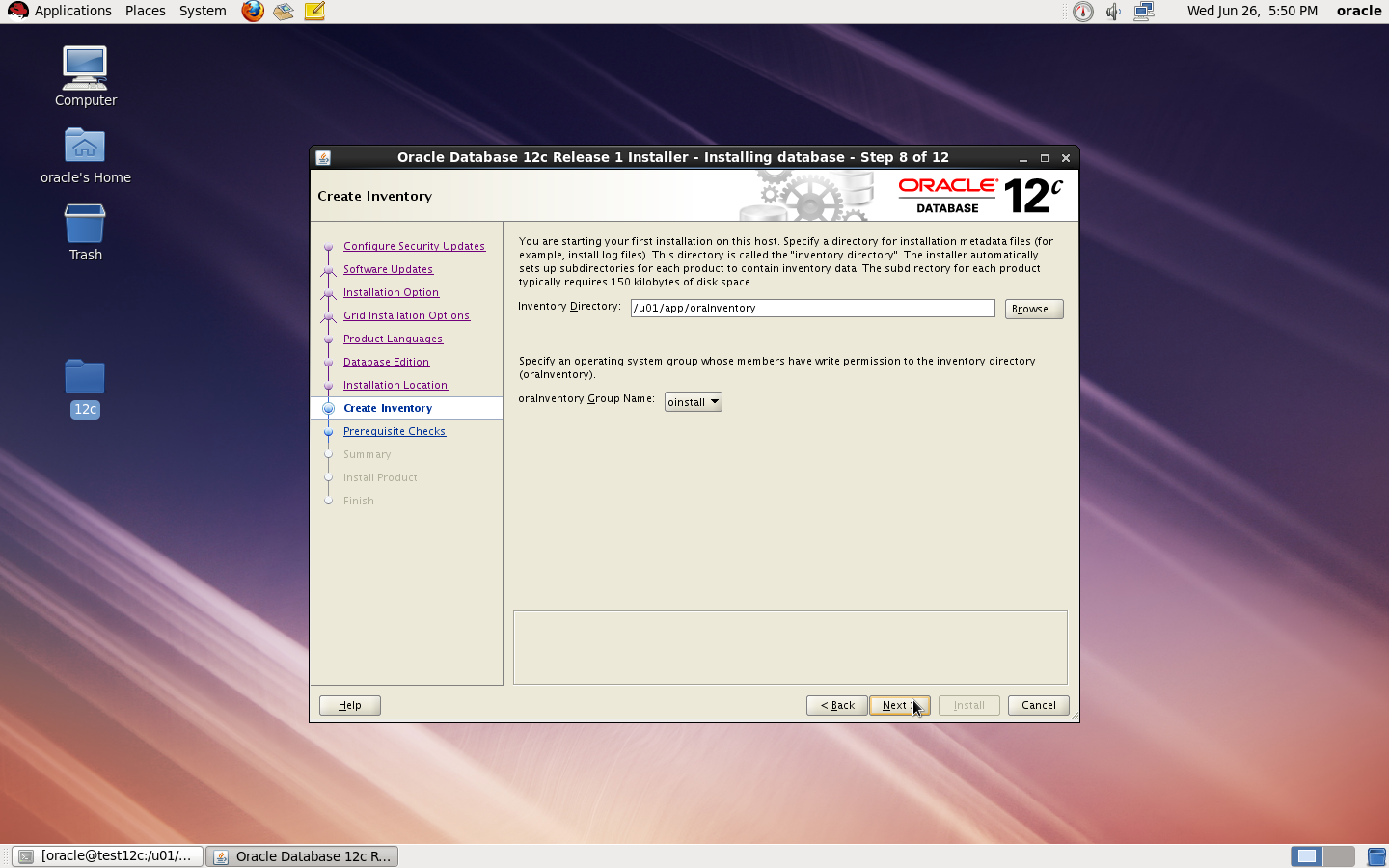
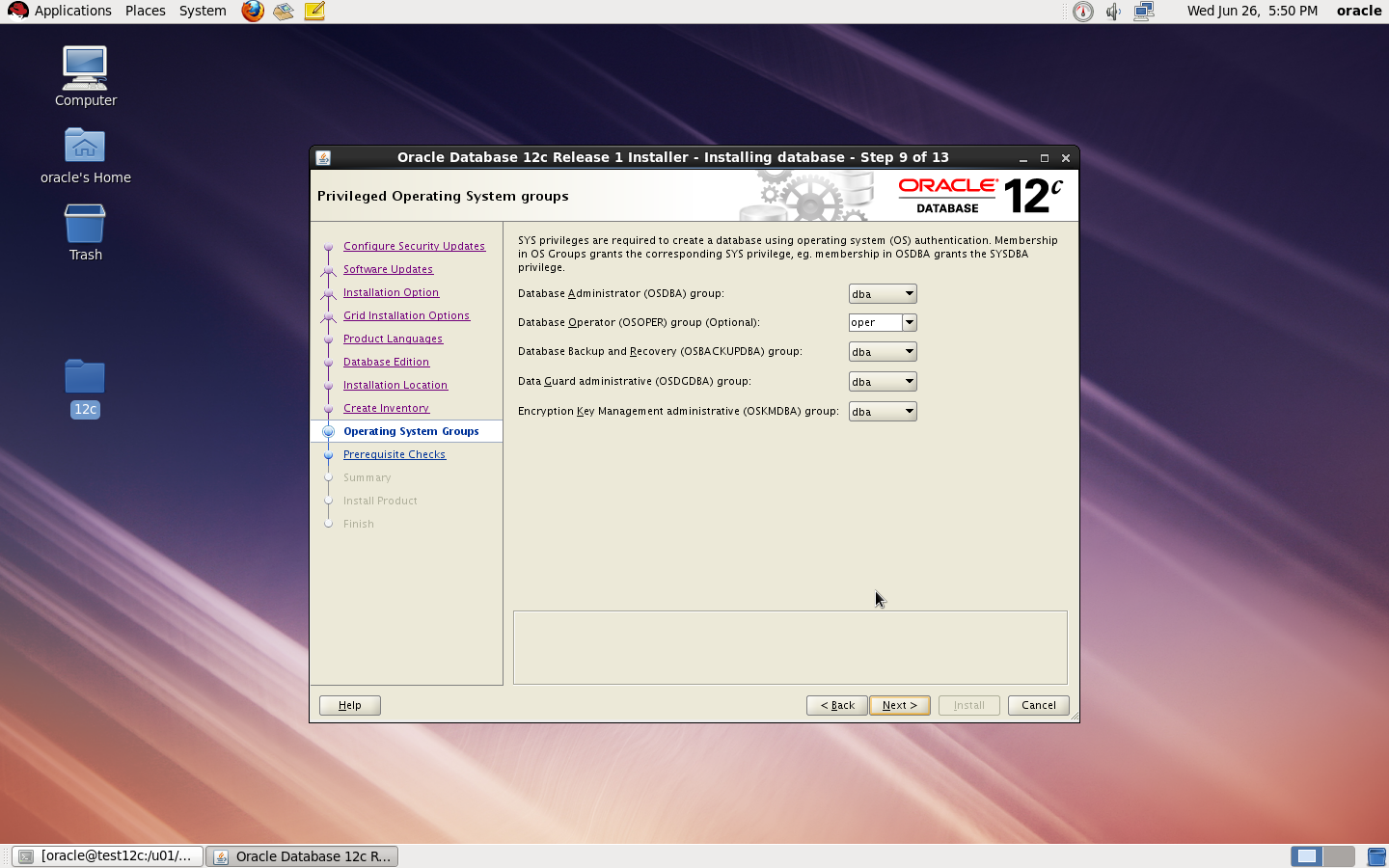
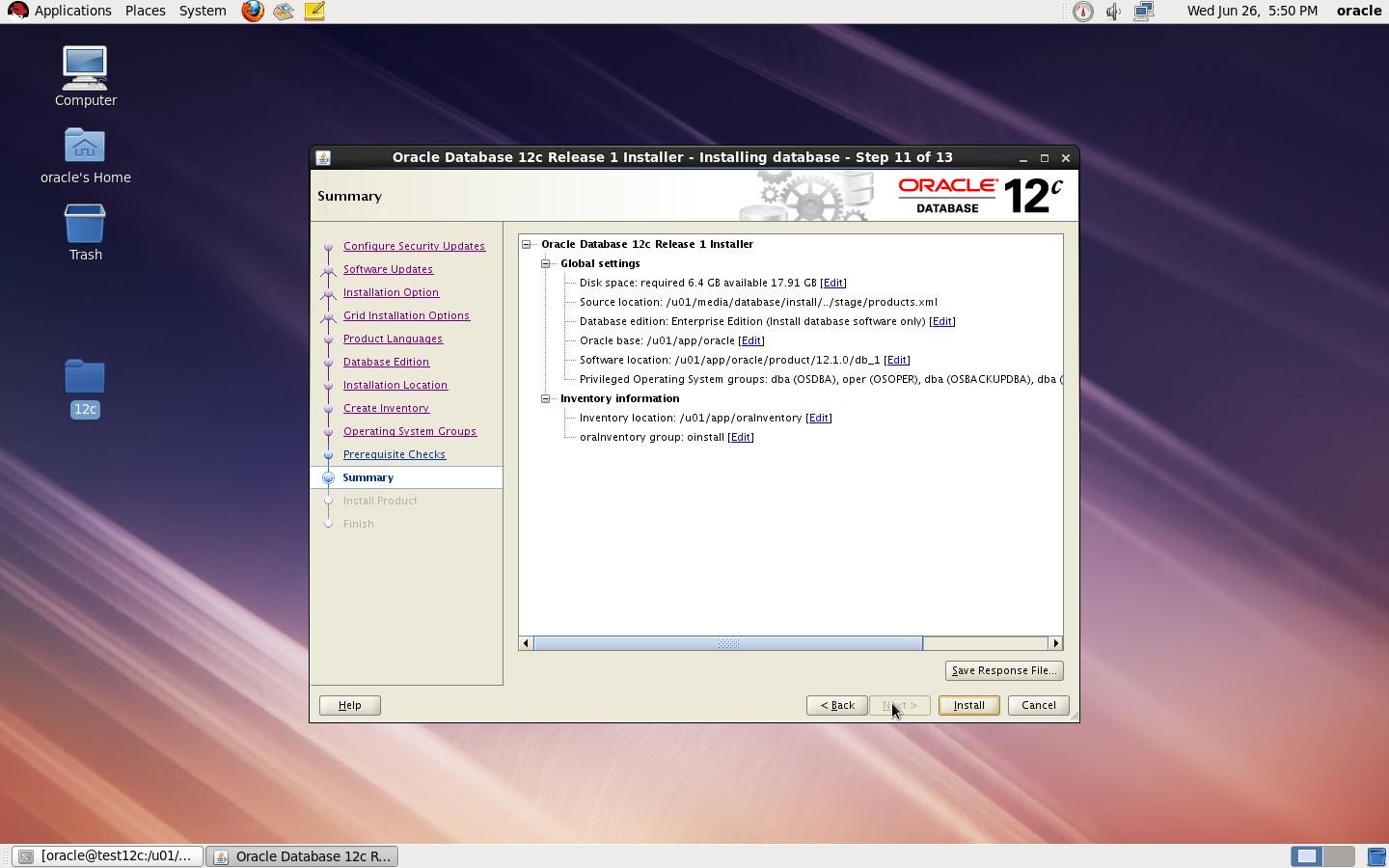
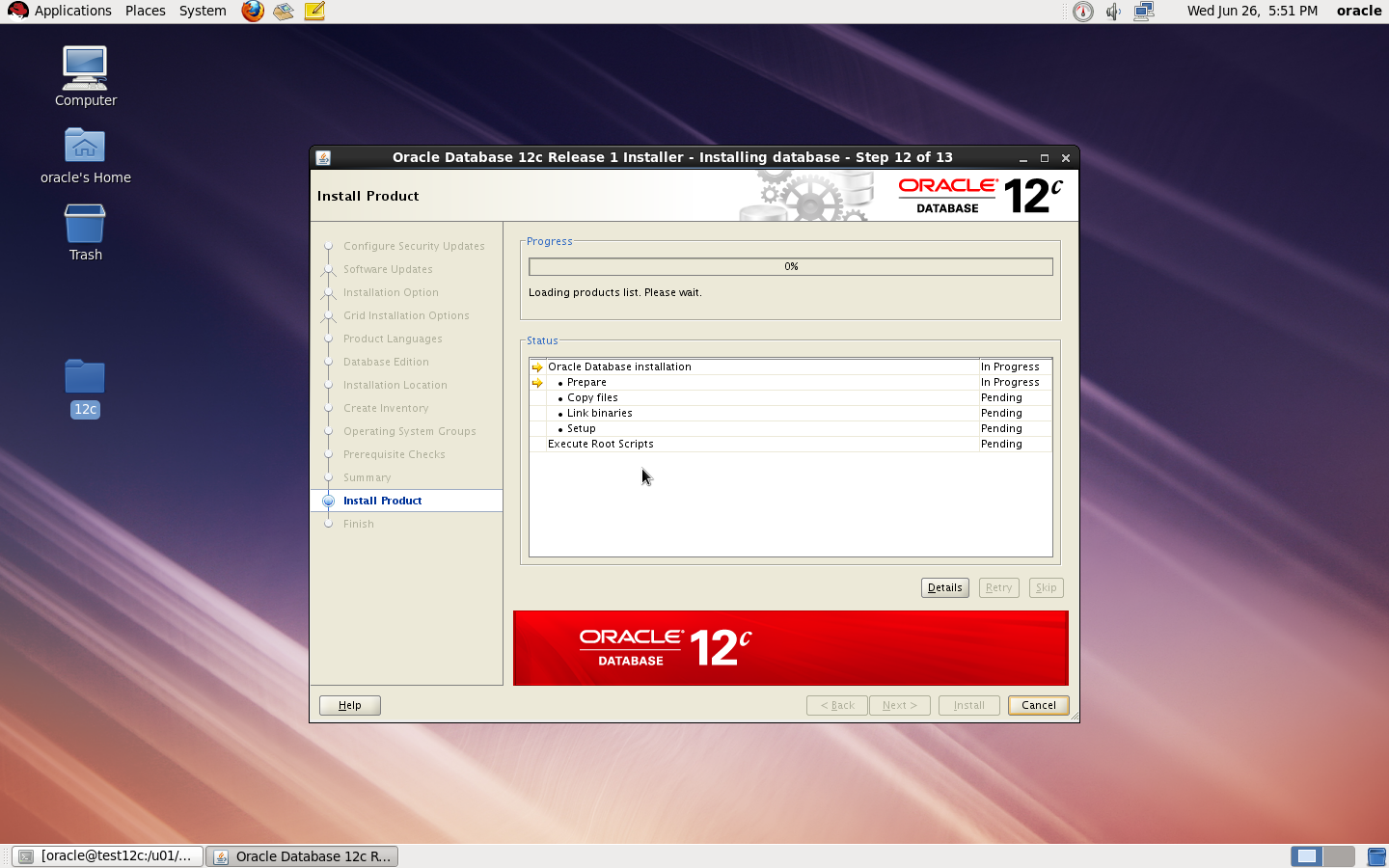
now start installation by ./runInstaller


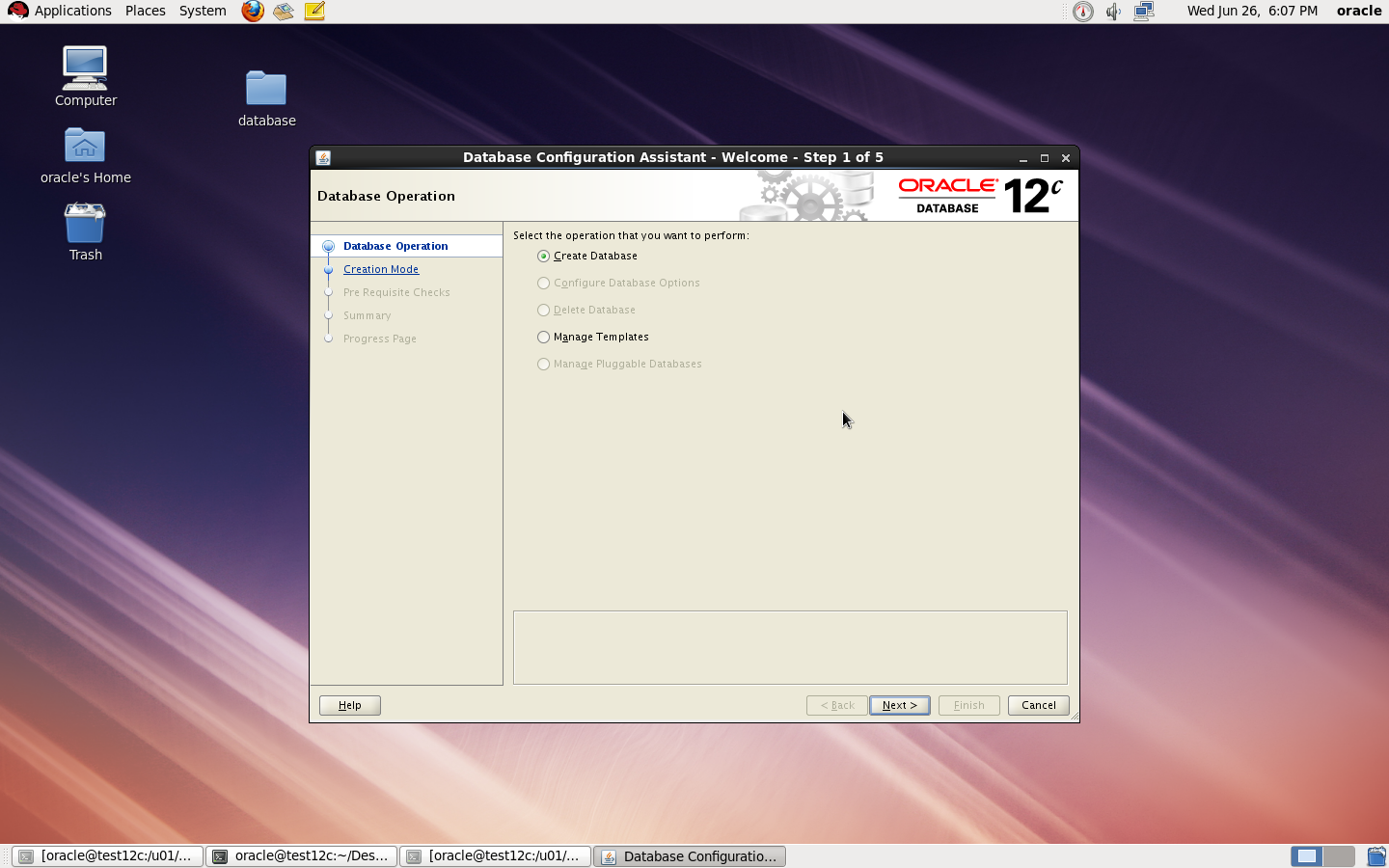
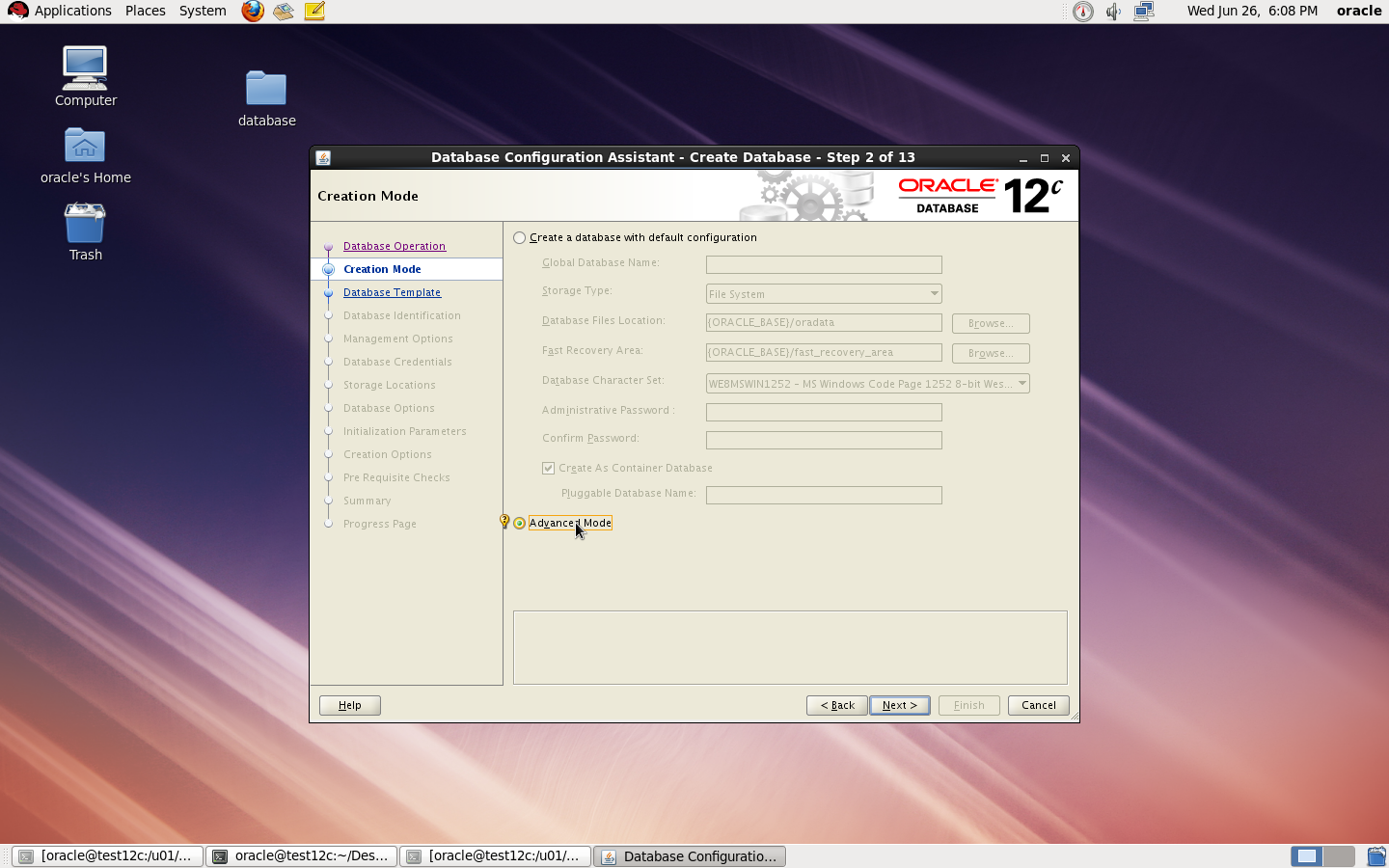
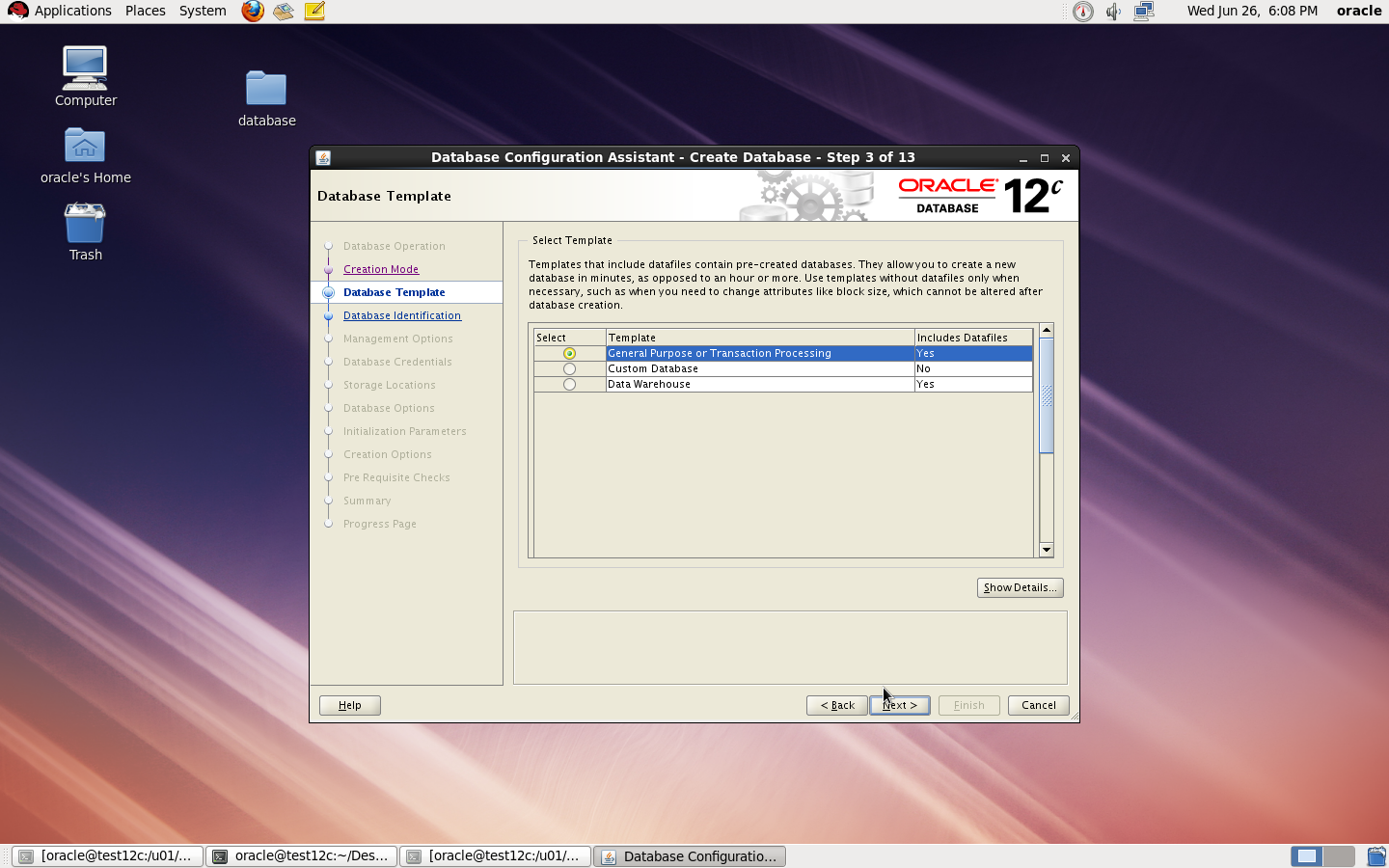
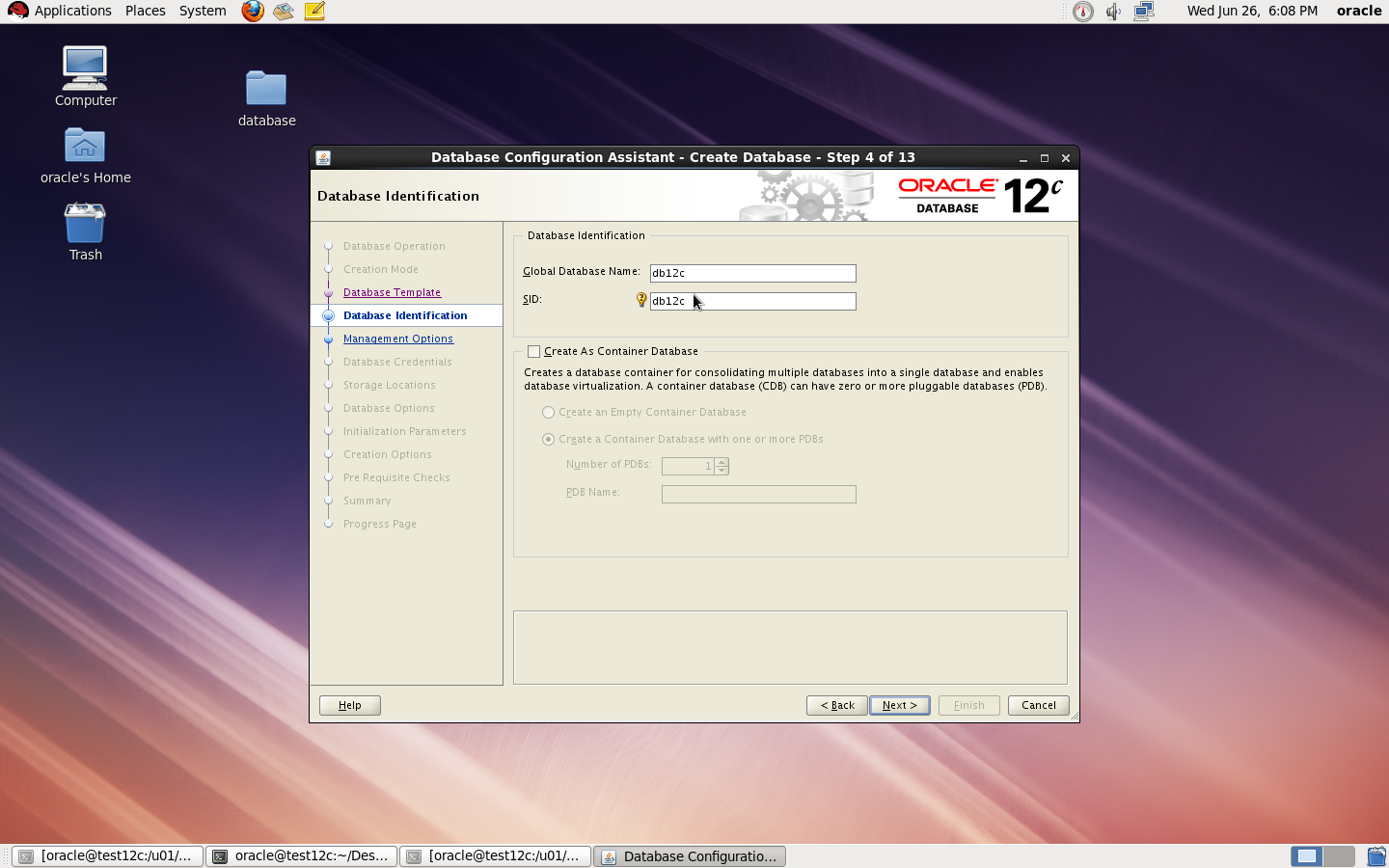
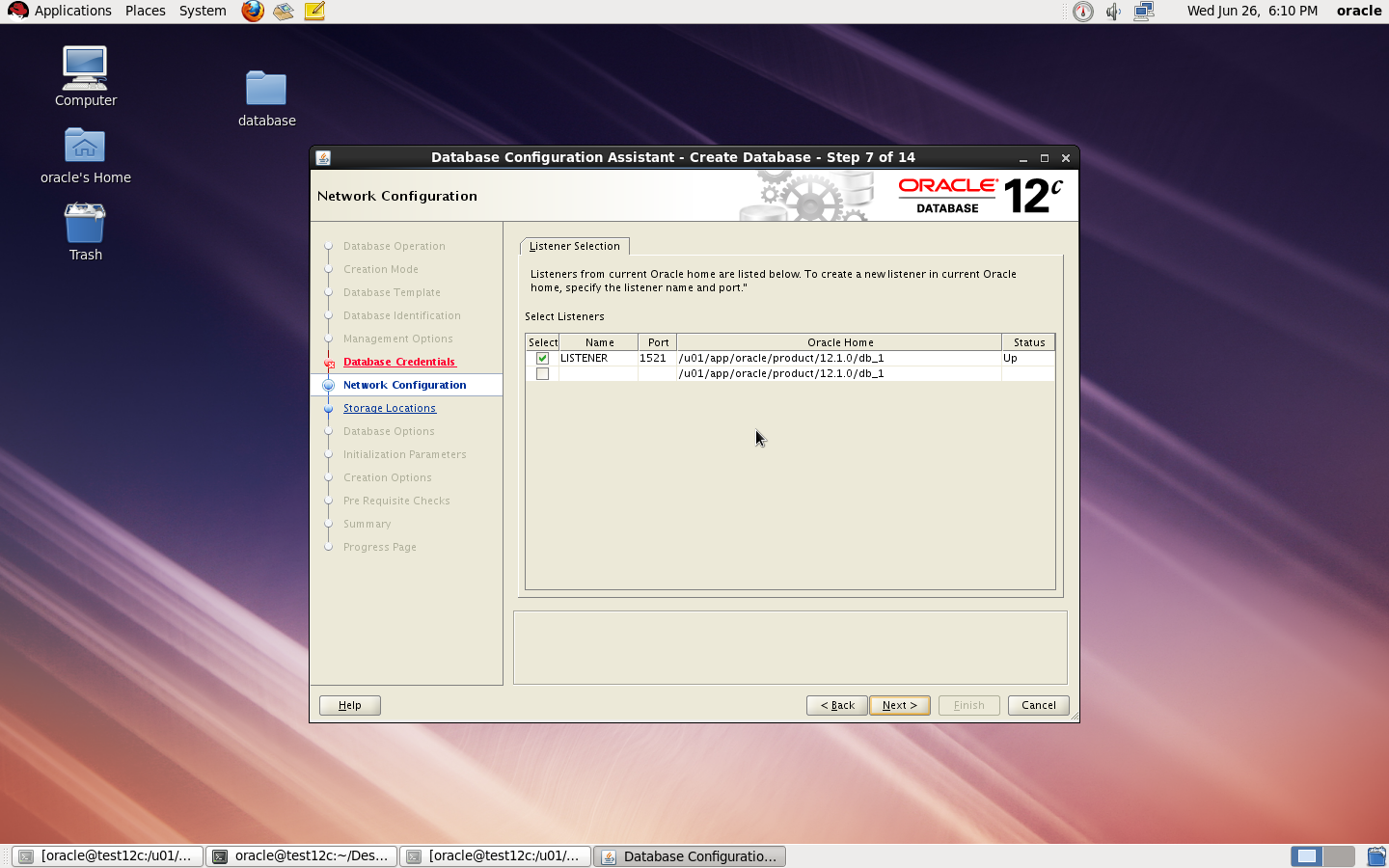
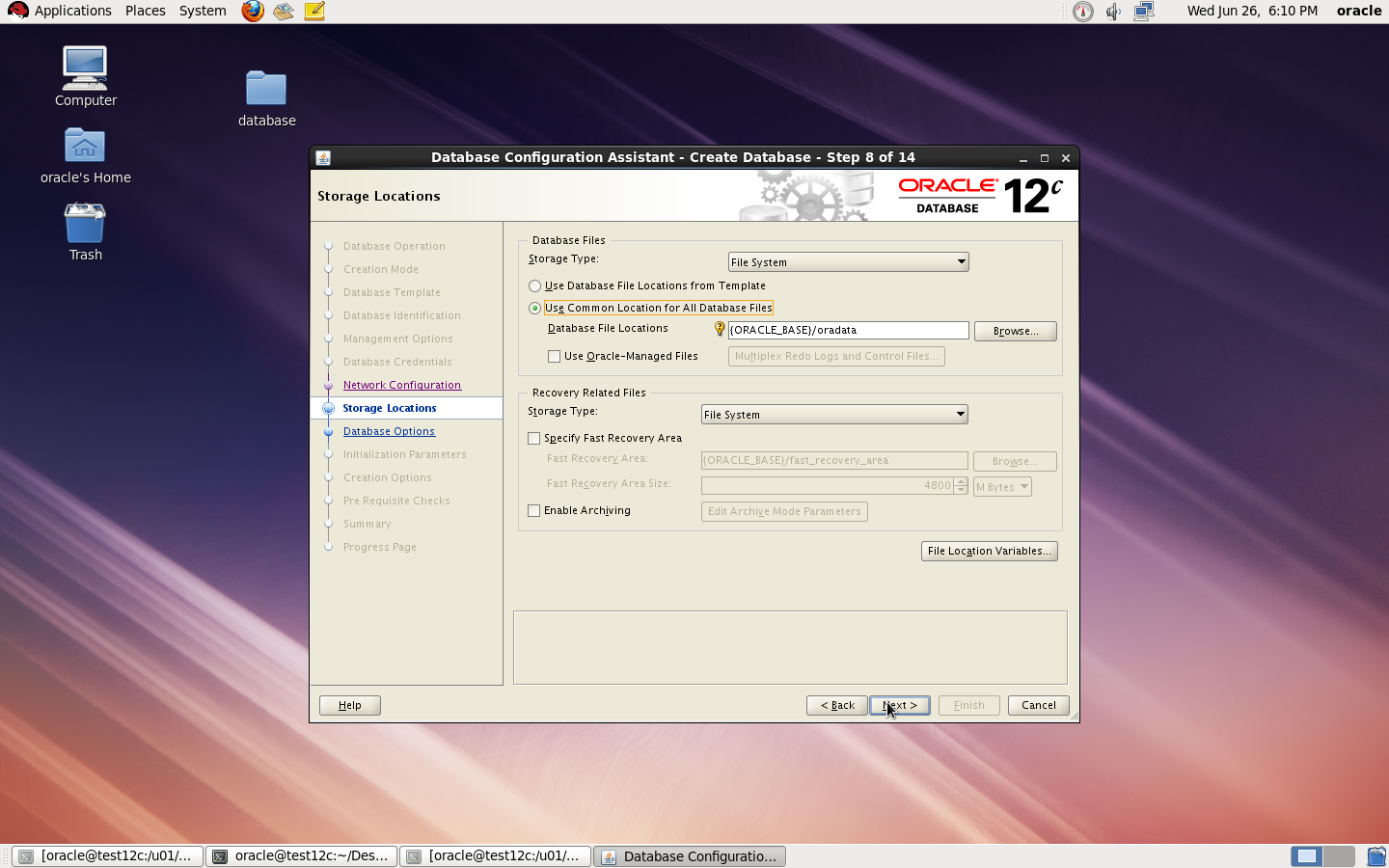
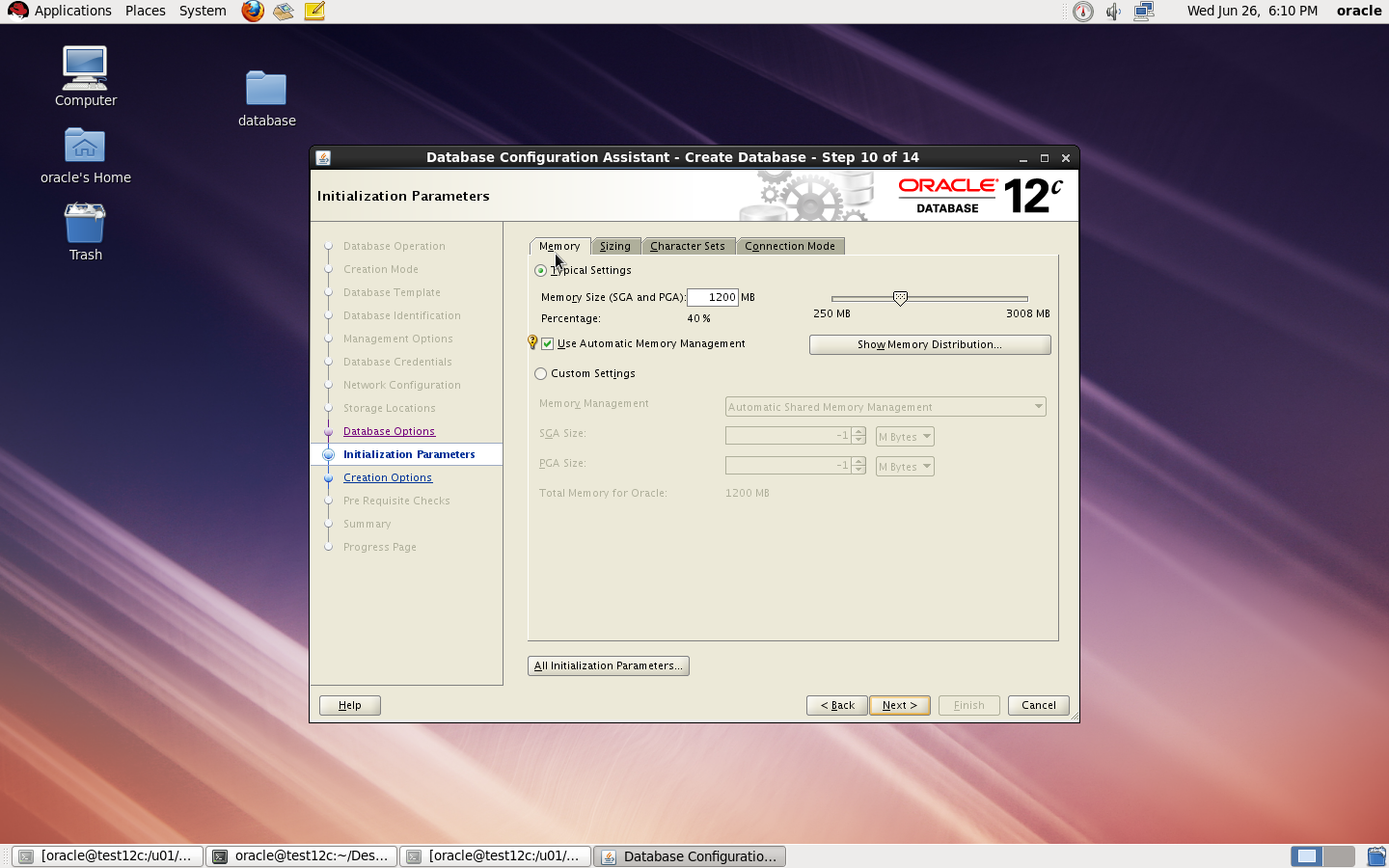
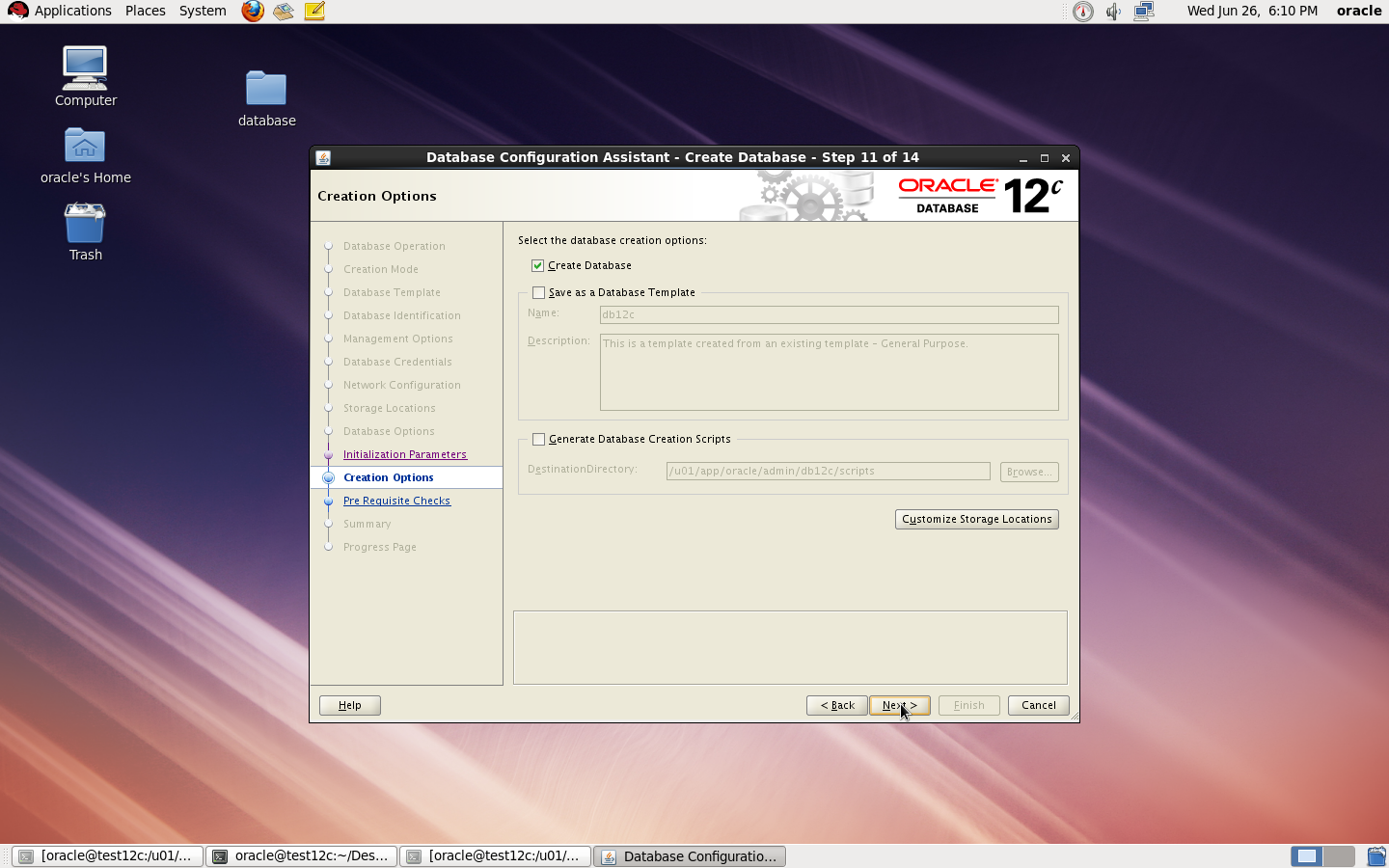
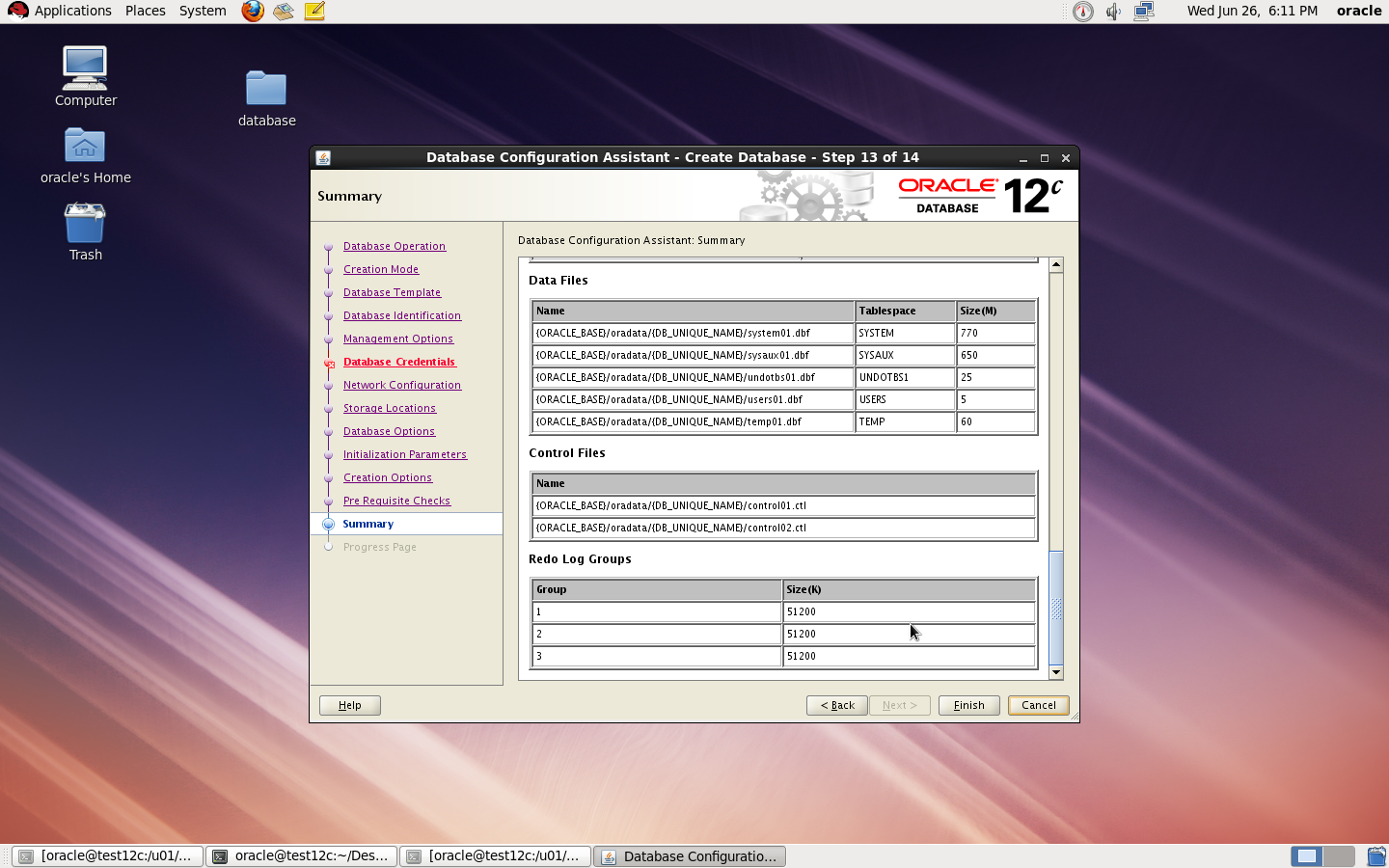
to Create Database you need to configure listener using netca and after finished successfully use dbca like below : 

I Upload the article Here
Thank you
Osama mustafa
  

Oracle Enterprise Manager unable to Start

When I checked the log Located $ORACLE_HOME/SID_HOSTNAME/sysman/log

I found the below errors :

app.ContextInitializer contextInitialized.420 – Integration Class not found

and

ERROR main: nmectla_agentctl: Error connecting to

First you need to make sure that the link in emd.properties and ports and configured right and hostname is correct, restrat dbconsole if this not works then check the below

On Host :

oracle@TEST:/u01/app/$ echo $TZ
localtime

oracle@TEST:/u01/app/$ export TZ=Etc/GMT+2

emctl config agent updateTZ

emctl resetTZ agent 

Restart Dbconsole

Emctl start dbconsole 

 Thank you
Osama mustafa
Enable Debug Mode Oracle Enterprise Manager

you need to change directory to below :

/u01/app/oracle/product/11.2.0/dbhome_1/sysman/config

under this directory you will work on

  • emd.properties
  • emagentlogging.properties
Backup two files. using cp command.
Open 

  • emagentlogging.properties
File :

change 

log4j.rootCategory=WARN, emagentlogAppender, emagenttrcAppender
TO 
log4j.rootCategory=DEBUG, emagentlogAppender, emagenttrcAppender
  • emd.properties
Change 
EMAGENT_PERL_TRACE_LEVEL=WARN
TO 
EMAGENT_PERL_TRACE_LEVEL=DEBUG
Restart dbconsole
Thank you 
Osama mustafa
Share Folder On Solaris For Window Purpose

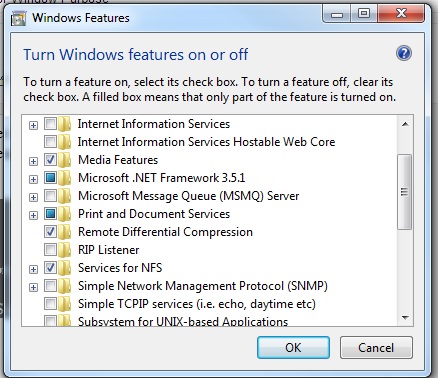
In this article i will show how to share folder in Solaris and use this folder for Copy/Paste in windows , I will use NFS so you need to make sure it’s already enable in Windows

  • Select Control Panel.
  • Select Programs.
  • Select Programs and Features.
  • Select Turn Windows Features on or off.
  • Select Services for NFS.
  • Select the check box Client for NFS and click OK.
Now On Solaris Side , Using Share command 

share [-F fstype] [ -o options] [-d “”] [resource]

Create Folder and use the below command to share 

share -F nfs -o rw -d “codereview dirs” /u01/Shared –> my Shared Folder


root@Host:/u01# cat /etc/dfs/sharetab 

/u01/hmmdb u01_hmmdb nfs sec=sys,rw codereview
/u01/Shared u01_Shared nfs sec=sys,rw

Now back to windows open Command Prompt “cmd”
and run the below command :
showmount -e Server-IP 

Exports list on :
/u01/Shared                        All Machines
/u01/hmmdb                         All Machines

Command to share on windows :
mount -o mtype=hard Server-IP:Path_for_share_folder name drive letter or *
mount -o mtype=hard server-ip:/u01/Shared Z:
Done
Thank you 
Osama mustafa
Oracle Java SE Critical Patch Released

“The June 2013 Oracle Java SE Critical Patch Update was released on June 18, 2013. Oracle strongly recommends applying the patches as soon as possible.

The Critical Patch Update Advisory is the starting point for relevant information. It includes the list of products affected, a summary of the security vulnerabilities, and a pointer to obtain the latest releases and patches.”

June 2013 Oracle Java SE Critical Patch Update: Here

The next four scheduled dates for Oracle Java SE Critical Patch Updates are:
16 April 2013
18 June 2013
15 October 2013
14 January 2014

Thank you
Osama mustafa
Extend File system On Solaris Using ZFS Command

The below is demostration for extend File system On Solaris 11 :  

root@TEST:~# zfs list
NAME                      USED  AVAIL  REFER  MOUNTPOINT
oracle                    107G  10.6G  1.11M  /oracle
oracle/u01                105G  13.0G   105G  /u01
rpool                    32.2G  46.0G    39K  /rpool
rpool/ROOT               5.40G  46.0G    31K  legacy
rpool/ROOT/solaris       5.40G  46.0G  5.03G  /
rpool/ROOT/solaris/var    318M  46.0G   314M  /var
rpool/dump               1.03G  46.1G  1.00G  –
rpool/export              854K  46.0G    32K  /export
rpool/export/home         822K  46.0G    32K  /export/home
rpool/export/home/omnix   790K  46.0G   790K  /export/home/omnix
rpool/swap               25.8G  46.8G  25.0G  –

 root@TEST:~# zpool list

NAME     SIZE  ALLOC   FREE  CAP  DEDUP  HEALTH  ALTROOT
oracle   140G   105G  34.9G  75%  1.00x  ONLINE  –
rpool   79.5G  31.4G  48.1G  39%  1.00x  ONLINE  –

root@TEST:~# zpool set autoexpand=on oracle

root@TEST:~# zpool list
NAME     SIZE  ALLOC   FREE  CAP  DEDUP  HEALTH  ALTROOT
oracle   140G   105G  34.9G  75%  1.00x  ONLINE  –
rpool   79.5G  31.4G  48.1G  39%  1.00x  ONLINE  –

now you have to do the below :

root@TEST:~# zfs get volsize,reservation oracle

         NAME    PROPERTY     VALUE    SOURCE

oracle  volsize      –        –
oracle  reservation  107G     local

root@TEST:~# zfs set reservation=140G oracle/u01

          root@TEST:~# zfs get reservation oracle/u01

NAME        PROPERTY     VALUE   SOURCE
oracle/u01  reservation  140     local

–> zfs set quota=140G oracle

Finally Check df -h and size are increased 🙂

Thank you
Osama mustafa 
cannot unmount ‘/export/home/oracle’: Device busy

Operating System : Solaris 11

When run the below command :

zfs destroy rpool/export/home/grid

 cannot unmount ‘/export/home/oracle’: Device busy

Solution :

zfs unmount rpool/export/home/grid
zfs destroy rpool/export/home/grid

Thank you
Osama mustafa
cannot mount ‘rpool/u01’ on ‘/u01’: mountpoint or dataset is busy

When you try to use the below command :

zfs create -o mountpoint=/u01 rpool/u01

Error :
cannot mount ‘rpool/u01’ on ‘/u01’: mountpoint or dataset is busy
The Solution :
  • First destroy rpool/u01
  • zfs create rpool/u01
  • zfs set mountpoint=/u01 rpool/u01
  • mkdir /u01
  • zfs mount /u01
Thank you 
Osama Mustafa

Example on how to add Virtual Host On em12c

Active/Passive Clusterware , how to use it with em12c ? How to monitor OS and Database ? As One Single host Agent will deploy on Both Hosts without Any problem but in this case you will only Deal with one Host as Single not as Clusterware.

i will provide example how to add active/passive Clusterware to em12c :
First Agent should be deploy for single Host not acitve/passive clusterware, after do that Run the below command from Single Host 
 
emctl deploy agent -o -n “Service_name” -A  
The Below Commands should be run from new agent Location 
emctl secure agent
emctl start agent
emctl config agent addinternaltargets
**I prefer to set Service_name —> OracleAgent12cShared.
** Re run the above command on the passive Node after Failover shared storage on it.
Thank you 
Osama Mustafa