AWS Load Balancing

A load balancer distributes incoming application traffic across multiple targets, such as EC2 instances, in multiple Availability Zones to increase the availability of your application. A load balancer works with listeners. You can have more than one listener per load balancer. 

A listener checks for connection requests from clients, using the protocol and port that you configure. The load balancer forwards requests to one or more target groups, based on the rules that you define.

Each rule specifies a target group, condition, and priority. The traffic is forwarded to that group when the condition is met. You define a default rule for each listener. You can add rules that specify different target groups based on the content of the request. Each target group routes requests to one or more registered targets, for example EC2 instances, using the specified protocol and port number. You can register a target with multiple target groups.

Elastic Load Balancing

AWS Elastic Load Balancing (ELB) is one of the most widely used AWS services. It has been adopted by organizations of all sizes, in all geographies, and across every industry. ELBs automatically distribute traffic across multiple targets, provide high availability, incorporate security features, and perform health checks.

ELB features

ELB load balancers are the only load balancers available on AWS that natively connect users to your EC2 instances, container deployments, and AWS Lambda functions. Some key feature sets include the following:

  • High availability – ELB automatically distributes your traffic across multiple targets in a single Availability Zone or multiple Availability Zones. Examples of targets include EC2 instances, containers, and IP addresses.
  • Layer 4 or Layer 7 HTTP and HTTPS load balancing – You can load balance your HTTP or HTTPS applications for Layer 7-specific features. Alternatively, you can use strict Layer 4 load balancing for applications that rely purely on the TCP.
  • Security features – Use Amazon VPC to create and manage security groups associated with load balancers to provide additional networking and security options. You can also create an internal (non-internet-facing) load balancer.
  • Health checks – ELB load balancers can detect unhealthy targets, stop sending traffic to them, and spread the load across the remaining healthy targets.
  • Monitoring operations – To monitor the performance of your applications in real time, ELB integrates with CloudWatch metrics and provides request tracing.

Types of load balancers

Application Load Balancer

This load balancer functions at the application layer, the seventh layer of the Open Systems Interconnection (OSI) model. Application Load Balancers support the following: Content-based routing, applications that run in containers, and open standard protocols (WebSocket and HTTP/2). This type of balancer is ideal for advanced load balancing of HTTP and HTTPS traffic. 

Network Load Balancer

This load balancer is designed to handle tens of millions of requests per second while maintaining high throughput at ultra low-latency. Network Load Balancer operates at the connection level (Layer 4), routing connections to targets based on IP protocol data. Targets include EC2 instances, containers, and IP addresses. It is ideal for balancing TCP traffic.

Gateway Load Balancer

This load balancer makes it easy to deploy, scale, and manage your third-party virtual appliances. It provides one gateway for distributing traffic across multiple virtual appliances, and scales them up, or down, based on demand. This distribution reduces potential points of failure in your network and increases availability. Gateway Load Balancer transparently passes all Layer 3 traffic through third-party virtual appliances. It is invisible to the source and destination.

Classic Load Balancer

ELB common features

FeaturesApplication Load BalancerNetwork  Load BalancerGateway  Load Balancer
Health checks
CloudWatch metrics
Logging
Secure Sockets Layer (SSL) offloading
Connection draining
Preserve source IP address
Static IP address**
Lambda functions as a target
Redirects
Fixed-response actions

Regards

Osama

AWS Infrastructure

The AWS Global Cloud Infrastructure is the most secure, extensive, and reliable cloud platform, offering over 200 fully featured services from data centers globally.

AWS Data Center

AWS pioneered cloud computing in 2006 to provide rapid and secure infrastructure. AWS continuously innovates on the design and systems of data centers to protect them from man-made and natural risks. Today, AWS provides data centers at a large, global scale. AWS implements controls, builds automated systems, and conducts third-party audits to confirm security and compliance. As a result, the most highly-regulated organizations in the world trust AWS every day.

Availability Zone – AZ

An Availability Zone (AZ) is one or more discrete data centers with redundant power, networking, and connectivity in an AWS Region. Availability Zones are multiple, isolated areas within a particular geographic location. When you launch an instance, you can select an Availability Zone or let AWS choose one for you. If you distribute your instances across multiple Availability Zones and one instance fails, you can design your application so that an instance in another Availability Zone can handle requests.

Region

Each AWS Region consists of multiple, isolated, and physically separate Availability Zones within a geographic area. This achieves the greatest possible fault tolerance and stability. In your account, you determine which Regions you need. You can run applications and workloads from a Region to reduce latency to end users. You can do this while avoiding the upfront expenses, long-term commitments, and scaling challenges associated with maintaining and operating a global infrastructure.

AWS Local Zone

AWS Local Zones can be used for highly demanding applications that require single-digit millisecond latency to end users. Media and entertainment content creation, real-time multiplayer gaming, and Machine learning hosting and training are some use cases for AWS Local Zones.

CloudFront – Edge Location

An edge location is the nearest point to a requester of an AWS service. Edge locations are located in major cities around the world. They receive requests and cache copies of your content for faster delivery.

Regards

Osama

AWS Snow Family memberS

The AWS Snow Family is a collection of physical devices that help to physically transport up to exabytes of data into and out of AWS. 

AWS Snow Family is composed of AWS SnowconeAWS Snowball, and AWS Snowmobile.

These devices offer different capacity points, and most include built-in computing capabilities. AWS owns and manages the Snow Family devices and integrates with AWS security, monitoring, storage management, and computing capabilities.  

AWS Snowcone

AWS Snowcone is a small, rugged, and secure edge computing and data transfer device. 

It features 2 CPUs, 4 GB of memory, and 8 TB of usable storage.

AWS Snowball

AWS Snowball offers two types of devices:

  • Snowball Edge Storage Optimized devices are well suited for large-scale data migrations and recurring transfer workflows, in addition to local computing with higher capacity needs.
    • Storage: 80 TB of hard disk drive (HDD) capacity for block volumes and Amazon S3 compatible object storage, and 1 TB of SATA solid state drive (SSD) for block volumes. 
    • Compute: 40 vCPUs, and 80 GiB of memory to support Amazon EC2 sbe1 instances (equivalent to C5).
  • Snowball Edge Compute Optimized provides powerful computing resources for use cases such as machine learning, full motion video analysis, analytics, and local computing stacks.
    • Storage: 42-TB usable HDD capacity for Amazon S3 compatible object storage or Amazon EBS compatible block volumes and 7.68 TB of usable NVMe SSD capacity for Amazon EBS compatible block volumes. 
    • Compute: 52 vCPUs, 208 GiB of memory, and an optional NVIDIA Tesla V100 GPU. Devices run Amazon EC2 sbe-c and sbe-g instances, which are equivalent to C5, M5a, G3, and P3 instances.

AWS Snowmobile

AWS Snowmobile is an exabyte-scale data transfer service used to move large amounts of data to AWS. 

You can transfer up to 100 petabytes of data per Snowmobile, a 45-foot long ruggedized shipping container, pulled by a semi trailer truck.

Cheers

Osama

Create IAM Users – OCI

You have the ability to establish users for Oracle Cloud Infrastructure Identity and Access Management (IAM) for user situations that are not as common.

  • Open the navigation menu and click Identity & Security. Under Identity, click Users.
  • Click Create user and then select IAM User.
  • Fill the required fields, and click Create.
  • Add the user to an IAM group with specific access.
    • Under Identity, select Groups
    • From the groups list, click the group to which you want to add the user.
    • Click Add User to Group.
    • In the Add User to Group dialog, select the user you created from the drop-down list in the Users field, and click Add.
  • Create the user’s password.
    • From the Group Members table on the Group Details screen, select the user you added.
    • Click Create/Reset Password. The Create/Reset Password dialog is displayed with a one-time password listed.
    • Click Copy, then Close.
  • Welcome to OCI

Regards

Osama

Create a Bastion – OCI

What is a Bastion?

It’s essential to consider the security implications before allowing direct access to cloud services and resources, particularly as the latter expands. Some individuals get around this problem by setting up a virtual machine within the virtual cloud network and linking it to all the cloud services. This cuts down on publicly accessible services while facilitating connections for developers and system administrators. This virtual machine (VM) is like a manual bastion or leap box.

Create a Bastion

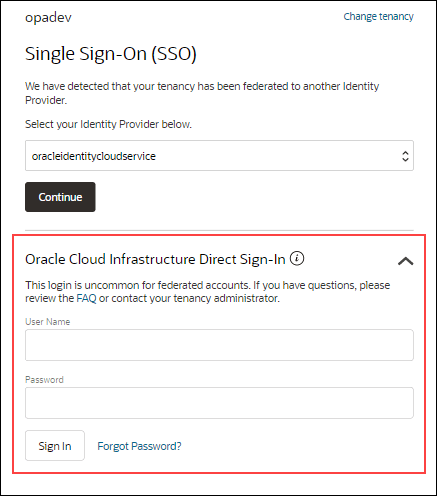
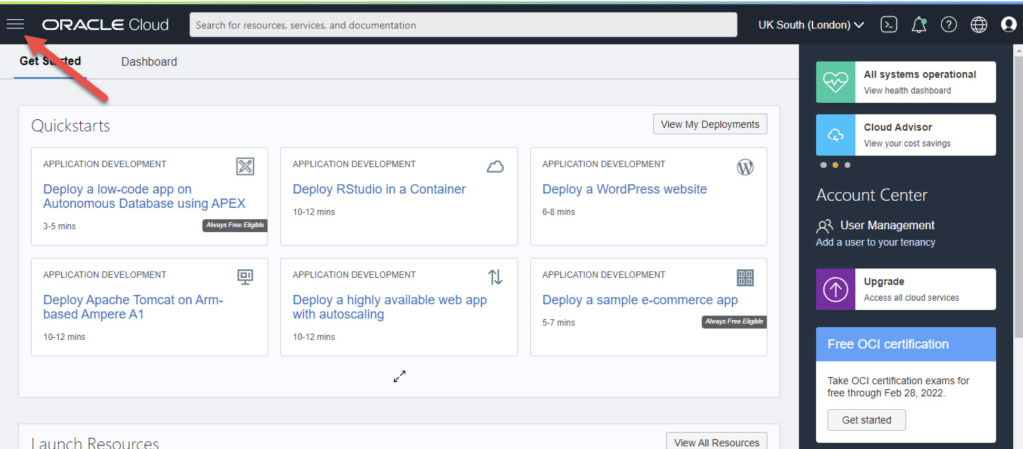
  • Connect to Oracle’s cloud service. To access the main menu, choose the hamburger icon in the upper left corner.
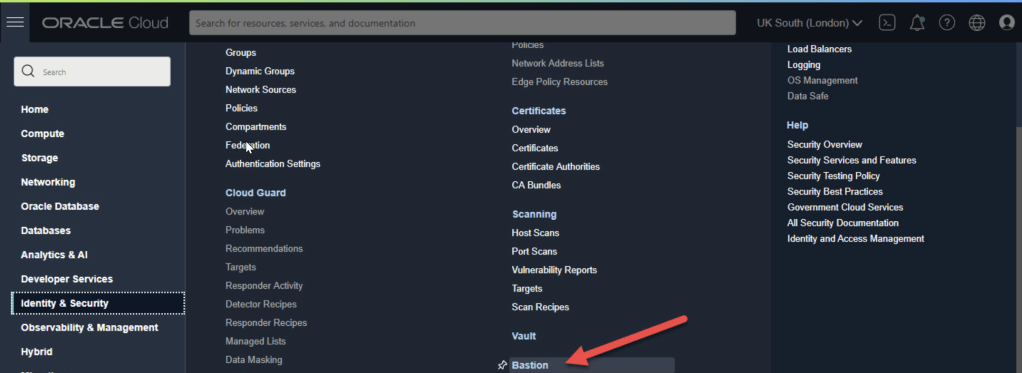
  • On the menu select “Identity & Security > Bastion”.
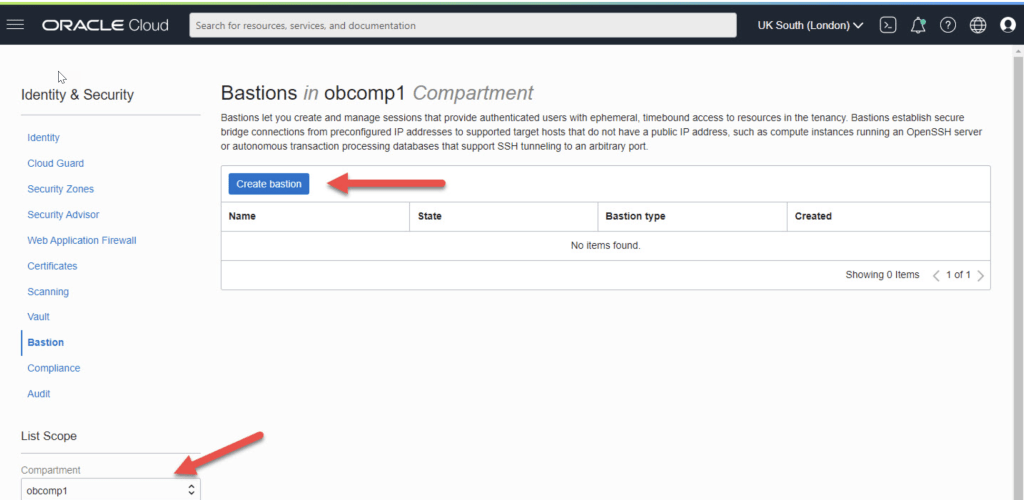
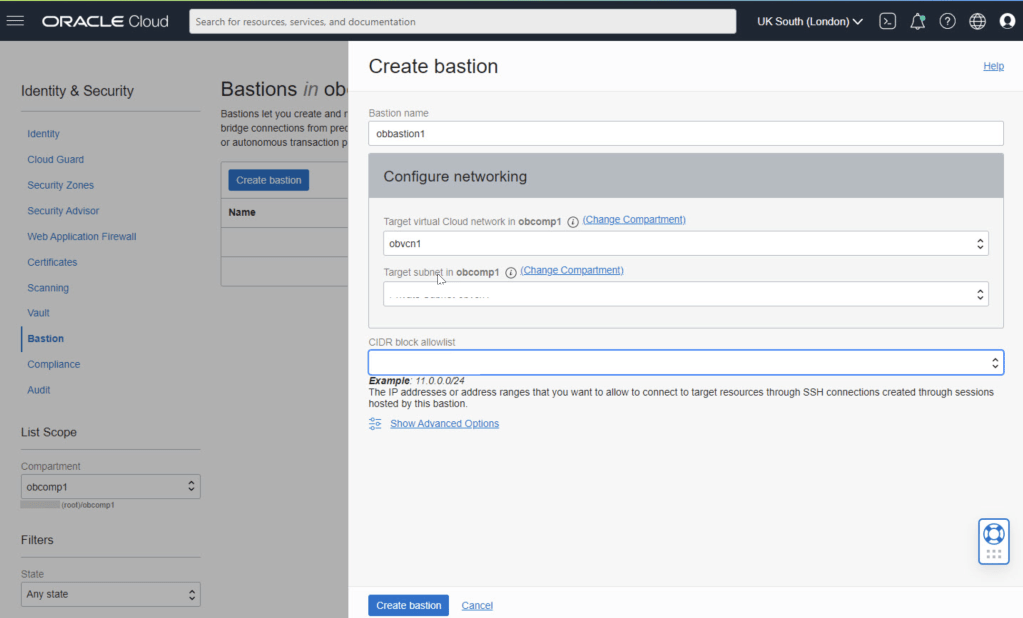
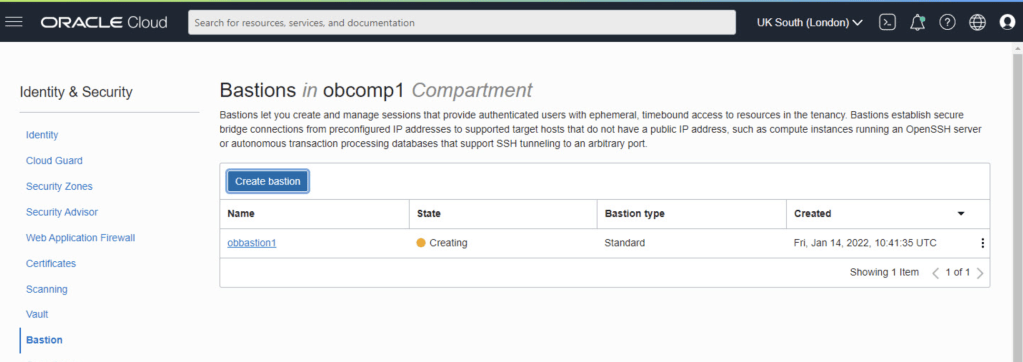
  • Select the compartment and click the “Create bastion” button.
  • Enter the bastion name and select the VCN and subnet for the bastion. We need to enter a CIDR block allowlist. In this case I’ve used the subnet for my IP address from my internet service provider. Click the “Create bastion” button.
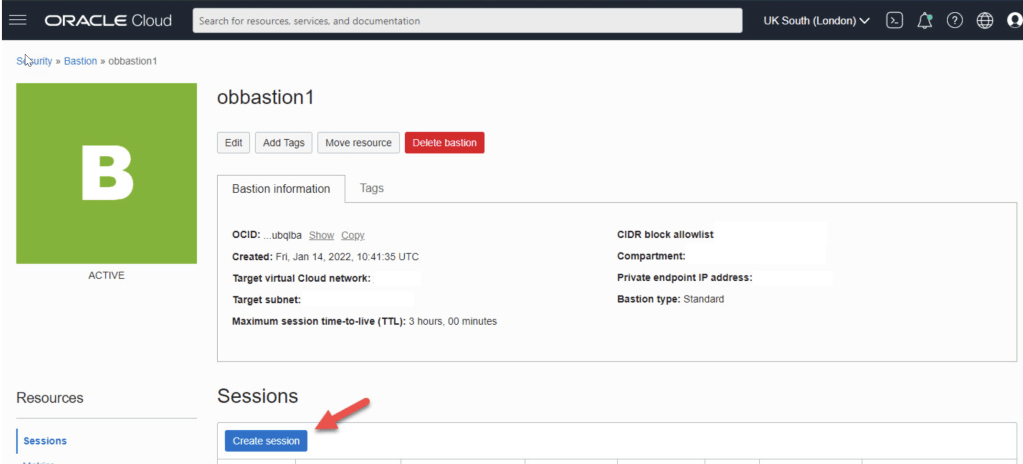
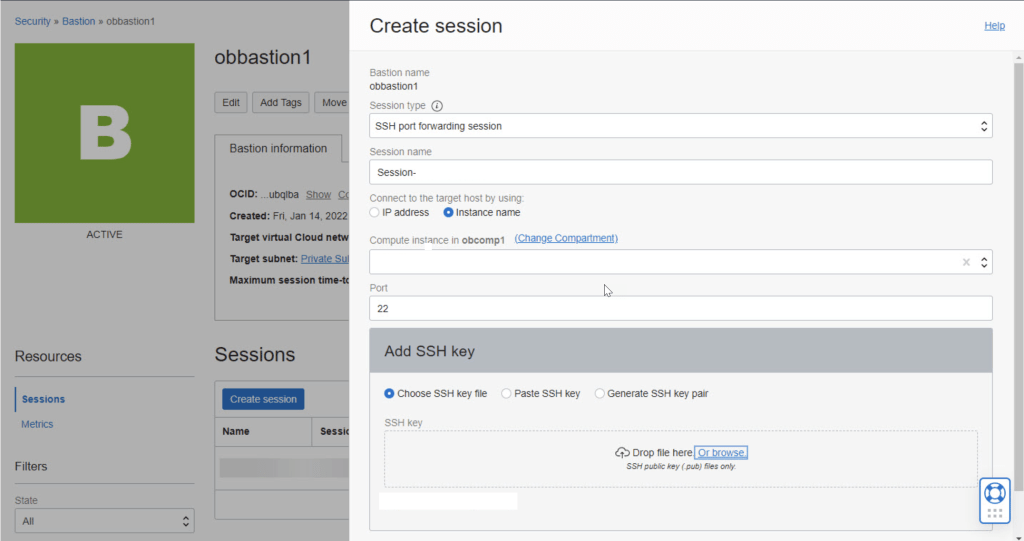
  • Click on the “Create session” button.
  • Connect

Our previously copied connection information should look something like this at this point.

ssh -i  -N -L :ip-connection:22 -p 22 ocid1.bastionsession.oc1.uk-london-1.amaa...3acq@host.bastion.uk-london-1.oci.oraclecloud.com

Regards

Osama

Amazon Simple Storage Service (Amazon S3)

Amazon Simple Storage Service (Amazon S3) is a service that provides object-level storage. Amazon S3 stores data as objects in buckets.

You can upload any type of file to Amazon S3, such as images, videos, text files, and so on. For example, you might use Amazon S3 to store backup files, media files for a website, or archived documents. Amazon S3 offers unlimited storage space. The maximum file size for an object in Amazon S3 is 5 TB.

Amazon S3 storage classes

With Amazon S3, you pay only for what you use. You can choose from a range of storage classes to select a fit for your business and cost needs. When selecting an Amazon S3 storage class, consider these two factors:

  • How often you plan to retrieve your data
  • How available you need your data to be

S3 Standard

  • Designed for frequently accessed data
  • Stores data in a minimum of three Availability Zones

S3 Standard provides high availability for objects. This makes it a good choice for a wide range of use cases, such as websites, content distribution, and data analytics. S3 Standard has a higher cost than other storage classes intended for infrequently accessed data and archival storage.

S3 Standard-Infrequent Access (S3 Standard-IA)

  • Ideal for infrequently accessed data
  • Similar to S3 Standard but has a lower storage price and higher retrieval price

S3 Standard-IA is ideal for data infrequently accessed but requires high availability when needed. Both S3 Standard and S3 Standard-IA store data in a minimum of three Availability Zones. S3 Standard-IA provides the same level of availability as S3 Standard but with a lower storage price and a higher retrieval price.

S3 One Zone-Infrequent Access (S3 One Zone-IA)

  • Stores data in a single Availability Zone
  • Has a lower storage price than S3 Standard-IA

Compared to S3 Standard and S3 Standard-IA, which store data in a minimum of three Availability Zones, S3 One Zone-IA stores data in a single Availability Zone. This makes it a good storage class to consider if the following conditions apply:

  • You want to save costs on storage.
  • You can easily reproduce your data in the event of an Availability Zone failure.

S3 Intelligent-Tiering

  • Ideal for data with unknown or changing access patterns
  • Requires a small monthly monitoring and automation fee per object

In the S3 Intelligent-Tiering storage class, Amazon S3 monitors objects’ access patterns. If you haven’t accessed an object for 30 consecutive days, Amazon S3 automatically moves it to the infrequent access tier, S3 Standard-IA. If you access an object in the infrequent access tier, Amazon S3 automatically moves it to the frequent access tier, S3 Standard.

S3 Glacier

  • Low-cost storage designed for data archiving
  • Able to retrieve objects within a few minutes to hours

S3 Glacier is a low-cost storage class that is ideal for data archiving. For example, you might use this storage class to store archived customer records or older photos and video files.

S3 Glacier

  • Low-cost storage designed for data archiving
  • Able to retrieve objects within a few minutes to hours

S3 Glacier is a low-cost storage class that is ideal for data archiving. For example, you might use this storage class to store archived customer records or older photos and video files.

S3 Glacier Deep Archive

  • Lowest-cost object storage class ideal for archiving
  • Able to retrieve objects within 12 hours

When deciding between Amazon S3 Glacier and Amazon S3 Glacier Deep Archive, consider how quickly you need to retrieve archived objects. You can retrieve objects stored in the S3 Glacier storage class within a few minutes to a few hours. By comparison, you can retrieve objects stored in the S3 Glacier Deep Archive storage class within 12 hours.

Cheers

Osama

Connect to AWS Directory Services using Apache directory studio

Apache Directory Studio is a complete directory tooling platform intended to be used with any LDAP server however it is particularly designed for use with the ApacheDS. It is an Eclipse RCP application, composed of several Eclipse (OSGi) plugins, that can be easily upgraded with additional ones.

Step 1: Create a New Connection in Apache Directory Studio

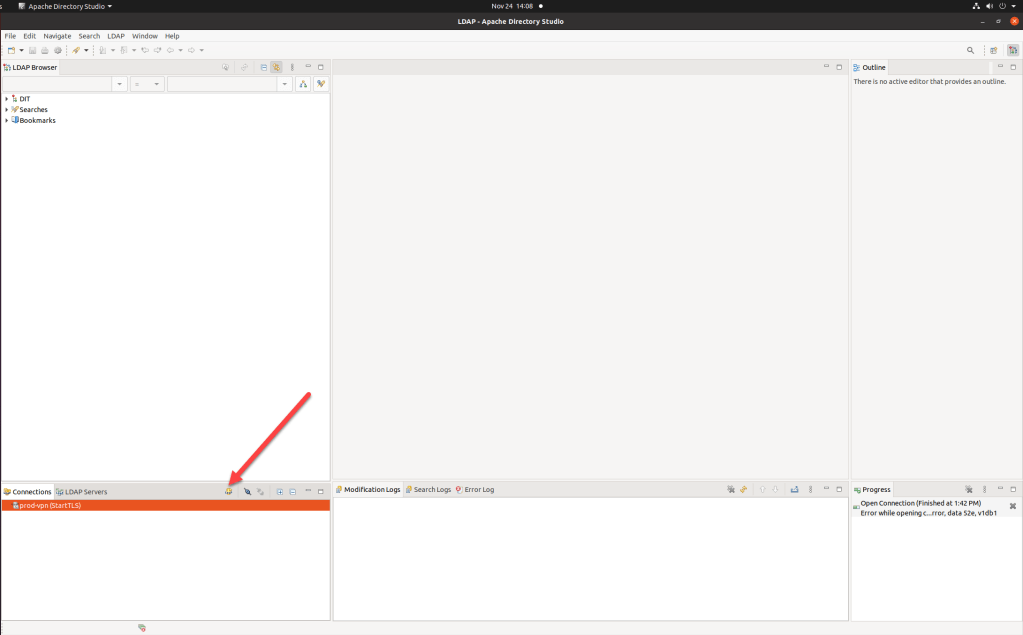
  1. Start up Apache Directory Studio.
  2. Click the LDAP icon to create a new connection.

Step 2: Enter your Connection Information

  1. Enter a name for your connection.
  2. Enter the ‘Network Parameter‘ information as follows:
HostnameThe domain name for your LDAP server. If the LDAP server is not on the same network as Crowd, you may need to use the FQDN or IP address of the LDAP server.
PortFor normal LDAP connectivity, use 389. For SSL connectivity, use 636.
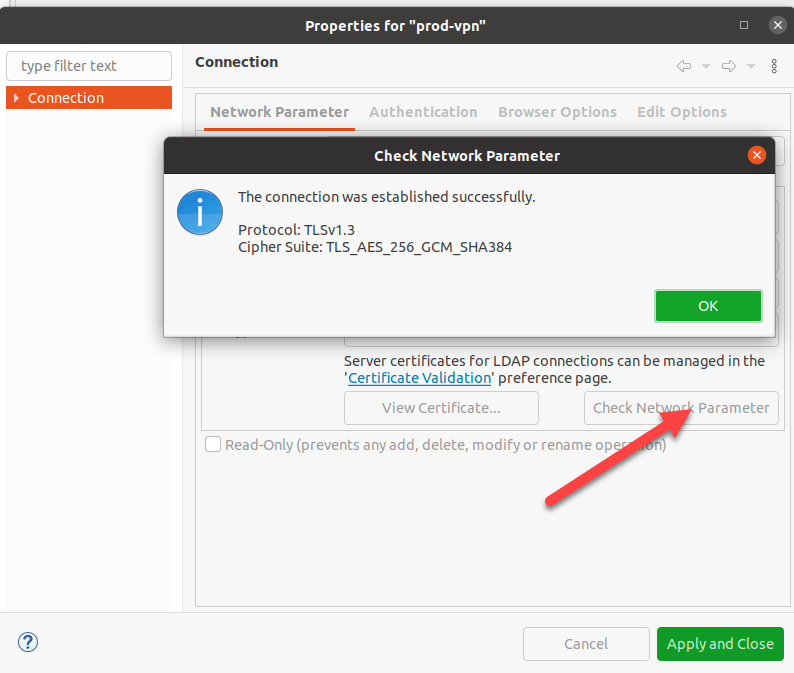
Parameters for connection
  1. Click the ‘Check Network Parameter‘ button to ensure your connection is successful.

Click ‘Next‘.

Step 3: Enter your Authentication Information

  1. Choose the ‘Authentication Method‘ from the dropdown list.
  2. Enter the ‘Authentication Parameter‘ information as follows:
Bind DN or userEnter the full DN of the account that will be used to connect to the LDAP directory. This account should have the ability to browse the entire LDAP directory tree.
Bind passwordEnter the password for the Bind DN account.
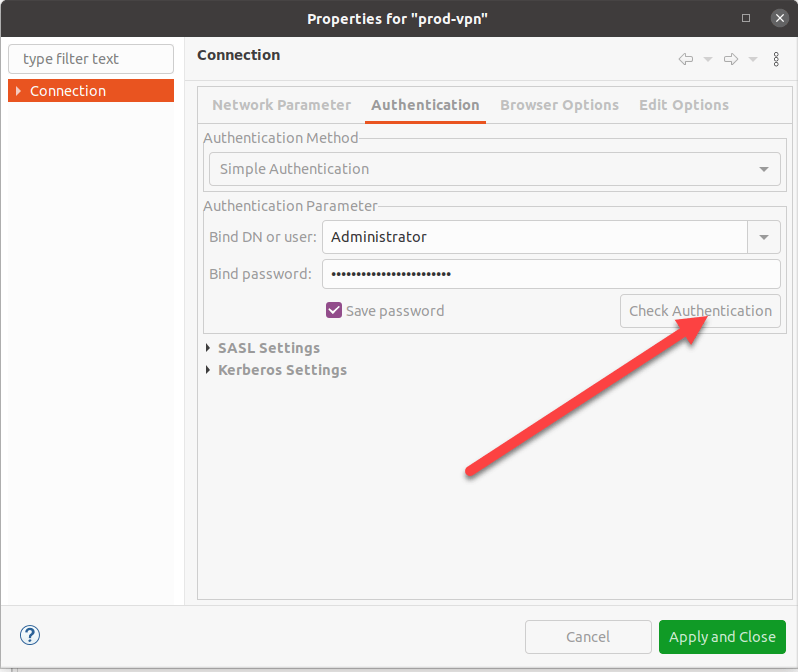
Paramter for Auhentication

3. Click the ‘Check Authentication‘ button to ensure this account can authenticate.

4. If this authentication is successful, click ‘Finish‘.

Once the authentication done successfully, you can connect to the Directory services and start browsing the Base DNs for the users.

Cheers
Osama

Amazon EC2 Options

With Amazon EC2, you pay only for the compute time that you use. Amazon EC2 offers a variety of pricing options for different use cases. For example, if your use case can withstand interruptions, you can save with Spot Instances. You can also save by committing early and locking in a minimum level of use with Reserved Instances.

On-Demand

are ideal for short-term, irregular workloads that cannot be interrupted. No upfront costs or minimum contracts apply. The instances run continuously until you stop them, and you pay for only the compute time you use.

Sample use cases for On-Demand Instances include developing and testing applications and running applications that have unpredictable usage patterns. On-Demand Instances are not recommended for workloads that last a year or longer because these workloads can experience greater cost savings using Reserved Instances.

Amazon EC2 Savings Plans

AWS offers Savings Plans for several compute services, including Amazon EC2. Amazon EC2 Savings Plans enable you to reduce your compute costs by committing to a consistent amount of compute usage for a 1-year or 3-year term. This term commitment results in savings of up to 66% over On-Demand costs.

Any usage up to the commitment is charged at the discounted plan rate (for example, $10 an hour). Any usage beyond the commitment is charged at regular On-Demand rates.

Later in this course, you will review AWS Cost Explorer, a tool that enables you to visualize, understand, and manage your AWS costs and usage over time. If you are considering your options for Savings Plans, AWS Cost Explorer can analyze your Amazon EC2 usage over the past 7, 30, or 60 days. AWS Cost Explorer also provides customized recommendations for Savings Plans. These recommendations estimate how much you could save on your monthly Amazon EC2 costs, based on previous Amazon EC2 usage and the hourly commitment amount in a 1-year or 3-year plan.

Reserved Instances

are a billing discount applied to the use of On-Demand Instances in your account. You can purchase Standard Reserved and Convertible Reserved Instances for a 1-year or 3-year term, and Scheduled Reserved Instances for a 1-year term. You realize greater cost savings with the 3-year option.

At the end of a Reserved Instance term, you can continue using the Amazon EC2 instance without interruption. However, you are charged On-Demand rates until you do one of the following:

  • Terminate the instance.
  • Purchase a new Reserved Instance that matches the instance attributes (instance type, Region, tenancy, and platform).

Spot Instances

 are ideal for workloads with flexible start and end times, or that can withstand interruptions. Spot Instances use unused Amazon EC2 computing capacity and offer you cost savings at up to 90% off of On-Demand prices.

Suppose that you have a background processing job that can start and stop as needed (such as the data processing job for a customer survey). You want to start and stop the processing job without affecting the overall operations of your business. If you make a Spot request and Amazon EC2 capacity is available, your Spot Instance launches. However, if you make a Spot request and Amazon EC2 capacity is unavailable, the request is not successful until capacity becomes available. The unavailable capacity might delay the launch of your background processing job.

After you have launched a Spot Instance, if capacity is no longer available or demand for Spot Instances increases, your instance may be interrupted. This might not pose any issues for your background processing job. However, in the earlier example of developing and testing applications, you would most likely want to avoid unexpected interruptions. Therefore, choose a different EC2 instance type that is ideal for those tasks.

Dedicated Hosts

are physical servers with Amazon EC2 instance capacity that is fully dedicated to your use. 

You can use your existing per-socket, per-core, or per-VM software licenses to help maintain license compliance. You can purchase On-Demand Dedicated Hosts and Dedicated Hosts Reservations. Of all the Amazon EC2 options that were covered, Dedicated Hosts are the most expensive.

Cheers

Osama

Amazon EC2 instance types

Amazon EC2 instance types are optimized for different tasks. When selecting an instance type, consider the specific needs of your workloads and applications. This might include requirements for compute, memory, or storage capabilities.

General purpose instances

provide a balance of compute, memory, and networking resources. You can use them for a variety of workloads, such as:

  • application servers
  • gaming servers
  • backend servers for enterprise applications
  • small and medium databases

Suppose that you have an application in which the resource needs for compute, memory, and networking are roughly equivalent. You might consider running it on a general purpose instance because the application does not require optimization in any single resource area.

Compute optimized instances

are ideal for compute-bound applications that benefit from high-performance processors. Like general purpose instances, you can use compute optimized instances for workloads such as web, application, and gaming servers.

However, the difference is compute optimized applications are ideal for high-performance web servers, compute-intensive applications servers, and dedicated gaming servers. You can also use compute optimized instances for batch processing workloads that require processing many transactions in a single group.

Memory optimized instances

are designed to deliver fast performance for workloads that process large datasets in memory. In computing, memory is a temporary storage area. It holds all the data and instructions that a central processing unit (CPU) needs to be able to complete actions. Before a computer program or application is able to run, it is loaded from storage into memory. This preloading process gives the CPU direct access to the computer program.

Suppose that you have a workload that requires large amounts of data to be preloaded before running an application. This scenario might be a high-performance database or a workload that involves performing real-time processing of a large amount of unstructured data. In these types of use cases, consider using a memory optimized instance. Memory optimized instances enable you to run workloads with high memory needs and receive great performance.

Accelerated computing instances

use hardware accelerators, or coprocessors, to perform some functions more efficiently than is possible in software running on CPUs. Examples of these functions include floating-point number calculations, graphics processing, and data pattern matching.

In computing, a hardware accelerator is a component that can expedite data processing. Accelerated computing instances are ideal for workloads such as graphics applications, game streaming, and application streaming.

Storage optimized instances

are designed for workloads that require high, sequential read and write access to large datasets on local storage. Examples of workloads suitable for storage optimized instances include distributed file systems, data warehousing applications, and high-frequency online transaction processing (OLTP) systems.

In computing, the term input/output operations per second (IOPS) is a metric that measures the performance of a storage device. It indicates how many different input or output operations a device can perform in one second. Storage optimized instances are designed to deliver tens of thousands of low-latency, random IOPS to applications. 

You can think of input operations as data put into a system, such as records entered into a database. An output operation is data generated by a server. An example of output might be the analytics performed on the records in a database. If you have an application that has a high IOPS requirement, a storage optimized instance can provide better performance over other instance types not optimized for this kind of use case.

Cheers

Osama

OCI Basics – Putting Data into Object Storage OCI

The Object Storage service provides reliable, secure, and scalable object storage. Object storage is a storage architecture that stores and manages data as objects. Some typical use cases include data backup, file sharing, and storing unstructured data like logs and sensor-generated data.

Creating a Bucket

  1. Open the navigation menu and click Storage. Under Object Storage, click Buckets.A list of the buckets in the compartment you’re viewing is displayed.
  2. Select a compartment from the Compartment list on the left side of the page.A list of existing buckets is displayed.
  3. Click Create Bucket.
    • Bucket Name
    • Default Storage Tier: Select the default tier in which you want to store your data
      • Standard is the primary, default storage tier Use the Standard tier for storing frequently accessed data that requires fast and immediate access.
      • Archive is the default storage tier used for archive storage, Use the Archive tier for storing rarely accessed data that requires long retention periods. Access to data in the Archive tier is not immediate. Archived data must be restored before the data is accessible.
      • Object Events: Select Emit Object Events if you want to enable the bucket to emit events for object state changes. For more information about events.
      • Encryption: Buckets are encrypted with keys managed by Oracle by default, but you can optionally encrypt the data in this bucket using your own Vault encryption key. To use Vault for your encryption needs, select Encrypt Using Customer-Managed Keys

Uploading Files to a Bucket

To upload files to your bucket using the Console:

  1. From the Object Storage Buckets screen, click the bucket name to view its details.
  2. Click Upload.
  3. In the Object Name Prefix field, optionally specify a file name prefix for the files that you plan to upload.
  4. If the Storage Tier field displays Standard, you can optionally change the storage tier to upload objects to.

Cheers

Osama