Configure Linux NFS File System

NFS : Network File System

Before Start Configure NFS you have to Understand When to use it ? and What is it ?

NFS file system usually read from Source Called Server , If this server goes down, it will not be available for the other resource, From this we understand that i should configure NFS On both Side Server and Client.

Read More About it Here.

Note : 

Server IP : 192.168.1.100
Client IP : 192.168.1.101

In this Blog I will Use NFSV4 

1- You need to install two Package ( as root user )
**nfs-ultis-lib
**portmap ( if you are asking nfs4 this is not needed anymore )

2-  As Root Run the below Command to Start nfs Serivces :

[root@TEST share]# /etc/init.d/nfs start
Starting NFS services:                                     [  OK  ]
Starting NFS quotas:                                       [  OK  ]
Starting NFS mountd:                                      [  OK  ]
Stopping RPC idmapd:                                    [  OK  ]
Starting RPC idmapd:                                      [  OK  ]
Starting NFS daemon:                                     [  OK  ]

3- Create folder under /u01/app/shared , give permission to oracle and chmod 775 
4- on NFS Server ( you will own the folder ) , vi /etc/exports add the below line :

/u01/app/shared [Client-IP] (rw,sync,no_root_squash) 

5- NFS Server is done , Go to NFS Client ( Node 2 )  as root user run the below command :

#/etc/init.d/nfs start
#showmount -e 192.168.1.101

The Output Will be like the below :

Export list for 192.168.1.100:
/u01/app/shared 192.168.1.101

6-On Node 2 ( As Root User ) –> #  mount -t nfs 192.168.1.100:/u01/app/shared/ /u01/app/shared/
7- Check using df -h 

**Remove:-

8- umount /u01/app/shared ( on Node 2 ) 

Important Command :
showmount -e : Shows the available shares on your local machine
exportfs -v : Displays a list of shares files and options on a server

Thank you
Osama Mustafa
Steps To Create ODBC Connection in Linux


In this Document i will describe how to create ODBC Connection in Linux Step by Step. I uploaded my document to slideshare as usual you can download it from here.

Thanks for my friend Ilmar Kerm . 

Thank you 
Osama mustafa 

Oracle Linux 6.5 released

Oracle Announced the release of Oracle Linux 6.5, The Latest Version Of Oracle Linux, It’s only Other Operating System Because this version Contain Some New Features :

  • Unbreakable Enterprise Kernel Release 3
  • Support DTrace.
  • Delivering Better Performance, scalability   and reliability For Companies.
  • New File System : btrfs enable administrators to implement an efficient incremental backup mechanism using file system snapshots.
And More Features.
You Can download Oracle Linux 6.5 Here
It will be Available soon On Oracle Software Delivery Here

Segmentation Fault(coredump) when Trying to Start Siebel Server

Today i was working with SIEBEL On Solaris , And as usually it was working without any issue , after modified images on SIEBEL as Oracle Support Document

Images Files on Screen Tabs Required for High Interactivity Clients in Innovation Pack 2012 (Doc ID 1511448.1).

But when i tried to start SIEBEL Server the below errors appear :

/u01/app/siebel/8.2.2.0/ses/siebsrvr/bin/start_server: line 212: 6488: Memory fault(coredump) 

it’s confusing because SIEBEL was working without any problem, After tried more than one solution i would like to share the below Solution ( at least it’s works for me)

cd $SIEBEL_ROOT/sys

you will find File called osdf_ENTERPRISE_NAME

This file Will be Read by SIEBEL when you trying to start_server and if doesn’t exists it will recreate it again.

 Delete this file and try to start Siebel Server Again using

start_server ALL

Thank you
Osama Mustafa 

Mount NFS Device Is Busy

This Error Appear On Solaris when you try to mount filesystem :

mount -F nfs IP:/export/home/oracle/test /export/home/oracle/test

Output :

nfs mount: mount: /export/home/oracle/test : Device busy

Check why it’s Busy using :

fuser -u /export/home/oracle/test

/export/home/oracle/test :     1432c(oracle)

Kill the process :

kill – 9 1432 

Thank you
Osama mustafa 

Share Folder On Solaris For Window Purpose

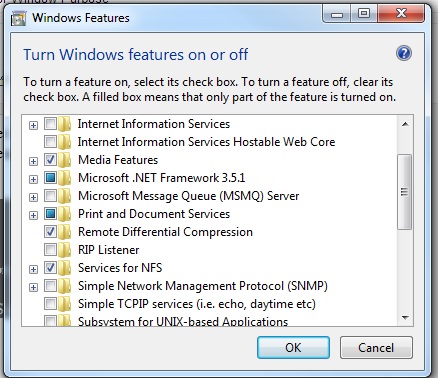
In this article i will show how to share folder in Solaris and use this folder for Copy/Paste in windows , I will use NFS so you need to make sure it’s already enable in Windows

  • Select Control Panel.
  • Select Programs.
  • Select Programs and Features.
  • Select Turn Windows Features on or off.
  • Select Services for NFS.
  • Select the check box Client for NFS and click OK.
Now On Solaris Side , Using Share command 

share [-F fstype] [ -o options] [-d “”] [resource]

Create Folder and use the below command to share 

share -F nfs -o rw -d “codereview dirs” /u01/Shared –> my Shared Folder


root@Host:/u01# cat /etc/dfs/sharetab 

/u01/hmmdb u01_hmmdb nfs sec=sys,rw codereview
/u01/Shared u01_Shared nfs sec=sys,rw

Now back to windows open Command Prompt “cmd”
and run the below command :
showmount -e Server-IP 

Exports list on :
/u01/Shared                        All Machines
/u01/hmmdb                         All Machines

Command to share on windows :
mount -o mtype=hard Server-IP:Path_for_share_folder name drive letter or *
mount -o mtype=hard server-ip:/u01/Shared Z:
Done
Thank you 
Osama mustafa

Extend File system On Solaris Using ZFS Command

The below is demostration for extend File system On Solaris 11 :  

root@TEST:~# zfs list
NAME                      USED  AVAIL  REFER  MOUNTPOINT
oracle                    107G  10.6G  1.11M  /oracle
oracle/u01                105G  13.0G   105G  /u01
rpool                    32.2G  46.0G    39K  /rpool
rpool/ROOT               5.40G  46.0G    31K  legacy
rpool/ROOT/solaris       5.40G  46.0G  5.03G  /
rpool/ROOT/solaris/var    318M  46.0G   314M  /var
rpool/dump               1.03G  46.1G  1.00G  –
rpool/export              854K  46.0G    32K  /export
rpool/export/home         822K  46.0G    32K  /export/home
rpool/export/home/omnix   790K  46.0G   790K  /export/home/omnix
rpool/swap               25.8G  46.8G  25.0G  –

 root@TEST:~# zpool list

NAME     SIZE  ALLOC   FREE  CAP  DEDUP  HEALTH  ALTROOT
oracle   140G   105G  34.9G  75%  1.00x  ONLINE  –
rpool   79.5G  31.4G  48.1G  39%  1.00x  ONLINE  –

root@TEST:~# zpool set autoexpand=on oracle

root@TEST:~# zpool list
NAME     SIZE  ALLOC   FREE  CAP  DEDUP  HEALTH  ALTROOT
oracle   140G   105G  34.9G  75%  1.00x  ONLINE  –
rpool   79.5G  31.4G  48.1G  39%  1.00x  ONLINE  –

now you have to do the below :

root@TEST:~# zfs get volsize,reservation oracle

         NAME    PROPERTY     VALUE    SOURCE

oracle  volsize      –        –
oracle  reservation  107G     local

root@TEST:~# zfs set reservation=140G oracle/u01

          root@TEST:~# zfs get reservation oracle/u01

NAME        PROPERTY     VALUE   SOURCE
oracle/u01  reservation  140     local

–> zfs set quota=140G oracle

Finally Check df -h and size are increased 🙂

Thank you
Osama mustafa 

cannot unmount ‘/export/home/oracle’: Device busy

Operating System : Solaris 11

When run the below command :

zfs destroy rpool/export/home/grid

 cannot unmount ‘/export/home/oracle’: Device busy

Solution :

zfs unmount rpool/export/home/grid
zfs destroy rpool/export/home/grid

Thank you
Osama mustafa

cannot mount ‘rpool/u01’ on ‘/u01’: mountpoint or dataset is busy

When you try to use the below command :

zfs create -o mountpoint=/u01 rpool/u01

Error :
cannot mount ‘rpool/u01’ on ‘/u01’: mountpoint or dataset is busy
The Solution :
  • First destroy rpool/u01
  • zfs create rpool/u01
  • zfs set mountpoint=/u01 rpool/u01
  • mkdir /u01
  • zfs mount /u01
Thank you 
Osama Mustafa