Oracle 23c Is out

Oracle Database 23c Free Version Now Available to Developers.

The new Oracle Database 23c Free – Developer Release is a free version of the trusted Oracle Database used by businesses of all sizes around the globe. Obtaining the only converged database that works with any data model and any task type is as easy as downloading it from the internet with no oracle.com user account or license click-through requirements.

If you’re looking for a free database to use for developing data-driven applications, look no further than Oracle Database 23c Free – Developer Release. Users can upgrade to other Oracle Database products at any moment because of its backwards compatibility with Oracle Database Enterprise Edition and Oracle Database cloud services.

Documentation here

Download:

Regards

Osama

Connect to AKS cluster nodes

sometimes you need to access AKS worker node to troubelshoot, but how to do that with AKS

Run the below command

kubectl get nodes

Output will give an idea about the worker nodes you have

Run a container image on the node by issuing the kubectl debug command in order to establish a connection to it. The following command begins the process of connecting to a privileged container that has been started on your node.

kubectl debug node/<node-name-you-wish-to-connect> -it --image=mcr.microsoft.com/dotnet/runtime-deps:6.0

Regards

Osama

AWS Infrastructure

The AWS Global Cloud Infrastructure is the most secure, extensive, and reliable cloud platform, offering over 200 fully featured services from data centers globally.

AWS Data Center

AWS pioneered cloud computing in 2006 to provide rapid and secure infrastructure. AWS continuously innovates on the design and systems of data centers to protect them from man-made and natural risks. Today, AWS provides data centers at a large, global scale. AWS implements controls, builds automated systems, and conducts third-party audits to confirm security and compliance. As a result, the most highly-regulated organizations in the world trust AWS every day.

Availability Zone – AZ

An Availability Zone (AZ) is one or more discrete data centers with redundant power, networking, and connectivity in an AWS Region. Availability Zones are multiple, isolated areas within a particular geographic location. When you launch an instance, you can select an Availability Zone or let AWS choose one for you. If you distribute your instances across multiple Availability Zones and one instance fails, you can design your application so that an instance in another Availability Zone can handle requests.

Region

Each AWS Region consists of multiple, isolated, and physically separate Availability Zones within a geographic area. This achieves the greatest possible fault tolerance and stability. In your account, you determine which Regions you need. You can run applications and workloads from a Region to reduce latency to end users. You can do this while avoiding the upfront expenses, long-term commitments, and scaling challenges associated with maintaining and operating a global infrastructure.

AWS Local Zone

AWS Local Zones can be used for highly demanding applications that require single-digit millisecond latency to end users. Media and entertainment content creation, real-time multiplayer gaming, and Machine learning hosting and training are some use cases for AWS Local Zones.

CloudFront – Edge Location

An edge location is the nearest point to a requester of an AWS service. Edge locations are located in major cities around the world. They receive requests and cache copies of your content for faster delivery.

Regards

Osama

Create a Bastion – OCI

What is a Bastion?

It’s essential to consider the security implications before allowing direct access to cloud services and resources, particularly as the latter expands. Some individuals get around this problem by setting up a virtual machine within the virtual cloud network and linking it to all the cloud services. This cuts down on publicly accessible services while facilitating connections for developers and system administrators. This virtual machine (VM) is like a manual bastion or leap box.

Create a Bastion

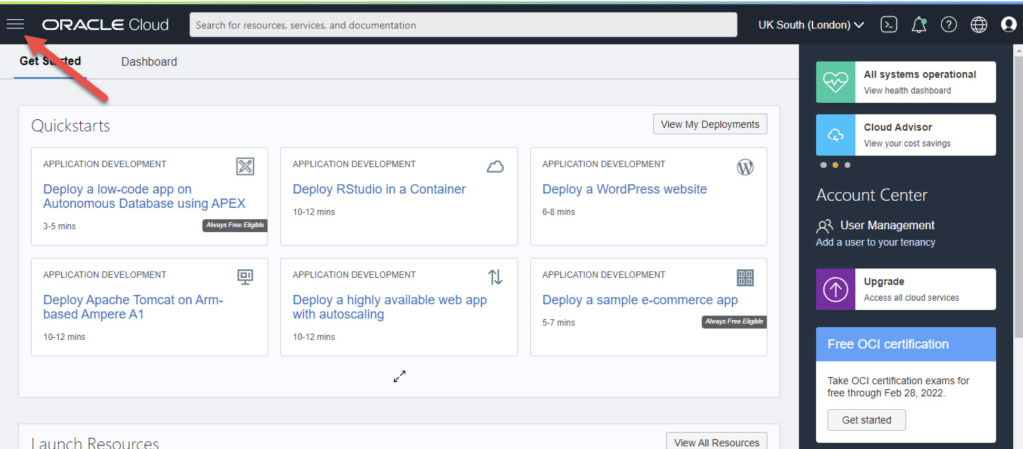
  • Connect to Oracle’s cloud service. To access the main menu, choose the hamburger icon in the upper left corner.
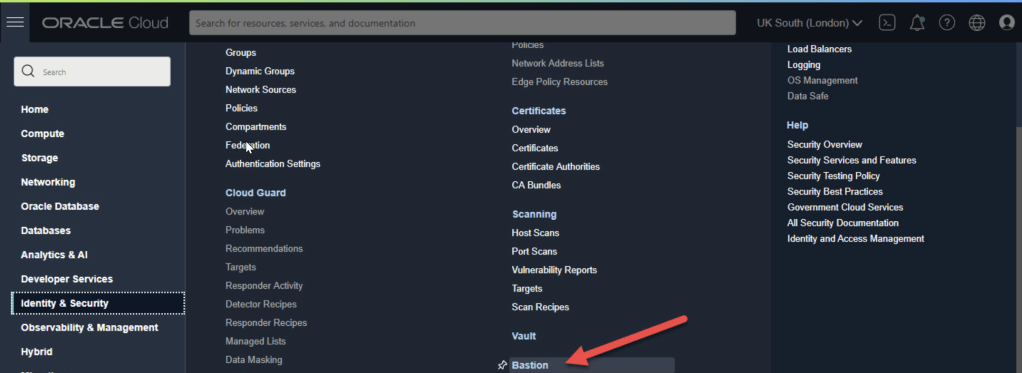
  • On the menu select “Identity & Security > Bastion”.
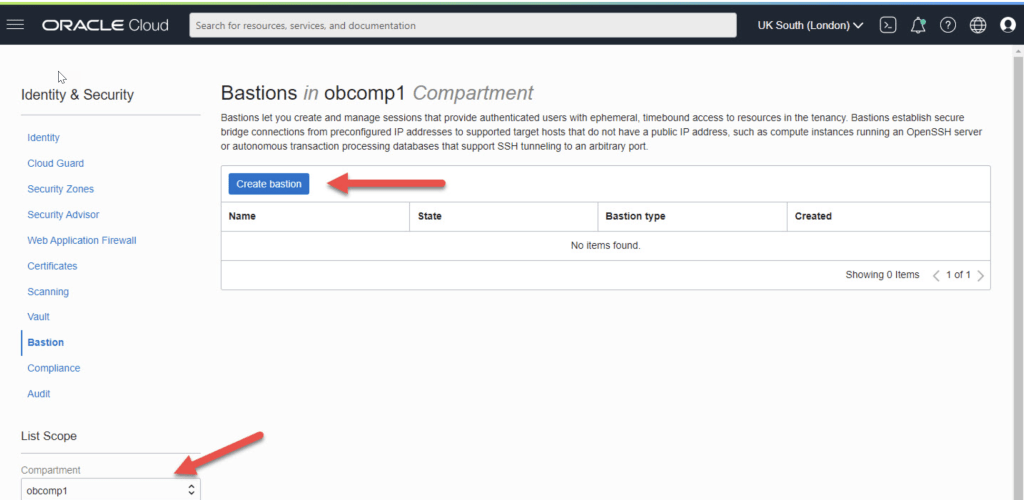
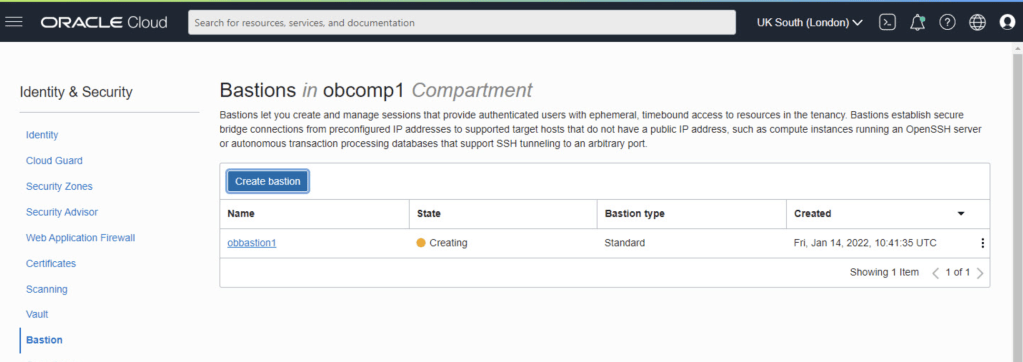
  • Select the compartment and click the “Create bastion” button.
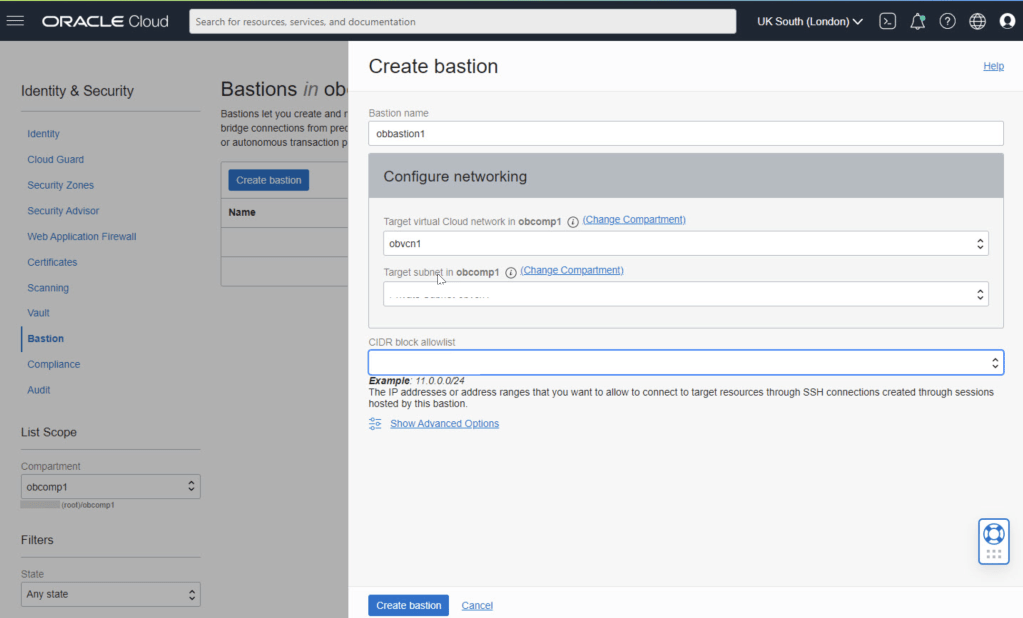
  • Enter the bastion name and select the VCN and subnet for the bastion. We need to enter a CIDR block allowlist. In this case I’ve used the subnet for my IP address from my internet service provider. Click the “Create bastion” button.
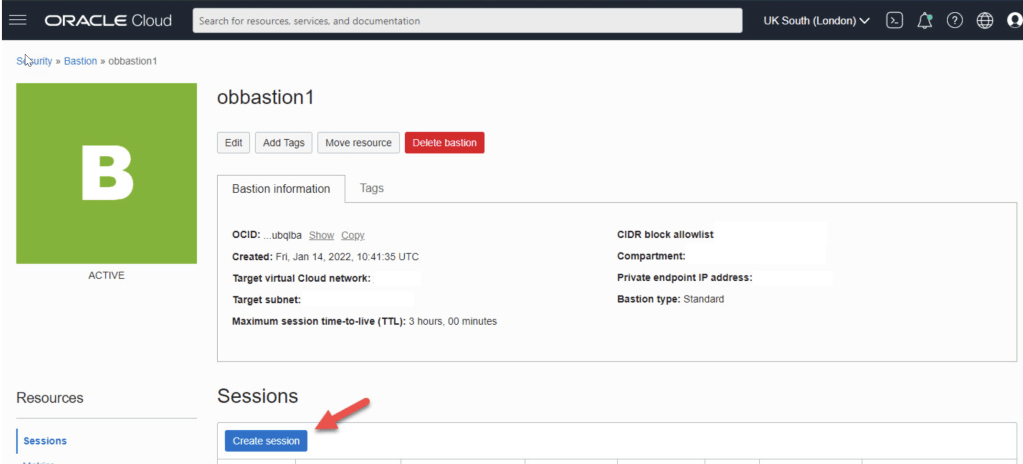
  • Click on the “Create session” button.
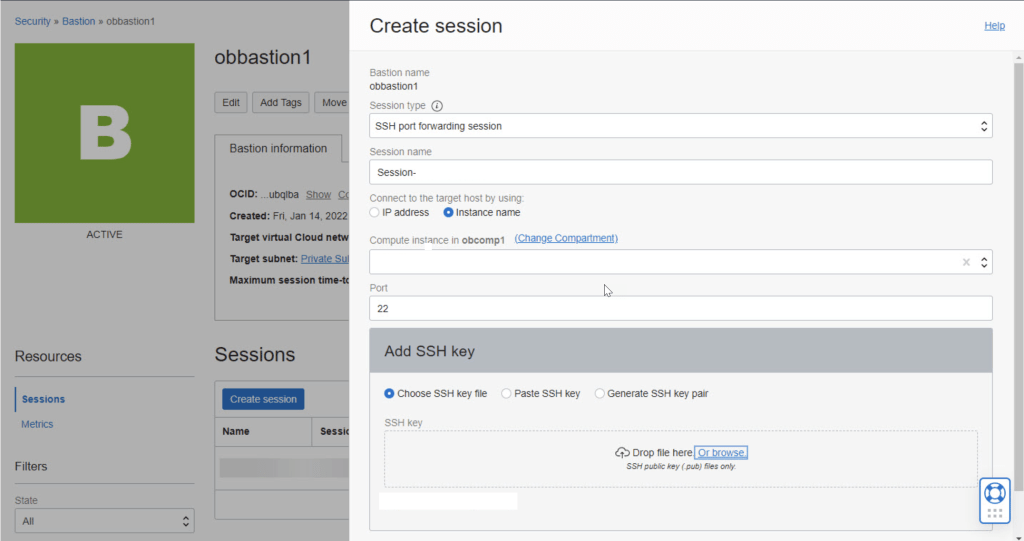
  • Connect

Our previously copied connection information should look something like this at this point.

ssh -i  -N -L :ip-connection:22 -p 22 ocid1.bastionsession.oc1.uk-london-1.amaa...3acq@host.bastion.uk-london-1.oci.oraclecloud.com

Regards

Osama

Multi POd Example – k8s

Create a Multi-Container Pod

  1. Create a YAML file named multi.yml:
apiVersion: v1
kind: Pod
metadata:
  name: multi
  namespace: baz
spec:
  containers:
  - name: nginx
    image: nginx
  - name: redis
    image: redis

Create a Complex Multi-Container Pod

apiVersion: v1
kind: Pod
metadata:
  name: logging-sidecar
  namespace: baz
spec:
  containers:
  - name: busybox1
    image: busybox
    command: ['sh', '-c', 'while true; do echo Logging data > /output/output.log; sleep 5; done']
    volumeMounts:
    - name: sharedvol
      mountPath: /output
  - name: sidecar
    image: busybox
    command: ['sh', '-c', 'tail -f /input/output.log']
    volumeMounts:
    - name: sharedvol
      mountPath: /input
  volumes:
  - name: sharedvol
    emptyDir: {}

Youtube Links To learn for free

1) Linux :
Basic Linux commands are necessary before jumping into shell scripting.

https://lnkd.in/dBTsJbhz
https://lnkd.in/dHQTiHBB
https://lnkd.in/dA9pAmHa

2. Shell Scripting:

https://lnkd.in/da_wHgQH
https://lnkd.in/d5CFPgga

3. Python: This will help you in automation

https://lnkd.in/dFtNz_9D
https://lnkd.in/d6cRpFrY
https://lnkd.in/d-EhshQz

4. Networking

https://lnkd.in/dqTx6jmN
https://lnkd.in/dRqCzbkn

5. Git & Github

https://lnkd.in/d9gw-9Ds
https://lnkd.in/dEp3KrTJ

6. YAML
https://lnkd.in/duvmhd5X
https://lnkd.in/dNqrXjmV

7. Containers — Docker:

https://lnkd.in/dY2ZswMZ
https://lnkd.in/d_EySpbh
https://lnkd.in/dPddbJTf

8. Continuous Integration & Continuous Deployment (CI/CD):

https://lnkd.in/dMHv9T8U

9. Container Orchestration — Kubernetes:
https://lnkd.in/duGZwHYX

10. Monitoring:

https://lnkd.in/dpXhmVqs
https://lnkd.in/dStQbpRX
https://lnkd.in/de4H5QVz
https://lnkd.in/dEtTSsbB

11. Infrastructure Provisioning & Configuration Management (IaC): Terraform, Ansible, Pulumi

https://lnkd.in/dvpzNT5M
https://lnkd.in/dNugwtVW
https://lnkd.in/dn5m2NKQ
https://lnkd.in/dhknHJXp
https://lnkd.in/ddNxd8vU

12. CI/CD Tools: Jenkins, GitHub Actions, GitLab CI, Travis CI, AWS CodePipeline + AWS CodeBuild, Azure DevOps, etc

https://lnkd.in/dTmSXNzv
https://lnkd.in/dAnxpVTe
https://lnkd.in/daMFG3Hq
https://lnkd.in/dqf-zzrx
https://lnkd.in/diWP7Tm7
https://lnkd.in/dYDCSiiC

13. AWS:

https://lnkd.in/dmi-TMv9
https://lnkd.in/de3-dAB6
https://lnkd.in/dh2zXZAB
https://lnkd.in/dQMyCBWy

14. Learn how to SSH
SSH using mobaxterm:

https://lnkd.in/gx-T_FU8

15. SSH using Putty :

https://lnkd.in/gGgW7Ns9

OCI Basics – Putting Data into Object Storage OCI

The Object Storage service provides reliable, secure, and scalable object storage. Object storage is a storage architecture that stores and manages data as objects. Some typical use cases include data backup, file sharing, and storing unstructured data like logs and sensor-generated data.

Creating a Bucket

  1. Open the navigation menu and click Storage. Under Object Storage, click Buckets.A list of the buckets in the compartment you’re viewing is displayed.
  2. Select a compartment from the Compartment list on the left side of the page.A list of existing buckets is displayed.
  3. Click Create Bucket.
    • Bucket Name
    • Default Storage Tier: Select the default tier in which you want to store your data
      • Standard is the primary, default storage tier Use the Standard tier for storing frequently accessed data that requires fast and immediate access.
      • Archive is the default storage tier used for archive storage, Use the Archive tier for storing rarely accessed data that requires long retention periods. Access to data in the Archive tier is not immediate. Archived data must be restored before the data is accessible.
      • Object Events: Select Emit Object Events if you want to enable the bucket to emit events for object state changes. For more information about events.
      • Encryption: Buckets are encrypted with keys managed by Oracle by default, but you can optionally encrypt the data in this bucket using your own Vault encryption key. To use Vault for your encryption needs, select Encrypt Using Customer-Managed Keys

Uploading Files to a Bucket

To upload files to your bucket using the Console:

  1. From the Object Storage Buckets screen, click the bucket name to view its details.
  2. Click Upload.
  3. In the Object Name Prefix field, optionally specify a file name prefix for the files that you plan to upload.
  4. If the Storage Tier field displays Standard, you can optionally change the storage tier to upload objects to.

Cheers

Osama

Managing Container Storage with Kubernetes Volumes

Kubernetes volumes offer a simple way to mount external storage to containers. This lab will test your knowledge of volumes as you provide storage to some containers according to a provided specification. This will allow you to practice what you know about using Kubernetes volumes.

Create a Pod That Outputs Data to the Host Using a Volume

  • Create a Pod that will interact with the host file system by using vi maintenance-pod.yml.
apiVersion: v1
kind: Pod
metadata:
    name: maintenance-pod
spec:
    containers:
    - name: busybox
      image: busybox
      command: ['sh', '-c', 'while true; do echo Success! >> /output/output.txt; sleep 5; done']
  • Under the basic YAML, begin creating volumes, which should be level with the containers spec:
volumes:
- name: output-vol
  hostPath:
      path: /var/data
  • In the containers spec of the basic YAML, add a line for volume mounts:
volumeMounts:
- name: output-vol
  mountPath: /output

The complete YAML will be

apiVersion: v1
kind: Pod
metadata:
    name: maintenance-pod
spec:
  containers:
    - name: busybox
      image: busybox
      command: ['sh', '-c', 'while true; do echo Success! >> /output/output.txt; sleep 5; done']
      volumeMounts:
      - name: output-vol
        mountPath: /output
  volumes:
   - name: output-vol
     hostPath:
      path: /var/data

Create a Multi-Container Pod That Shares Data Between Containers Using a Volume

  1. Create another YAML file for a shared-data multi-container Pod by using vi shared-data-pod.yml
  2. Start with the basic Pod definition and add multiple containers, where the first container will write the output.txt file and the second container will read the output.txt file:
apiVersion: v1
kind: Pod
metadata:
    name: shared-data-pod
spec:
    containers:
    - name: busybox1
      image: busybox
      command: ['sh', '-c', 'while true; do echo Success! >> /output/output.txt; sleep 5; done']
    - name: busybox2
      image: busybox
      command: ['sh', '-c', 'while true; do cat /input/output.txt; sleep 5; done']

Set up the volumes, again at the same level as containers with an emptyDir volume that only exists to share data between two containers in a simple way:

volumes:
- name: shared-vol
  emptyDir: {}

Mount that volume between the two containers by adding the following lines under command for the busybox1 container:

volumeMounts:
- name: shared-vol
  mountPath: /output

For the busybox2 container, add the following lines to mount the same volume under command to complete creating the shared file:

volumeMounts:
- name: shared-vol
  mountPath: /input

The complete file

Finish creating the multi-container Pod using kubectl create -f shared-data-pod.yml.

apiVersion: v1
kind: Pod
metadata:
    name: shared-data-pod
spec:
    containers:
    - name: busybox1
      image: busybox
      command: ['sh', '-c', 'while true; do echo Success! >> /output/output.txt; sleep 5; done']
      volumeMounts:
        - name: shared-vol
          mountPath: /output
    - name: busybox2
      image: busybox
      command: ['sh', '-c', 'while true; do cat /input/output.txt; sleep 5; done']
      volumeMounts:
        - name: shared-vol
          mountPath: /input
    volumes:
    - name: shared-vol
    emptyDir: {}

And you can now apply the YAML file.

Cheers

Osama

Exposing Kubernetes Pods Using Services

Kubernetes Services are a great way to combine Kubernetes networking with the dynamic and often automated nature of Kubernetes applications. In this lab, you will use Services to expose existing Kubernetes Pods. This will allow you to practice your skills with Kubernetes Services.

Expose the Pods f as an Internal Service

apiVersion: v1 
kind: Service 
metadata: 
  name: user-db-svc 
spec: 
  type: ClusterIP 
  selector: 
    app: user-db 
  ports: 
  - protocol: TCP 
    port: 80 
    targetPort: 80

Expose the Pods as an External Service

apiVersion: v1 
kind: Service 
metadata: 
  name: web-frontend-svc 
spec: 
  type: NodePort 
  selector: 
    app: web-frontend 
  ports: 
  - protocol: TCP 
    port: 80 
    targetPort: 80 
    nodePort: 30080