BLOG

Cloud Talk : How much my IaaS will cost on the cloud ?

When the company will move to the cloud, the biggest question to ask , how much it will cost ? there are different ways to determine your IaaS cost, but at first you need to know that PaaS and IaaS much cheapter than IaaS, Each cloud vendor having their own calculator so at least you can estimate the value for one year or understand how much it will cost ? which is good.

Azure

Let’s Start with Azure for example ( since i post a lot about it recently )

When you are estimate the price for any cloud you should take different factors in your mind such as the following :-

  • Region
  • Tier it’s free , Basic … etc
  • How will the clinet/customer pay ? monthly , Yearly , Pay as you go .. etc
  • Supprot for the cloud which option you will choose
  • The deployement princing for example in Azure Dev/test .. etc

Now Azure provides the client with real pricing calculator that allow people to estimate the cost, From here.

to use the portal you should know what services you will choose, and some esstinal information such as How many VM, Database, networking, after you add all the information the report will be generated depends on the period of paying.

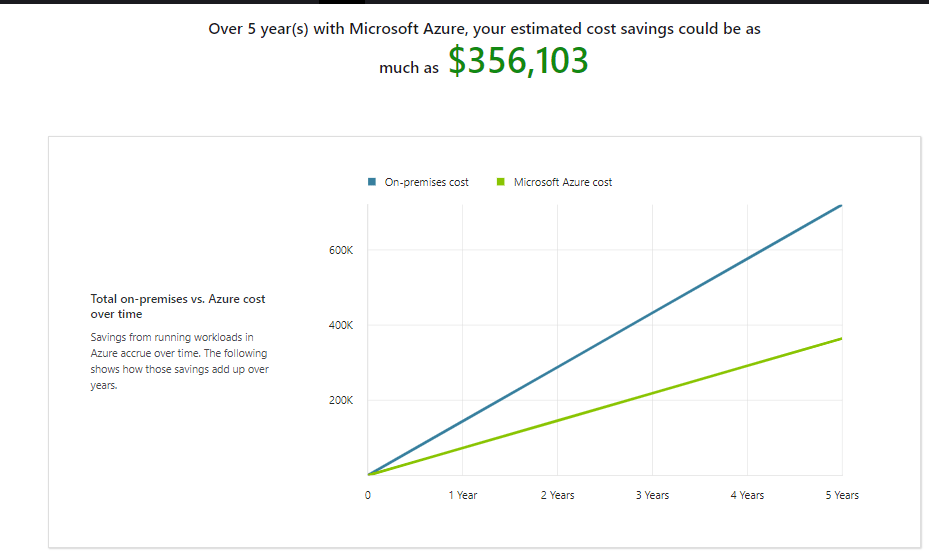
But what if i want to move from On Premis to the cloud , is this tool will work ? Total Cost of Ownership or TCO from here

The TCO Calculator helps you understand the cost areas that affect your applications today, such as server hardware, software licenses, electricity, and labor by Define the following :-

  • Servers : -details of your current on-premises
  • Databases :- on-premises database infrastructure
  • Storage :- on-premises storage infrastructure
  • Networking :- on-premises environment

The Genterated report will be like this :-

Amazon

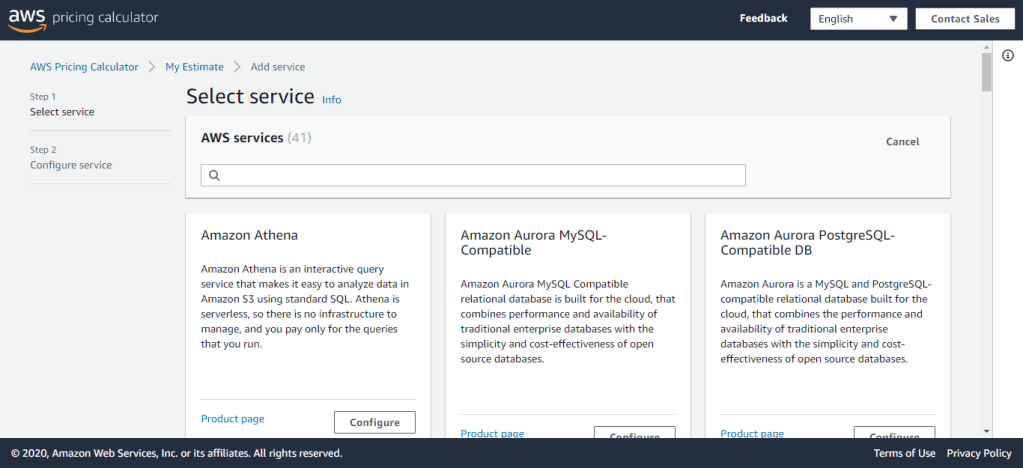
As i already mentioned each Cloud vendor having different apporach of Cloud Pricing but it’s all the same, in AWS you can access the pricing from here , also they have somthing called SIMPLE MONTHLY CALCULATOR From here.

When you generate an estimate, you can either add services directly to your estimate or create a group and add the services to your group.

The AWS Pricing Calculator is an estimation tool that provides an approximate cost of using AWS services based on the usage parameters that you specify. The AWS Pricing Calculator is not a quote tool, and does not guarantee the cost for your actual use of AWS services. The cost estimated by the AWS Pricing Calculator may vary from your actual costs for a number of reasons. Common reasons the estimate may be different from your actual cost include different thing such as Actual Usage, Region used, Change in price, Taxes ( depends on the Region ) .. etc

Oracle

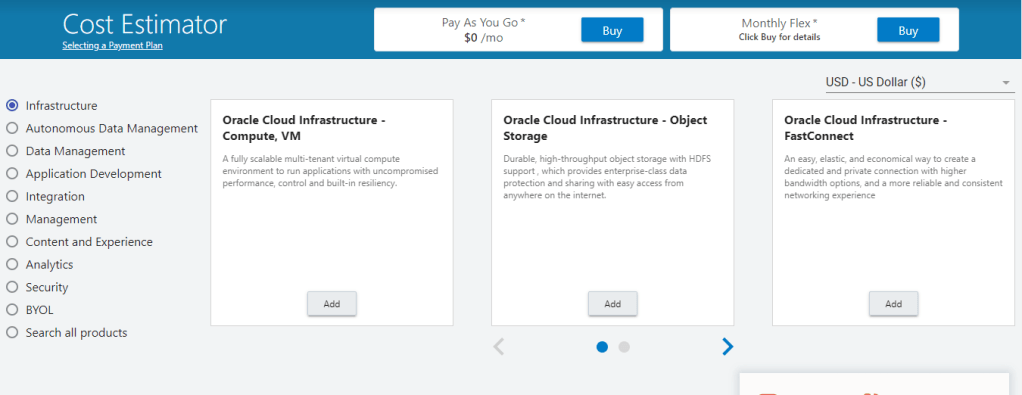
From Oracle , the portal is very simple to use, you can estimate everything using this portal here from Infrastcure cost, database, Application, … etc .

Cheers

Osama

Monitoring Azure services

Azure provides two primary services to monitor the health of your apps and resources.

  • Azure Monitor
  • Azure Service Health

Azure Monitor

maximizes the availability and performance of your applications by delivering a comprehensive solution for collecting, analyzing, and acting on telemetry from your cloud and on-premises environments. It helps you understand how your applications are performing and proactively identifies issues affecting them and the resources they depend on.

also it can collect data from different source such as application, operating system, and platform .. etc. for example the following will explain what i mean :-

What it’s monitorDescription
Application monitoring datacollect data about performance and functionality of the code you have written, regardless of its platform.
 OS monitoring dataData about the operating system on which your application is running.
resource monitoring dataData about the operation of an Azure resource.

subscription monitoring dataData about the operation and management of an Azure subscription
tenant monitoring dataData about the operation of tenant-level Azure services such azure AD.
Table explain what is the monitor in Azure Monitor

Azure Monitor starts collecting data. Activity Logs record when resources are created or modified and Metrics tell you how the resource is performing and the resources that it’s consuming, You can extend the data you’re collecting into the actual operation of the resources by enabling diagnostics and adding an agent to compute resources, also with Azure Monitor you can extend the monitoring to be for example :-

  • Application Insights is a service that monitors the availability, performance, and usage of your web applications, whether they’re hosted in the cloud or on-premises.
  • Azure Monitor for containers is a service that is designed to monitor the performance of container workload
  • Azure Monitor for VMs is a service that monitors your Azure VMs at scale, by analyzing the performance and health of your Windows and Linux VMs

How it’s works ?

Alert :- from the name it will notify the admin to about the erros or thereshould to take corrective actions,Alert rules based on metrics can provide alerts in almost real-time, based on numeric values. Alert rules based on logs allow for complex logic across data, from multiple sources.

AutoScale :- uses Autoscale to ensure that you have the right amount of resources running to manage the load on your application effectively.

Azure Service Health

provide personalized guidance and support when issues with Azure services affect you. It can notify you, help you understand the impact of issues, and keep you updated as the issue is resolved.

What is the plus about Azure Service health :-

  • Azure Status provides a global view of the health state of Azure services
  • customizable dashboard that tracks the state of your Azure services in the regions where you use them.
  • Helps you diagnose and obtain support when an Azure service issue affects your resources

Cheers

And Enjoy the Cloud

Osama

Encryption on Azure

What is encryption?

Encryption is the process of making data unreadable and unusable to unauthorized viewers. To use or read the encrypted data, it must be decrypted, which requires the use of a secret key. 

There are two different type :-

  • Symmetric encryption :– Which mean you will use same key  to encrypt and decrypt the data
  • Asymmetric encryption :– Which mean you will use different key , for example Private and public key.

both of these two type having two different ways :-

  • Encryption at rest which mean data stored in a database, or data stored in a storage account.
  • Encryption in transit which means  data actively moving from one location to another.

So, there are different type of Encryption provided by Azure:-

  • Encrypt raw storage
    • Azure Storage Service Encryption :-  encrypts your data before persisting it to Azure Managed Disks, Azure Blob storage, Azure Files, or Azure Queue storage, and decrypts the data before retrieval.
    • Encrypt virtual machine disks low-level encryption protection for data written to physical disk
  • Azure Disk Encryption : this method helps you to encruypt the actually windows or Linux disk, the best way to do this is h Azure Key Vault.
  • Encrypt databases
    • Transparent data encryption :- helps protect Azure SQL Database and Azure Data Warehouse against the threat of malicious activity. It performs real-time encryption and decryption of the database.

The best way to do this which is Azure Key Vault,  cloud service for storing your application secrets. Key Vault helps you control your applications’ secrets by keeping them in a single, why should i use it :-

  • Centralizing the solutions.
  • Securely stored secrets and keys.
  • Monitor access and use.
  • Simplified administration of application secrets.

There are also two different kind of certificate in Azure which will helps you to encrypt for example the website or application, you need to know that Certificates used in Azure are x.509 v3 and can be signed by a trusted certificate authority, or they can be self-signed.

Types of certificates

  • Service certificates are used for cloud services
  • Management certificates are used for authenticating with the management API

Service certificates

which is attached to cloud services and enable secure communication to and from the service. For example, if you deploy a web site, you would want to supply a certificate that can authenticate an exposed HTTPS endpoint. Service certificates, which are defined in your service definition, are automatically deployed to the VM that is running an instance of your role.

Management certificates

allow you to authenticate with the classic deployment model. Many programs and tools (such as Visual Studio or the Azure SDK) use these certificates to automate configuration and deployment of various Azure services. However, these types of certificates are not related to cloud services.

Be noted that you can use Azure Key Vault to store your certificates.

Cheers

Osama

What storage i should go with Azure data storage ? what my business needs ?

Azure provides several storage options that accommodate specific types of data storage needs.

  • Azure SQL Database ( Amazon RDS).

Azure SQL Database is a relational database as a service (DaaS) based on the latest stable version of the Microsoft SQL Server database engine. SQL Database is a high-performance, reliable, fully managed and secure database. You can use it to build data-driven applications and websites in the programming language of your choice without needing to manage infrastructure.

You can migrate your existing SQL Server databases with minimal downtime using the Azure Database Migration Service. The service uses the Microsoft Data Migration Assistant to generate assessment reports that provide recommendations to help guide you through required changes prior to performing a migration. Once you assess and perform any remediation required, you’re ready to begin the migration process. The Azure Database Migration Service performs all of the required steps. You just change the connection string in your apps.

  • Azure Cosmos DB (In Amazon DynamoDB)

Azure Cosmos DB is a globally distributed database service. It supports schema-less data that lets you build highly responsive and Always On applications to support constantly changing data. You can use this feature to store data that is updated and maintained by users around the world. The following illustration shows a sample Azure Cosmos DB database that’s used to store data that’s accessed by people located across the globe.

  • Azure Blob storage (In Amazon it will be Amazon S3)

Azure Blob Storage is unstructured, meaning that there are no restrictions on the kinds of data it can hold. Blobs are highly scalable and apps work with blobs in much the same way as they would work with files on a disk, such as reading and writing data. Blob Storage can manage thousands of simultaneous uploads, massive amounts of video data, constantly growing log files, and can be reached from anywhere with an internet connection.

Blobs aren’t limited to common file formats. A blob could contain gigabytes of binary data streamed from a scientific instrument, an encrypted message for another application, or data in a custom format for an app you’re developing.

  • Azure Data Lake Storage (In Amazon Kinesis Analytics).

The Data Lake feature allows you to perform analytics on your data usage and prepare reports. Data Lake is a large repository that stores both structured and unstructured data.

Azure Data Lake Storage combines the scalability and cost benefits of object storage with the reliability and performance of the Big Data file system capabilities. The following illustration shows how Azure Data Lake stores all your business data and makes it available for analysis.

  • Azure Files (In Amazon Elastic File System)

Azure Files offers fully managed file shares in the cloud that are accessible via the industry standard Server Message Block (SMB) protocol. Azure file shares can be mounted concurrently by cloud or on-premises deployments of Windows, Linux, and macOS. Applications running in Azure virtual machines or cloud services can mount a file storage share to access file data, just as a desktop application would mount a typical SMB share. Any number of Azure virtual machines or roles can mount and access the file storage share simultaneously. Typical usage scenarios would be to share files anywhere in the world, diagnostic data, or application data sharing.

  • Azure Queue (In Amazon Simple Queue Service (SQS))

Azure Queue storage is a service for storing large numbers of messages that can be accessed from anywhere in the world.

Azure Queue Storage can be used to help build flexible applications and separate functions for better durability across large workloads. When application components are decoupled, they can scale independently. Queue storage provides asynchronous message queueing for communication between application components, whether they are running in the cloud, on the desktop, on-premises, or on mobile devices, Typically, there are one or more sender components and one or more receiver components. Sender components add messages to the queue, while receiver components retrieve messages from the front of the queue for processing.

  • Disk Storage (In Amazon Elastic Block Store (EBS))

Disk storage provides disks for virtual machines, applications, and other services to access and use as they need, similar to how they would in on-premises scenarios. Disk storage allows data to be persistently stored and accessed from an attached virtual hard disk. The disks can be managed or unmanaged by Azure, and therefore managed and configured by the user. Typical scenarios for using disk storage are if you want to lift and shift applications that read and write data to persistent disks, or if you are storing data that is not required to be accessed from outside the virtual machine to which the disk is attached, Disks come in many different sizes and performance levels, from solid-state drives (SSDs) to traditional spinning hard disk drives (HDDs), with varying performance abilities.

  • Storage type :-
    • Hot storage tier: optimized for storing data that is accessed frequently. –> Default in Amazon
    • Cool storage tier: optimized for data that are infrequently accessed and stored for at least 30 days. –> S3 Infrequent Access (IA)
    • Archive storage tier: for data that are rarely accessed and stored for at least 180 days with flexible latency requirements. –> In Amazon S3 Glacier

Cheers

Osama
Azure CLI For Beginners

What is Azure CLI ?

The Azure command-line interface (Azure CLI) is a set of commands used to create and manage Azure resources. The Azure CLI is available across Azure services and is designed to get you working quickly with Azure, with an emphasis on automation.

Documentation here

Create a Linux VM with the Azure CLI

The Azure CLI includes the vm command to work with virtual machines in Azure. We can supply several subcommands to do specific tasks. The most common include:

Sub-commandDescription
createCreate a new virtual machine
deallocateDeallocate a virtual machine
deleteDelete a virtual machine
listList the created virtual machines in your subscription
open-portOpen a specific network port for inbound traffic
restartRestart a virtual machine
showGet the details for a virtual machine
startStart a stopped virtual machine
stopStop a running virtual machine
updateUpdate a property of a virtual machine

Create new VM Using AZ CLI :-

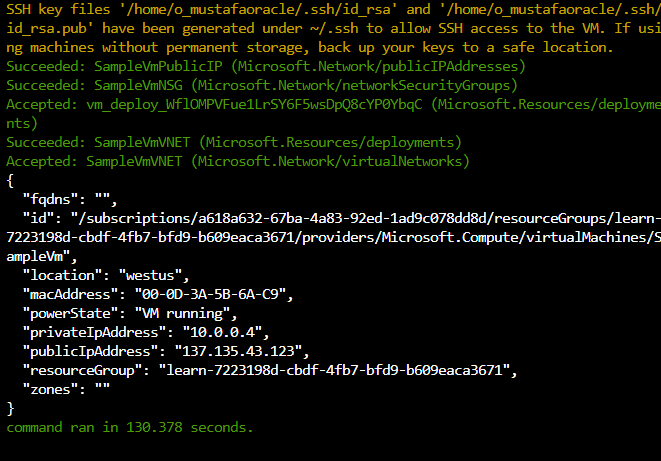
az vm create --resource-group [resource group name] --location westus --name OsamaVM 
  --image UbuntuLTS --admin-username osama--generate-ssh-keys --verbose 

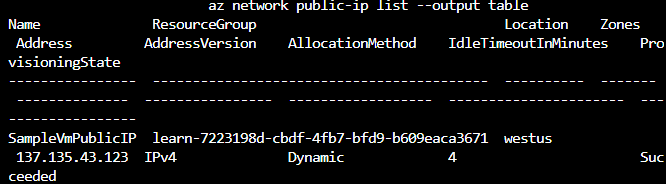
After creating the vmware , Public IP is assigned to create VM, to check the Public IP

Another way to check the IP by using the below command :-

az vm list-ip-addresses -n OsamaVM -o table

You could ports using AZ CLI for example

az vm open-port --port 80  --resource-group learn-9c22c502-355e-437b-9682-eb54b8c48e1c  --name OsamaVM

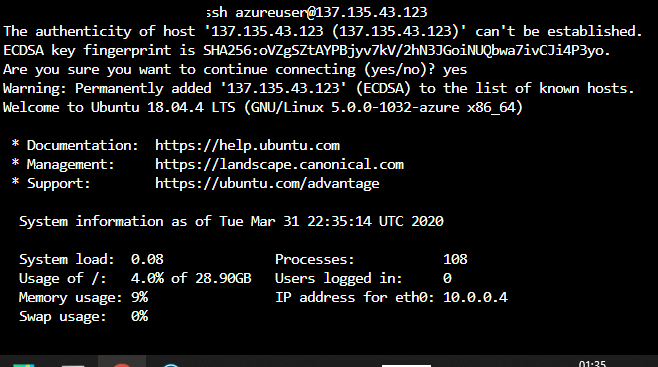
You can connect SSH to the VM Using the below command :-

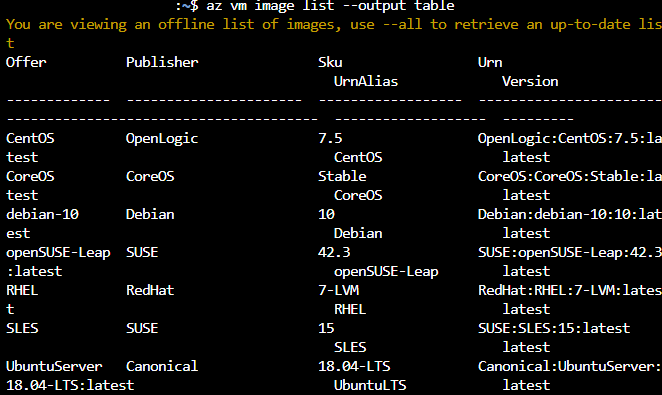
There are pre defined image avaliable from Azure you can check them by :-

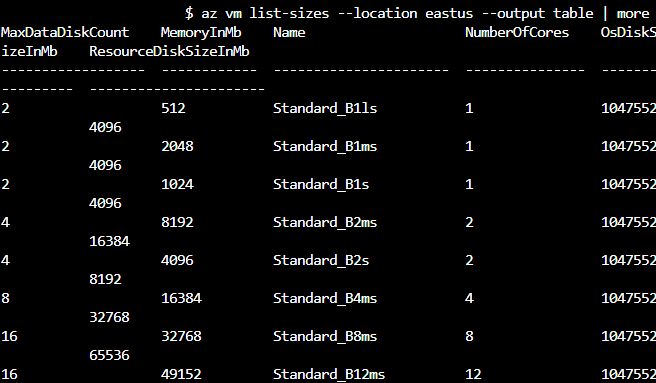
Or you can check the Avaliable Images in certain location, here you could find different between locations :-

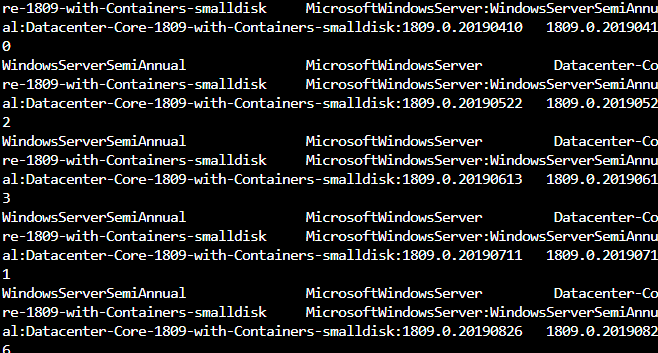
For example also, the below command shows the images that has been created only By Microsoft :-

az vm image list --publisher Microsoft --output table --all

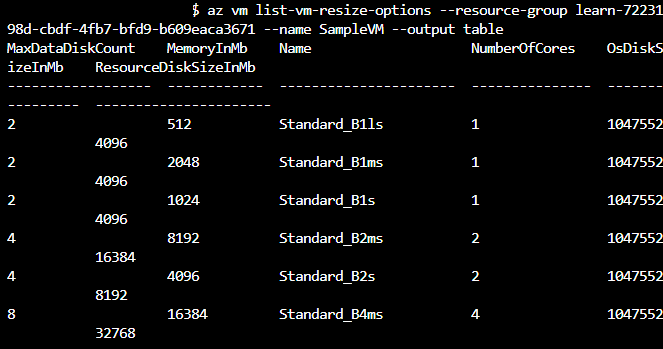
One More thing , To resize a VM, we use the vm resize command. For example, perhaps we find our VM is underpowered for the task we want it to perform. We could bump it up to a D2s_v3 where it has 2 vCores and 8 GB of memory. Type this command in Cloud Shell:

az vm resize --resource-group test-7223198d-cbdf-4fb7-bfd9-b609eaca3671 --name OsamaVM--size Standard_D2s_v3

Cheers

Enjoy

Osama

Install Apache Ambari on Ubuntu 18.04 to Manage Hadoop

What is Ambari ?

Ambari is an open-source administration tool deployed on top of Hadoop clusters, and it is responsible for keeping track of the running applications and their status. Apache Ambari can be referred to as a web-based management tool that manages, monitors, and provisions the health of Hadoop clusters.

With Ambari, Hadoop operators get the following core benefits:

  • Simplified Installation, Configuration and Management.
  • Centralized Security Setup.
  • Full Visibility into Cluster Health.
  • Highly Extensible and Customizable.

For more information about Ambari, review the documentation here.

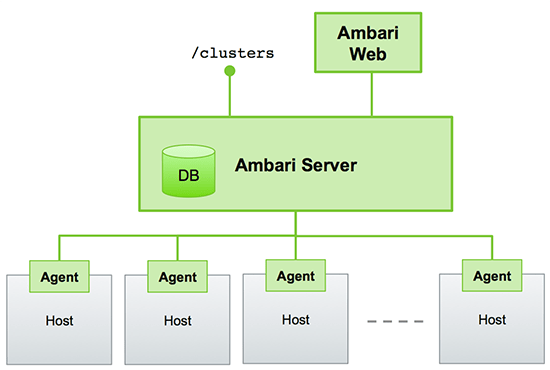
The Below picture shows how the ambari architecture: –

The Ambari Installation is pretty simple, the below section will discuss the installation steps

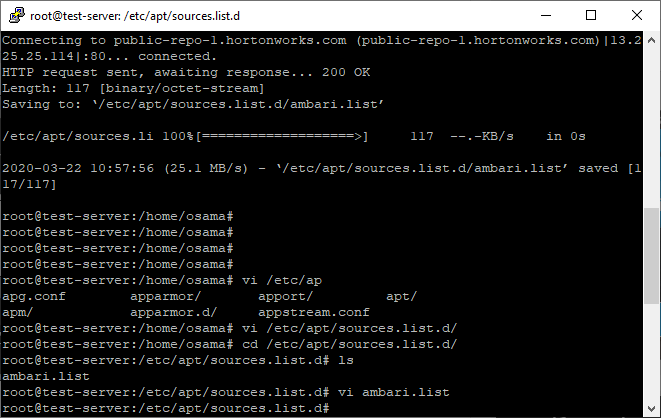
  • Installation of Apache Ambari is very easy. SSH to your server and become root, add Ambari repository file to /etc/apt/sources.list.d :
wget -O /etc/apt/sources.list.d/ambari.list http://public-repo-1.hortonworks.com/ambari/ubuntu16/2.x/updates/2.7.3.0/ambari.list
  • Then we have to add the ambari.list
apt-key adv --recv-keys --keyserver keyserver.ubuntu.com B9733A7A07513CAD
  • Run the update
apt-get update
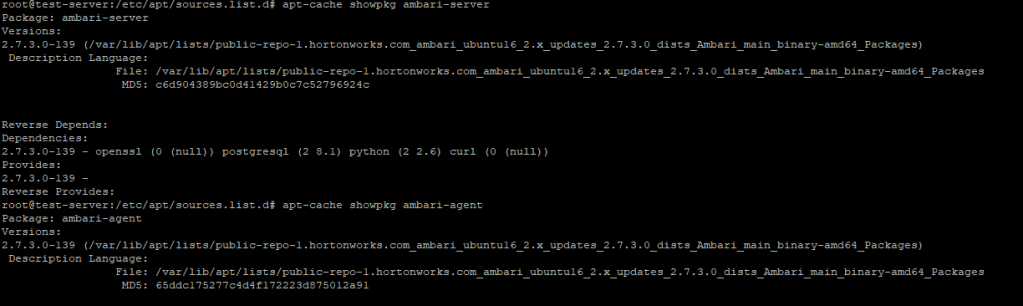
  • Confirm that Ambari packages downloaded successfully by checking the package name list.
apt-cache showpkg ambari-server
apt-cache showpkg ambari-agent
apt-cache showpkg ambari-metrics-assembly

The above checking should give you the following result :-

  • Now we will install the Ambari server which will also install the above said default PostgreSQL Ambari database :
apt-get install ambari-server
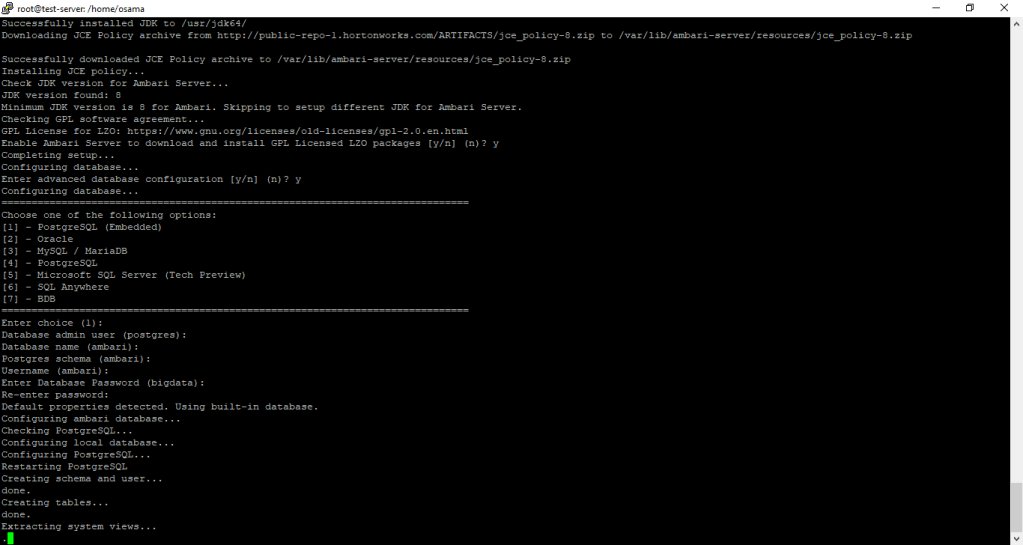
  • Next part is running the command to set up the Ambari Server :
ambari-server setup

The above command will start configure Ambari to connect the database, the default database is PostgreSQL, then install JDK, and the Ambrai daemon, then the account, you could choose advance setting for database in case you want to change the database type, ambari gives you different options such as Oracle, MySQL, Microsoft and DB2, the default database username and password is

Username : Ambari
Password : bigdata

And the The Dashboard Link (https://hostname:8080/) :-

admin
admin

You can start the Ambari server by running the following command :-

To start the Ambari server: service ambari-server start
To stop the Ambari server: service ambari-server stop
restart the Ambari server: service ambari-server restart
To check the Ambari server processes: ps -ef | grep Ambari.

Cheers

Thanks

Osama Mustafa

Auto Closing Trigger in Zabbix

There are different problems category in zabbix which is like the below:-

  • Disaster
  • High
  • Average
  • Warning
  • Information
  • Not classified

I will focus in this post on Information and Not Classified Issues.

These two Problem category to inform users about some change in the operating system for example, such as Updating the operating system, or You have CPU utilization, this is not the issue, the problem with these two category they never disappeared from Zabbix Dashboard, and to be honest for me it’s annoying 😅

Therefore, i was trying to find a way to hide these issues, i don’t want to disabled the trigger because in that case it will never appeared and this is not the goal for me,I just want them to be on Dashboard for certain amount of time.

I found two ways for that after investigation, the one will be done from Database level, for example MySQL in my case, the other one via Zabbix Dashboard ( Trigger part) this is the right one and what i want.

Method #1 

To fix this issue from the database , you have to follow the below : –

  • You should have access to MySQL
  • Use Zabbix Database
  • Knowledge of database and Zabbix table, you don’t want to corrupt the database.
  • there are different tables we need to deal with
triggers table
problem table
alerts table
  • You have to know, inside trigger table value column contains two number which 0 (you don’t have any error) and 1 (you have problem)
select * from triggers where description like '%Operating%' and value = 1;
update triggers set value = 0 where  description like '%Operating%' and value = 1;

The above Select search for trigger called Operating system and the trigger should have issue, then update this trigger to 0 to assign this issue to ok.

Method #2

This method i preferred but i had to mentioned the previous one so in case someone wants to use it, in this one you don’t have to access to the database at all.

  • From The upper panel –> Choose configuration –> Host –> search for your host –> Press on Trigger –> Search for the trigger.
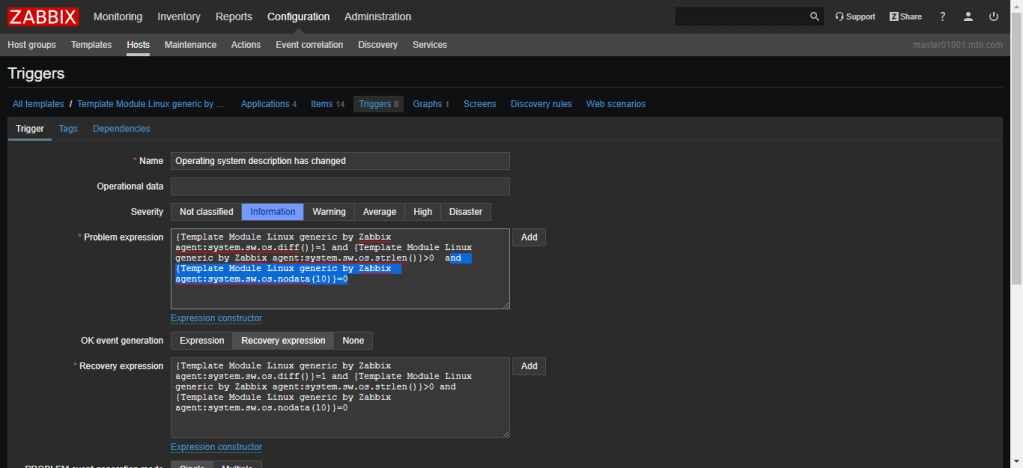
  • Once you press on the trigger you want, it will show couple of Options , we will care only about “problem expression”
  • From problem expression press add button and choose the item that related to this trigger.
  • There is Function inside the zabbix ( Built-in) called nodata takes second as parameter, you can put the item and choose the function then set the time for 10 sec same as the below picture.

Enjoy 👊

Cheers 🍻

Osama

Install Docker on ubuntu 18.04.3 LTS

What is Docker ?

Docker is a tool designed to make it easier to create, deploy, and run applications by using containers. Containers allow a developer to package up an application with all of the parts it needs, such as libraries and other dependencies, and deploy it as one package. By doing so, thanks to the container, the developer can rest assured that the application will run on any other Linux machine regardless of any customized settings that machine might have that could differ from the machine used for writing and testing the code.

Why Docker ? 

  • Agility
  • Simplicity
  • Choice

Docker Installation on ubuntu 18.04.3 LTS

In this post, i will show you step by step to install docker on Ubuntu operating system, i prefer to create account on docker hub here.

Step#1 :-

update the existing list of packages using

sudo apt update

Step #2 :

install prerequisite packages which will let apt use packages over HTTPS

sudo apt install apt-transport-https ca-certificates curl software-properties-common

Step #3: –

add GPG key for the official Docker repository to your system

curl -fsSL https://download.docker.com/linux/ubuntu/gpg | sudo apt-key add -

Step #4 :-

Add the Docker repository to APT sources

sudo add-apt-repository  "deb [arch=amd64] https://download.docker.com/linux/ubuntu  $(lsb_release -cs)  stable"

Step #5: –

Install Docker

sudo apt-get install docker-ce

Step #6: –

Verify that Docker CE is installed correctly by running the hello-world image.

sudo docker run hello-world

You can could face an issue related to Hello-world Command when you are trying to verify the installation which is

permission denied while trying to connect to the docker daemon socket at unix
/var/run/docker.sock: connect: permission denied 

You can solve this issue by fire the below command and try again

sudo chmod 666 /var/run/docker.sock

Also you can list all the available docker version By running the below command

apt list -a docker-ce

Check if the services is up and running: –

sudo systemctl status docker

Reference 

Docker documentation here

Cheer and enjoy the docker

Osama

Complete Project Built on Amazon AWS

I would like to share the following project, the idea of the project is to share the knowledge and allow people to try full implementation on AWS and hands-on experience: –

  • Create the VM
  • Install Nginx with a reverse proxy listening on port 3333 and rerouting locally on port 8080 and make a small application that just ECHOs HTTP request on port 8080 (in any language you want).
  • Harden it using this script (or if you want to make your own on different OS configuration or a more updated one, we will compensate you for it.)
  • Ensure that you are using a custom service account and not the default one.
  • Make sure that everything is logged in Stackdriver including system, SSH log tentative,all application servers.
  • Make sure that the firewall is well configured and no extra port is opened.
  • Publish the VM.

The Solution that i created was the following: –

  • Use this CloudFormation script to deploy following an instance with following setup:
    • Echo request application
    • Centralized logging to CloudWatch
    • Hardened Operating System
  • The CloudFormation Script, makes use of several scripts and configuration files. Their links and description are as follows:-
  • For details on deployment architecture and configuration, please refer to the following documents:
    • Documentation : Contains overview on deployment architecture and high-level OS hardening & logging configurations.
    • CloudFormation Script: Contains details on architecture and OS hardening as well as logging configurations

Cheers & thank you

Osama

Step by Step – Zabbix 4.4.2 Installation and configuration on ubuntu 18.04.3 LTS

What is Zabbix ?

Zabbix is Open Source software used for monitoring the application, Server and networking, and cloud services, zabbix provide metrics, such as network utilization, CPU and disk space .. etc.

What Zabbix 4.4.2 can monitor

In this post i will try to mention everything for Zabbix installation and configuration, include to this some of the issues that you will face during the installation with screenshots, the idea of this post to help people and allow them to understand and simplify the installation/configuration.

You can Refer always to Zabbix documentation which include different versions, remember this post is for Zabbix 4.4.2 and maybe will work on other versions, but never tested before. The documentation HERE.

You can Download Zabbix From HERE, Depends on your operating system and version, Zabbix supporting two different databases during the installation which is MySQL & PostgreSQL.

Zabbix Installation

Step#1:- Install Apache, MySQL and PHP

sudo apt-get update
sudo apt-get install apache2 libapache2-mod-php
sudo apt-get install mysql-server
sudo apt-get install php php-mbstring php-gd php-xml php-bcmath php-ldap php-mysql

Once the installation is done, you have to update the timezone for PHP, you can do this by edit the file

/etc/php/php<version>/apache2/php.ini

Search for the line include word “Date”, remember when you edit the file you will find “;” at start of the line, in php this is comment , so you have to remove and update the timezone, the List of Supported Timezones in php HERE, once you find yours edit the file.

[Date]
;http://php.net/date.timezone
date.timezone = 'Asia/Amman'

I also attached pictures to show you how the file will look like

php.ini from the inside

Step #2: Before Install Zabbix Server

before install Zabbix server, there are one required step should be done first which is enable the zabbix repository, the download Link (HERE)that mentioned above gave you the steps , again you can find the link here and choose which Operating system Zabbix will be installed on

Zabbix Download Link shows our setup

From the above, once you choose everything, scroll down to find the repository.

wget https://repo.zabbix.com/zabbix/4.4/ubuntu/pool/main/z/zabbix-release/zabbix-release_4.4-1+bionic_all.deb
dpkg -i zabbix-release_4.4-1+bionic_all.deb
apt update

Step #3: Install Zabbix Server

sudo apt-get update
sudo apt-get install zabbix-server-mysql zabbix-frontend-php zabbix-agent

Now all the necessary packages has been installed on the operating system, the configuration start from the base which is the database.

Step #4: Create Zabbix Database Schema

Login to MySQL by the below commands to create the database and user.

mysql -uroot -p
Enter the password
mysql> create database zabbix character set utf8 collate utf8_bin;
mysql> grant all privileges on zabbix.* to zabbix@localhost identified by 'zabbix';
mysql> quit;

Now we have to import the data into the schema we just create, to do this we should run the below command, notice these steps should be done in order otherwise an issue will be appeared, You will be prompted to enter your newly created password.

zcat /usr/share/doc/zabbix-server-mysql*/create.sql.gz | mysql -u zabbix -p zabbix

Step #5: Configure Zabbix file to access the database.

Edit the following file

 /etc/zabbix/zabbix_server.conf

Search for the following Lines using your favorite editor either vi, vim , nano .. etc

DBHost=localhost
DBName=zabbix
DBUser=zabbix
DBPassword=password

Step #6:- Restart the services to make everything ok

Start Zabbix server and agent processes and make it start at system boot.

systemctl restart zabbix-server zabbix-agent apache2
systemctl enable zabbix-server zabbix-agent apache2

OR

sudo service apache2 restart
sudo service zabbix-server restart

After starting the Zabbix service, let’s go to Zabbix web installer and finish the installation.

Connect to your newly installed Zabbix frontend: http://server_ip_or_name/

Before doing this, which is access to above Link, i faced an issue, which is i was 100% everything is Ok, but everytime i access the link, HTTP response code with 404 NOT FOUND, i was searching about this, and the solution was like the following

Change the directory to

/etc/apache2/sites-available

Under this location, you will find two file

  • 000-default. conf
  • default

Edit these two file to change the following Line

Change DocumentRoot /var/www/html -- > DocumentRoot /usr/share/zabbix

Restart the Apache again, Now the Link will work.

Step #7: complete the configuration via Zabbix Web Installer.

  • Zabbix Setup Welcome Screen
Zabbix Welcome Screen
  • Check for pre-requisites
pre-requisites everything should be OK

to solve the above you have to fix the value from one file which is

/etc/php/php<version>/apache2/php.ini

and search for the option, for example, post_max_size the current value is 8M just change to 16M and So on, remember after you change the value you have to restart the Apache to take the effect and then check the pre-requisites again.

after fixing the Values.
  • Configure DB Connection

Enter database details created in Step #4 and click next to continue.

Database Details in Step #4
  • Zabbix Server Details

This is the host and port of running Zabbix server, Don’t change the values of the port and host, no need to do that, since it’s running on the same server, for the Name, you can give name for the instance.

Zabbix Server Details
  • Pre-Installation Summary
Summary
  • Done

Enjoy the zabbix ☠🍻

Osama