Deep Dive into Oracle Kubernetes Engine Security and Networking in Production

Oracle Kubernetes Engine is often introduced as a managed Kubernetes service, but its real strength only becomes clear when you operate it in production. OKE tightly integrates with OCI networking, identity, and security services, which gives you a very different operational model compared to other managed Kubernetes platforms.

This article walks through OKE from a production perspective, focusing on security boundaries, networking design, ingress exposure, private access, and mutual TLS. The goal is not to explain Kubernetes basics, but to explain how OKE behaves when you run regulated, enterprise workloads.

Understanding the OKE Networking Model

OKE does not abstract networking away from you. Every cluster is deeply tied to OCI VCN constructs.

Core Components

An OKE cluster consists of:

  • A managed Kubernetes control plane
  • Worker nodes running in OCI subnets
  • OCI networking primitives controlling traffic flow

Key OCI resources involved:

  • Virtual Cloud Network
  • Subnets for control plane and workers
  • Network Security Groups
  • Route tables
  • OCI Load Balancers

Unlike some platforms, security in OKE is enforced at multiple layers simultaneously.

Worker Node and Pod Networking

OKE uses OCI VCN-native networking. Pods receive IPs from the subnet CIDR through the OCI CNI plugin.

What this means in practice

  • Pods are first-class citizens on the VCN
  • Pod IPs are routable within the VCN
  • Network policies and OCI NSGs both apply

Example subnet design:

VCN: 10.0.0.0/16

Worker Subnet: 10.0.10.0/24
Load Balancer Subnet: 10.0.20.0/24
Private Endpoint Subnet: 10.0.30.0/24

This design allows you to:

  • Keep workers private
  • Expose only ingress through OCI Load Balancer
  • Control east-west traffic using Kubernetes NetworkPolicies and OCI NSGs together

Security Boundaries in OKE

Security in OKE is layered by design.

Layer 1: OCI IAM and Compartments

OKE clusters live inside OCI compartments. IAM policies control:

  • Who can create or modify clusters
  • Who can access worker nodes
  • Who can manage load balancers and subnets

Example IAM policy snippet:

Allow group OKE-Admins to manage cluster-family in compartment OKE-PROD
Allow group OKE-Admins to manage virtual-network-family in compartment OKE-PROD

This separation is critical for regulated environments.

Layer 2: Network Security Groups

Network Security Groups act as virtual firewalls at the VNIC level.

Typical NSG rules:

  • Allow node-to-node communication
  • Allow ingress from load balancer subnet only
  • Block all public inbound traffic

Example inbound NSG rule:

Source: 10.0.20.0/24
Protocol: TCP
Port: 443

This ensures only the OCI Load Balancer can reach your ingress controller.

Layer 3: Kubernetes Network Policies

NetworkPolicies control pod-level traffic.

Example policy allowing traffic only from ingress namespace:

apiVersion: networking.k8s.io/v1
kind: NetworkPolicy
metadata:
  name: allow-from-ingress
  namespace: app-prod
spec:
  podSelector: {}
  ingress:
    - from:
        - namespaceSelector:
            matchLabels:
              role: ingress

This blocks all lateral movement by default.

Ingress Design in OKE

OKE integrates natively with OCI Load Balancer.

Public vs Private Ingress

You can deploy ingress in two modes:

  • Public Load Balancer
  • Internal Load Balancer

For production workloads, private ingress is strongly recommended.

Example service annotation for private ingress:

service.beta.kubernetes.io/oci-load-balancer-internal: "true"
service.beta.kubernetes.io/oci-load-balancer-subnet1: ocid1.subnet.oc1..

This ensures the load balancer has no public IP.

Private Access to the Cluster Control Plane

OKE supports private API endpoints.

When enabled:

  • The Kubernetes API is accessible only from the VCN
  • No public endpoint exists

This is critical for Zero Trust environments.

Operational impact:

  • kubectl access requires VPN, Bastion, or OCI Cloud Shell inside the VCN
  • CI/CD runners must have private connectivity

This dramatically reduces the attack surface.

Mutual TLS Inside OKE

TLS termination at ingress is not enough for sensitive workloads. Many enterprises require mTLS between services.

Typical mTLS Architecture

  • TLS termination at ingress
  • Internal mTLS between services
  • Certificate management via Vault or cert-manager

Example cert-manager issuer using OCI Vault:

apiVersion: cert-manager.io/v1
kind: ClusterIssuer
metadata:
  name: oci-vault-issuer
spec:
  vault:
    server: https://vault.oci.oraclecloud.com
    path: pki/sign/oke

Each service receives:

  • Its own certificate
  • Short-lived credentials
  • Automatic rotation

Traffic Flow Example

End-to-end request path:

  1. Client connects to OCI Load Balancer
  2. Load Balancer forwards traffic to NGINX Ingress
  3. Ingress enforces TLS and headers
  4. Service-to-service traffic uses mTLS
  5. NetworkPolicy restricts lateral movement
  6. NSGs enforce VCN-level boundaries

Every hop is authenticated and encrypted.


Observability and Security Visibility

OKE integrates with:

  • OCI Logging
  • OCI Flow Logs
  • Kubernetes audit logs

This allows:

  • Tracking ingress traffic
  • Detecting unauthorized access attempts
  • Correlating pod-level events with network flows

Regards
Osama

Setting up a High-Availability (HA) Architecture with OCI Load Balancer and Compute Instances

Ensuring high availability (HA) for your applications is critical in today’s cloud-first environment. Oracle Cloud Infrastructure (OCI) provides robust tools such as Load Balancers and Compute Instances to help you create a resilient, highly available architecture for your applications. In this post, we’ll walk through the steps to set up an HA architecture using OCI Load Balancer with multiple compute instances across availability domains for fault tolerance.

Prerequisites

  • OCI Account: A working Oracle Cloud Infrastructure account.
  • OCI CLI: Installed and configured with necessary permissions.
  • Terraform: Installed and set up for provisioning infrastructure.
  • Basic knowledge of Load Balancers and Compute Instances in OCI.

Step 1: Set Up a Virtual Cloud Network (VCN)

A VCN is required to house your compute instances and load balancers. To begin, create a new VCN with subnets in different availability domains (ADs) for high availability.

Terraform Configuration (vcn.tf):

resource "oci_core_virtual_network" "vcn" {
  compartment_id = "<compartment_ocid>"
  cidr_block     = "10.0.0.0/16"
  display_name   = "HA-Virtual-Network"
}

resource "oci_core_subnet" "subnet1" {
  compartment_id      = "<compartment_ocid>"
  vcn_id              = oci_core_virtual_network.vcn.id
  cidr_block          = "10.0.1.0/24"
  availability_domain = "AD-1"
  display_name        = "HA-Subnet-AD1"
}

resource "oci_core_subnet" "subnet2" {
  compartment_id      = "<compartment_ocid>"
  vcn_id              = oci_core_virtual_network.vcn.id
  cidr_block          = "10.0.2.0/24"
  availability_domain = "AD-2"
  display_name        = "HA-Subnet-AD2"
}

Step 2: Provision Compute Instances

Create two compute instances (one in each subnet) to ensure redundancy.

Terraform Configuration (compute.tf):

resource "oci_core_instance" "instance1" {
  compartment_id = "<compartment_ocid>"
  availability_domain = "AD-1"
  shape = "VM.Standard2.1"
  display_name = "HA-Instance-1"
  
  create_vnic_details {
    subnet_id = oci_core_subnet.subnet1.id
    assign_public_ip = true
  }

  source_details {
    source_type = "image"
    source_id = "<image_ocid>"
  }
}

resource "oci_core_instance" "instance2" {
  compartment_id = "<compartment_ocid>"
  availability_domain = "AD-2"
  shape = "VM.Standard2.1"
  display_name = "HA-Instance-2"
  
  create_vnic_details {
    subnet_id = oci_core_subnet.subnet2.id
    assign_public_ip = true
  }

  source_details {
    source_type = "image"
    source_id = "<image_ocid>"
  }
}

Step 3: Set Up the OCI Load Balancer

Now, configure the OCI Load Balancer to distribute traffic between the compute instances in both availability domains.

Terraform Configuration (load_balancer.tf):

resource "oci_load_balancer_load_balancer" "ha_lb" {
  compartment_id = "<compartment_ocid>"
  display_name   = "HA-Load-Balancer"
  shape           = "100Mbps"

  subnet_ids = [
    oci_core_subnet.subnet1.id,
    oci_core_subnet.subnet2.id
  ]

  backend_sets {
    name = "backend-set-1"

    backends {
      ip_address = oci_core_instance.instance1.private_ip
      port = 80
    }

    backends {
      ip_address = oci_core_instance.instance2.private_ip
      port = 80
    }

    policy = "ROUND_ROBIN"
    health_checker {
      port = 80
      protocol = "HTTP"
      url_path = "/health"
      retries = 3
      timeout_in_seconds = 10
      interval_in_seconds = 5
    }
  }
}

resource "oci_load_balancer_listener" "ha_listener" {
  load_balancer_id = oci_load_balancer_load_balancer.ha_lb.id
  name = "http-listener"
  default_backend_set_name = "backend-set-1"
  port = 80
  protocol = "HTTP"
}

Step 4: Set Up Health Checks for High Availability

Health checks are critical to ensure that the load balancer sends traffic only to healthy instances. The health check configuration is included in the backend set definition above, but you can customize it as needed.
Step 5: Testing and Validation

Once all resources are provisioned, test the HA architecture:

Verify Load Balancer Health: Ensure that the backend instances are marked as healthy by checking the load balancer’s health checks.

oci load-balancer backend-set get --load-balancer-id <load_balancer_id> --name backend-set-1
  1. Access the Application: Test accessing your application through the Load Balancer’s public IP. The Load Balancer should evenly distribute traffic across the two compute instances.
  2. Failover Testing: Manually shut down one of the instances to verify that the Load Balancer reroutes traffic to the other instance.

Automating Oracle Cloud Networking with OCI Service Gateway and Terraform

Oracle Cloud Infrastructure (OCI) offers a wide range of services that enable users to create secure, scalable cloud environments. One crucial aspect of a cloud deployment is ensuring secure connectivity between services without relying on public internet access. In this blog post, we’ll walk through how to set up and manage OCI Service Gateway for secure, private access to OCI services using Terraform. This step-by-step guide is intended for cloud engineers looking to leverage automation to create robust networking configurations in OCI.

Step 1: Setting up Your Environment

Before deploying the OCI Service Gateway and other networking components with Terraform, you need to set up a few prerequisites:

  1. Terraform Installation: Make sure Terraform is installed on your local machine. You can download it from Terraform’s official site.
  2. OCI CLI and API Key: Install the OCI CLI and set up your authentication key. The key must be configured in your OCI console.
  3. OCI Terraform Provider: You will also need to download the OCI Terraform provider by adding the following configuration to your provider.tf file:
provider "oci" {
  tenancy_ocid     = "<TENANCY_OCID>"
  user_ocid        = "<USER_OCID>"
  fingerprint      = "<FINGERPRINT>"
  private_key_path = "<PRIVATE_KEY_PATH>"
  region           = "us-ashburn-1"
}

Step 2: Defining the Infrastructure

The key to deploying the Service Gateway and related infrastructure is defining the resources in a main.tf file. Below is an example to create a VCN, subnets, and a Service Gateway:

resource "oci_core_vcn" "example_vcn" {
  cidr_block     = "10.0.0.0/16"
  compartment_id = "<COMPARTMENT_OCID>"
  display_name   = "example-vcn"
}

resource "oci_core_subnet" "example_subnet" {
  vcn_id             = oci_core_vcn.example_vcn.id
  compartment_id     = "<COMPARTMENT_OCID>"
  cidr_block         = "10.0.1.0/24"
  availability_domain = "<AVAILABILITY_DOMAIN>"
  display_name       = "example-subnet"
  prohibit_public_ip_on_vnic = true
}

resource "oci_core_service_gateway" "example_service_gateway" {
  vcn_id         = oci_core_vcn.example_vcn.id
  compartment_id = "<COMPARTMENT_OCID>"
  services {
    service_id = "all-oracle-services-in-region"
  }
  display_name  = "example-service-gateway"
}

resource "oci_core_route_table" "example_route_table" {
  vcn_id         = oci_core_vcn.example_vcn.id
  compartment_id = "<COMPARTMENT_OCID>"
  display_name   = "example-route-table"
  route_rules {
    destination       = "all-oracle-services-in-region"
    destination_type  = "SERVICE_CIDR_BLOCK"
    network_entity_id = oci_core_service_gateway.example_service_gateway.id
  }
}

Explanation:

  • oci_core_vcn: Defines the Virtual Cloud Network (VCN) where all resources will reside.
  • oci_core_subnet: Creates a subnet within the VCN to host compute instances or other resources.
  • oci_core_service_gateway: Configures a Service Gateway to allow private access to Oracle services such as Object Storage.
  • oci_core_route_table: Configures the route table to direct traffic through the Service Gateway for services within OCI.

Step 3: Variables for Reusability

To make the code reusable, it’s best to define variables in a variables.tf file:

variable "compartment_ocid" {
  description = "The OCID of the compartment to create resources in"
  type        = string
}

variable "availability_domain" {
  description = "The Availability Domain to launch resources in"
  type        = string
}

variable "vcn_cidr" {
  description = "The CIDR block for the VCN"
  type        = string
  default     = "10.0.0.0/16"
}

This allows you to easily modify parameters like compartment ID, availability domain, and VCN CIDR without touching the core logic.

Step 4: Running the Terraform Script

  1. Initialize TerraformTo start using Terraform with OCI, initialize your working directory using:
terraform init
  1. This command downloads the necessary providers and prepares your environment.
  2. Plan the DeploymentBefore applying changes, always run the terraform plan command. This will provide an overview of what resources will be created.
terraform plan -var-file="config.tfvars"

Apply the Changes

Once you’re confident with the plan, apply it to create your Service Gateway and networking resources:

terraform apply -var-file="config.tfvars"

Step 5: Verification

After deployment, you can verify your resources via the OCI Console. Navigate to Networking > Virtual Cloud Networks to see your VCN, subnets, and the Service Gateway. You can also validate the route table settings to ensure that the traffic routes correctly to Oracle services.

Step 6: Destroy the Infrastructure

To clean up the resources and avoid any unwanted charges, you can use the terraform destroy command:

terraform destroy -var-file="config.tfvars"

Regards
Osama

Automating Block Volume Backups in Oracle Cloud Infrastructure (OCI) using CLI and Terraform

Briefly introduce the importance of block volumes in OCI and why automated backups are essential.Mention that this blog will cover two methods: using the OCI CLI and Terraform for automation.

Automating Block Volume Backups using OCI CLI

Prerequisites:

  • Set up OCI CLI on your machine (brief steps with links).
  • Ensure that you have the right permissions to manage block volumes.

Step-by-step guide:

  • Command to create a block volume
oci bv volume create --compartment-id <your_compartment_ocid> --availability-domain <your_ad> --display-name "MyVolume" --size-in-gbs 50

Command to take a backup of the block volume:

oci bv backup create --volume-id <your_volume_ocid> --display-name "MyVolumeBackup"

Scheduling backups using cron jobs for automation.

  • Example cron job configuration
0 2 * * * /usr/local/bin/oci bv backup create --volume-id <your_volume_ocid> --display-name "ScheduledBackup" >> /var/log/oci_backup.log 2>&1

Automating Block Volume Backups using Terraform

Prerequisites

  1. OCI Credentials: Make sure you have the proper API keys and permissions configured in your OCI tenancy.
  2. Terraform Setup: Terraform should be installed and configured to interact with OCI, including the OCI provider setup in your environment.
Step 1: Define the OCI Block Volume Resource

First, define the block volume that you want to automate backups for. Here’s an example of a simple block volume resource in Terraform:

resource "oci_core_volume" "my_block_volume" {
  availability_domain = "your-availability-domain"
  compartment_id      = "ocid1.compartment.oc1..your-compartment-id"
  display_name        = "my_block_volume"
  size_in_gbs         = 50
}
Step 2: Define a Backup Policy

OCI provides predefined backup policies such as gold, silver, and bronze, which define how frequently backups are taken. You can create a custom backup policy as well, but for simplicity, we’ll use one of the predefined policies in this example. The Terraform resource oci_core_volume_backup_policy_assignment will assign a backup policy to the block volume.

Here’s an example to assign the gold backup policy to the block volume:

resource "oci_core_volume_backup_policy_assignment" "backup_assignment" {
  volume_id       = oci_core_volume.my_block_volume.id
  policy_id       = data.oci_core_volume_backup_policy.gold.id
}

data "oci_core_volume_backup_policy" "gold" {
  name = "gold"
}
Step 3: Custom Backup Policy (Optional)

If you need a custom backup policy rather than using the predefined gold, silver, or bronze policies, you can define a custom backup policy using OCI’s native scheduling.

You can create a custom schedule by combining these elements in your oci_core_volume_backup_policy resource.

resource "oci_core_volume_backup_policy" "custom_backup_policy" {
  compartment_id = "ocid1.compartment.oc1..your-compartment-id"
  display_name   = "CustomBackupPolicy"

  schedules {
    backup_type = "INCREMENTAL"
    period      = "ONE_DAY"
    retention_duration = "THIRTY_DAYS"
  }

  schedules {
    backup_type = "FULL"
    period      = "ONE_WEEK"
    retention_duration = "NINETY_DAYS"
  }
}

You can then assign this policy to the block volume using the same method as earlier.

Step 4: Apply the Terraform Configuration

Once your Terraform configuration is ready, apply it using the standard Terraform workflow:

  1. Initialize Terraform:
terraform init

Plan the Terraform deployment:

terraform plan

Apply the Terraform plan:

terraform apply

This process will automatically provision your block volumes and assign the specified backup policy.


Regards
Osama

Automating Cloud Infrastructure Management with OCI Resource Manager

Setting Up OCI Resource Manager

Creating a Stack:

  • Log in to the OCI Console.
  • Navigate to Resource ManagerStacksCreate Stack.
  • Upload your Terraform configuration file.

Example Terraform Configuration:

provider "oci" {
region = "us-ashburn-1"
}

resource "oci_core_instance" "my_instance" {
availability_domain = "AD-1"
compartment_id = "<compartment_OCID>"
shape = "VM.Standard2.1"
display_name = "MyInstance"
image_id = "<image_OCID>"
subnet_id = "<subnet_OCID>"

source_details {
source_type = "image"
image_id = "<image_OCID>"
}

metadata = {
ssh_authorized_keys = file("~/.ssh/id_rsa.pub")
}
}

Deploying Infrastructure with Resource Manager

Creating a Job:

oci resource-manager stack create-job --stack-id <stack_OCID> --display-name "MyDeploymentJob" --operation-type APPLY

Monitoring Deployment:

oci resource-manager job list --stack-id <stack_OCID>

Managing and Updating Infrastructure

  • Updating a Stack:
    • Modify the Terraform configuration file.
    • Navigate to Resource ManagerStacksUpdate Stack.
    • Upload the updated Terraform configuration file and apply changes.

Destroying Infrastructure:

oci resource-manager stack create-job --stack-id <stack_OCID> --display-name "DestroyJob" --operation-type DESTROY

Integrating with CI/CD Pipelines

Example Integration with GitHub Actions:

name: Deploy to OCI

on:
push:
branches:
- main

jobs:
deploy:
runs-on: ubuntu-latest
steps:
- name: Checkout code
uses: actions/checkout@v2

- name: Set up Terraform
uses: hashicorp/setup-terraform@v1

- name: Terraform Init
run: terraform init

- name: Terraform Apply
run: terraform apply -auto-approve
env:
OCI_REGION: ${{ secrets.OCI_REGION }}
OCI_TENANCY_OCID: ${{ secrets.OCI_TENANCY_OCID }}
OCI_USER_OCID: ${{ secrets.OCI_USER_OCID }}
OCI_FINGERPRINT: ${{ secrets.OCI_FINGERPRINT }}
OCI_PRIVATE_KEY_PATH: ${{ secrets.OCI_PRIVATE_KEY_PATH }}
OCI_PRIVATE_KEY_PASSPHRASE: ${{ secrets.OCI_PRIVATE_KEY_PASSPHRASE }}

Thank you

Osama

DubOPS Event

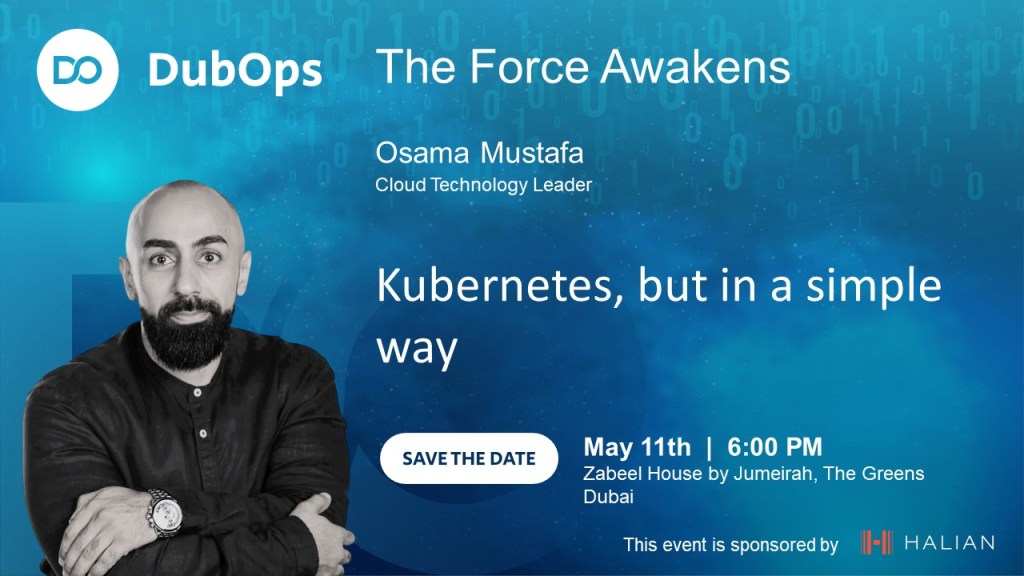
DubOps is a unique event that brings together DevOps, IT operations, and software development experts to share their knowledge and insights with the community. This event provides a platform for attendees to learn about the latest trends and best practices in the industry, as well as network with peers and thought leaders.

Registration for the Dubops event is now open, and we encourage anyone interested in attending to sign up early, as space is limited. Don’t miss this chance to expand your knowledge, connect with peers, and stay ahead of the curve in the ever-changing world of DevOps and IT operations.

Date: May 11th, 2023
Time: 18:00 – 21:00
Location: Zabeel House, Dubai, UAE
Registration link: https://lnkd.in/dCd7V-vv
We look forward to seeing you there!

Regards

Osama

Multi POd Example – k8s

Create a Multi-Container Pod

  1. Create a YAML file named multi.yml:
apiVersion: v1
kind: Pod
metadata:
  name: multi
  namespace: baz
spec:
  containers:
  - name: nginx
    image: nginx
  - name: redis
    image: redis

Create a Complex Multi-Container Pod

apiVersion: v1
kind: Pod
metadata:
  name: logging-sidecar
  namespace: baz
spec:
  containers:
  - name: busybox1
    image: busybox
    command: ['sh', '-c', 'while true; do echo Logging data > /output/output.log; sleep 5; done']
    volumeMounts:
    - name: sharedvol
      mountPath: /output
  - name: sidecar
    image: busybox
    command: ['sh', '-c', 'tail -f /input/output.log']
    volumeMounts:
    - name: sharedvol
      mountPath: /input
  volumes:
  - name: sharedvol
    emptyDir: {}

FREE LEARNING ON UDEMY

The below is now Free courses on Udemy, not sure till when so enjoy as you can.

Free learning on Udemy DevOps Tutorials for Absolute Beginner

  1. DevOps – The Introduction
    https://lnkd.in/dD79ZpJF
  2. CI CD pipeline – Devops Automation in 1 hr
    https://lnkd.in/dMQEGJBN
  3. DevOps Crash Course
    https://lnkd.in/dt5CmYSN
  4. DevOps 101
    https://lnkd.in/dhyzHVQh
  5. DevOps on AWS: Code, Build, and Test (Course 1 of 3)
    https://lnkd.in/dV6NbWRJ
  6. Free Devops Interview Questions and Answers
    https://lnkd.in/dsQu76qm
  7. DevOps Tools for Beginners: Ansible in 1 hour
    https://lnkd.in/dKgMap-r
  8. DevOps on AWS: Release and Deploy (Course 2 of 3)
    https://lnkd.in/dzQuM4Ht
  9. DevOps on AWS: Operate and Monitor (Course 3 of 3)
    https://lnkd.in/d_P9wUgg
  10. Introduction to DevOps, Habits and Practices
    https://lnkd.in/dsvQQcYj
  11. Amazon AWS Cloud IAM Hands-On
    https://lnkd.in/ddSBhiST
  12. DevOps : CI/CD with Jenkins
    https://lnkd.in/d3qvi-Az
  13. Introduction to YAML – A hands -on course
    https://lnkd.in/d4ypNfGF
  14. Kubernetes: Getting Started
    https://lnkd.in/d_JQi6wF
  15. Docker Tutorial for Beginners practical hands on -Devops
    https://lnkd.in/dbSJ-zfX
  16. Ansible for the Absolute Beginner – DevOps
    https://lnkd.in/dn_w3bsK
  17. Docker, Docker SWARM and Kubernetes crash course for DevOps
    https://lnkd.in/dFirktd3
  18. Understanding Docker in about an Hour
    https://lnkd.in/dNBvbgqJ
  19. Learn terraform by setting up Highly available wordpress
    https://lnkd.in/d-AaXDT2
  20. Use Ansible with Amazon Web Services
    https://lnkd.in/d6VfZi7d
  21. GIT Crash Course
    https://lnkd.in/ddzznGuV
  22. Maven Quick Start: A Fast Introduction to Maven by Example
    https://lnkd.in/dhVam3zC
  23. Master Amazon EC2 Basics with 10 Labs
    https://lnkd.in/d9jQ6cmN
  24. Amazon Web Services (AWS): CloudFormation
    https://lnkd.in/dAc65c-H
  25. Just enough Ansible to be dangerous
    https://lnkd.in/dXaWmX5d
  26. AZ-900 Microsoft Azure Fundamentals
    https://lnkd.in/dcdae_VZ
  27. Deploy Azure Virtual Desktop for beginners
    https://lnkd.in/dQsbzHes
  28. Apache Maven for Beginners
    https://lnkd.in/dWTK6dxn
  29. AWS Certified Solutions Architect Associate Introduction
    https://lnkd.in/d4eR5gsW
  30. Microsoft Azure fundamentals Az900 crash course
    https://lnkd.in/de5GBCEB
  31. Azure Real World Hand-on Training For Beginners.
    https://lnkd.in/dB3VM7f7
  32. Introduction to Linux Shell Scripting
    https://lnkd.in/dCb4BkvH
  33. Create a 3-Tier Application Using Azure Virtual Machines
    https://lnkd.in/dfMtuW8C
  34. AWS VPC and VPC Peering Demo
    https://lnkd.in/dxnraPHf
  35. Amazon Web Services (AWS) EC2: An Introduction
    https://lnkd.in/drUvNuFk
  36. Hosting your static website on Amazon AWS S3 service
    https://lnkd.in/dBw4RKs2
  37. Mobaxterm Powerful tools to access Linux and Unix
    https://lnkd.in/dzKTB4xw
  38. Getting started with Cloud Computing using Microsoft Azure
    https://lnkd.in/dViDqS2t
  39. Cloud Computing Fundamental
    https://lnkd.in/d9ZY_Kdq

Cheers
Osama

K8s Example

Create a Service Account

It’s super simple command

kubectl create sa webautomation -n web

Create a ClusterRole That Provides Read Access to Pods

  1. Define the ClusterRole
apiVersion: rbac.authorization.k8s.io/v1
kind: ClusterRole
metadata:
  name: pod-reader
rules:
- apiGroups: [""]
  resources: ["pods"]
  verbs: ["get", "watch", "list"]

Bind the ClusterRole to the Service Account to Only Read Pods in the web Namespace

apiVersion: rbac.authorization.k8s.io/v1
kind: RoleBinding
metadata:
  name: rb-pod-reader
  namespace: web
subjects:
- kind: ServiceAccount
  name: webautomation
roleRef:
  kind: ClusterRole
  name: pod-reader
  apiGroup: rbac.authorization.k8s.io

Cheers

Osama

Managing Container Storage with Kubernetes Volumes

Kubernetes volumes offer a simple way to mount external storage to containers. This lab will test your knowledge of volumes as you provide storage to some containers according to a provided specification. This will allow you to practice what you know about using Kubernetes volumes.

Create a Pod That Outputs Data to the Host Using a Volume

  • Create a Pod that will interact with the host file system by using vi maintenance-pod.yml.
apiVersion: v1
kind: Pod
metadata:
    name: maintenance-pod
spec:
    containers:
    - name: busybox
      image: busybox
      command: ['sh', '-c', 'while true; do echo Success! >> /output/output.txt; sleep 5; done']
  • Under the basic YAML, begin creating volumes, which should be level with the containers spec:
volumes:
- name: output-vol
  hostPath:
      path: /var/data
  • In the containers spec of the basic YAML, add a line for volume mounts:
volumeMounts:
- name: output-vol
  mountPath: /output

The complete YAML will be

apiVersion: v1
kind: Pod
metadata:
    name: maintenance-pod
spec:
  containers:
    - name: busybox
      image: busybox
      command: ['sh', '-c', 'while true; do echo Success! >> /output/output.txt; sleep 5; done']
      volumeMounts:
      - name: output-vol
        mountPath: /output
  volumes:
   - name: output-vol
     hostPath:
      path: /var/data

Create a Multi-Container Pod That Shares Data Between Containers Using a Volume

  1. Create another YAML file for a shared-data multi-container Pod by using vi shared-data-pod.yml
  2. Start with the basic Pod definition and add multiple containers, where the first container will write the output.txt file and the second container will read the output.txt file:
apiVersion: v1
kind: Pod
metadata:
    name: shared-data-pod
spec:
    containers:
    - name: busybox1
      image: busybox
      command: ['sh', '-c', 'while true; do echo Success! >> /output/output.txt; sleep 5; done']
    - name: busybox2
      image: busybox
      command: ['sh', '-c', 'while true; do cat /input/output.txt; sleep 5; done']

Set up the volumes, again at the same level as containers with an emptyDir volume that only exists to share data between two containers in a simple way:

volumes:
- name: shared-vol
  emptyDir: {}

Mount that volume between the two containers by adding the following lines under command for the busybox1 container:

volumeMounts:
- name: shared-vol
  mountPath: /output

For the busybox2 container, add the following lines to mount the same volume under command to complete creating the shared file:

volumeMounts:
- name: shared-vol
  mountPath: /input

The complete file

Finish creating the multi-container Pod using kubectl create -f shared-data-pod.yml.

apiVersion: v1
kind: Pod
metadata:
    name: shared-data-pod
spec:
    containers:
    - name: busybox1
      image: busybox
      command: ['sh', '-c', 'while true; do echo Success! >> /output/output.txt; sleep 5; done']
      volumeMounts:
        - name: shared-vol
          mountPath: /output
    - name: busybox2
      image: busybox
      command: ['sh', '-c', 'while true; do cat /input/output.txt; sleep 5; done']
      volumeMounts:
        - name: shared-vol
          mountPath: /input
    volumes:
    - name: shared-vol
    emptyDir: {}

And you can now apply the YAML file.

Cheers

Osama