Increase Transaction timeout in SOA Server

I received the below error in soa_server1 :-
Transaction Rolledback.: weblogic.transaction.internal.TimedOutException: Transaction timed out after 603 seconds BEA1-3FB6FB464035C13E3227 at 

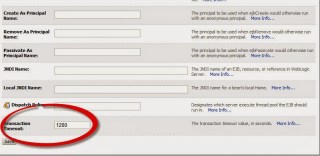
From the above error, transaction timeout should be increased regarding to heavy transaction on soa server.

to do this follow the following steps :-

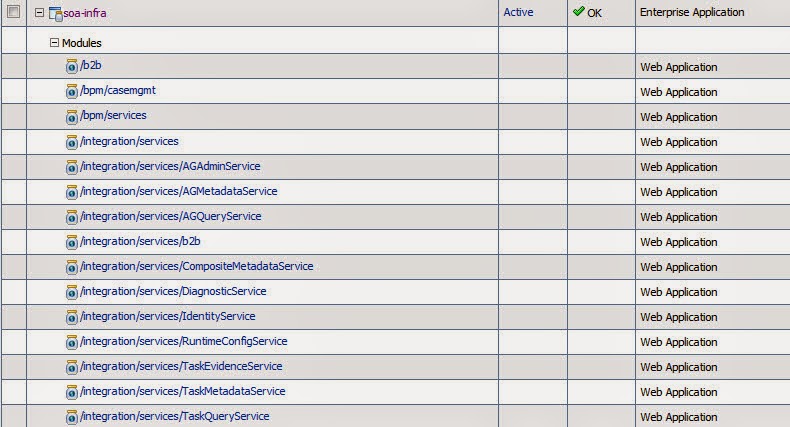
access weblogic console –> Deployment –> and search for Soa_infra. ( expand it)
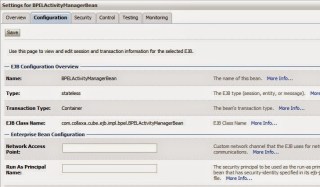
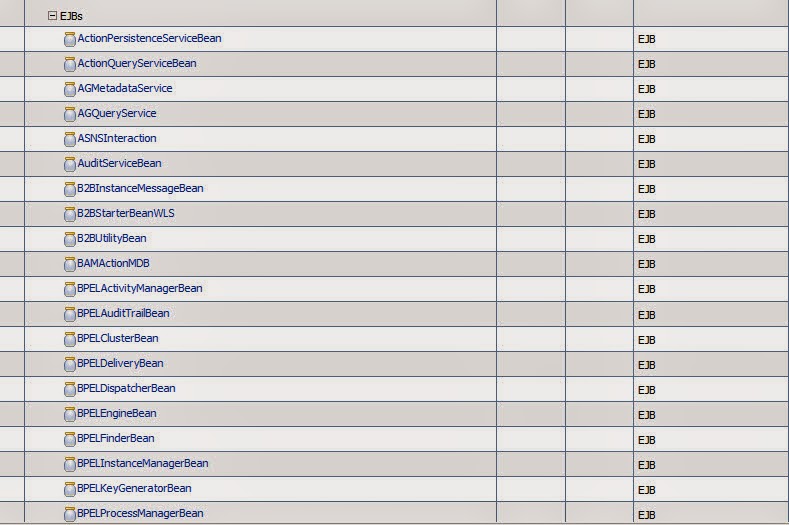
Check the below EJBS services and click on it configuration tab :-
BPELActivityManagerBean
BPELEngineBean
BPELInstanceManagerBean
BPELProcessManagerBean
BPELServerManagerBean
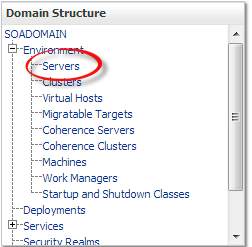
If this not working on you have to increase transaction timeout for JTA, Access Weblogic Console select Services > JTA
Thank you 
Osama Mustafa

SOA_SERVER ( Managed Server ) Take too Long time to Start/Restart

On the weblogic console when trying to start managed Server it’s take too long time to start in my case it’s SOA_SERVER, almost 25 min only to start, which is not correct . to avoid this problem you need to follow the below steps simple but effective :-

Under Java Home ( That Used by Weblogic ) :-

cd /u01/app/fmw/jdk/jre/lib/security 

There’s file called Java.Security 

Edit this File using any Editor ( vi for example ).

Search for the following line :-

securerandom.source=file:/dev/urandom

And Change it to :-

securerandom.source=file:/dev/./urandom

Or Another way add the below line to startup script in weblogic :-

-Djava.security.egd=file:/dev/./urandom

Hope this will solve your problem.

Thank you
Osama Mustafa

Timesten 15022: OraclePwd connection attribute

con1: Command> call ttgridcreate (‘samplegrid’);
15022: OraclePwd connection attribute needs to be specified and has to be non-empty for using IMDB Cache features
 5109: Cache Connect general error: BDB connections not open.

As you see from the error,The OraclePWD connection attribute is not specified. which mean caching will not be enabled till you are set OraclePWD parameter , to do this reconnect with the following connection :-

connect “dsn=tt_orcldwh;uid=cacheadm;OraclePWD=cacheadm”;

Run your command again

Thank you
Osama Mustafa 

COLLABORATE 14 IOUG

Have you made your Oracle training plans for 2014 ?

COLLABORATE 14 Just over 2 months away,  The Place will be in Las Vegas from April 7-11, 2014 at the Venetian and Sands Expo Center, you can join the experts and learn from them, attend to the session and have with lot of Activity.

By registering specifically with IOUG for COLLABORATE 14, you’ll reap the following benefits:

• Pre-conference Workshops
• Strategic Leadership Program
 • IOUG Attendee Lounge Access
 • Priority Access to Hands-on Labs

Register by February 12 and save up to $300 off the onsite rate! When you register, please enter my name in the “Recruit a New Attendee” section.

Register and check the Website here

Official Hash-tag #C14LV

Thank you 
Osama Mustafa

Change OHS Port On Linux to Work on 80

Operating system : Oracle Linux 6.4
Oracle WebTier OHS 11.1.1.7

if you want to configure OHS ( WT ) to work on port 80 ( http ) avoiding insert Port.

For Example :

OHS default Port is 7777, if you want to leave it like this any call for the server should be like this :

http://:7777/console  

But if you are using port 80 you have to do the below :

http:///console 

But on Linux if you need to use port 80 you have to be root, to do this follow the below step :

  • As root user :

[root@TST-WT1 bin]# pwd
/u01/fmw/Oracle_WT1/ohs/bin 

[root@TST-WT1 bin]# chown root .apachectl
[root@TST-WT1 bin]# chmod 6750 .apachectl

  • As Oracle User

[oracle@TST-WT1 ~]$ cd /u01/fmw/admin/config/OHS/ohs1/ 

[oracle@SCADNP-WT1 ohs1]$ ls http*
 httpd.conf      

  • Edit the file using any Editor and modify Listen from 7777 to 80
  • Restart OHS using opmnctl command.

——–+———-+———–+——
ohs1                             | OHS                |   15732 | Alive    |  677601509 |   510840 |   0:00:11 | https:9999,https:4443,http:80
Thank you 
Osama Mustafa

Configure Linux NFS File System

NFS : Network File System

Before Start Configure NFS you have to Understand When to use it ? and What is it ?

NFS file system usually read from Source Called Server , If this server goes down, it will not be available for the other resource, From this we understand that i should configure NFS On both Side Server and Client.

Read More About it Here.

Note : 

Server IP : 192.168.1.100
Client IP : 192.168.1.101

In this Blog I will Use NFSV4 

1- You need to install two Package ( as root user )
**nfs-ultis-lib
**portmap ( if you are asking nfs4 this is not needed anymore )

2-  As Root Run the below Command to Start nfs Serivces :

[root@TEST share]# /etc/init.d/nfs start
Starting NFS services:                                     [  OK  ]
Starting NFS quotas:                                       [  OK  ]
Starting NFS mountd:                                      [  OK  ]
Stopping RPC idmapd:                                    [  OK  ]
Starting RPC idmapd:                                      [  OK  ]
Starting NFS daemon:                                     [  OK  ]

3- Create folder under /u01/app/shared , give permission to oracle and chmod 775 
4- on NFS Server ( you will own the folder ) , vi /etc/exports add the below line :

/u01/app/shared [Client-IP] (rw,sync,no_root_squash) 

5- NFS Server is done , Go to NFS Client ( Node 2 )  as root user run the below command :

#/etc/init.d/nfs start
#showmount -e 192.168.1.101

The Output Will be like the below :

Export list for 192.168.1.100:
/u01/app/shared 192.168.1.101

6-On Node 2 ( As Root User ) –> #  mount -t nfs 192.168.1.100:/u01/app/shared/ /u01/app/shared/
7- Check using df -h 

**Remove:-

8- umount /u01/app/shared ( on Node 2 ) 

Important Command :
showmount -e : Shows the available shares on your local machine
exportfs -v : Displays a list of shares files and options on a server

Thank you
Osama Mustafa

Connection refused; No available router to destination On Weblogic Node Manager Log

Caused by: java.net.ConnectException: t3://exalytic.domain:8001: Destination unreachable; nested exception is:

The Above Error Appear when i was trying to access BPM, the main Cause for this error there’s no configuration protocol on SOA Server Which mean No Listening Host.

To Avoid and Solve this error Follow the below Steps :

  • Access to weblogic Console using Administrator Password.
  • Click on Servers -> Protocols -> Channels like the below screen
  • Now you have to create new Protocol Click on “Configure a new Network Channel,”with the below confguration 

Name: Loopback
Protocol: t3
Listen Address: localhost
Listen Port: 8001 (same as Server Host/port)

  • Restart The Server and test the connection Again 

Thank you
Osama Mustafa

Steps To Create ODBC Connection in Linux


In this Document i will describe how to create ODBC Connection in Linux Step by Step. I uploaded my document to slideshare as usual you can download it from here.

Thanks for my friend Ilmar Kerm . 

Thank you 
Osama mustafa