Tag: Oracle Osama
Configure OHS mod_wl_ohs.conf
After my document how to install Oracle WebTier on Linux , I would like to share How to configure WebTier OHS.
You Can Download the document from here
Thank you
Osama Mustafa
Change OHS Port On Linux to Work on 80
Operating system : Oracle Linux 6.4
Oracle WebTier OHS 11.1.1.7
if you want to configure OHS ( WT ) to work on port 80 ( http ) avoiding insert Port.
For Example :
OHS default Port is 7777, if you want to leave it like this any call for the server should be like this :
But if you are using port 80 you have to do the below :
But on Linux if you need to use port 80 you have to be root, to do this follow the below step :
- As root user :
[root@TST-WT1 bin]# pwd
/u01/fmw/Oracle_WT1/ohs/bin
[root@TST-WT1 bin]# chown root .apachectl
[root@TST-WT1 bin]# chmod 6750 .apachectl
- As Oracle User
[oracle@TST-WT1 ~]$ cd /u01/fmw/admin/config/OHS/ohs1/
[oracle@SCADNP-WT1 ohs1]$ ls http*
httpd.conf
- Edit the file using any Editor and modify Listen from 7777 to 80
- Restart OHS using opmnctl command.
——–+———-+———–+——
ohs1 | OHS | 15732 | Alive | 677601509 | 510840 | 0:00:11 | https:9999,https:4443,http:80
Thank you
Osama Mustafa
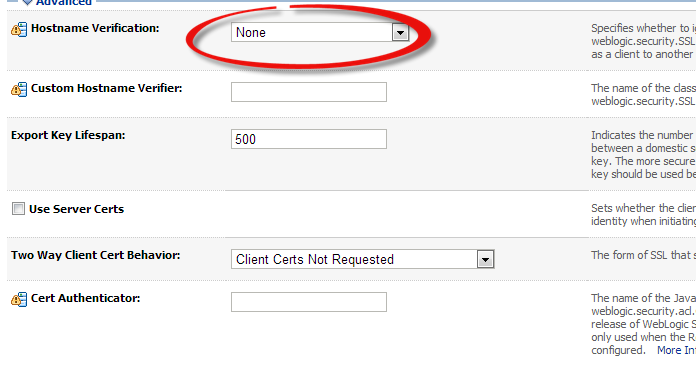
failed hostname verification check. Certificate contained but check expected
The Below Error Appeared when you are trying to start Managed server , the main root for this error different hostname in weblogic configuration

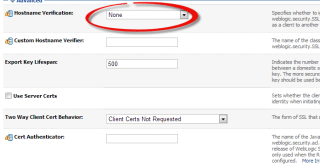
Solution

Thank you
Osama mustafa
Steps To Install Complex Event Processing
Installing Oracle Complex Event Processing 11.1.1.7 On Linux 6.4 64bit Document , I already upload the document On my Slideshare here.
Thank you
Osama Mustafa
Connection refused; No available router to destination On Weblogic Node Manager Log
Caused by: java.net.ConnectException: t3://exalytic.domain:8001: Destination unreachable; nested exception is:
The Above Error Appear when i was trying to access BPM, the main Cause for this error there’s no configuration protocol on SOA Server Which mean No Listening Host.
To Avoid and Solve this error Follow the below Steps :
- Access to weblogic Console using Administrator Password.
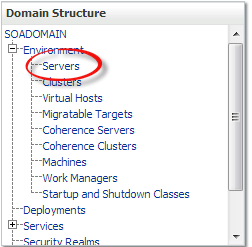
- Click on Servers -> Protocols -> Channels like the below screen

- Now you have to create new Protocol Click on “Configure a new Network Channel,”with the below confguration
Name: Loopback
Protocol: t3
Listen Address: localhost
Listen Port: 8001 (same as Server Host/port)
- Restart The Server and test the connection Again
Thank you
Osama Mustafa
Steps to Create Linux Container
After my last post about Docker Project, i start testing Linux Container but this time for lxc which is another amazing Package and should be used, if you installed and follow my steps in Previous steps here then you can use lxc command without any suffer of installation 🙂
lxc stand for Linux Container.
Now i will start to describe how to create container using this command
- You need to know when lxc installed, it’s create file under /etc/lxc/ called default.conf this file should contain your network interface name and you need to add it.
[root@OEL6 ~]# cat /etc/lxc/default.conf
lxc.network.type = veth
lxc.network.link = docker0
lxc.network.flags = up
Sample output for ifconfig command :
docker0 Link encap:Ethernet HWaddr 00:00:00:00:00:00
inet addr:172.17.42.1 Bcast:0.0.0.0 Mask:255.255.0.0
inet6 addr: fe80::28ce:eeff:fe80:1fc8/64 Scope:Link
UP BROADCAST MULTICAST MTU:1500 Metric:1
RX packets:17 errors:0 dropped:0 overruns:0 frame:0
TX packets:4 errors:0 dropped:0 overruns:0 carrier:0
collisions:0 txqueuelen:0
RX bytes:1112 (1.0 KiB) TX bytes:408 (408.0 b)
I used docker0 Interface because i already installed it , and configure the IP Address, if you don’t modify this file when you start container you will receive error :
[root@OEL6 container]# lxc-start –name test-container
lxc-start: failed to attach ‘vethaITNmu’ to the bridge ‘virbr0’ : No such device
lxc-start: failed to create netdev
lxc-start: failed to create the network
lxc-start: failed to spawn ‘test-container’
Anyway now after add the file with the right Interface name, you will be able to run and start working on lxc just follow the below steps :
- Before Create any container you need to create Directory under /, if you don’t do this step another error will be appeared asking for this directory and telling you /container not found.
mkdir /container will solve the problem.
Now Let’s Start Creating new container called Test-container :
[root@OEL6 lxc]# lxc-create -n test-container -t oracle — -R 6.5
lxc-create: No config file specified, using the default config /etc/lxc/default.conf
Host is OracleServer 6.5
Create configuration file /container/test-container/config
Downloading release 6.5 for x86_64
Loaded plugins: refresh-packagekit, security
ol6_u5_base | 1.4 kB 00:00
ol6_u5_base/primary | 3.2 MB 00:32
ol6_u5_base 8573/8573
Setting up Install Process
the above command will take some while to finish the configuration, it’s installing some packages needed by container you can have more than one container with different name.
After the creation is done you should be notice the below line :
Complete!
Rebuilding rpm database
Configuring container for Oracle Linux 6.5
Added container user:oracle password:oracle
Added container user:root password:root
Container : /container/test-container/rootfs
Config : /container/test-container/config
Network : eth0 (veth) on virbr0
‘oracle’ template installed
‘test-container’ created
the container is not started yet !!! so we need to do this using the below command :
[root@OEL6 lxc]# lxc-start -n test-container
Welcome to Oracle Linux Server
Setting hostname test-container: [ OK ]
Checking filesystems
[ OK ]
Mounting local filesystems: [ OK ]
No such file or directory
Enabling /etc/fstab swaps: [ OK ]
Entering non-interactive startup
Bringing up loopback interface: [ OK ]
Bringing up interface eth0:
Determining IP information for eth0… failed.
[FAILED]
Starting system logger: [ OK ]
Mounting filesystems: [ OK ]
Generating SSH1 RSA host key: No such file or directory
[ OK ]
Generating SSH2 RSA host key: No such file or directory
[ OK ]
Generating SSH2 DSA host key: No such file or directory
[ OK ]
Starting sshd: [ OK ]
Oracle Linux Server release 6.5
Kernel 3.8.13-16.2.1.el6uek.x86_64 on an x86_64
test-container login:
I will fix FAILED Later now you need to connect to the container using the above User name and password given to you in the above line.
After this
[root@test-container ~]#
I am connected 🙂
You can delete the container using command
lxc-destroy -n test-container
Reference :
1- Oracle Linux containers Here
2- Oracle Linux 6.5 and Docker Here
Thank you
Osama mustafa
Oracle Linux 6.5 released
Oracle Announced the release of Oracle Linux 6.5, The Latest Version Of Oracle Linux, It’s only Other Operating System Because this version Contain Some New Features :
- Unbreakable Enterprise Kernel Release 3
- Support DTrace.
- Delivering Better Performance, scalability and reliability For Companies.
- New File System : btrfs enable administrators to implement an efficient incremental backup mechanism using file system snapshots.
And More Features.
You Can download Oracle Linux 6.5 Here
It will be Available soon On Oracle Software Delivery Here
Change AdminServer Port Using WLST.SH
Sometimes AdminServer not working Regarding to Wrong configuration or using Wrong Port which mean No Console will be available so is this mean delete domain and Configure it again !!!
Absolutely Not When you install Weblogic any Version Oracle Provide you with Command Line Utility to administrate weblogic, what you can do it using Console can be done with this tool.
change to weblogic-directory/common/bin
./wlst.sh
Now follow the below Steps to change port :
wls:/offline> readDomain (‘/u01/app/fmw/domains/IDDomains’)
wls:/offline/IDDomains> cd (‘Server’)
wls:/offline/IDDomains/Server> ls ()
Choose your Server Here
wls:/offline/IDDomains/Server> cd (‘AdminServer’)
wls:/offline/IDDomains/Server/AdminServer> ls ()
Search for Old Port ListenPort
wls:/offline/IDDomains/Server/AdminServer> set (‘ListenPort’,New Port)
wls:/offline/IDDomains/Server/AdminServer> updateDomain ()
wls:/offline/IDDomains/Server/AdminServer> exit ()
Done you can now Test your new port
http://Server-ip:/console
Thank you
Osama Mustafa
Oracle WebTier On Linux
In this document i will describe how to isntall Oracle WebTier 11.1.1.7 On Linux, As I hope Next Document will describe configuration.
You Can download Document From Here
Thank you
Osama Mustafa
 Technology Geek