This Post will include link for Video , How to install oracle Timesten (TT) On Linux, to watch the video press HERE.
Thank you
Osama Mustafa
For the people who think differently Welcome aboard
Thank you
Osama Mustafa
1- After adding New Harddisk to the server you have to ReScan The Scsi using
echo “- – -” > /sys/class/scsi_host/host?/scan
? :- Depend on you host number.
2- Use Fdisk to create new partition.
>fdisk -l
Disk /dev/sda: 107.3 GB, 107374182400 bytes
255 heads, 63 sectors/track, 13054 cylinders
Units = cylinders of 16065 * 512 = 8225280 bytes
Device Boot Start End Blocks Id System
/dev/sda1 * 1 13 104391 83 Linux
/dev/sda2 14 13054 104751832+ 8e Linux LVM
Disk /dev/sdb: 10.7 GB, 10737418240 bytes
255 heads, 63 sectors/track, 1305 cylinders
Units = cylinders of 16065 * 512 = 8225280 bytes
Disk /dev/sdb doesn’t contain a valid partition table
Check the below :-
#fdisk /dev/sdb
Device contains neither a valid DOS partition table, nor Sun, SGI or OSF disklab el
Building a new DOS disklabel. Changes will remain in memory only,
until you decide to write them. After that, of course, the previous
content won’t be recoverable.The number of cylinders for this disk is set to 1305.
There is nothing wrong with that, but this is larger than 1024,
and could in certain setups cause problems with:
1) software that runs at boot time (e.g., old versions of LILO)
2) booting and partitioning software from other OSs
(e.g., DOS FDISK, OS/2 FDISK)
Warning: invalid flag 0x0000 of partition table 4 will be corrected by w(rite)Command (m for help): n
Command action
e extended
p primary partition (1-4)
p
Partition number (1-4): 1
First cylinder (1-1305, default 1):
Using default value 1
Last cylinder or +size or +sizeM or +sizeK (1-1305, default 1305):
Using default value 1305Command (m for help): w
The partition table has been altered!Calling ioctl() to re-read partition table.
WARNING: Re-reading the partition table failed with error 16: Device or resource busy.
The kernel still uses the old table.
The new table will be used at the next reboot.
Syncing disks.
3- Lets start increasing :-
pvcreate /dev/sdb1
Writing physical volume data to disk “/dev/sdb1”
Physical volume “/dev/sdb1” successfully created
vgdisplay
— Volume group —
VG Name Oracle
System ID
Format lvm2
Metadata Areas 1
Metadata Sequence No 4
VG Access read/write
VG Status resizable
MAX LV 0
Cur LV 3
Open LV 3
Max PV 0
Cur PV 1
Act PV 1
VG Size 99.88 GB
PE Size 32.00 MB
Total PE 3196
Alloc PE / Size 3196 / 99.88 GB
Free PE / Size 0 / 0
VG UUID MZ04D3-jZLy-0BWi-2WSP-oi9E-hBkl-e3a08d
vgextend Oracle /dev/sdb1 Volume group “Oracle” successfully extended
pvscan
PV /dev/sda2 VG Oracle lvm2 [99.88 GB / 0 free]
PV /dev/sdb1 VG Oracle lvm2 [9.97 GB / 9.97 GB free]
Total: 2 [109.84 GB] / in use: 2 [109.84 GB] / in no VG: 0 [0 ]
lvdisplay
— Logical volume —
LV Name /dev/Oracle/LogVol00
VG Name Oracle
LV UUID wKMZ16-LHsc-ktsc-3dTT-ieiq-pEfT-tODhqc
LV Write Access read/write
LV Status available
# open 1
LV Size 9.75 GB
Current LE 312
Segments 1
Allocation inherit
Read ahead sectors auto
– currently set to 256
Block device 253:0— Logical volume —
LV Name /dev/Oracle/LogVol02
VG Name Oracle
LV UUID UabZCO-G8ID-dh1a-xv6t-Ss4O-QqEx-fnIy5g
LV Write Access read/write
LV Status available
# open 1
LV Size 82.34 GB
Current LE 2635
Segments 1
Allocation inherit
Read ahead sectors auto
– currently set to 256
Block device 253:1— Logical volume —
LV Name /dev/Oracle/LogVol01
VG Name Oracle
LV UUID 78Y3bv-UZZI-Iu2w-gAyD-HXe1-Fx25-gmGuKn
LV Write Access read/write
LV Status available
# open 1
LV Size 7.78 GB
Current LE 249
Segments 1
Allocation inherit
Read ahead sectors auto
– currently set to 256
Block device 253:2
Now Let’s Extend :-
lvextend /dev/Oracle/LogVol00 /dev/sdb1 Extending logical volume LogVol00 to 19.72 GB
Logical volume LogVol00 successfully resized
Finally :-
resize2fs /dev/Oracle/LogVol00resize2fs 1.39 (29-May-2006)
Filesystem at /dev/Oracle/LogVol00 is mounted on /; on-line resizing required
Performing an on-line resize of /dev/Oracle/LogVol00 to 5169152 (4k) blocks.
Notes :
Thank you
Osama Mustafa
The Error in the logs like the below :-
CRS-5011:Check of resource “+ASM” failed: details at “(:CLSN00006:)”
Node #2 was running without any problem , the issue was with node #1 and nothing changed recently.
The Error in Node #1 :-
crsctl start cluster
PRCR-1079 : Failed to start resource ora.asm
ORA-01031: insufficient privileges
CRS-5017: The resource action “ora.asm start” encountered the following error:
ORA-01031: insufficient privileges
. For details refer to “(:CLSN00107:)” in “/u01/app/grid/11.2.0.4/log/lux335/agent/ohasd/oraagent_oracle/oraagent_oracle.log”.
as you see from the above error “ORA-01031: insufficient privileges” i was running this command as root.
After check node #1 the solution so simple :-
Under $GRID_HOME/network/admin
vi sqlnet.ora
SQLNET.AUTHENTICATION_SERVICES = (NONE)
which is wrong and to be changed to the following value :-
SQLNET.AUTHENTICATION_SERVICES = (NTS)
Reboot Node #1 and everything running successfully.
Thank you
Osama mustafa
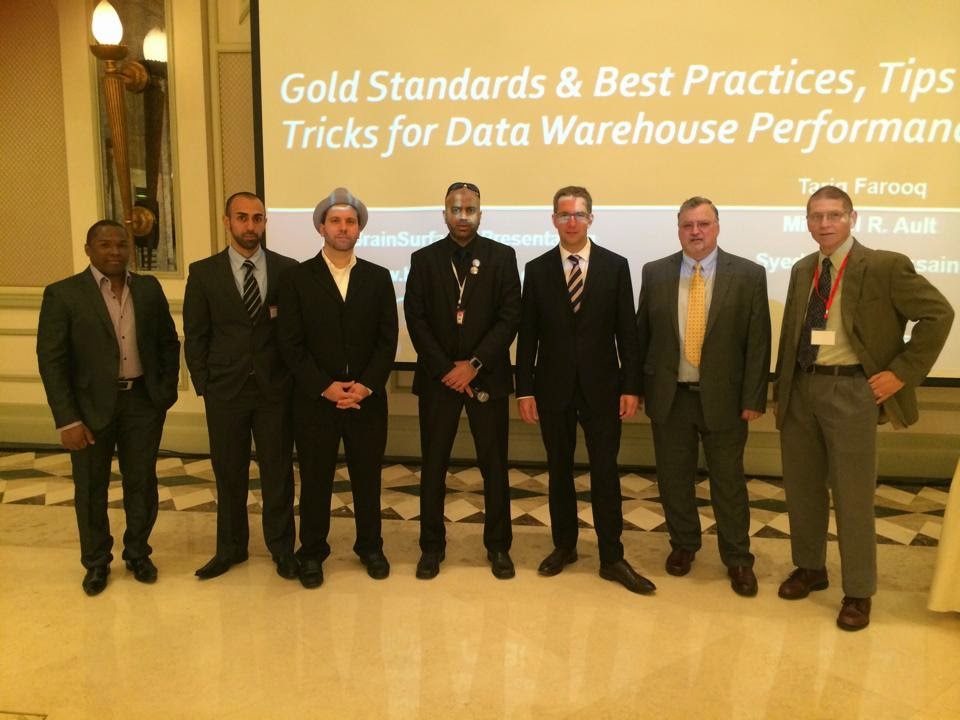
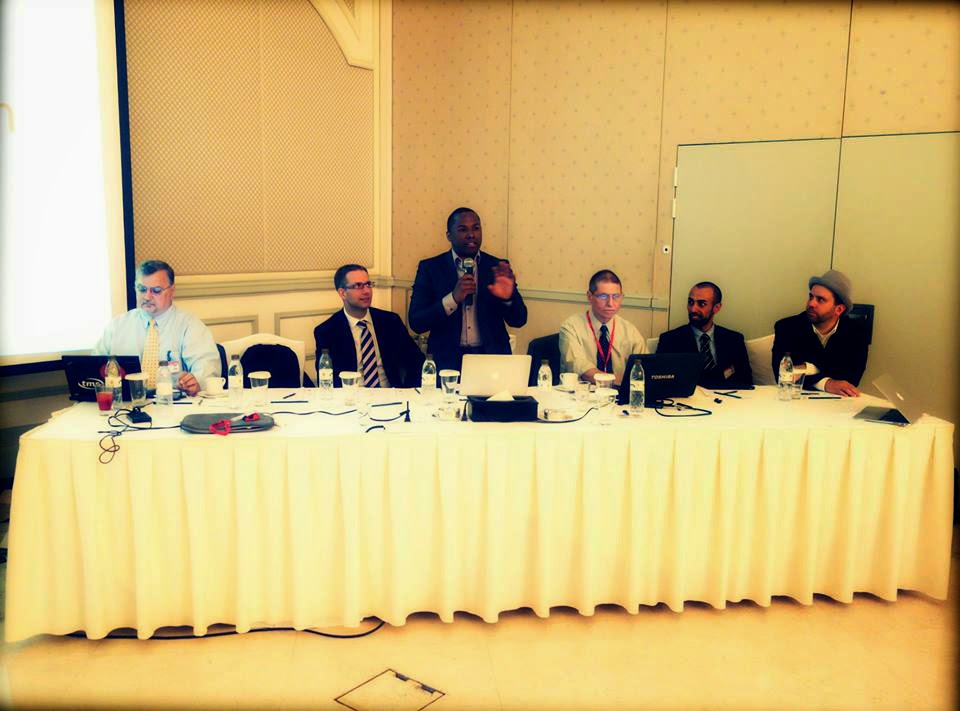
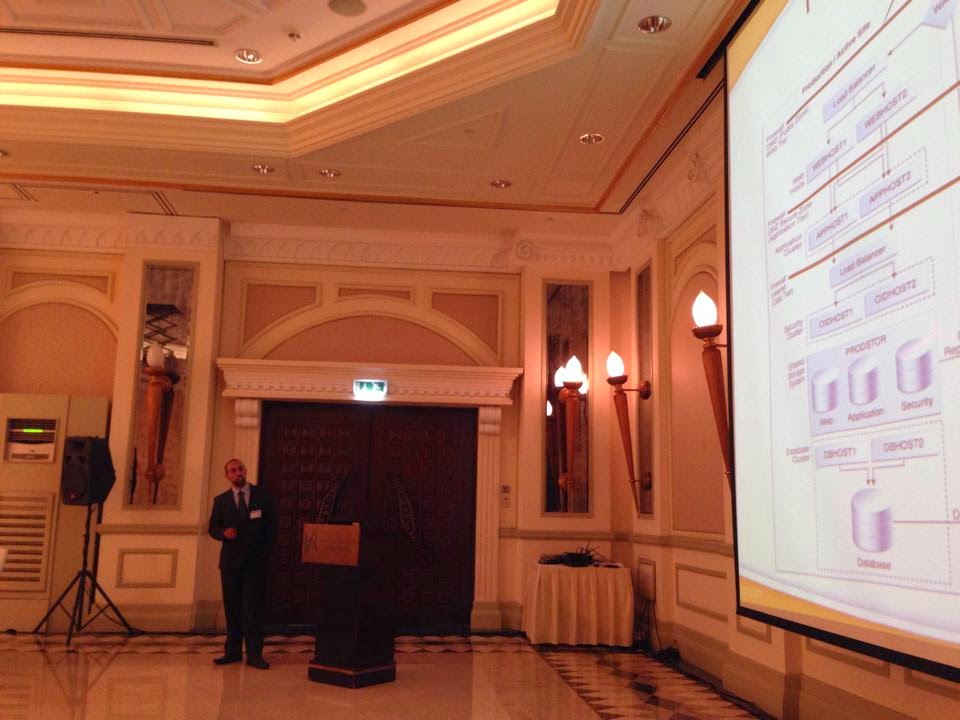
I will do it again for sure Enshalla.
Thank you
Osama mustafa.
[Folder-name]
path = Folder_path
available = yes
valid users = User_will_user_folder.
read only = no
browsable = yes
public = yes
writable = yes
Thank you
Osama Mustafa
Thank you
Osama mustafa
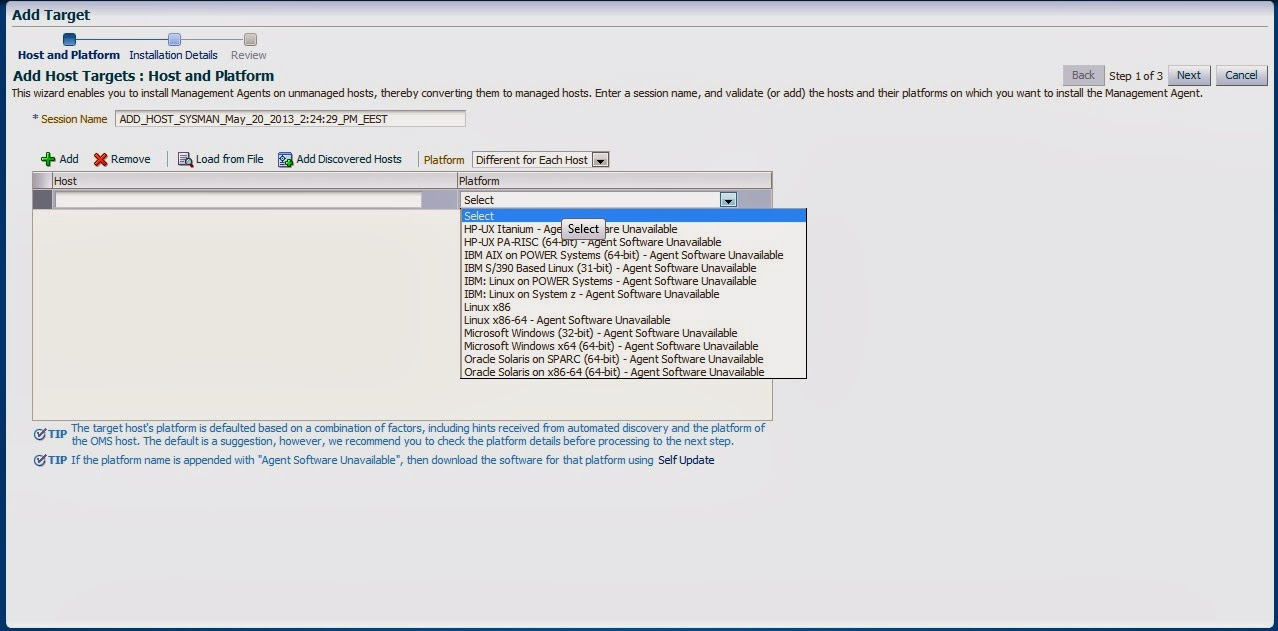
Enterprise manager cloud 12c contains two different type of Connection mode online and offline, this blog describe how to install manually :-
From Setup –> extensibility –> Self Update
Press On Agent Software., The below screen will appear :-
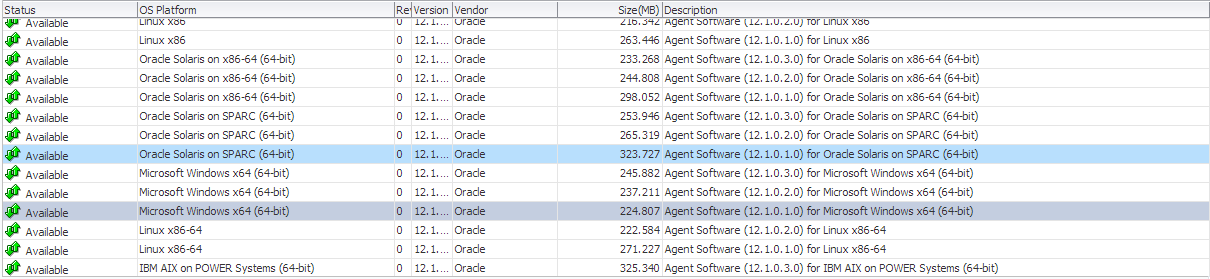
By pressing any of those agent new pop up will open included with link to download, copy the link and upload the file to OMS Host and run the below command :-
[oracle@EM12C emcli]$ ./emcli import_update -omslocal -file=….
File Path should be provided in the above command.
The output :-
Processing update: Agent Software – Agent Software (12.1.0.1.0) for Microsoft Windows x64 (64-bit)
Successfully uploaded the update to Enterprise Manager. Use the Self Update Console to manage this update.
Thank you
Osama mustafa

Like any other Flights it’s took me 10 hours to be in Dublin,After Checked in the hotel First thing I did is attending Oracle ACE dinner and meet some Folks.
There was lot of Oracle Experts Speaker, Once the conference started I spent most of my day in RAC ATTACK Location and I would thank Mina Zadeh for this amazing Arrangement. it was really nice to meet her in person.
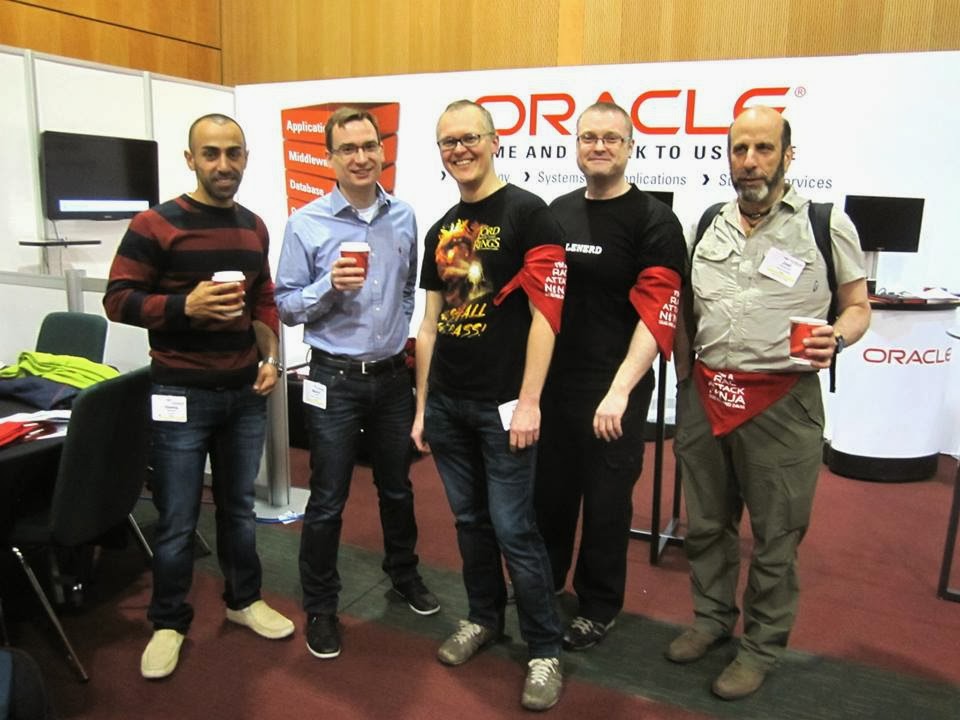
Presentations was really amazing and useful, I would thank Oracle User Group Ireland for organizing and running this event so well.
Thank you
Osama Mustafa

As Root User access to
[root@EM12C Packages]# vi /etc/security/limits.conf
Then add the below line or modify it :
oracle soft nproc 2047
oracle hard nproc 16384
oracle soft nofile 4096
oracle hard nofile 65536
oracle soft stack 10240
Thank you
Osama Mustafa
Top 10 Database Threats
You can Register Here
All Thanks Goes to Francisco Munoz Alvarez For His Amazing Effort in Oracle Community.
Thank you
Osama Mustafa
 Technology Geek