Timesten 15022: OraclePwd connection attribute

con1: Command> call ttgridcreate (‘samplegrid’);
15022: OraclePwd connection attribute needs to be specified and has to be non-empty for using IMDB Cache features
 5109: Cache Connect general error: BDB connections not open.

As you see from the error,The OraclePWD connection attribute is not specified. which mean caching will not be enabled till you are set OraclePWD parameter , to do this reconnect with the following connection :-

connect “dsn=tt_orcldwh;uid=cacheadm;OraclePWD=cacheadm”;

Run your command again

Thank you
Osama Mustafa 

Oracle Application Adapter installation.

Regarding to Oracle Documentation :-

The Application Adapter installer for 11g Release 1 (11.1.1.3.0) is applicable for the Oracle Service-Oriented Architecture (SOA) Suite and Oracle Service Bus (OSB). The Application Adapters that are installed can be used with Business Process Execution Language (BPEL), Mediator, Business Process Management (BPM), and OSB components. Using this installer, Application Adapters can be installed in a standalone SOA environment, standalone OSB environment, or mixed (SOA and OSB) environment.

You can check from here

The installation is not that hard , it’s all about configuration. i will post about later.

You Can Download it from here.

Operating system : Oracle Linux.

Installation Steps :-

As You see you should installed Oracle SOA Or Oracle OSB.
If you are using Oracle SOA the path will be like the below :-
\Oracle_SOA1\
For Oracle OSB :-
\Oracle_OSB1\
Be Notice this application installed in the following Path :-
\Oracle_SOA1\soa\thirdparty\ApplicationAdapters\
Thank you 
Osama mustafa

OTN MENA Tour Experience – Dubai

Don’t be dismayed by good-byes. A farewell is necessary before you can meet again. And meeting again, after moments or lifetimes, is certain for those who are friends.


I Thought it will be nice to share this quotation before start talking about Oracle OTN Tour – MENA TOUR 2014. 
Fir the people who dosen’t know anything about this Tour it’s happened for the first time in middle-east, 
“Courtesy of the Oracle Technology Network (OTN) and the ARABOUG, the inaugural 2014 OTN MENA Tour brings a star-studded cast, consisting of some of the world’s best Oracle ACEs, ACE Directors and Rock Star Speakers to the region. The tour aims at sharing cutting edge knowledge and independent research in the MENA region, by accomplished Oracle experts from all over the world”
Covered the following countries :-
  • Tunisia
  • KSA- Saudi Arabia
  • Dubai.
Link Here.
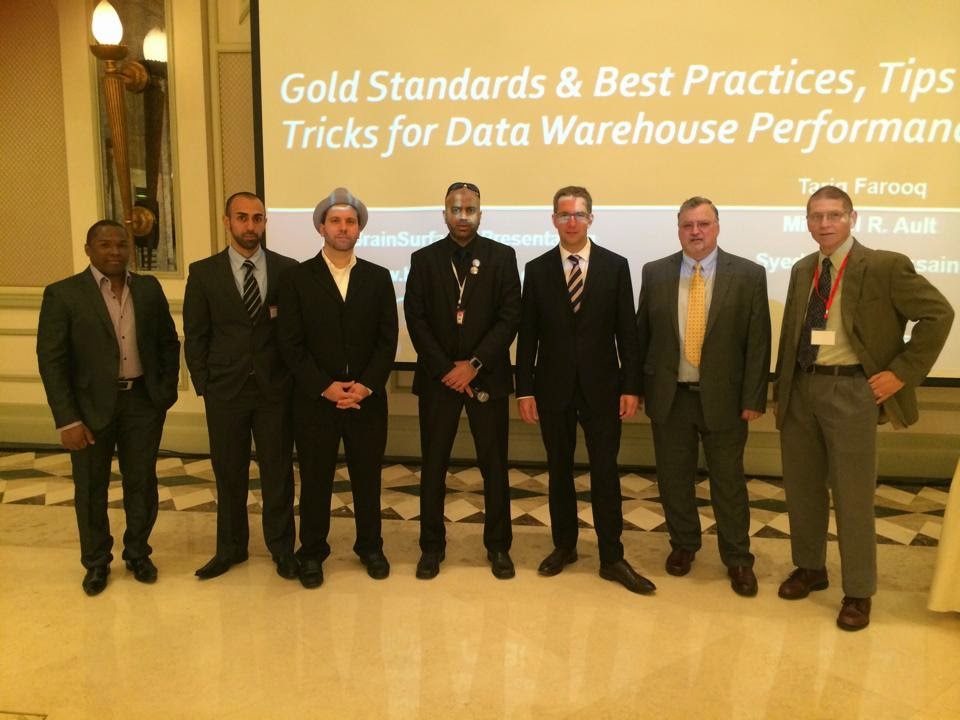
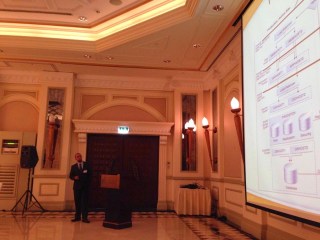
Picture for the speaker getting ready for the event :-
Introduction about the Speaker :-
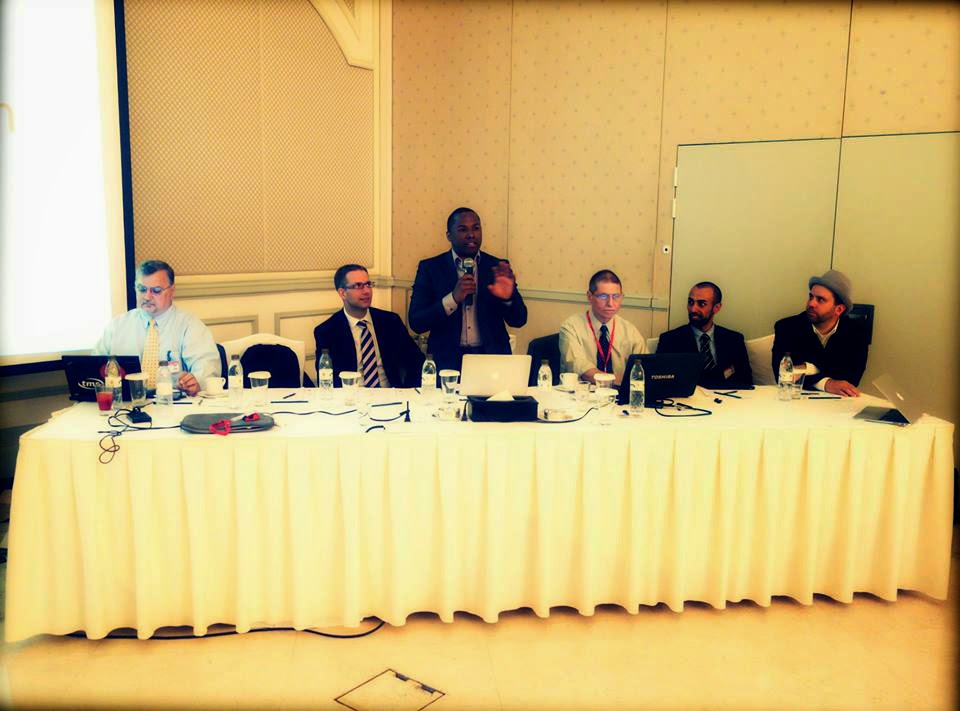
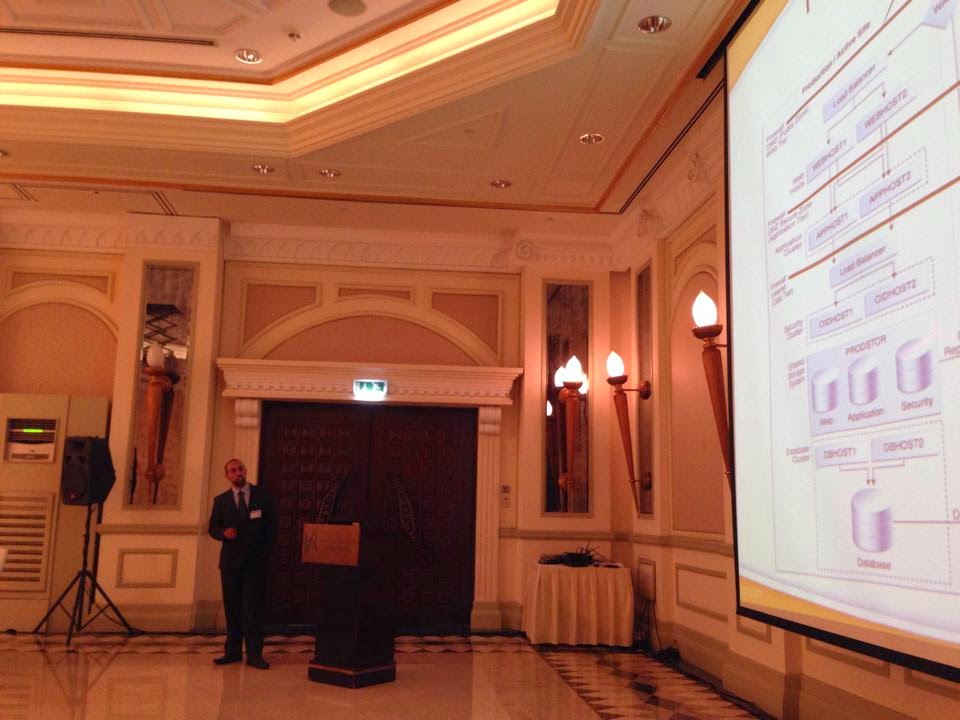
I will talking about Dubai, The event location was In Habtoor Grand Beach Resort & Spa. started at 8 Am – 5 pm During this time Oracle experts start sharing their knowledge and  chatting with them.
Different Topics , Different Speaker But it’s Only About Oracle, Performance tips, I/O , 12c , Fusion middleware , RAC 12c …
I spoke about Oracle Fusion middleware high Availability and crowd was really amazing.
 

I will do it again for sure Enshalla.

Thank you
Osama mustafa.

OTech Magazine 2014

Independent magazine for Oracle technology professionals. OTech Magazine will be published digitally four times a year. Every season. 

The first edition will be published Fall 2013. OTech Magazine articles are written by the Top-100 consultants in the Oracle-field around the globe. Only selected authors can publish in OTech Magazine.

OTech Magazine offers insight in complex Oracle projects and solutions.

My Article Included in this Version of OTech Magazine You Can Check The Magazine Here

 I Want to take this Opportunity to Thanks Douwe Pieter for his great efforts.

Thank you 
Osama Mustafa 

Weblogic 12c installation

there are over 200 new features in weblogic 12c, some of this features
are:-

 Simplified Deployment and Management with Virtualization
 Integrated Traffic Management
 Integrated WebLogic/RAC Clusters
 Seamless Upgrade From WebLogic, iAS and Others

This Document Describe steps to install Oracle weblogic 12c, operating system Oracle Linux 6.4, You can Download Document here

Thank you
Osama Mustafa 

Managed Server ERROR: transport error 202: bind failed: Address already in use

ERROR: transport error 202: bind failed: Address already in use
ERROR: JDWP Transport dt_socket failed to initialize, TRANSPORT_INIT(510)
JDWP exit error AGENT_ERROR_TRANSPORT_INIT(197): No transports initialized [../../../src/share/back/debugInit.c:750]

This Error Appeared when trying to start Managed server the Log Shown the above error, which already clear, in my case i have 2 managed server SOA and OSB in the same AdminServer each of them trying to access on the same PID process using Node Manager to solve this issue please follow the below steps.
Solutions :-
  • Inside Domain Path for example /u01/app/fmw/domains/Base_domain/bin
  • Edit setDomainEnv.sh and search for the below :-

if [ “${DEBUG_PORT}” = “” ] ; then
        DEBUG_PORT=”8453″
        export DEBUG_PORT
fi

if [ “${SERVER_NAME}” = “” ] ; then
        SERVER_NAME=”AdminServer”
        export SERVER_NAME
fi

  •  Add New Lines under the above to contain server name and available DEBUG_PORT on the server like the below:-

if [ “${SERVER_NAME}” = “soa_server1” ] ; then
   DEBUG_PORT=”7453″
   export DEBUG_PORT
fi

if [ “${SERVER_NAME}” = “osb_server1” ] ; then
   DEBUG_PORT=”7454″
   export DEBUG_PORT
fi

 Now Restart AdminServer and Try to start Managed Server, Take Backup from setDomainEvn.sh before editing.

Thank you
Osama mustafa

Oracle Solaris 11.2 Launch On 29/04

Today 29/04/2014 Oracle Launched new version of operating system Solaris 11.2, This Version will contain significant Features and it’s fully supported for Cloud

Some of the new features :-

  • Reduce management effort via OpenStack integration
  • Further increase the flexibility of Solaris system virtualization
  • Add unique software-defined networking (SDN) capabilities
  • Simplify the creation of private and public clouds

The Link for the Event Here.

Thank you 
Osama mustafa

Enable SSH On Windows EM12C Purpose

Uploading Agent to windows/Linux needs ssh Port to be open and enabled, ssh not enabled on windows by default and do it Cygwin should be installed.

Configure Cygwin so simple, follow the below steps :-

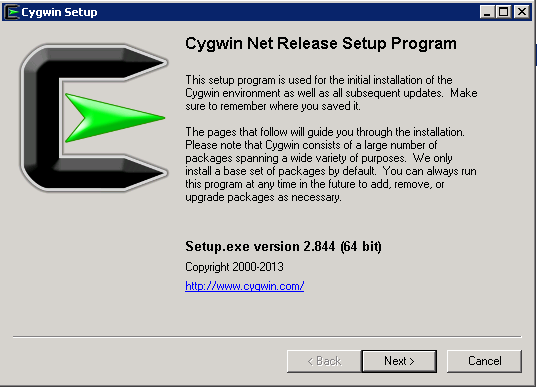
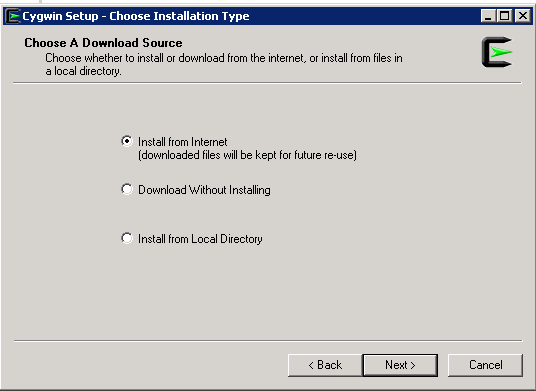
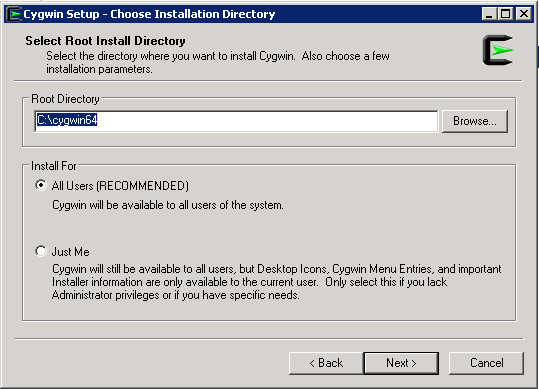
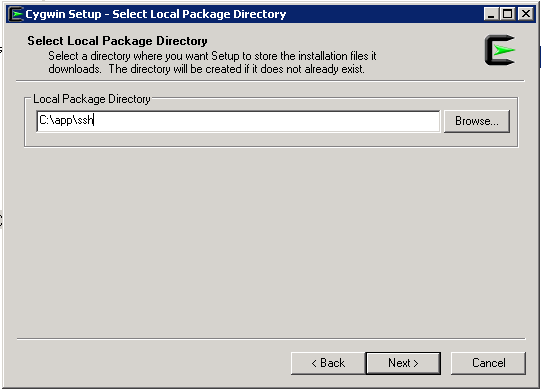
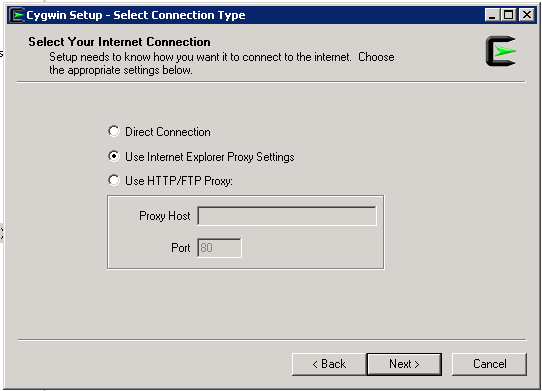
Download Cygwin from Here, Upload File to the windows Server and Run the setup.

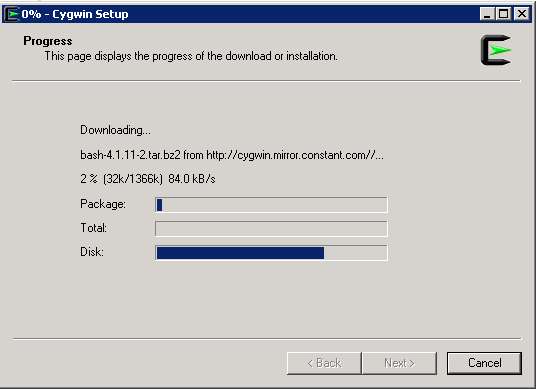
SSH Package should be chosen while installation.
After Installation Run cygwin terminal as Administration ( Right click on the icon and Choose the option )
Now Enable ssh should be done by run below command :-

/usr/bin/ssh-host-config

Should privilege separation be used? (yes/no) yes
new local account ‘sshd’? (yes/no) yes
Do you want to install sshd as a server? Yes
Enter the value of CYGWIN for the daemon: [] (DON’T ENTER ANYTHING, PRESS ENTER)
Do you want to use a different name? (yes/no) no
Create new privileged user account ‘cyg_server’? (yes/no) yes
Please enter the password: ENTER YOUR PASSWORD HERE
Reenter: RE-ENTER YOUR PASSWORD

Using Command Prompt ( cmd )

Start ssh by –> net start sshd
Stop ssh by –> net stop sshd

Another way posted by my friend Maaz you can check it here.

Thank you 
Osama Mustafa

Download Agent in EM12C manually

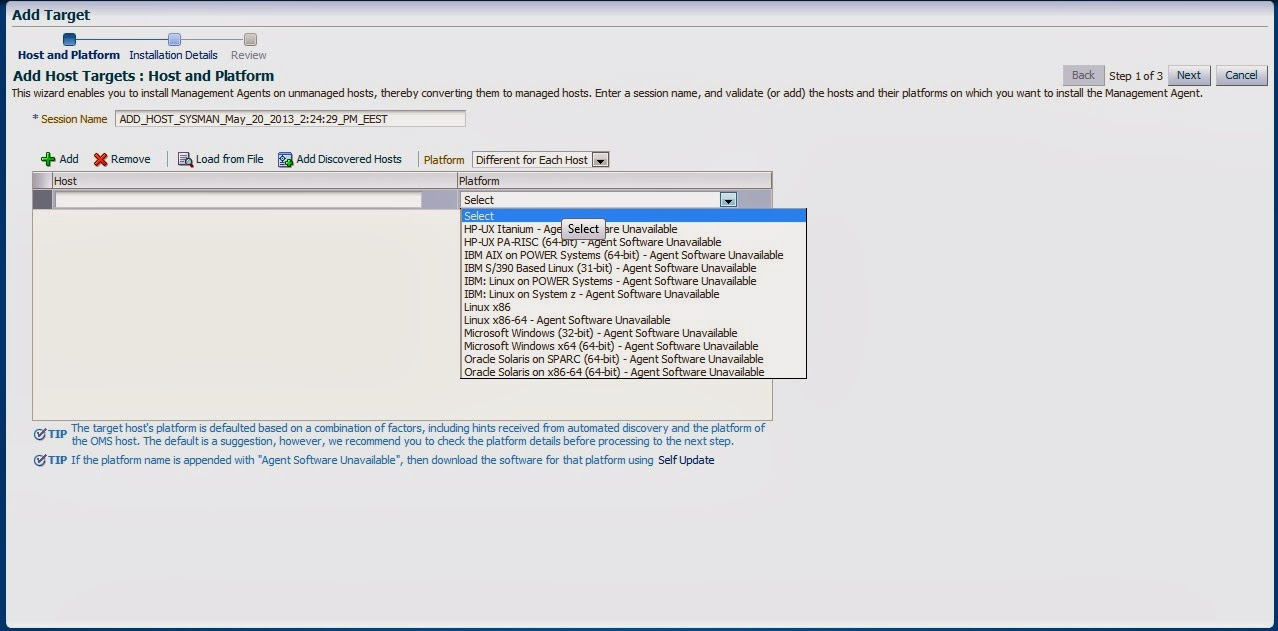
Adding target to EM12C needs to install agent to the Target Host Depend on Operating system, the agent is now always available which mean install Agent for this operating system is necessary, the below picture describe the above case :-

Enterprise manager cloud 12c contains two different type of Connection mode online and offline, this blog describe how to install manually :-

From Setup –> extensibility –> Self Update

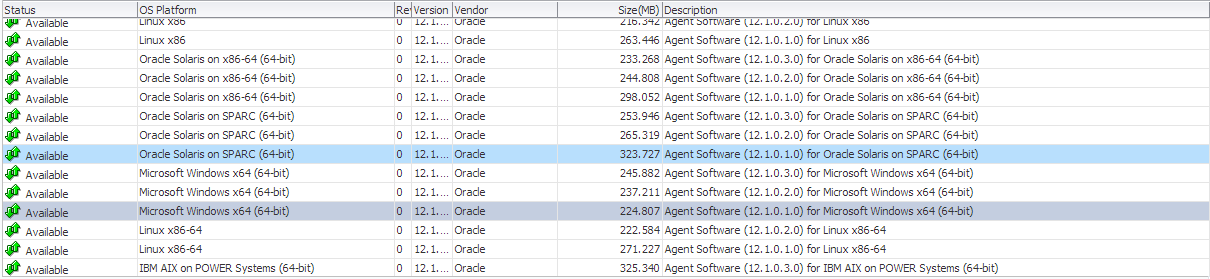
Press On Agent Software., The below screen will appear :-

By pressing any of those agent new pop up will open included with link to download, copy the link and upload the file to OMS Host and run the below command :-

[oracle@EM12C emcli]$ ./emcli import_update -omslocal -file=….

File Path should be provided in the above command.

The output :-

Processing update: Agent Software – Agent Software (12.1.0.1.0) for Microsoft Windows x64 (64-bit)
Successfully uploaded the update to Enterprise Manager. Use the Self Update Console to manage this update.

After Run the above command Successfully, Back to Self Update screen –> Agent Software and Apply the Download Catalog by press apply.

Thank you
Osama mustafa