role vs rolebinding in kubernetes

You need to know the difference between

  • Role.
  • Rolebinding.
  • ClusterRole.

Please refer the Kubernetes documentation here

A Role always sets permissions within a particular namespace; when you create a Role, you have to specify the namespace it belongs in.

ClusterRole, by contrast, is a non-namespaced resource. The resources have different names (Role and ClusterRole) because a Kubernetes object always has to be either namespaced or not namespaced; it can’t be both.

A rolebinding is namespace scoped and clusterrolebinding is cluster scoped i.e across all namespace.

ClusterRoles and ClusterRoleBindings are useful in the following cases:

  1. Give permissions for non-namespaced resources like nodes
  2. Give permissions for resources in all the namespaces of a cluster
  3. Give permissions for non-resource endpoints like /healthz

A RoleBinding can also reference a ClusterRole to grant the permissions defined in that ClusterRole to resources inside the RoleBinding’s namespace. This kind of reference lets you define a set of common roles across your cluster, then reuse them within multiple namespaces.

example

Create a Role for the dev User

  1. Create a role spec file role.yaml
apiVersion: rbac.authorization.k8s.io/v1
kind: Role
metadata:
  namespace: beebox-mobile
  name: pod-reader
rules:
- apiGroups: [""]
  resources: ["pods", "pods/log"]
  verbs: ["get", "watch", "list"]

2. Save and exit the file by pressing Escape followed by :wq.

3. apply the role.

kubectl apply -f file-name.yml

Bind the Role to the dev User and Verify Your Setup Works

  1. Create the RoleBinding spec file:
apiVersion: rbac.authorization.k8s.io/v1
kind: RoleBinding
metadata:
  name: pod-reader
  namespace: beebox-mobile
subjects:
- kind: User
  name: dev
  apiGroup: rbac.authorization.k8s.io
roleRef:
  kind: Role
  name: pod-reader
  apiGroup: rbac.authorization.k8s.io

2. Apply the role, by running

kubectl apply -f file-name.yml

Cheers

Osama

Upgrade k8s using kubeadm

First, upgrade the control plane node

Drain the control plane node.

kubectl drain master-node-name --ignore-daemonsets

Upgrade kubeadm.

sudo apt-get update && \
sudo apt-get install -y --allow-change-held-packages kubeadm=version

kubeadm version

Plan the upgrade.

sudo kubeadm upgrade plan v-version (for example v1.24.2)

Upgrade the control plane components.

sudo kubeadm upgrade apply v1.22.2

Upgrade kubelet and kubectl on the control plane node.

sudo apt-get update && \
sudo apt-get install -y --allow-change-held-packages kubelet=version kubectl=version 

Restart kubelet.

sudo systemctl daemon-reload
sudo systemctl restart kubelet

Uncordon the control plane node.

kubectl uncordon master-node-name

Verify that the control plane is working

Note:- you should not perform upgrades on all worker nodes at the same time. Make sure enough nodes are available at any given time to provide uninterrupted service.

Worker nodes

Run the following on the control plane node to drain worker node 1:

kubectl drain worker1-node-name --ignore-daemonsets --force

Log in to the first worker node, then Upgrade kubeadm.

sudo apt-get update && \ sudo apt-get install -y --allow-change-held-packages kubeadm=version

Upgrade the kubelet configuration on the worker node.

sudo kubeadm upgrade node

Upgrade kubelet and kubectl on the worker node.

sudo apt-get update && \ sudo apt-get install -y --allow-change-held-packages kubelet=version kubectl=verion

Restart kubelet.

sudo systemctl daemon-reload 
sudo systemctl restart kubelet

From the control plane node, uncordon worker node 1.

kubectl uncordon worker1-node-name

Repeat the upgrade process for worker nodes.

Cheers

Osama

k8s management tools

There is a variery of management tools that allow you to manage k8s and make your life much easier to proivde extra additional features.

  • kubectl

the official command line interface for k8s, this is the main method to interact you will use.

  • kubeadm

tools that allow you to setup control plane.

  • MiniKube

tool that runs a single-node Kubernetes cluster locally on your workstation for development and testing purposes.

Very simple tools you can find it here.

  • Helm

tool for managing packages of pre-configured Kubernetes resources. These packages are known as Helm charts.

Use Helm to:

  • Find and use popular software packaged as Kubernetes charts
  • Share your own applications as Kubernetes charts
  • Create reproducible builds of your Kubernetes applications
  • Intelligently manage your Kubernetes manifest files
  • Manage releases of Helm packages

  • Kompose

a tool to help Docker Compose users move to Kubernetes.

Use Kompose to:

  • Translate a Docker Compose file into Kubernetes objects
  • Go from local Docker development to managing your application via Kubernetes
  • Convert v1 or v2 Docker Compose yaml files or Distributed Application Bundles

and the last one which is kustomize.

Cheers

Osama

Install k8s as one control plane and one worker node

The first thing you will need to do which is configure the two servers, either you can choose one of the following options:-

  • VMWARE
  • Cloud

Master Node Setup

Step #1

Create configuration file for containerd:

cat <<EOF | sudo tee /etc/modules-load.d/containerd.conf
overlay
br_netfilter
EOF

After the above step, you need to load the modules.

sudo modprobe overlay
sudo modprobe br_netfilter

Step #2

Set system configurations for Kubernetes networking

cat <<EOF | sudo tee /etc/sysctl.d/99-kubernetes-cri.conf
net.bridge.bridge-nf-call-iptables = 1
net.ipv4.ip_forward = 1
net.bridge.bridge-nf-call-ip6tables = 1
EOF

Apply new settings

sudo sysctl --system

Step #3

Install Containerd

sudo apt-get update && sudo apt-get install -y containerd

Step #4

Create default configuration file for containerd

sudo mkdir -p /etc/containerd

Generate default containerd configuration and save to the newly created default file

sudo containerd config default | sudo tee /etc/containerd/config.toml

Load the new configuration

sudo systemctl restart containerd
sudo systemctl status containerd

Step #5

Disable Swap

sudo swapoff -a

Step #6

Install dependency packages:

sudo apt-get update && sudo apt-get install -y apt-transport-https curl

Download and add GPG key

curl -s https://packages.cloud.google.com/apt/doc/apt-key.gpg | sudo apt-key add -

Add Kubernetes to repository list

cat <<EOF | sudo tee /etc/apt/sources.list.d/kubernetes.list
deb https://apt.kubernetes.io/ kubernetes-xenial main
EOF

sudo apt-get update

Step #6

Install Kubernetes packages (Note: If you get a dpkg lock message, just wait a minute or two before trying the command again):

sudo apt-get install -y kubelet=1.24.0-00 kubeadm=1.24.0-00 kubectl=1.24.0-00

Just in case Turn off automatic updates

sudo apt-mark hold kubelet kubeadm kubectl

The above steps should be done on the worker node even if you have 3 or 4.

Initialize the Cluster

Initialize the Kubernetes cluster on the control plane node using kubeadm (Note: This is only performed on the Control Plane Node):

sudo kubeadm init --pod-network-cidr 192.168.0.0/16 --kubernetes-version 1.24.0

Set kubectl access:

mkdir -p $HOME/.kube
sudo cp -i /etc/kubernetes/admin.conf $HOME/.kube/config
sudo chown $(id -u):$(id -g) $HOME/.kube/config

You can test your cluster by run

kubectl get nodes

Install the Calico Network Add-On

On the control plane node, install Calico Networking

kubectl apply -f https://docs.projectcalico.org/manifests/calico.yaml

Check status of the control plane node:

kubectl get nodes

Join the Worker Nodes to the Cluster

In the control plane node, create the token and copy the kubeadm join command (NOTE:The join command can also be found in the output from kubeadm init command):

kubeadm token create --print-join-command

Copy the output

Worker node Setup.

from the above command of Kubeadm join run it using sudo command.

In the control plane node, view cluster status (Note: You may have to wait a few moments to allow all nodes to become ready)

kubectl get nodes

Cheers

Enjoy the DevOps

Creating a Helm Chart

Helm is the first application package manager running atop Kubernetes. It allows describing the application structure through convenient helm-charts and managing it with simple commands. Because it’s a huge shift in the way the server-side applications are defined, stored and managed.

Helm Charts provide “push button” deployment and deletion of apps, making adoption and development of Kubernetes apps easier for those with little container or microservices experience. Apps deployed from Helm Charts can then be leveraged together to meet a business need, such as CI/CD or blogging platforms.

Install Helm

  • Use curl to create a local copy of the Helm install script
 curl https://raw.githubusercontent.com/helm/helm/master/scripts/get > /tmp/get_helm.sh
cat /tmp/get_helm.sh
  • Use chmod to modify access permissions for the install script
chmod 700 /tmp/get_helm.sh

Set the version to v2.8.2

 DESIRED_VERSION=v2.8.2 /tmp/get_helm.sh

Ensure Helm uses the correct stable chart repo (the default one used by Helm has been decommissioned)

helm init --stable-repo-url https://charts.helm.sh/stable

Initialize Helm:

helm init --wait

Give Helm the permissions it needs to work with Kubernetes

kubectl --namespace=kube-system create clusterrolebinding add-on-cluster-admin --clusterrole=cluster-admin --serviceaccount=kube-system:default

Make sure our configuration is working properly

Create a Helm Chart

mkdir charts

cd charts

  • Create the chart for httpd
helm create httpd
  • Verify our directory was created correctly by running ls command
  • Navigate to the httpd directory by using cd command “cd httpd
  • view the files and directory cd httpd/
  • This directory contains two files: Chart.yaml and values.yaml. We need to edit the values.yaml file.
  • Open values.yaml
Under image, change the repository to httpd.
Change the tag to latest.
Under service, change type to NodePort.
replicaCount: 1
image:
  repository: httpd
  tag: latest
  pullPolicy: IfNotPresent
service:
  type: NodePort
  port: 80

ingress:
  enabled: false
  annotations: {}
  path: /
  hosts:
    - chart-example.local

  tls: []
resources: {}
nodeSelector: {}
tolerations: []
affinity: {}
  • Create Your Application Using Helm
  • Back to directory httpd and run the command
helm install --name my-httpd ./httpd/

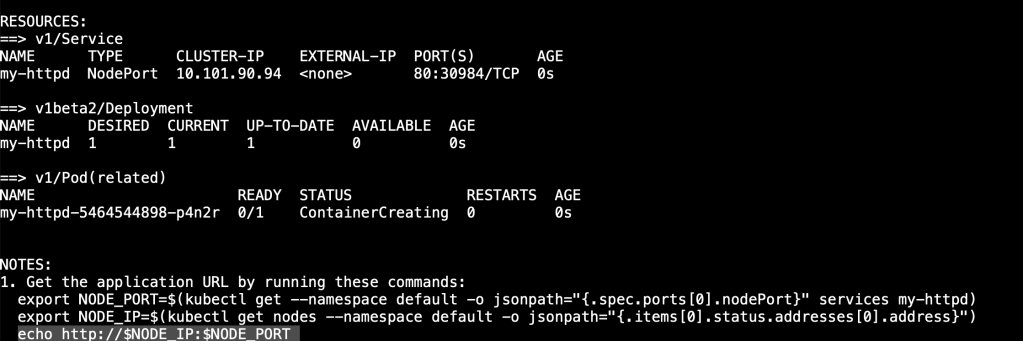
Copy the commands listed under the NOTES section of the output, and then paste and run them. It should return the private IP address and port number of our application.

  • Let’s check to see if our pods have come online
kubectl get pods
kubectl get services

Finished

Thank you for reading

Osama

Scaling Pods in Kubernetes

Continue to pervious post of Configure Kubernetes on my blog.

This post will discuss how to scale the pods, I will assume the Kubernetes installed if not back to the above post.

If you did these steps below , you can skip

Initialize the cluster

kubeadm init --pod-network-cidr=10.244.0.0/16 --kubernetes-version=v1.11.3

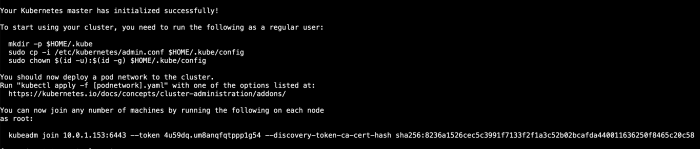
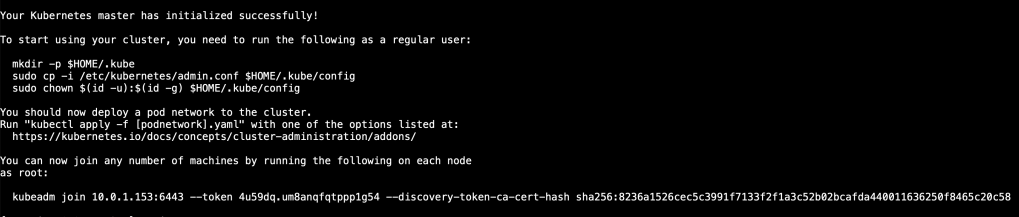
As mentioned the command will generate commands like the picture.

mkdir -p $HOME/.kube

sudo cp -i /etc/kubernetes/admin.conf $HOME/.kube/config

sudo chown $(id -u):$(id -g) $HOME/.kube/config
  • Install Flannel

Flannel is an open-source virtual network project managed by CoreOS network designed for Kubernetes. Each host in a flannel cluster runs an agent called flanneld . It assigns each host a subnet, which acts as the IP address pool for containers running on the host.

kubectl apply -f https://raw.githubusercontent.com/coreos/flannel/v0.9.1/Documentation/kube-flannel.yml
  • Create deployment
vi deployment.yml
apiVersion: apps/v1

kind: Deployment

metadata:

  name: httpd-deployment

  labels:

    app: httpd

spec:

  replicas: 3

  selector:

    matchLabels:

      app: httpd

  template:

    metadata:

      labels:

        app: httpd

    spec:

      containers:

      - name: httpd

        image: httpd:latest

        ports:

        - containerPort: 80
  • Spin up the deployment
kubectl create -f deployment.yml

  • Create the service
vim service.yml
kind: Service

apiVersion: v1

metadata:

  name: service-deployment

spec:

  selector:

    app: httpd

  ports:

  - protocol: TCP

    port: 80

    targetPort: 80

  type: NodePort
kubectl create -f service.yml
  • Scale the deployment up to 5 replicas.
vi deployment.yml

Change the number of replicas to 5:

spec: replicas: 5
  • Apply the changes:
kubectl apply -f deployment.yml

Enjoy

Hope it’s useful

Osama

Setting up a Kubernetes Cluster with Docker – CentOS

Moving to Docker container series blog post, I choose to continue with Kubernetes and discuss it more start with configuration and installation.

This configuration discuss on-premise side and to do that you have at least 2 servers

Serverpurposedescription
The Masternode which controls and manages a set of worker nodes (workloads runtime) and resembles a cluster in Kubernetes. A master node has the following components to help manage worker nodes: … Kube-Controller-Manager, which runs a set of controllers for the running cluster.
The worker nodeNode is a worker machine in Kubernetes and may be either a virtual or a physical machine, depending on the cluster. … Each Node is managed by the Master. A Node can have multiple pods, and the Kubernetes master automatically handles scheduling the pods across the Nodes in the cluster.

Configure The Kubernetes cluster

  • On all nodes, add the Kubernetes repo to /etc/yum.repos.d:
cat <<EOF | sudo tee /etc/yum.repos.d/kubernetes.repo
[kubernetes]
name=Kubernetes
baseurl=https://packages.cloud.google.com/yum/repos/kubernetes-el7-x86_64
enabled=1
gpgcheck=1
repo_gpgcheck=1
gpgkey=https://packages.cloud.google.com/yum/doc/yum-key.gpg https://packages.cloud.google.com/yum/doc/rpm-package-key.gpg
exclude=kube*
EOF
  • Disable SELinux:
sudo setenforce 0
sudo sed -i 's/^SELINUX=enforcing$/SELINUX=permissive/' /etc/selinux/config

  • Install Kubernetes
sudo yum install -y kubelet kubeadm kubectl --disableexcludes=kubernetes
  • Enable and start kubelet
sudo systemctl enable --now kubelet
  • From Node 1 (Master) , initialize the controller node, and set the code network CIDR to 10.244.0.0/16 or depends on your IP range :
kubeadm init --pod-network-cidr=10.244.0.0/16
  • From Node 1 (Master), check the status of your cluster:
 docker ps -a

Repeat this step on the worker nodes. Can the worker nodes see the cluster

  • Once you are done, the init command will create a commands for you , you needs to run them or you will have permission issues.
mkdir -p $HOME/.kube

sudo cp -i /etc/kubernetes/admin.conf $HOME/.kube/config

sudo chown $(id -u):$(id -g) $HOME/.kube/config

Copy the kubeadm join command, then paste and run it in your worker nodes terminal windows.

  • From the worker nodes, verify that they can see the cluster
docker ps -a
  • From Node 1 (Master), check the status of the nodes
 kubectl get nodes

Now, Kubernetes installed but it’s empty to have pods or services the next will be for you, it can be change depends on your application type but it’s Just for testing to show the reader how it’s goes.

  • Install flannel
kubectl apply -f https://raw.githubusercontent.com/coreos/flannel/master/Documentation/kube-flannel.yml
  • Create POD
vim pod.yml
apiVersion: v1

kind: Pod

metadata:

  name: nginx-pod-demo

  labels:

    app: nginx-demo

spec:

  containers:

  - image: nginx:latest

    name: nginx-demo

    ports:

    -  containerPort: 80

    imagePullPolicy: Always

  • Create the pod
 kubectl create -f pod.yml
  • Check the status of the pod
kubectl get pods
  • Create Services
vim service.yml
apiVersion: v1

kind: Service

metadata:

  name: service-demo

spec:

  selector:

    app: nginx-demo

  ports:

  - protocol: TCP

    port: 80

    targetPort: 80

  type: NodePort
  • Create the service
kubectl apply -f service.yml
  • Run the following command to view the service
 kubectl get services

Take note of the service-demo port number.

In a web browser, navigate to the public IP address for a server in the cluster, and verify connectivity:

<PUBLIC_IP_ADDRESS>:<SERVICE_DEMO_PORT_NUMBER>

Enjoy the automation🤗

Osama

Docker & kubernetes example – Full project for free

Okay, I love to post free examples/projects on my github from while to while, i choose docker and kubernetes this time, the project idea it’s very nice and easy to implement.

What this project do ?

This can be a simple web app that reads a ‘hello world’ string from the MySQL database.Run a database app. Data volume should be persistent.Application from step 1 needs to discover the database from step 2 using Kubernetes native features.
Database credentials should NOT be hardcoded in application or helm chart code.The application should be accessible from the outside of Kubernetes.Create a helm chart which implements all these steps

  • Create an application that connects to a database, reads some data, and returns this data upon HTTP request, This can be a simple web app that reads a ‘hello world’ string from the MySQL database.
  • Run a database app. Data volume should be persistent.
  • Application from step 1 needs to discover the database from step 2 using Kubernetes native features, Database credentials should NOT be hardcoded in application or helm chart code.
  • The application should be accessible from the outside of Kubernetes.
  • Create a helm chart which implements all these steps

I Choose to use Java as programing language because the springboot framework it’s already defined and easy to use.

Please follow the readme file and everything will working fine without any issue, if you have any question comment below and i will answer

GitHub Link HERE

Enjoy the free learning

Osama