Steps to Create Linux Container

After my last post about Docker Project, i start testing Linux Container but this time for lxc which is another amazing Package and should be used, if you installed and follow my steps in Previous steps here  then you can use lxc command without any suffer of installation 🙂

lxc stand for Linux Container.

Now i will start to describe how to create container using this command 

  • You need to know when lxc installed, it’s create file under /etc/lxc/ called default.conf this file should contain your network interface name and you need to add it.

[root@OEL6 ~]# cat /etc/lxc/default.conf
lxc.network.type = veth
lxc.network.link = docker0
lxc.network.flags = up

Sample output for ifconfig command :

docker0   Link encap:Ethernet  HWaddr 00:00:00:00:00:00
          inet addr:172.17.42.1  Bcast:0.0.0.0  Mask:255.255.0.0
          inet6 addr: fe80::28ce:eeff:fe80:1fc8/64 Scope:Link
          UP BROADCAST MULTICAST  MTU:1500  Metric:1
          RX packets:17 errors:0 dropped:0 overruns:0 frame:0
          TX packets:4 errors:0 dropped:0 overruns:0 carrier:0
          collisions:0 txqueuelen:0
          RX bytes:1112 (1.0 KiB)  TX bytes:408 (408.0 b)

I used docker0 Interface because i already installed it , and configure the IP Address, if you don’t modify this file when you start container you will receive error :

[root@OEL6 container]# lxc-start –name test-container
lxc-start: failed to attach ‘vethaITNmu’ to the bridge ‘virbr0’ : No such device
lxc-start: failed to create netdev
lxc-start: failed to create the network
lxc-start: failed to spawn ‘test-container’

Anyway now after add the file with the right Interface name, you will be able to run and start working on lxc just follow the below steps :
  • Before Create any container you need to create Directory under /, if you don’t do this step another error will be appeared asking for this directory and telling you /container not found.

mkdir /container will solve the problem.

Now Let’s Start Creating new container called Test-container :

[root@OEL6 lxc]# lxc-create -n test-container -t oracle — -R 6.5

lxc-create: No config file specified, using the default config /etc/lxc/default.conf
Host is OracleServer 6.5
Create configuration file /container/test-container/config
Downloading release 6.5 for x86_64
Loaded plugins: refresh-packagekit, security
ol6_u5_base                                                     | 1.4 kB     00:00
ol6_u5_base/primary                                             | 3.2 MB     00:32
ol6_u5_base                                                                  8573/8573
Setting up Install Process

the above command will take some while to finish the configuration, it’s installing some packages needed by container you can have more than one container with different name.
After the creation is done you should be notice the below line :

Complete!
Rebuilding rpm database
Configuring container for Oracle Linux 6.5
Added container user:oracle password:oracle
Added container user:root password:root

Container : /container/test-container/rootfs
Config    : /container/test-container/config
Network   : eth0 (veth) on virbr0
‘oracle’ template installed
‘test-container’ created

the container is not started yet !!! so we need to do this using the below command :

[root@OEL6 lxc]# lxc-start -n test-container
                Welcome to Oracle Linux Server
Setting hostname test-container:                        [  OK  ]
Checking filesystems
                                                                        [  OK  ]
Mounting local filesystems:                                [  OK  ]
No such file or directory
Enabling /etc/fstab swaps:                                 [  OK  ]
Entering non-interactive startup
Bringing up loopback interface:                         [  OK  ]
Bringing up interface eth0:
Determining IP information for eth0… failed.
                                                                      [FAILED]
Starting system logger:                                    [  OK  ]
Mounting filesystems:                                      [  OK  ]
Generating SSH1 RSA host key: No such file or directory
                                                                      [  OK  ]
Generating SSH2 RSA host key: No such file or directory
                                                                     [  OK  ]
Generating SSH2 DSA host key: No such file or directory
                                                                     [  OK  ]
Starting sshd:                                                 [  OK  ]
Oracle Linux Server release 6.5
Kernel 3.8.13-16.2.1.el6uek.x86_64 on an x86_64
test-container login:

I will fix FAILED Later now you need to connect to the container using the above User name and password given to you in the above line.
After this 
[root@test-container ~]#
I am connected 🙂 

You can delete the container using command 

lxc-destroy -n test-container  

Reference :
1- Oracle Linux containers Here 
2- Oracle Linux 6.5 and Docker Here

Thank you
Osama mustafa

API5036: Client version 11.2.0.3.0 is not compatible with repository version 11.2.0.4.0

To Solve this error Follow the below Steps :

  • Edit /owb/bin/admin/Preference.properties
  • And set the following parameter :-
    • OverrideRepositoryVersionCheck=true
    • OverrideRuntimeVersionCheck=true
Thank you
Osama Mustafa

Install Oracle EDQ 11.1.1.7 On Oracle Linux 6.4

In This Document I will Show you How to install Oracle Enterprise Data Quality On Oracle Linux 6.4 Operating System.

In old Version Oracle EDQ was no available on Linux Only Windows Operating system as Setup File, But there’s always solution if you want it on Linux you need to use application server in our case weblogic to deploy EDQ on it , some pre requisites need to be done before you do this Please check http://support.oracle.com Document

How To Install EDQ On Linux Using Oracle DB And Apache Tomcat (Doc ID 1462376.1)

Download Document Here

Thank you
Osama mustafa 

User Not Able To Drop Even When I killed the session.

Today while i was working on Database trying to Drop user called PRD_MDS the normal error appearing to me :

SQL> drop user PRD_MDS cascade ;
drop user PRD_MDS cascade
*
ERROR at line 1:
ORA-01940: cannot drop a user that is currently connected

Which is very normal error and the first thing you are trying to check is v$session

SQL> select sid,serial# ,username from v$session where username like ‘%PRD%’;
       SID    SERIAL# USERNAME
———- ———- ——————————
       745        821 PRD_MDS

SQL> alter system kill session ‘745,821’ immediate ;
System altered.

After this i should be able to drop this user without any problem BUT !!!!

SQL> drop user PRD_MDS ;
drop user PRD_MDS
*
ERROR at line 1:
ORA-01940: cannot drop a user that is currently connected

I tried to figure out what is going on , Even i tried alter system kill session 10 times the above error will appear BUT there’s always solutions :

SQL> startup force restrict;
ORACLE instance started.
Total System Global Area 7686086656 bytes
Fixed Size                  2228032 bytes
Variable Size            1811939520 bytes
Database Buffers         5729419264 bytes
Redo Buffers              142499840 bytes
Database mounted.
Database opened.

 SQL> drop user PRD_MDS cascade ;
User dropped.

Create Group using Em12c

Sometimes you need to create Certain group for Enterprise manager to make monitor more easy , sepcially if you have lot of agent and components such as database , Host , application server … so if you want to manage them individually it will consume time and seems to be impossible.

Enterprise manager provide you with Group Features to combine components, and there’s two type :

  • Target at the same type 
  • Target contain different components such as database, Application server , Host.

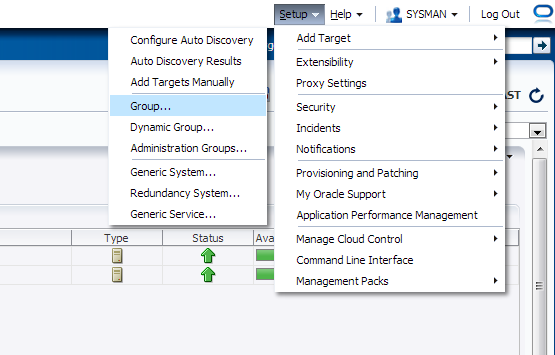
Check the below screenshot :

From Setup –> Add Target –> Group

you have five tab each one of them contain different parameters, Choose the right option that works with your Work:

After Choose the name for the group you need to add Agents, from search button new popup screen will be open choose which agent type you want.

Another example on Chart tab :

After Create Group :

For More information about Enterprise Manager 12c Group Read Oracle Documentation Here
Thank you 
Osama mustafa

Are we in the Cloud

What is The Cloud Computing ? Are We in the Cloud ? Where Can I Find it ? Simple Question but It’s has been asked a lot.

Simply Cloud Computing Storing and accessing Data and programs Using Over Internet instead of Local Computer.

I Found the Below Chart on the internet and it’s The Best Describe for the cloud “Source Cloud For Dummies” :

Cloud is the next Stage for everything, Because it can be defined as set of hardware,Platforms , Databases, Networking it will safe lot of money for the companies.

Check the below video :

You need to know some  Definition you will heard when we are talking about Cloud:
Xaas is Term said for number of things “X as a Services” / ” Anything as a Services”

The Most Common Examples on the above :

  • DBaas : Database as a Service.
  • Paas : Platform as a Service.
  • SaaS : Software as a Service/Storage as a Service.
  • IaaS : Infrastructure as a Service.
  • Caas : Communication as Service.
  • Naas : Network as Service.
It’s New Future.
Thank you 
Osama mustafa

Oracle SOA Installation on Solaris 11.1

Another Post Describe how to install Oracle SOA, Steo by Step To Install Oracle SOA and Extend Admin Server.

As Usual you can download this document From SlideShare.

Download Document Here.

Thank you
Osama Mustafa

Oracle Business Intelligence Installation

Before start describes steps, I would like to share some notes:
  •     Extend Weblogic Server will not work (config.sh).
  •    BI server should be added first before any managed server otherwise AdminServer will corrupted.
  •   If you already have AdminServer configured you can created new BI Domain, Or backup your AdminServer  domain and Reconfigure again.

The above notes are useful and must be considered before installing Oracle BI.
You can download the document from Here
Thank you

Osama Mustafa

SIEBEL odbcsql Unable to Connect

Logging into “SBA_81_DSN” as “SADMIN” …
ODBC error 81 in SQLConnect:
523 72
(native error 0).
Unable to login using specified ODBC parameters.

The above error appear when you are trying to run the below command:

odbcsql /s SIEBEL8_DSN /u sadmin /p sadmin

Solutions :

Make sure the you set TNS_ADMIN in .profile or .bash_profile , TNS_ADMIN Should be Directed to Client32 bit , Copy tnsnames.ora from Database home to Client32

it will be like the following :

export TNS_ADMIN=/u01/app/oracle/instanctclient32/

Thank you
Osama mustafa