Category: Application
This related to Topics such as EBS, Siebel, People Soft, .. etc
Some notes you maybe need for Em12c
EM12c R2: How to Upgrade to EM 12c R2 – Two System Method [ID 1363162.1]
EM12c: How to install JVM Diagnostics (JVMD) in Cloud Control [ID 1493862.1]
EM12c: How To Upgrade Plugin On 12.1 Management Agent [ID 1490762.1]
How to Install 12c Agent on Virtual Host [ID 1469995.1]
EM12c Upgrade : Agents Are Not Listed in the Upgrade Console With Error Inventory Data Is Missing From the Repository [ID 1489109.1]
EM 12c : How to Discover All Targets On a Single Host After Agent Installation ? [ID 1386817.1]
EM 12c : Understanding Promote Target Functionality [ID 1386161.1]
EM12c How to Perform Automatic Host Discovery Using IP Scan Method ? [ID 1386811.1]
EM12c Agent status Fails With “Peer Not Authenticated” Error. [ID 1510706.1]
EM12C: Agent Installation Failed With Error: “OMS_HOST and EM_UPLOAD_PORT is not active” [ID 1371873.1]
How To Upgrade Java Diagnostics In Enterprise Manager 12c With the Latest Patches [ID 1534023.1]
EM12c Cloud Control: Required Patches for Discovery and Monitoring of Coherence Targets [ID 1526316.1]
EM12c : Patch Conflict While Applying Patch 14040891 [ID 1479092.1]
Unable To Add host targets with EM12c – Valid Host Name check fails [ID 1433843.1]
Release Schedule of Current Enterprise Manager Releases and Patch Sets (10g, 11g, 12c) [ID 793512.1]
EM 12c: How to Deploy a Plug-In from Enterprise Manager Cloud Control 12.1.0.1 [ID 1364030.1]
Thank you
Osama Mustafa
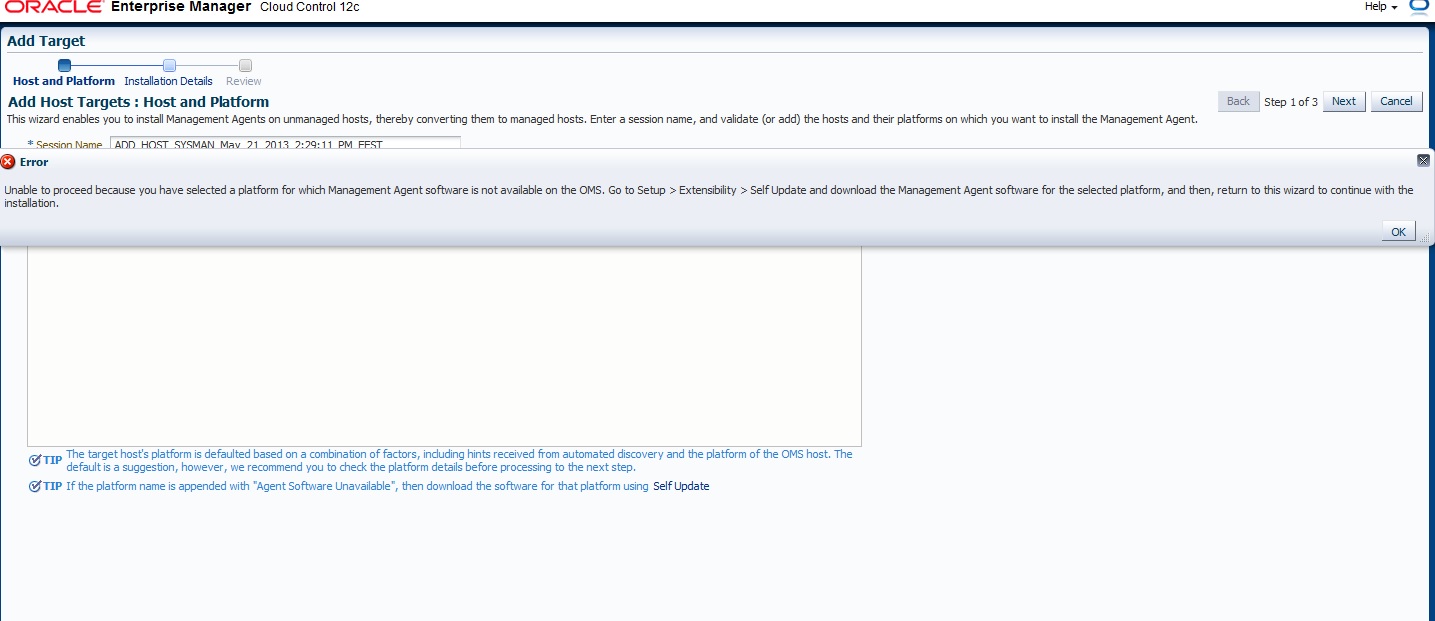
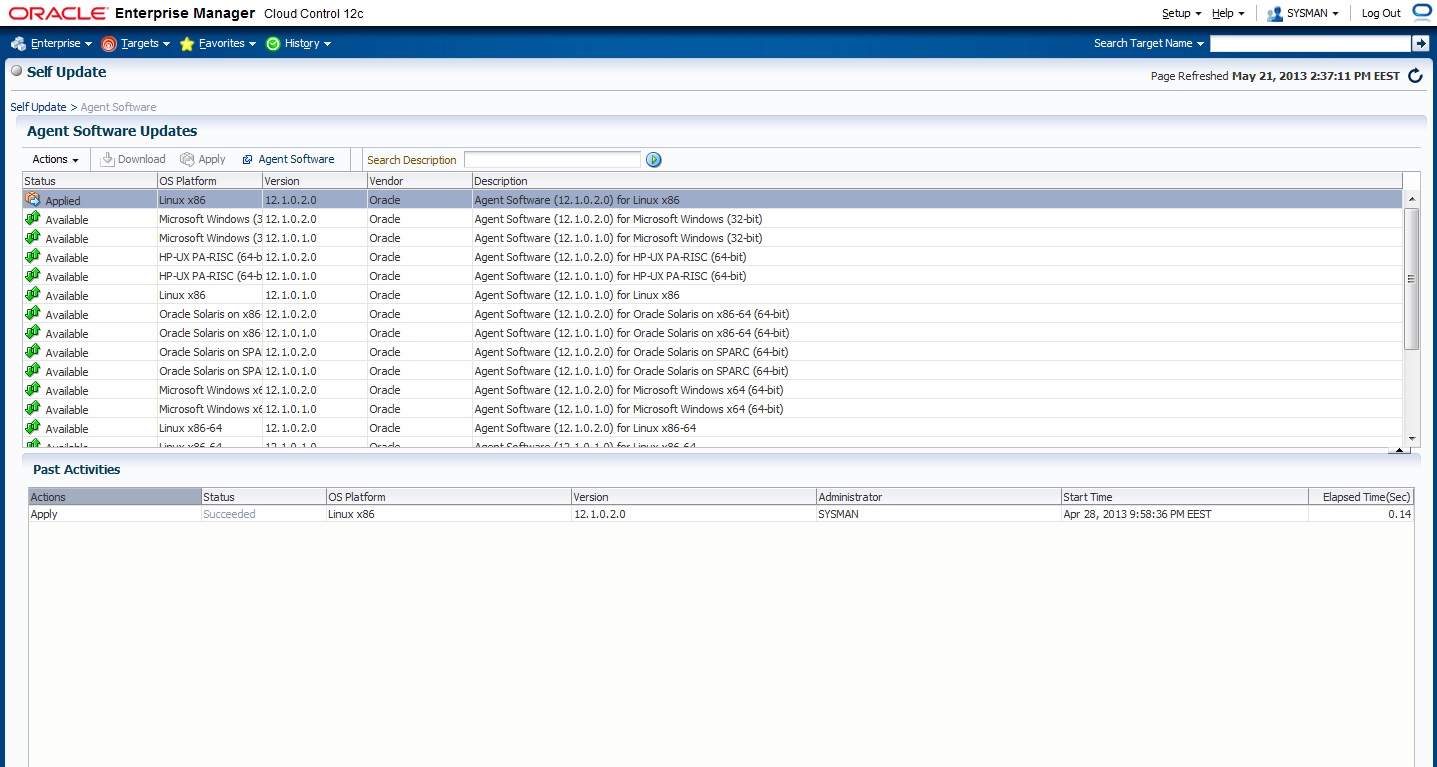
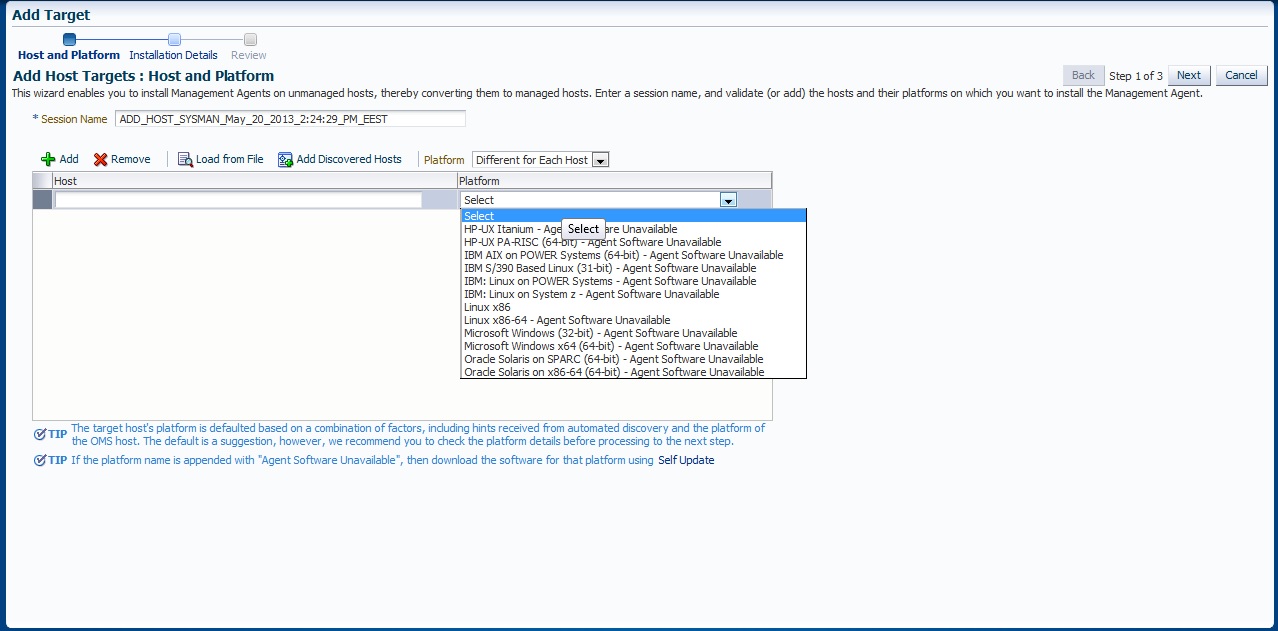
em12c agent software unavailable
to solve this :
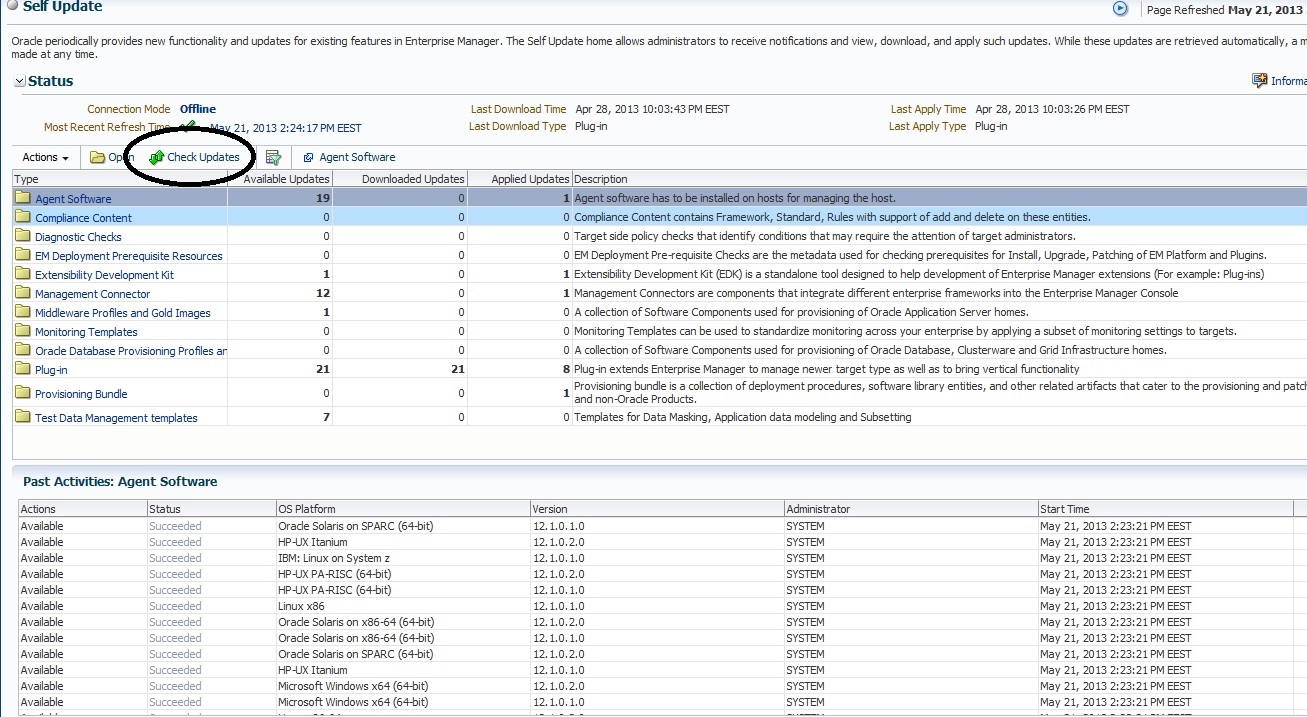
Setup >> Extensibility >> Self Update
Connection mode should be Offline ( you need to configure System Library to change Connection mode or Error will be appeared )
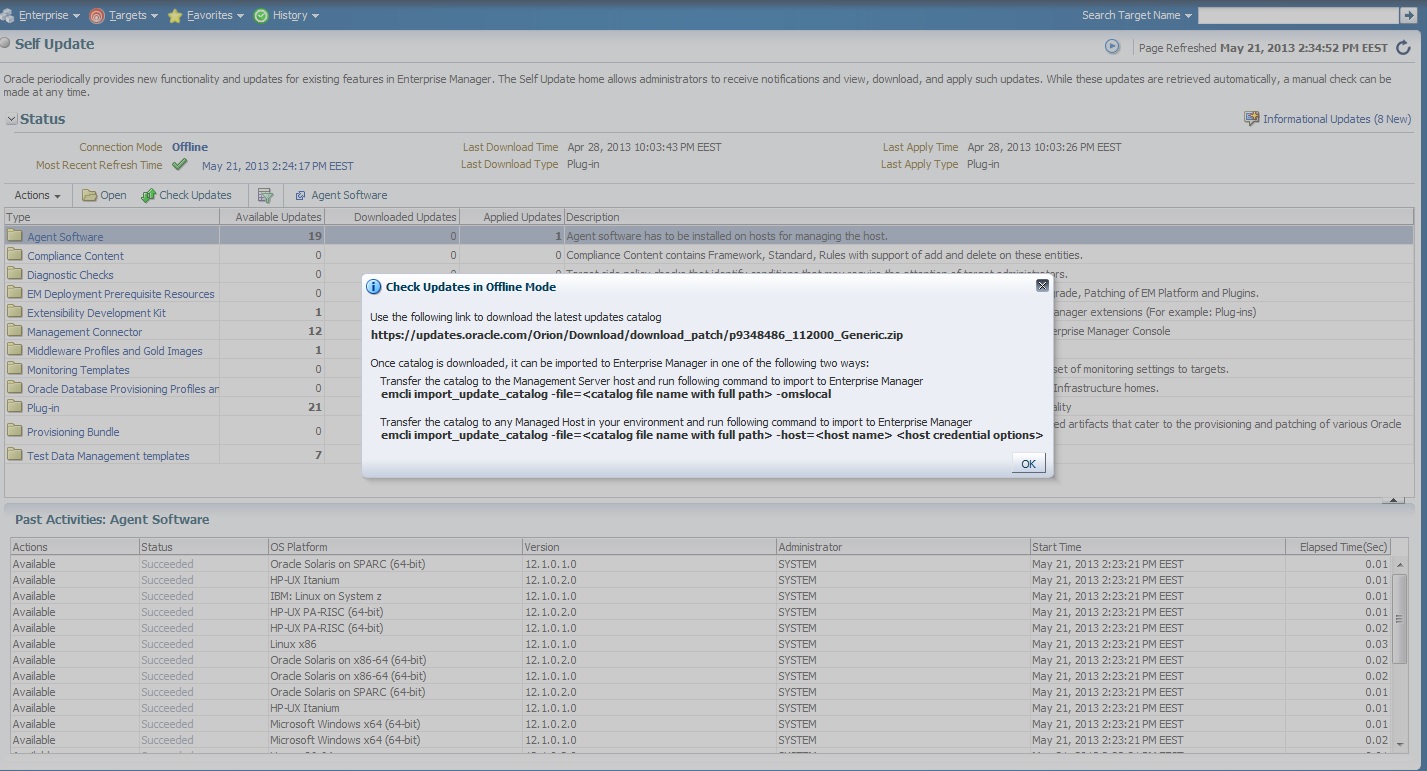
After change Connection mode to offline back to self_update main screen And Press Check Updates
You need to visit https://support.oracle.com and download patch number 9348486 after finish downloading copy to OMS server using FTP and don’t unzip it.
Run the below command
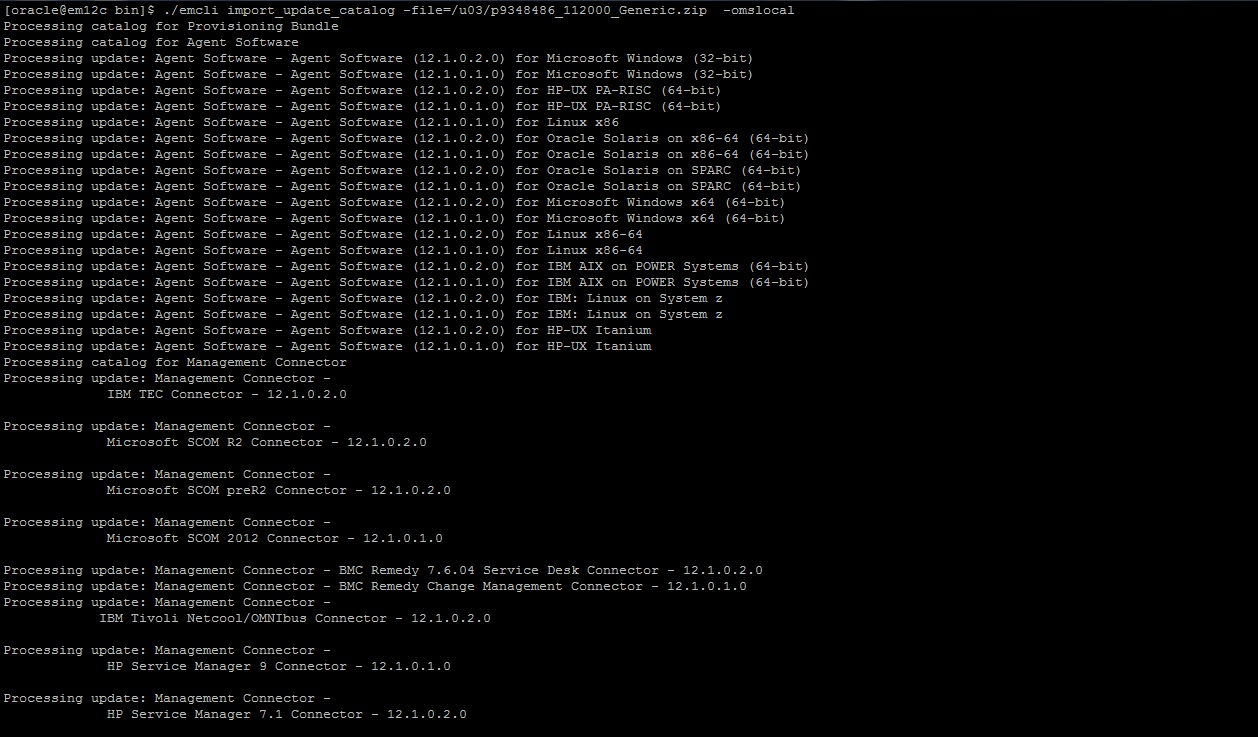
./emcli import_update_catalog -file=/u01/p9348486_112000_Generic.zip -omslocal
if the below error show up :
Error: The command name “import_update_catalog” is not a recognized command.
Run the “help” command for a list of recognized commands.
You may also need to run the “sync” command to synchronize with the current OMS.
./emcli login -username=’SYSTEM’
Enter password
Login successful
./emcli sync
Synchronized successfully
./emcli import_update_catalog -file= …..
Thank you
Osama Mustafa
Upgrade R12.1.1 To R12.1.3
From https://support.oracle.com you have to download the following patch :
- p9239090_R12_LINUX_1of6.zip
- p9239090_R12_LINUX_2of6.zip
- p9239090_R12_LINUX_3of6.zip
- p9239090_R12_LINUX_4of6.zip
- p9239090_R12_LINUX_5of6.zip
- p9239090_R12_LINUX_6of6.zip
- p9239095_R12_GENERIC.zip
- p9822544_R12.MSC.B_R12_GENERIC.zip(Optional)
- p10349415_R12.AD.B_R12_GENERIC.zip (Optional)
- p9239089_R12.AD.B_R12_LINUX.zip
- Run Autoconfig ( Which is Located $ADMIN_SCRIPT_HOME )
- Run the admkappsutil.pl ( Located in $AD_TOP/bin/admkappustil.pl ) Using the below command
perl /bin/admkappsutil.pl
This will generate new appsutil.zip located in $INST_TOP/admin/out
On Database Tier :
Copy appsutil from Application tier to $ORACLE_HOME,Unzip in under $ORACLE_HOME Like the below
- cd $ORACLE_HOME
- unzip appsutil.zip
- Run autoconfig for Database Tier located in ( $ORACLE_HOME/appsutil/admin) –> adauto.sh
- perl adpreclone.pl dbTier (located in $ORACLE_HOME/appsutil/admin)
- perl adpreclone.pl appsTier (Located in $ADMIN_SCRIPT_HOME)
Start Application Services using ( adstrtall.sh )
Thank you
Osama mustafa
" java.lang.UnsatisfiedLinkError" When Run Oracle EBS
Exception in thread “main” java.lang.UnsatisfiedLinkError: /u01/media/StageR12/startCD/Disk1/rapidwiz/jre/Linux_x64/1.6.0/lib/i386/xawt/libmawt.so: libXi.so.6: cannot open shared object file: No such file or directory
at java.lang.ClassLoader$NativeLibrary.load(Native Method)
at java.lang.ClassLoader.loadLibrary0(Unknown Source)
at java.lang.ClassLoader.loadLibrary(Unknown Source)
at java.lang.Runtime.load0(Unknown Source)
at java.lang.System.load(Unknown Source)
at java.lang.ClassLoader$NativeLibrary.load(Native Method)
at java.lang.ClassLoader.loadLibrary0(Unknown Source)
at java.lang.ClassLoader.loadLibrary(Unknown Source)
at java.lang.Runtime.loadLibrary0(Unknown Source)
at java.lang.System.loadLibrary(Unknown Source)
at sun.security.action.LoadLibraryAction.run(Unknown Source)
at java.security.AccessController.doPrivileged(Native Method)
at sun.awt.NativeLibLoader.loadLibraries(Unknown Source)
at sun.awt.DebugHelper.(Unknown Source)
at java.awt.Component.(Unknown Source
This error appear while trying to ./rapidwiz in Oracle EBS , and it’s regarding to Wrong packager version
First you need to remove the old package using :
rpm -e –nodeps
Install the required package from the below link :
Package libXi 32bit Here
Package libXi 64bit Here
Re Run the Installer again
Enjoy
Thank you
Osama Mustafa
Which module You installed on Apps
using Query / as Apps User :
SELECT a.application_name,a.product_code,
DECODE (b.status, ‘I’, ‘Installed’, ‘S’, ‘Shared’, ‘N/A’) status,
patch_levelFROM apps.fnd_application_vl a,
apps.fnd_product_installations b
WHERE a.application_id = b.application_id
and b.status=’I’ order by product_code asc;
Using adutconf.sql scripts which is located in $AD_TOP
This script include information about Product installation status, version and other information.
Using Oracle Application Manager ( OAM )
Site Map —> License Manager Which licensed word means installed.
Simple
Thank you
Osama Mustafa
Configure Email Notification and Incidents Rule
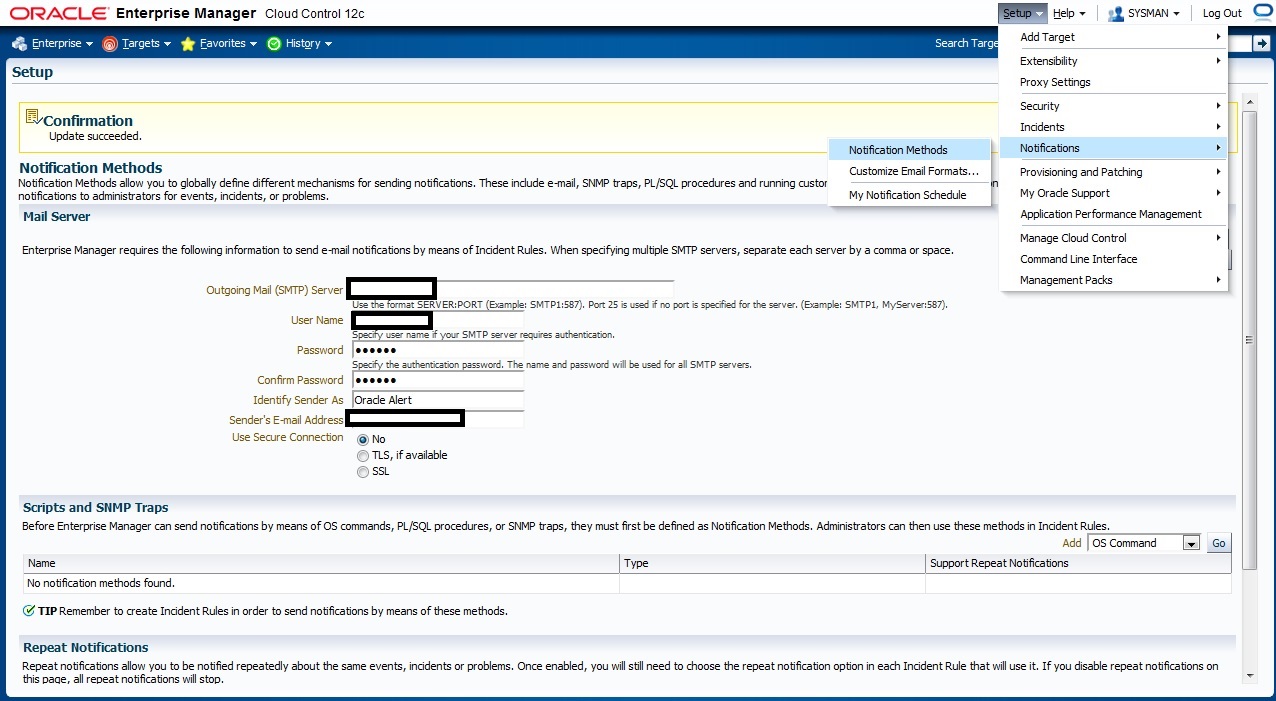
Check the below picture the fill with Correct Parameter to enable email notification First
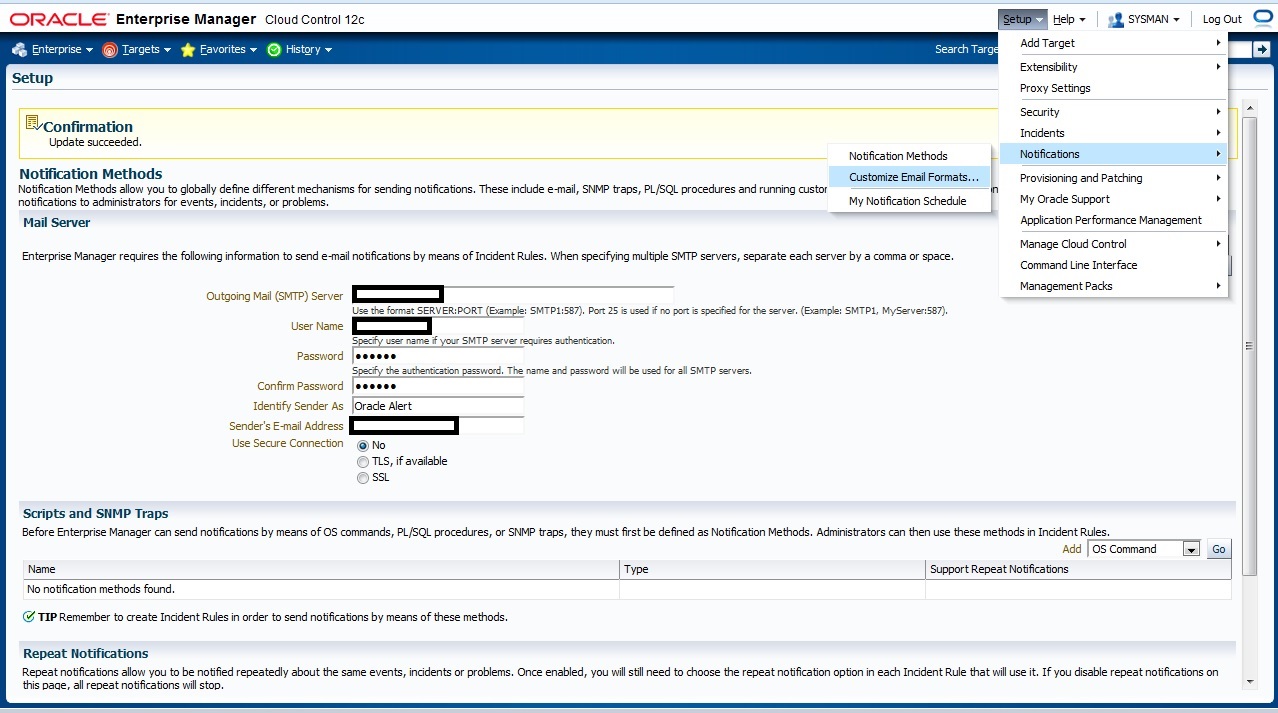
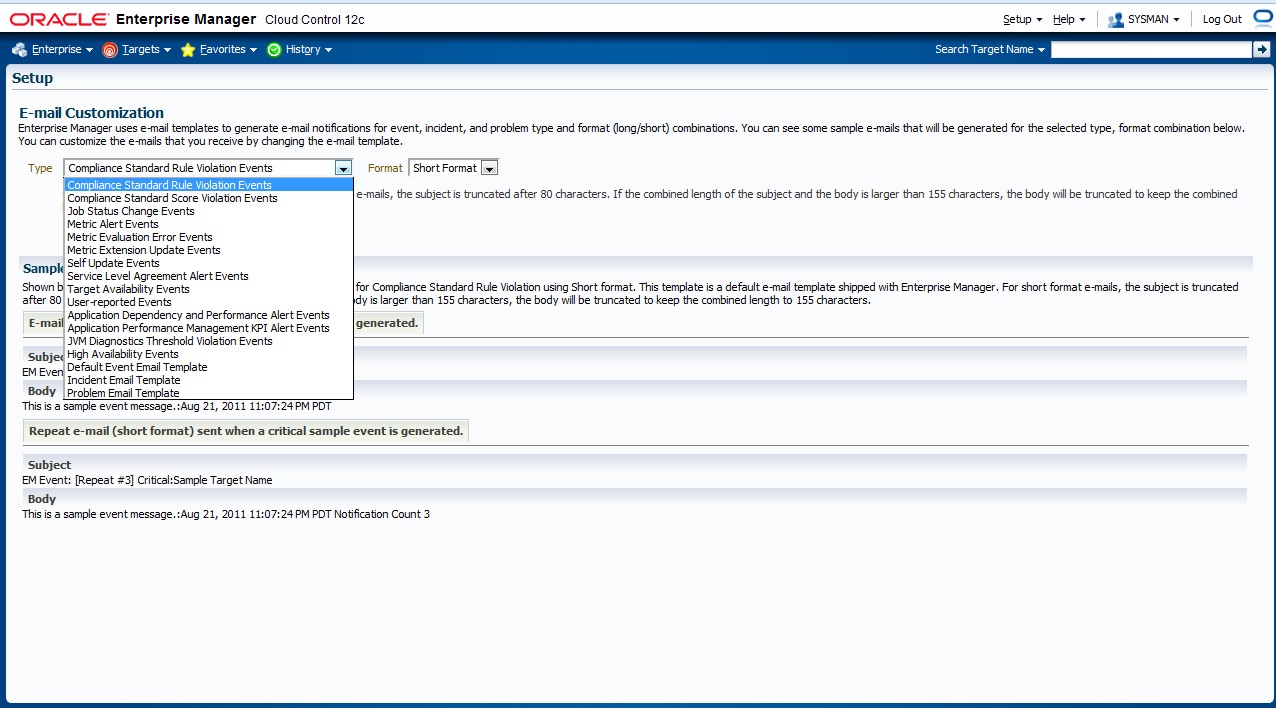
If you need to customize your Email format that will be deliver to you go to the below section in em12c :
The Below Page will appear to you choose which Type you want to customize
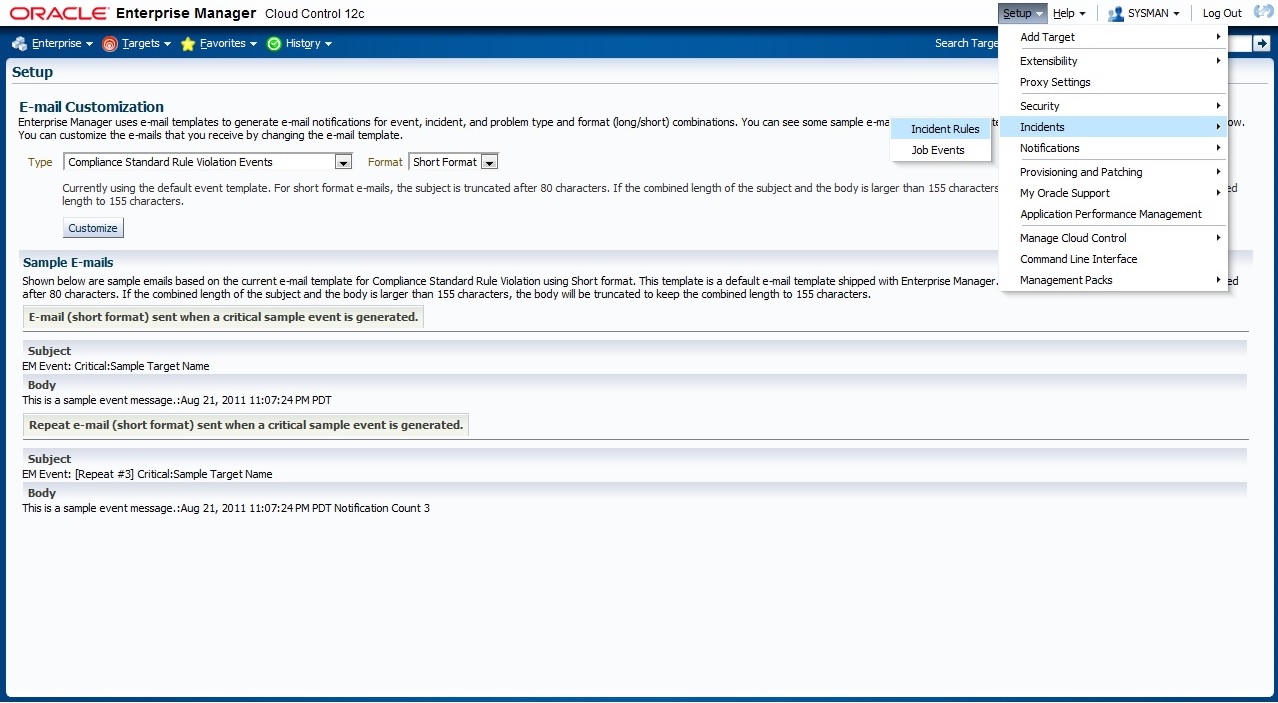
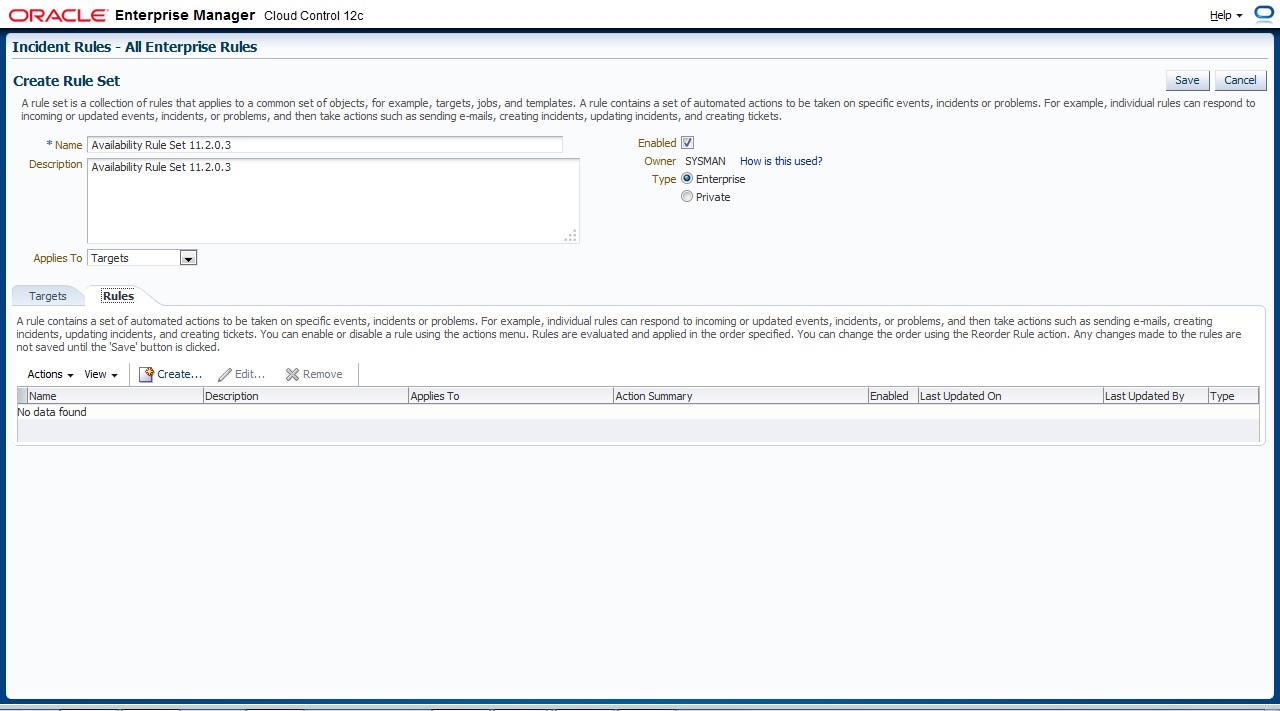
now Let’s work On Incident Rules, From Setup –> Incidents –> Incident Rules
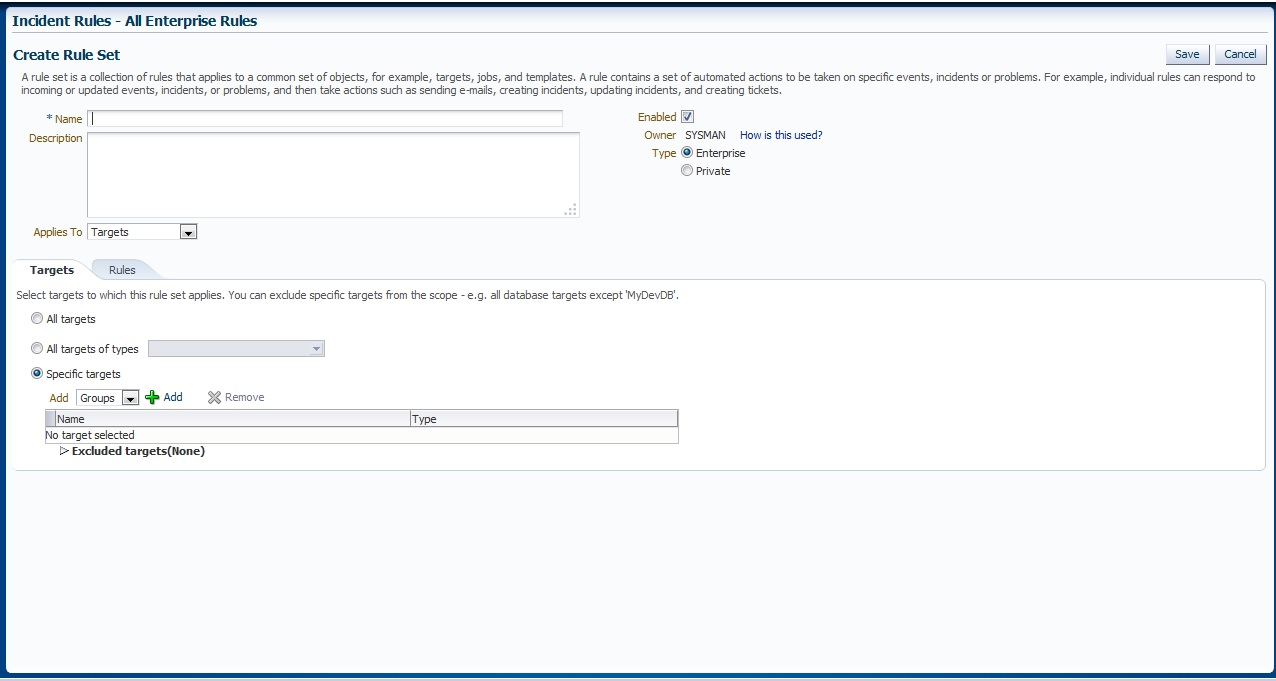
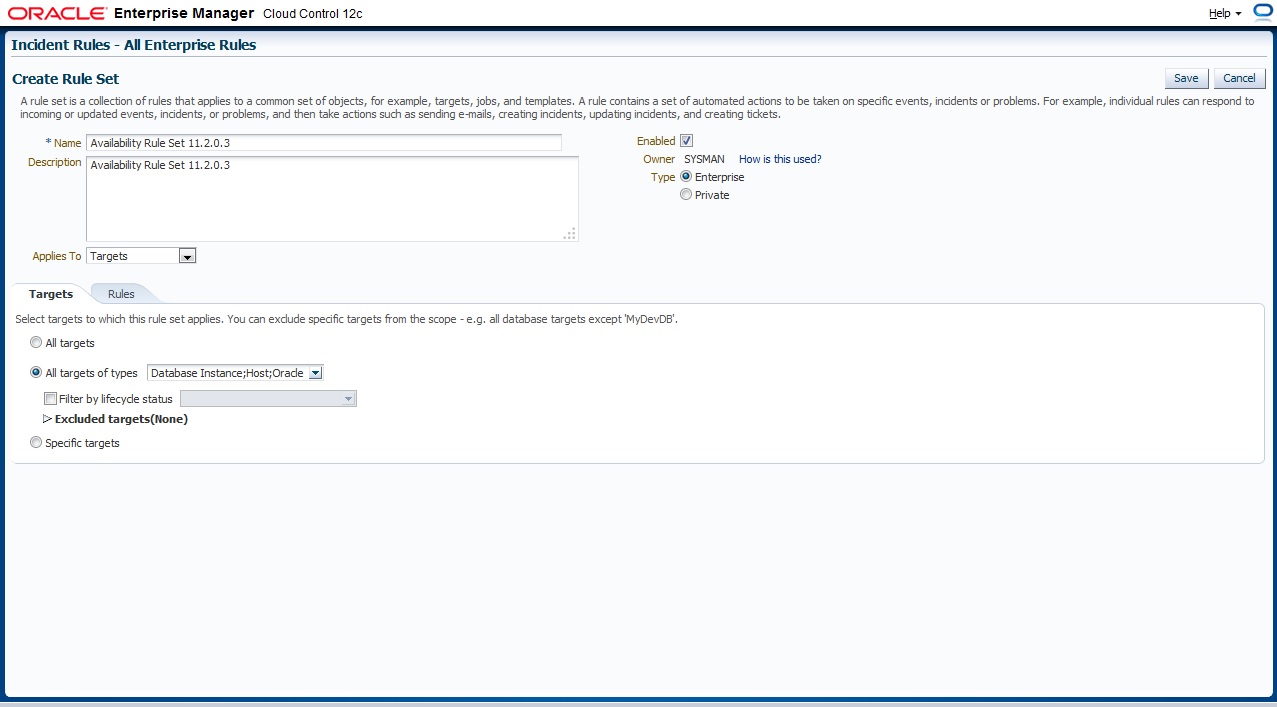
New Page will appear With Some Content All you have to do is Press “Create Rule Set” and below page will appear, Choose the name for Rule Set, which target this Rule set will be applied
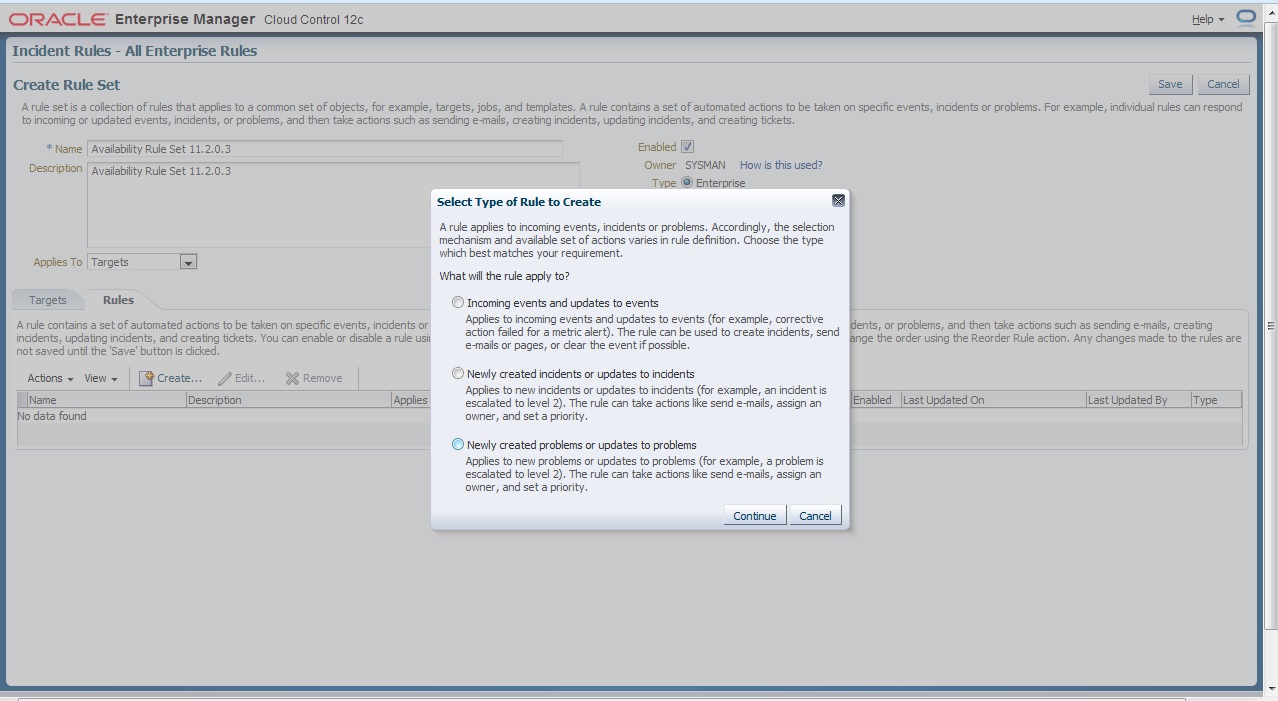
On Second Tab ” Rule” Press Create to add new One
There’s Description for each Type I will choose the first one
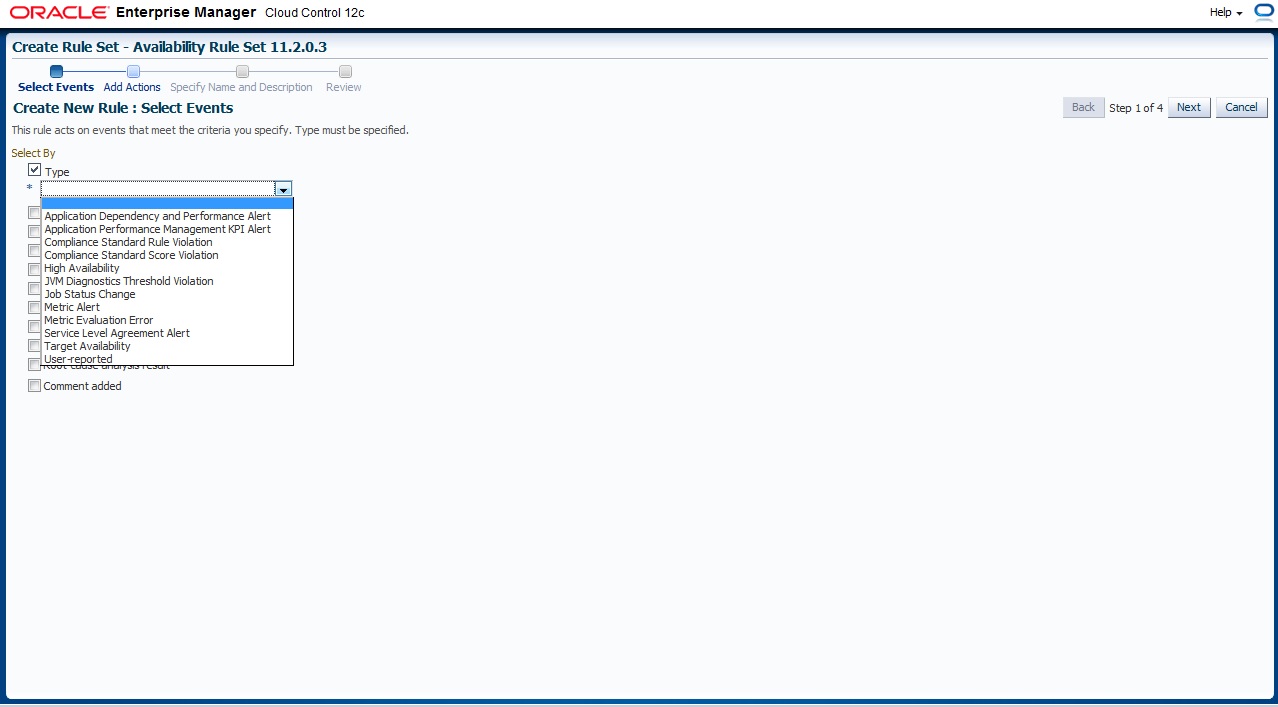
After That follow the instruction to create your own Rule Set ,
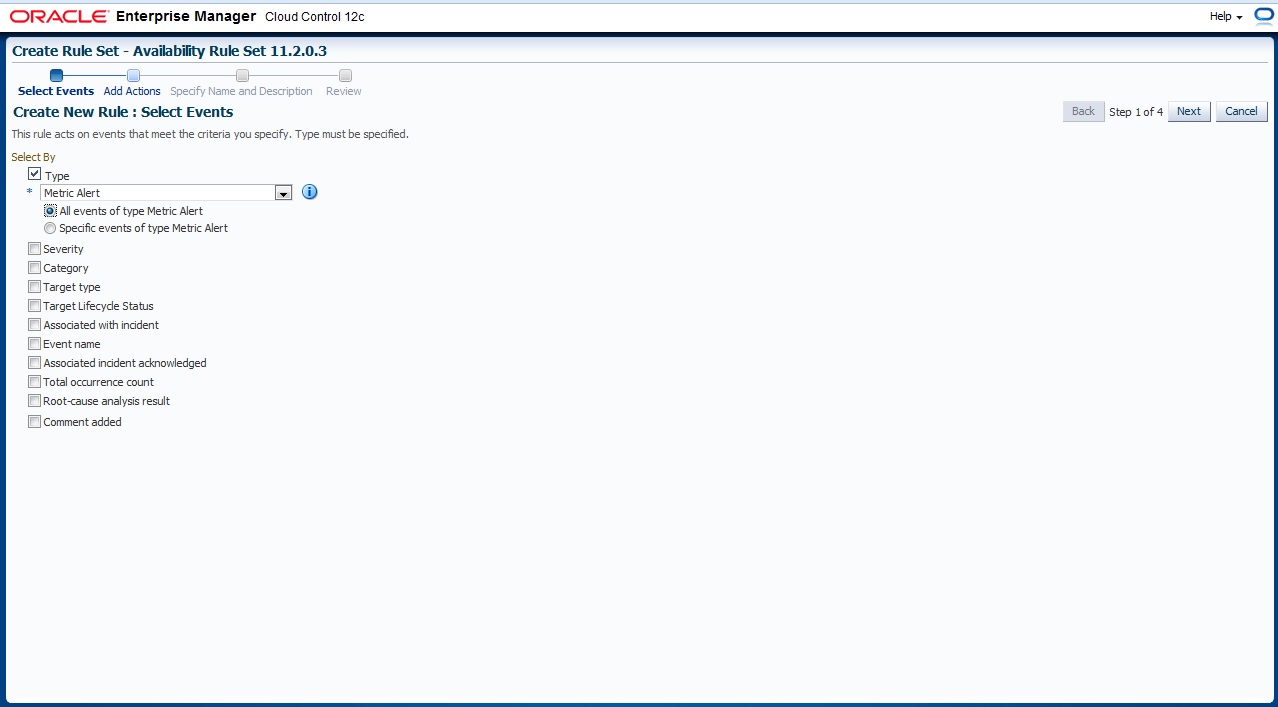
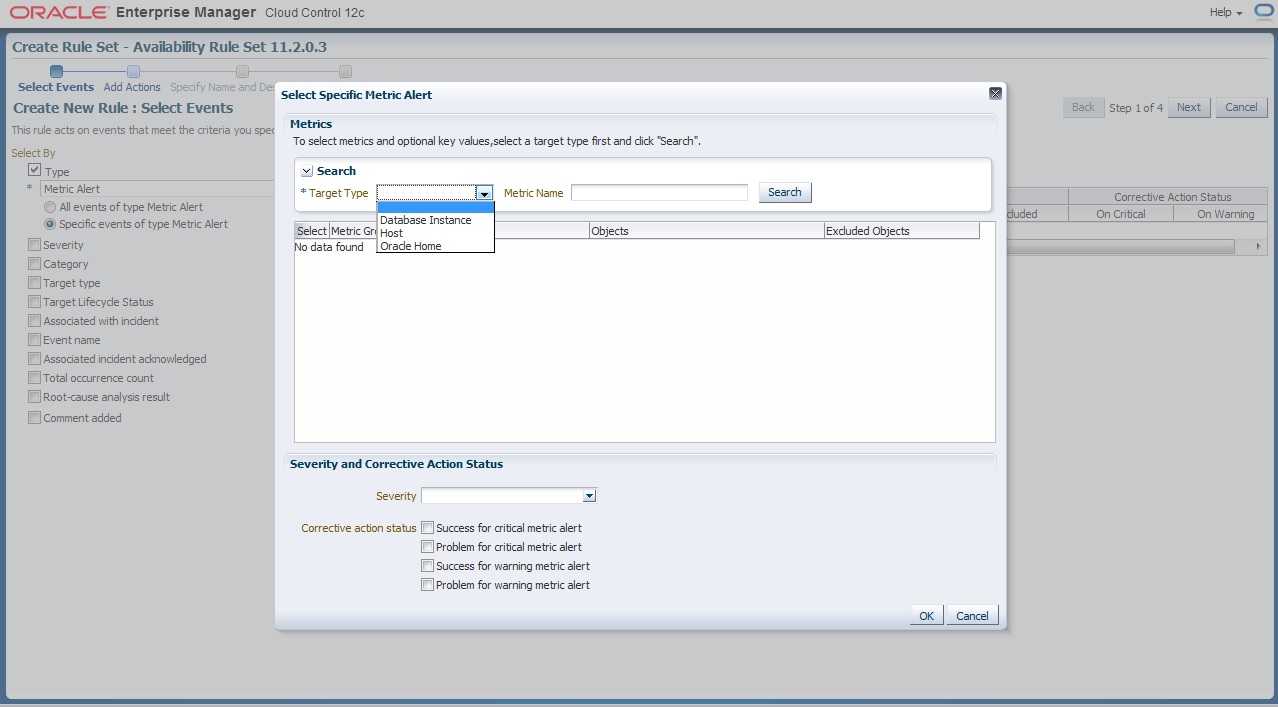
First you need to choose which type of event
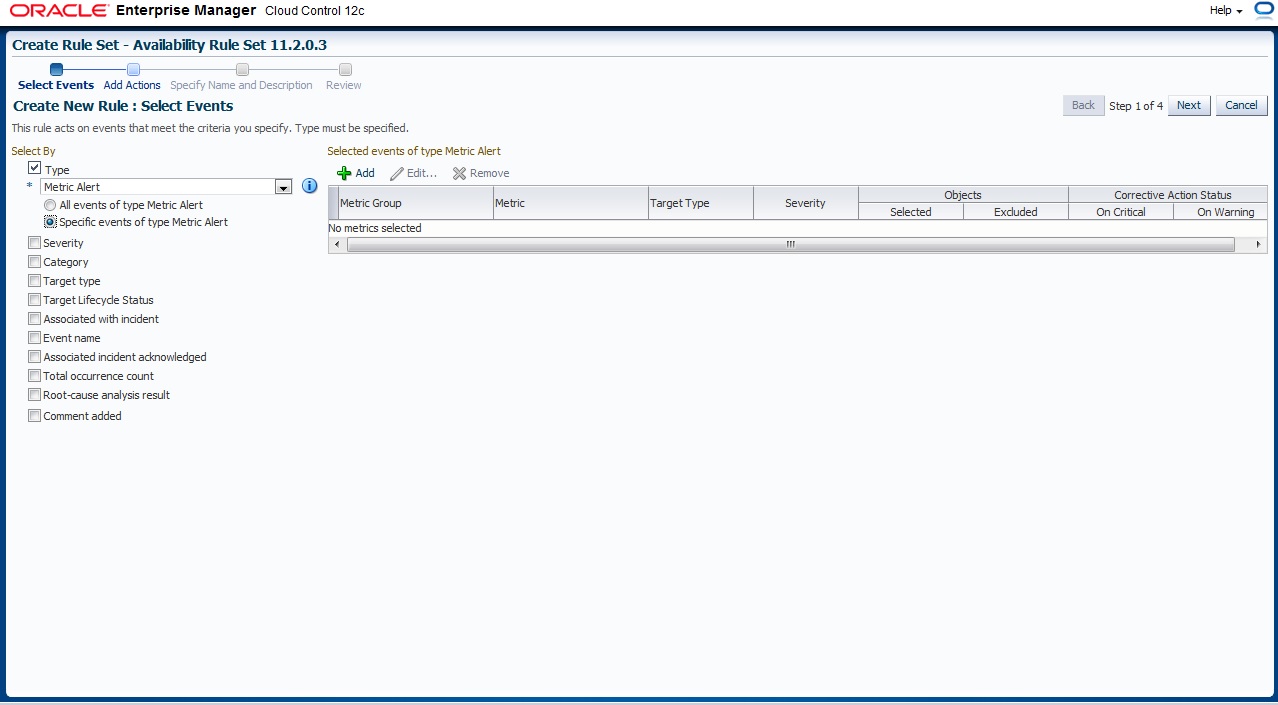
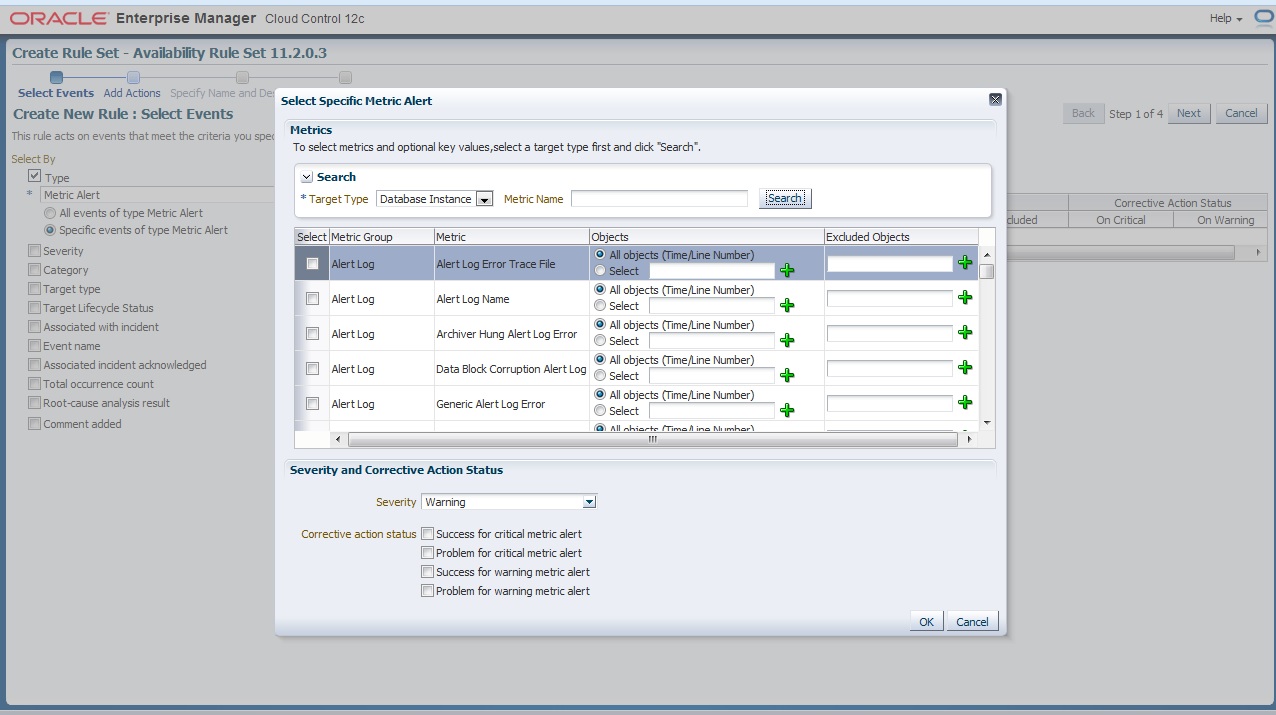
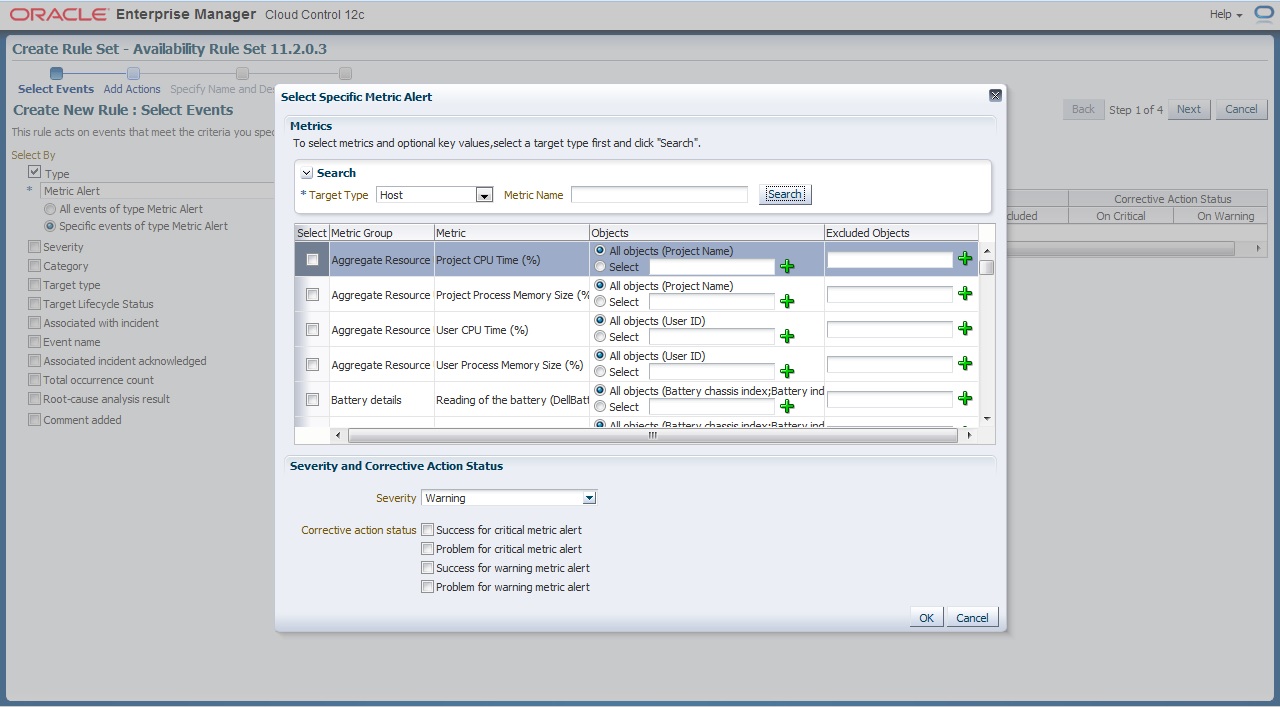
Now what we choose before will appear to us here now you want to enable metrics for Which Target
and i provide some example for predefined metrics group
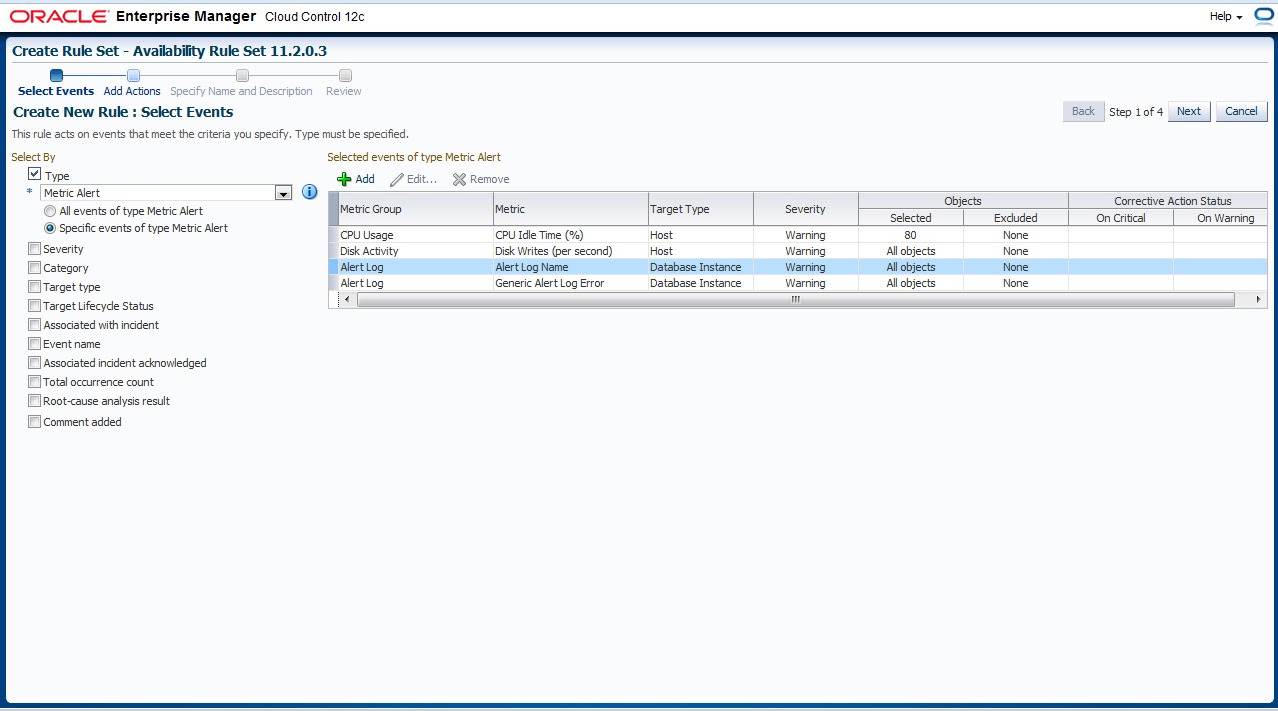
The Overall will be look like this
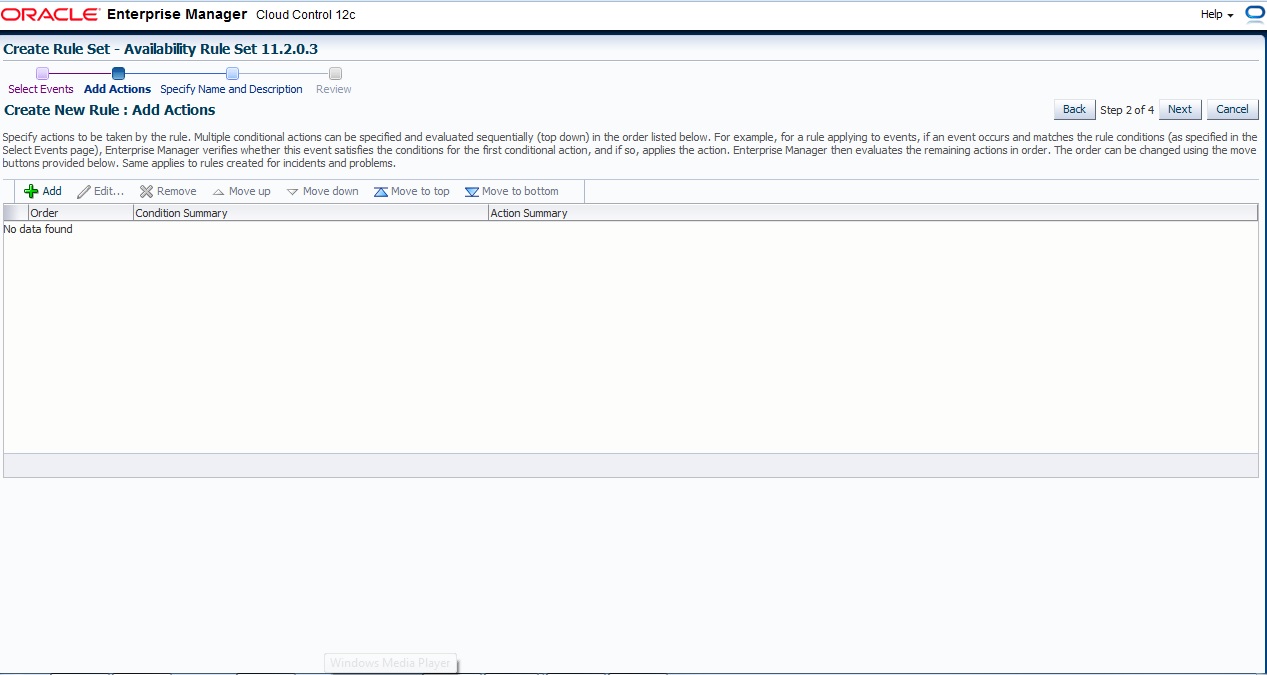
Next , and Add Action page press add like usual
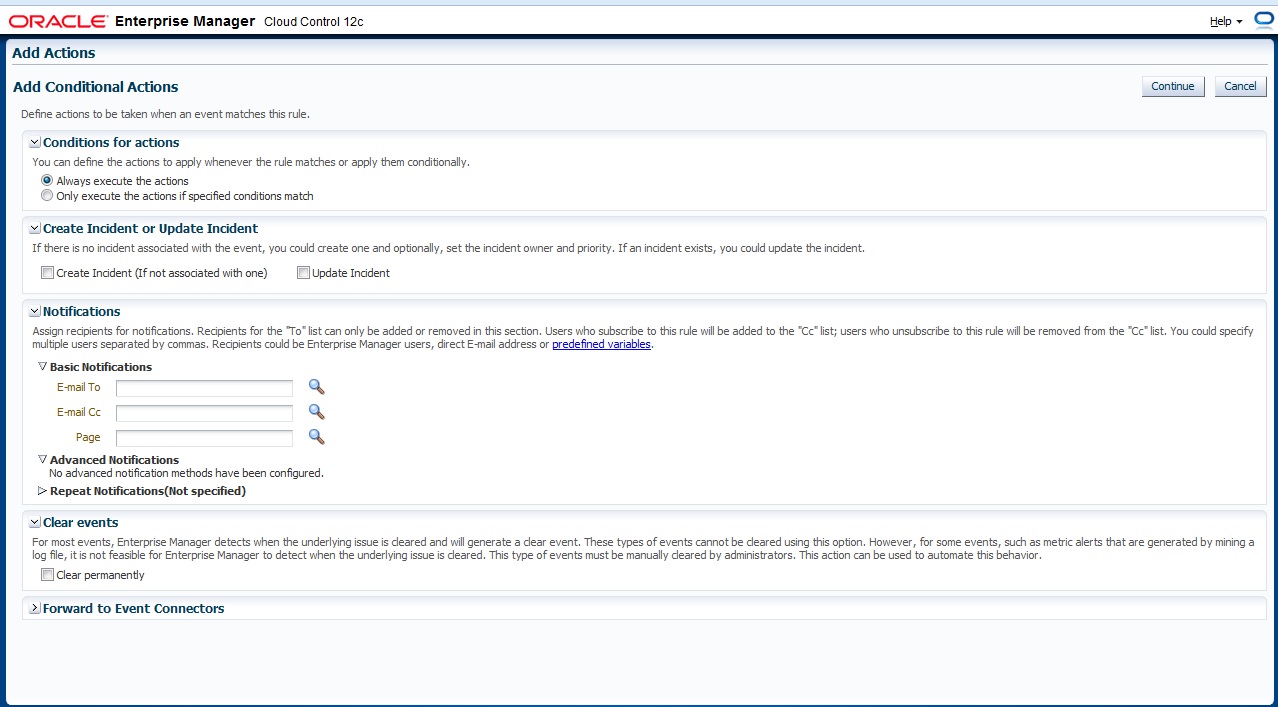
Define Which action will taken if event match
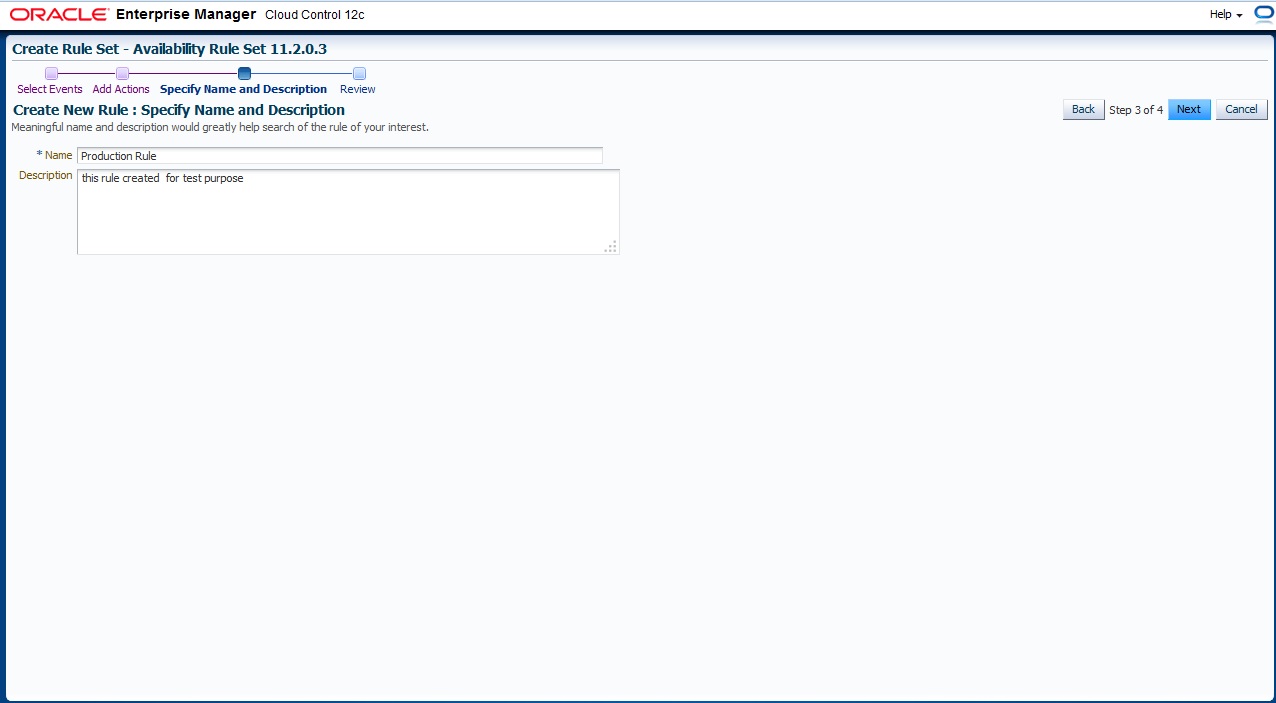
Finally Name For Rule Set
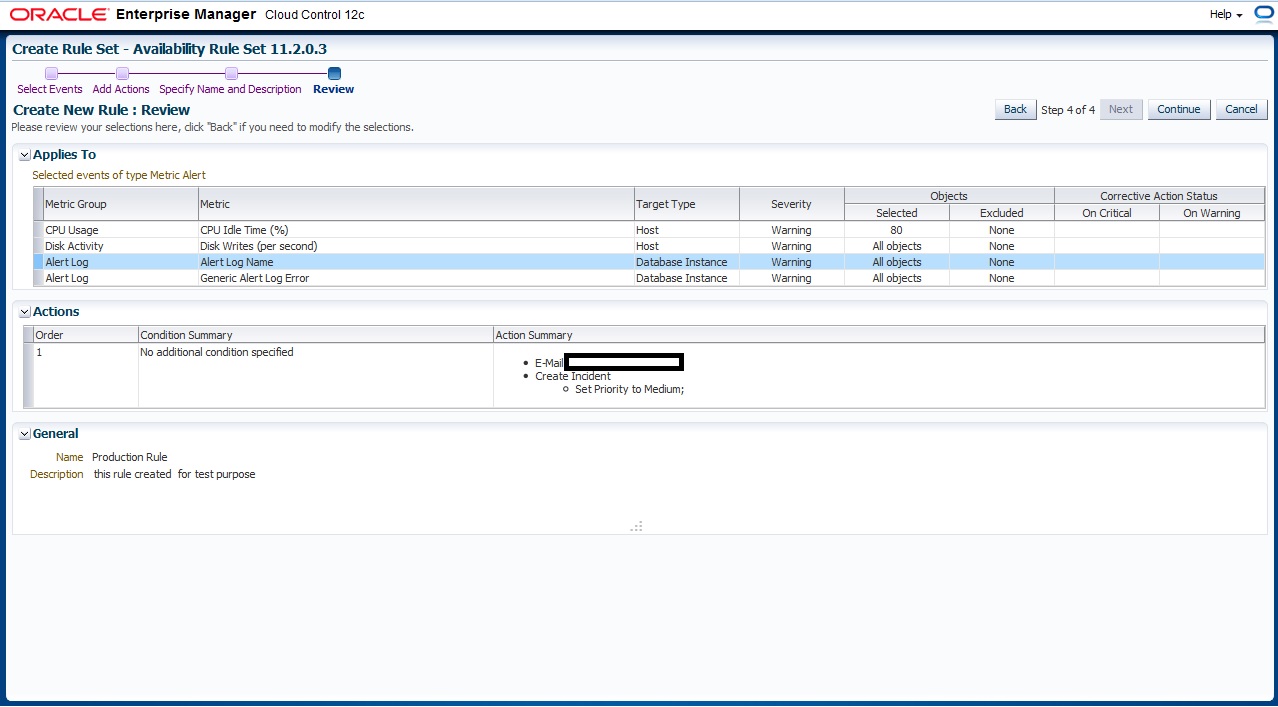
Review Page
you can download this article from here
Thank you
Osama Mustafa
Add Target Manually / Enterprise Manager 12c
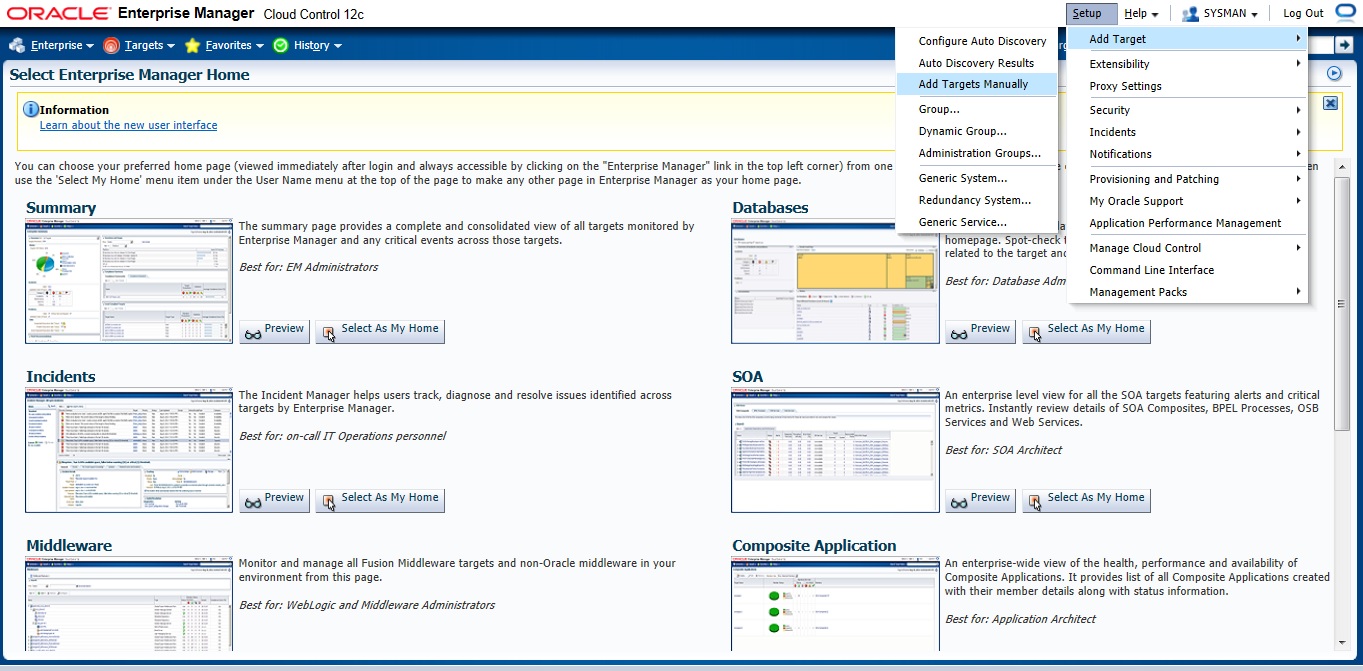
Setup –> Add target –> Add Target manually
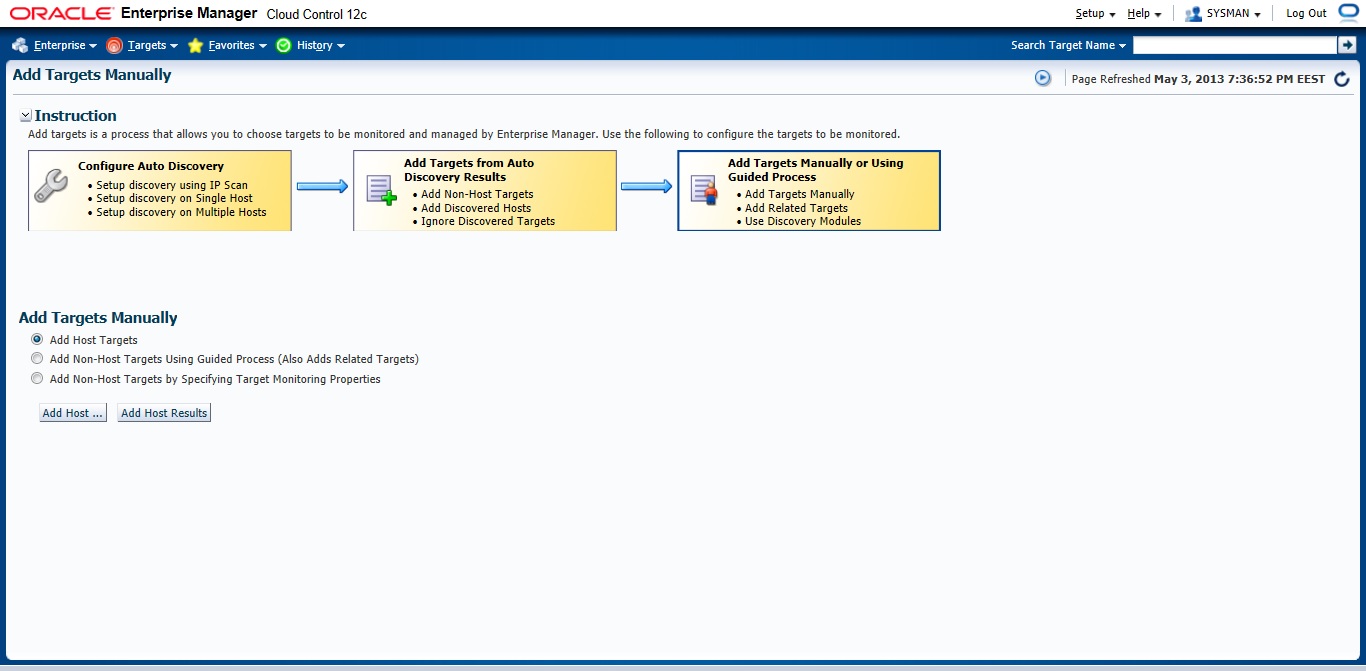
Choose the first Option
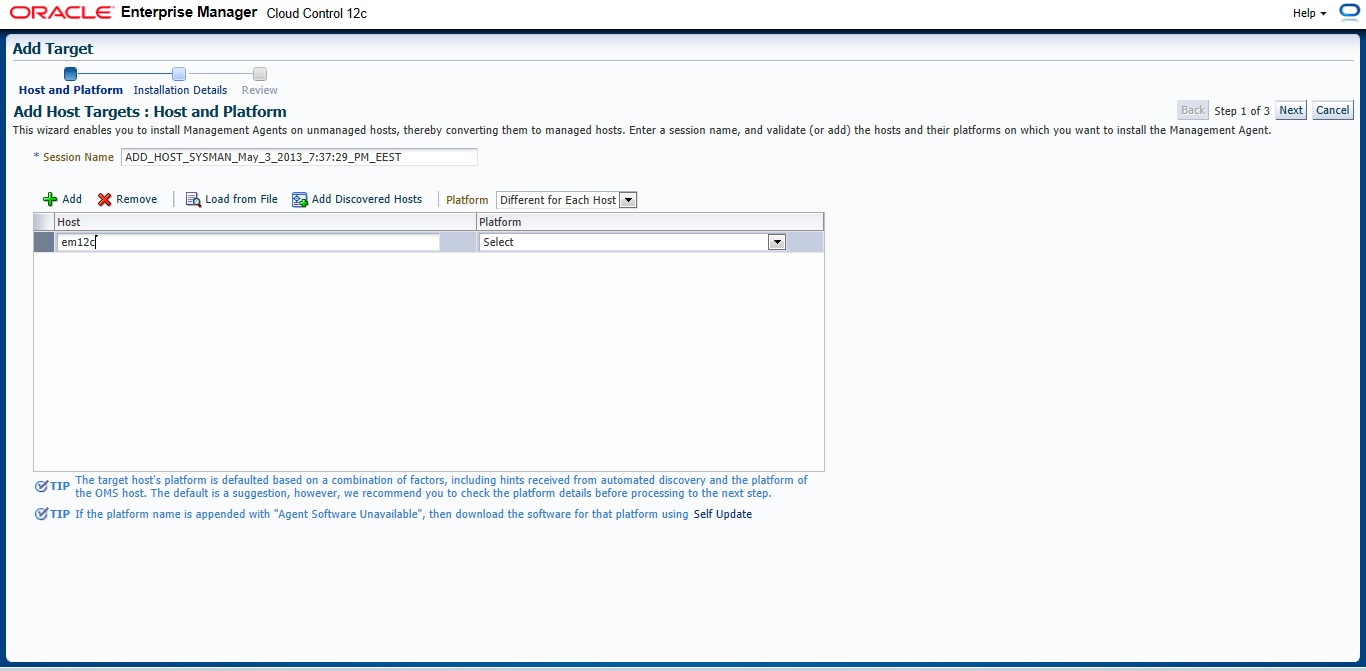
New Page will appear — > Press add and Type Hostname for the server and which Operating system installed it on it.
Insert your Agent Path ( where you want to install agent ) and username
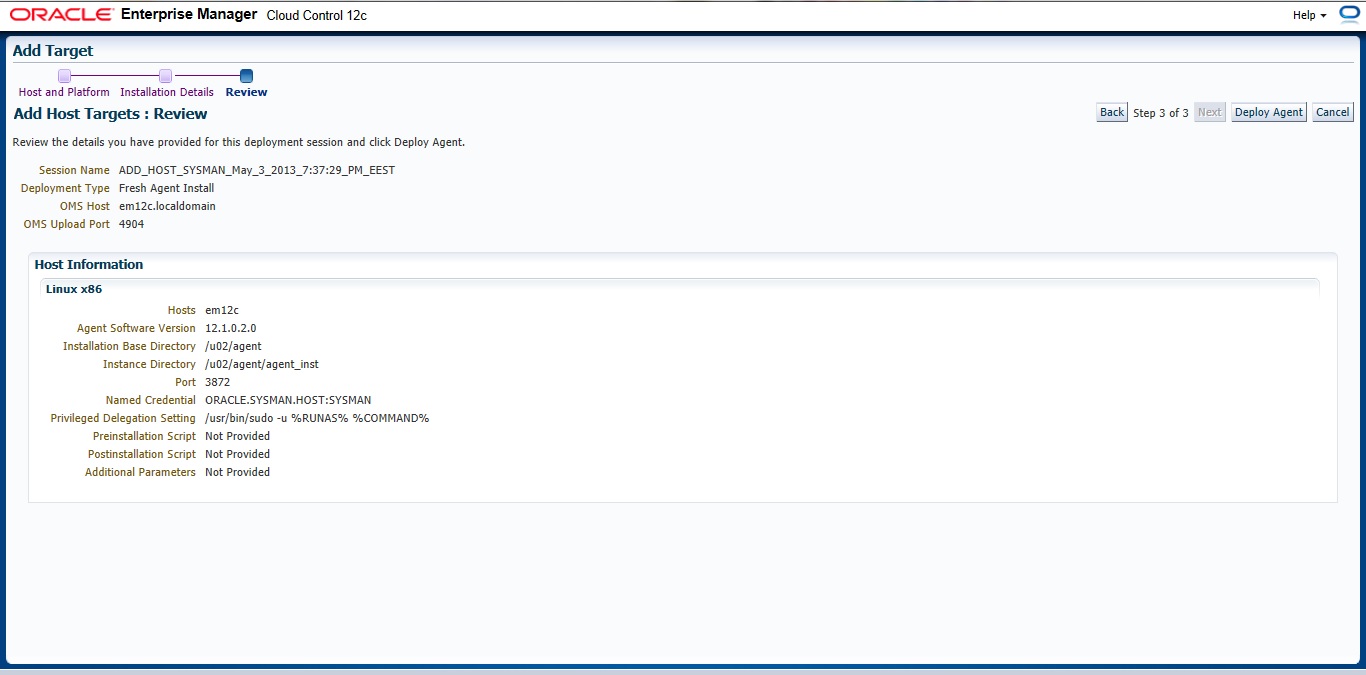
Review and then Deploy Agent
You can download this article here
Thank you
Osama Mustafa
Deploy Agent In Enterprise Manager 12c
there’s two method to do that
1) Configuring Automatic Discovery
2) Adding targets Manually
I will describe the both 🙂 each one separately
Before deploy you need to decide if you want to use Oracle user or root user the below steps you have to do before using oracle :
[root@em12c ~]# vi /etc/sudoers
and change and add the following lines :
Comment this line :
#Defaults requiretty
add the below line
oracle ALL=(ALL) ALL
and remove ! from this line :
Defaults visiblepw
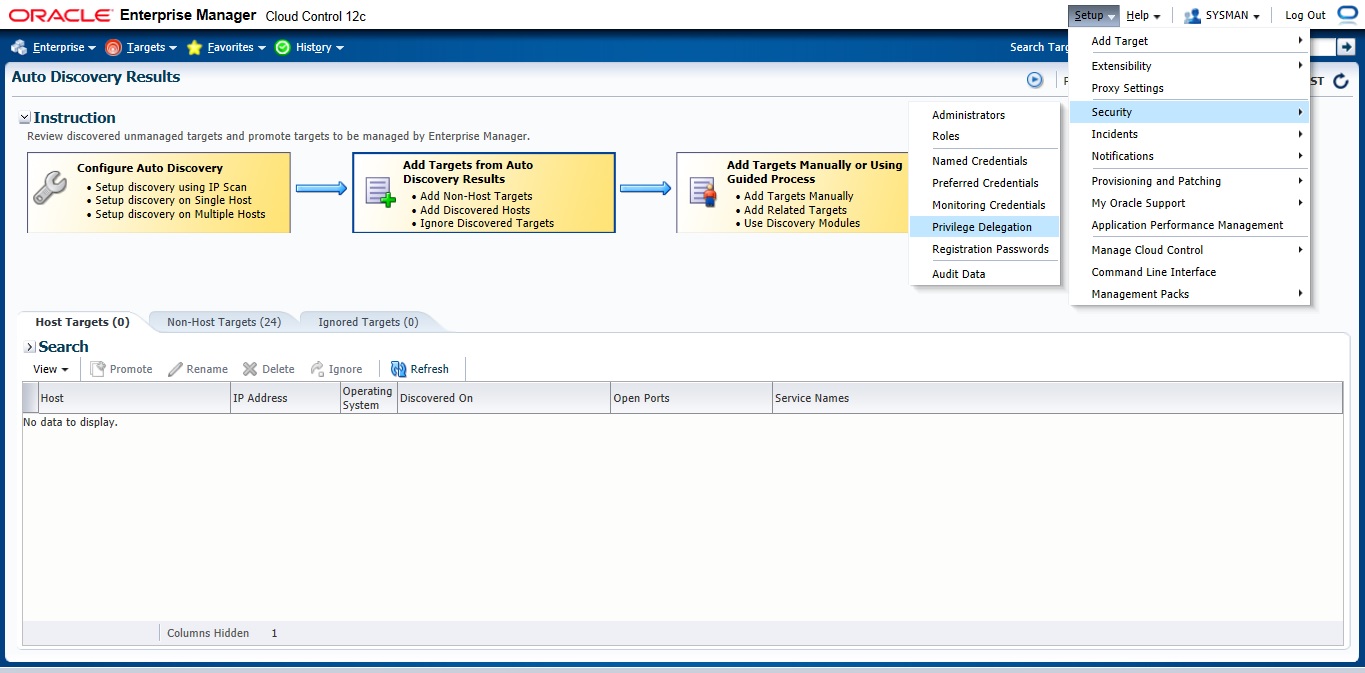
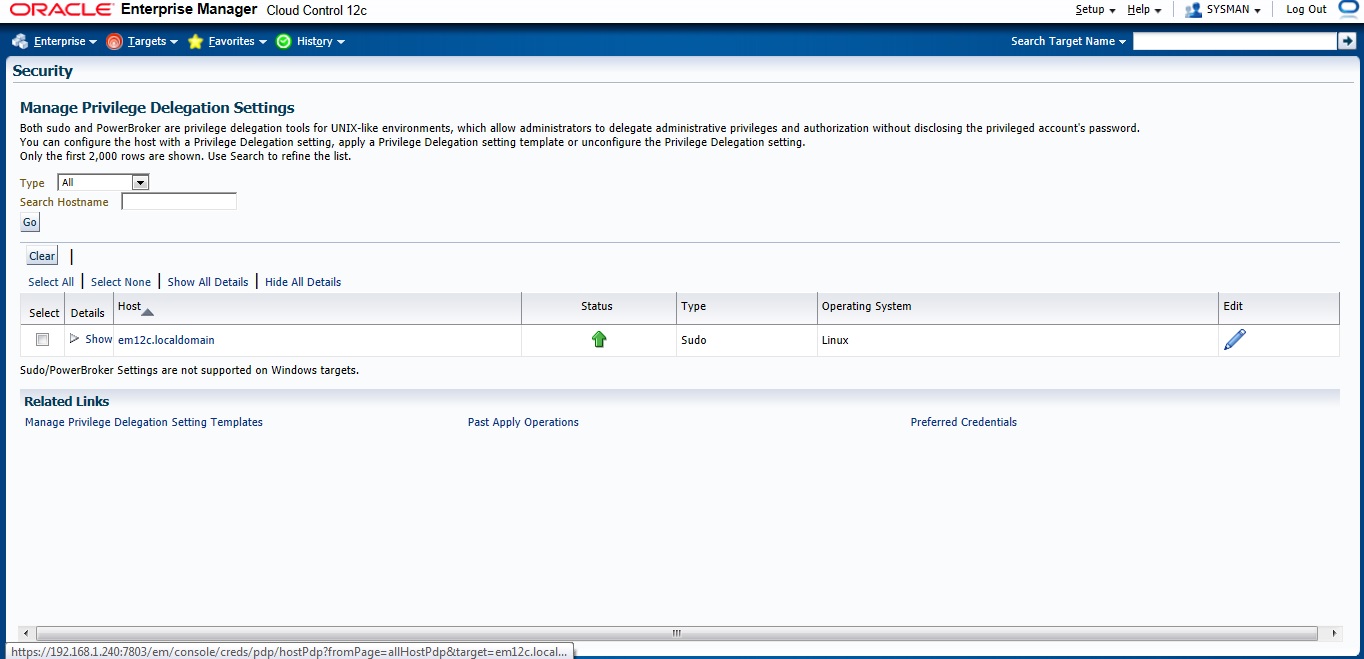
Now On em12c There’s something called privilege delegation
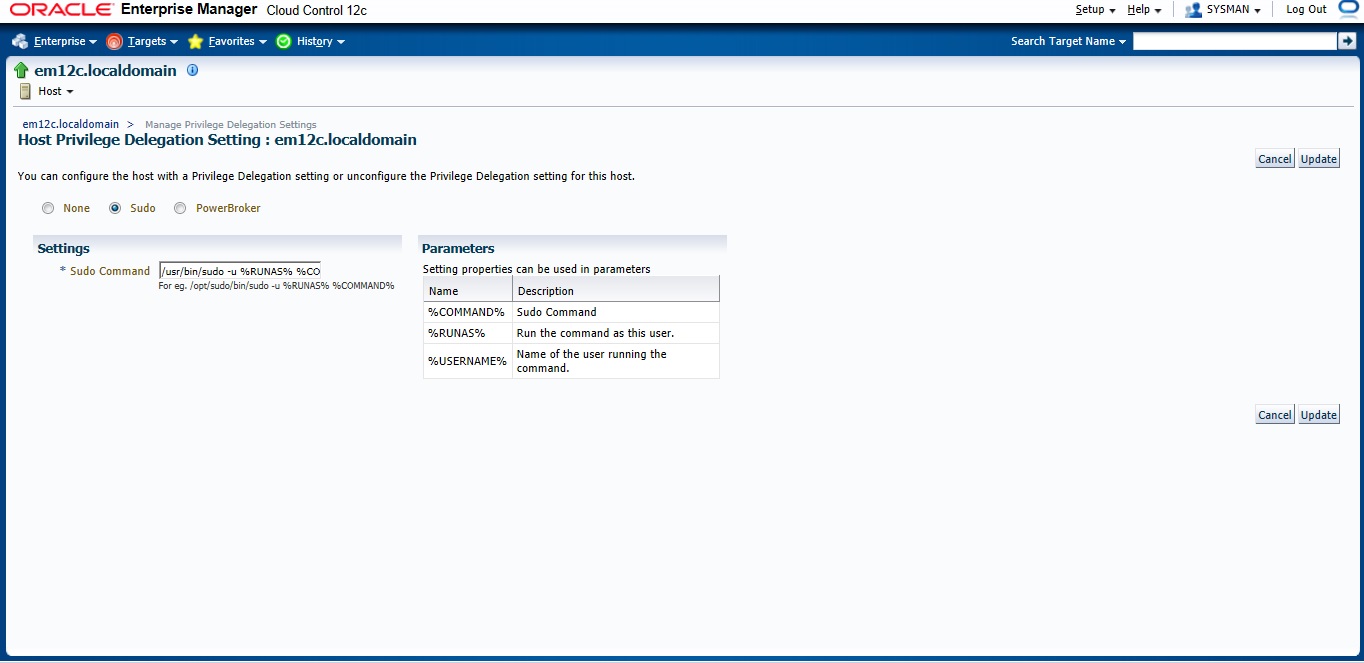
Privilege delegation allows a logged-in user to perform an activity with the privileges of another user. Sudo and PowerBroker are privilege delegation tools that allow a logged-in user to be assigned these privileges. These privilege delegation settings will be used for all provisioning and patching activities on these hosts.
Read more here.
/usr/bin/sudo -u %RUNAS% %COMMAND%
/usr/bin/sudo —> location for sudo command.
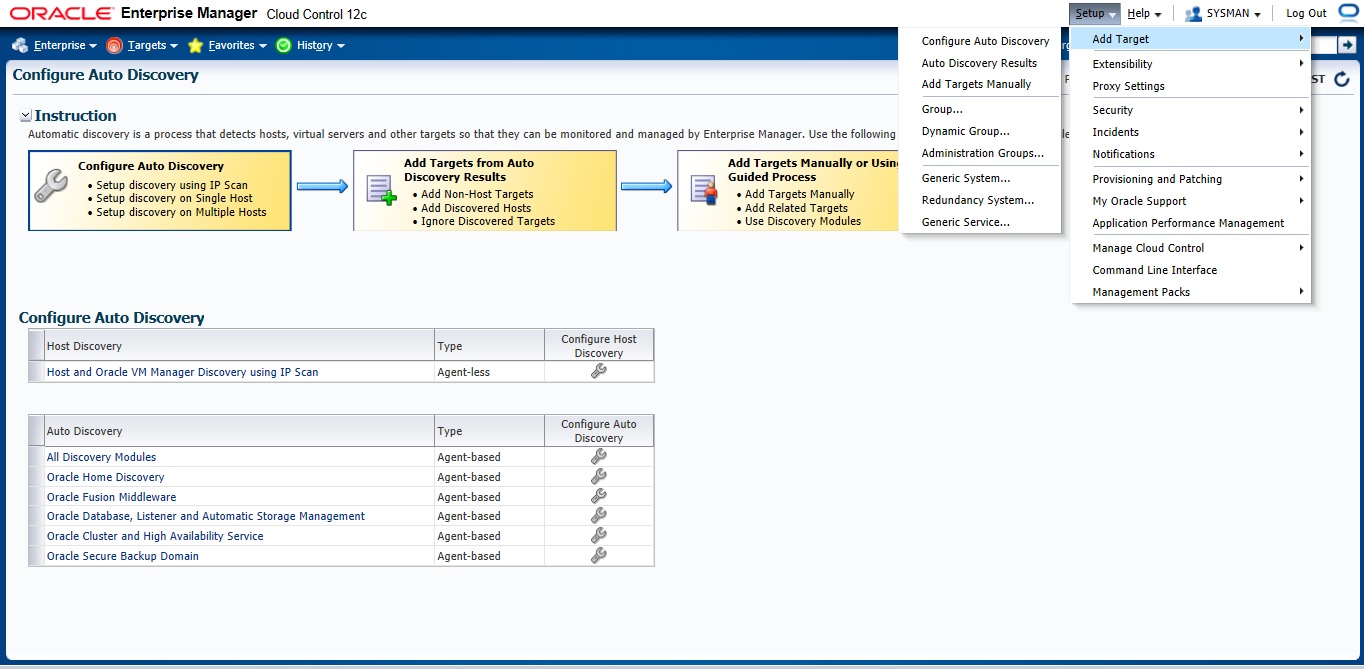
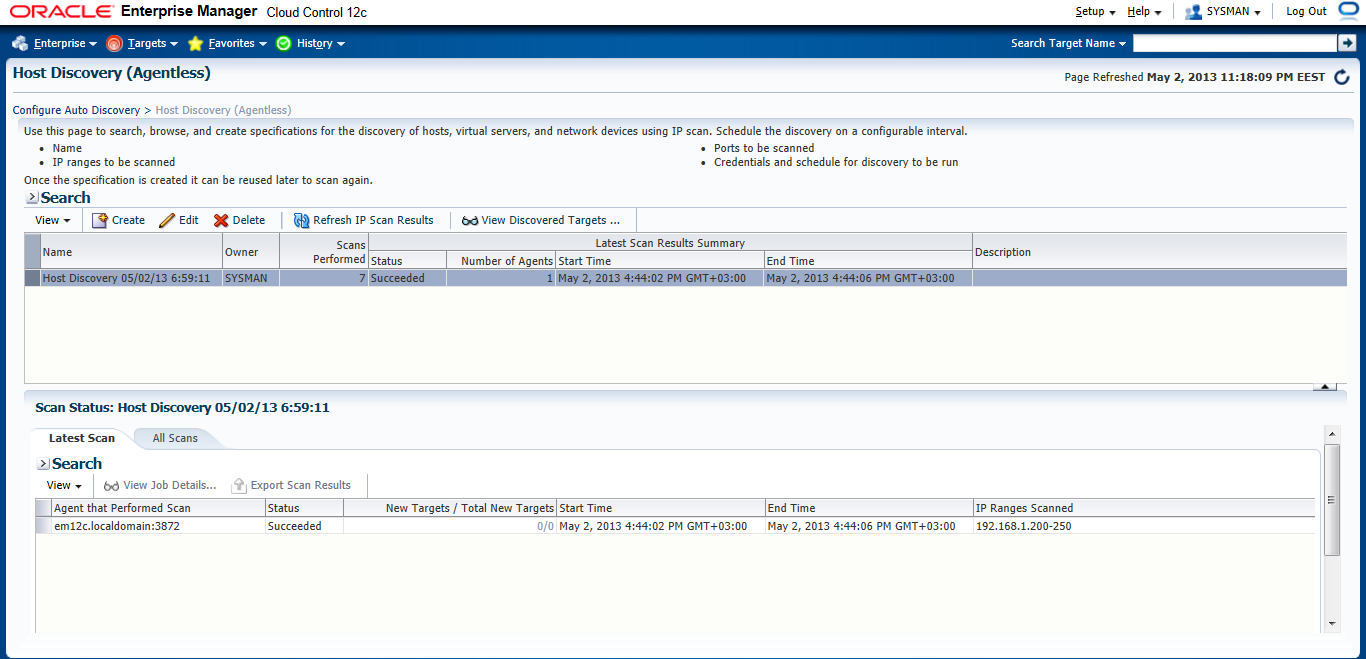
after all the above steps are done let’s configure Auto Discovery
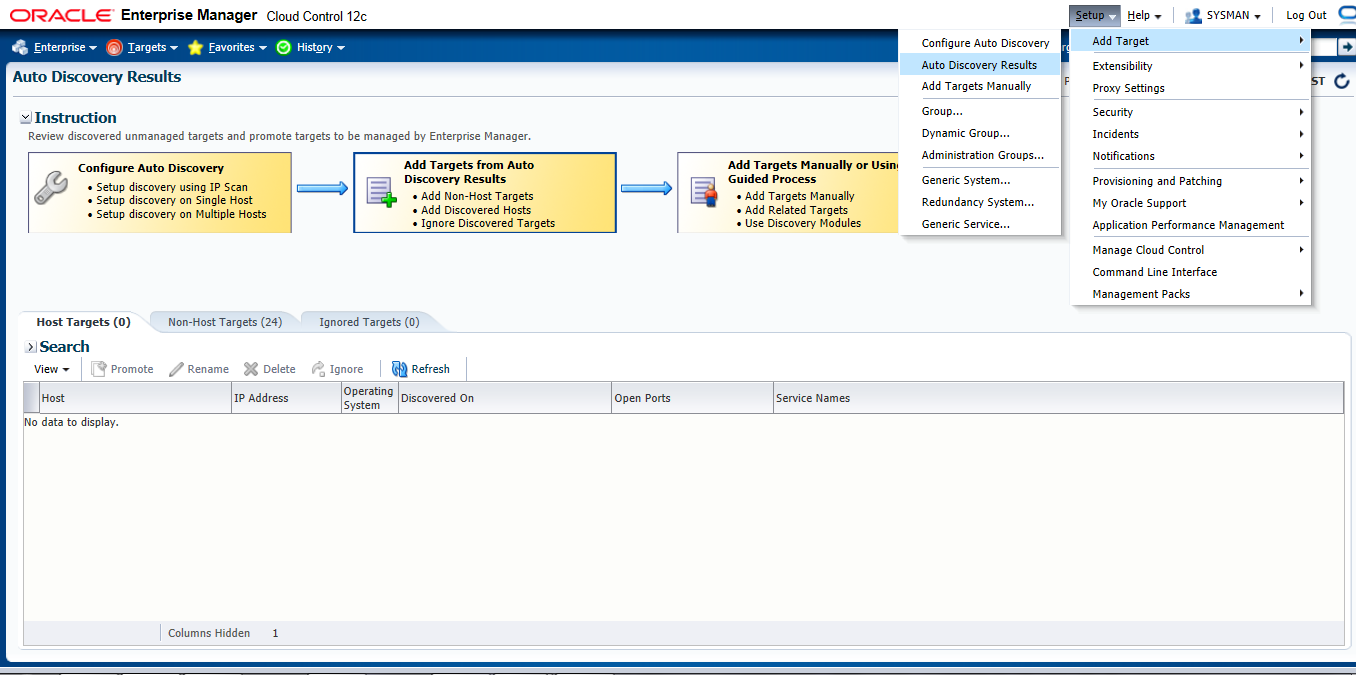
Setup –> add target –> configure auto discovery the below screen will open, choose the first option “Host and oracle vm manager Discovery using Ip scan”
Press create Button
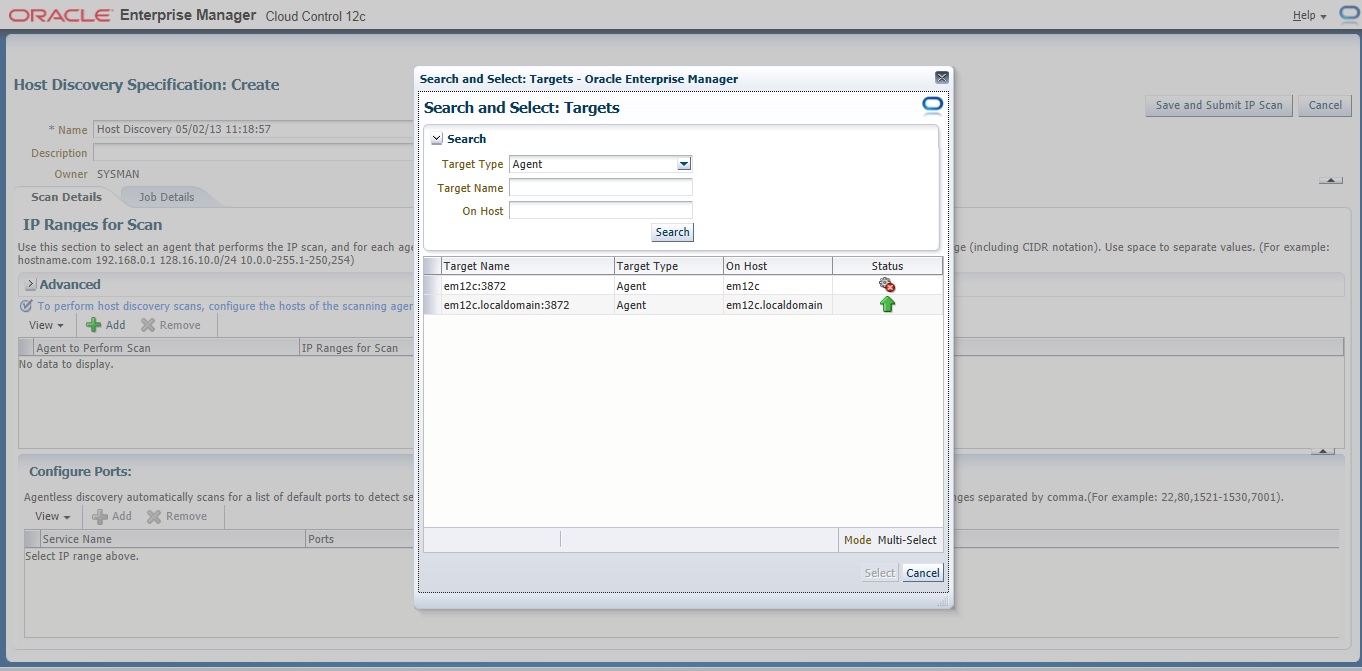
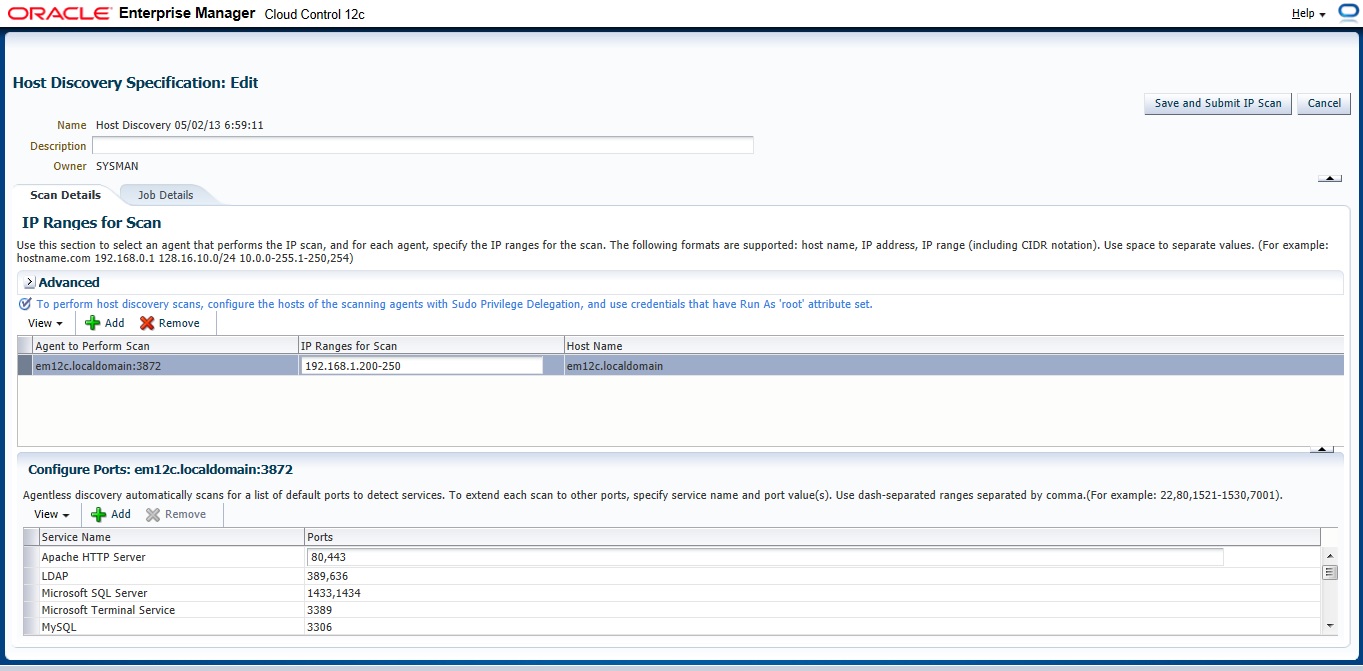
On add Button new Panel Will open , Choose your Host and Choose the Range Ip for scan The Format Mentioned above examples :
192.168.1.240-250
192.168.240/10
192.168.240,241
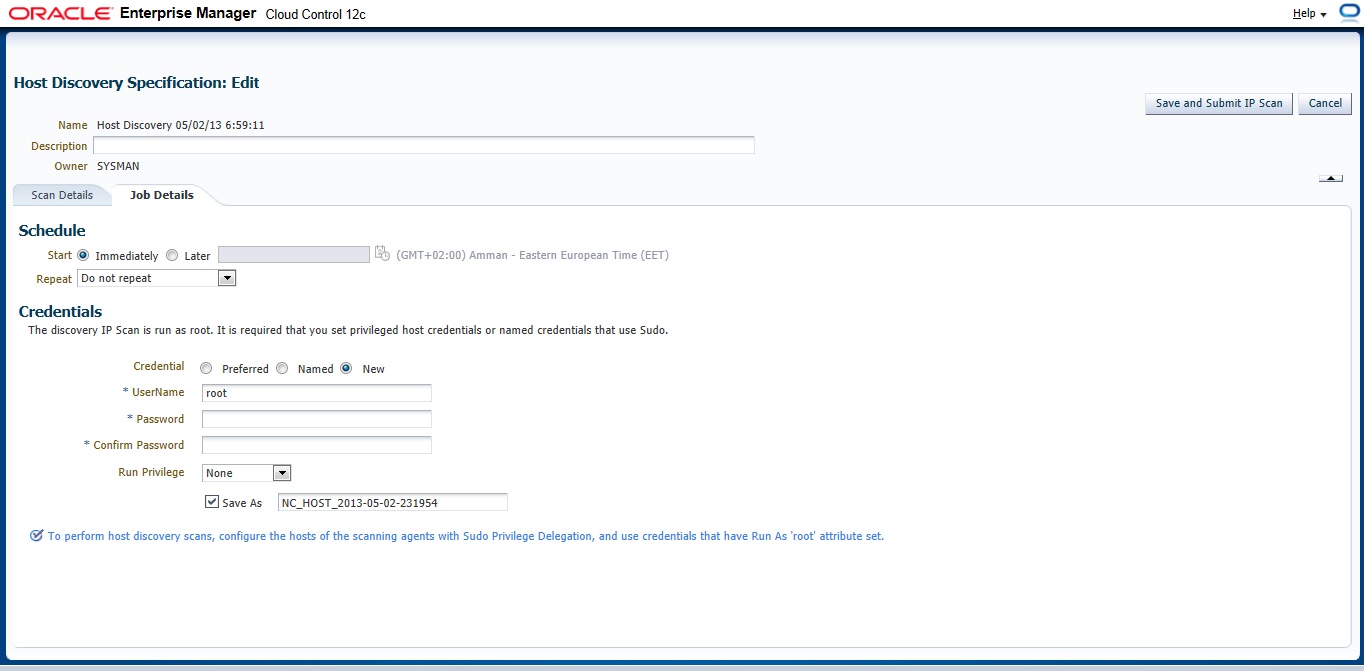
Now you need to configure Job Summary
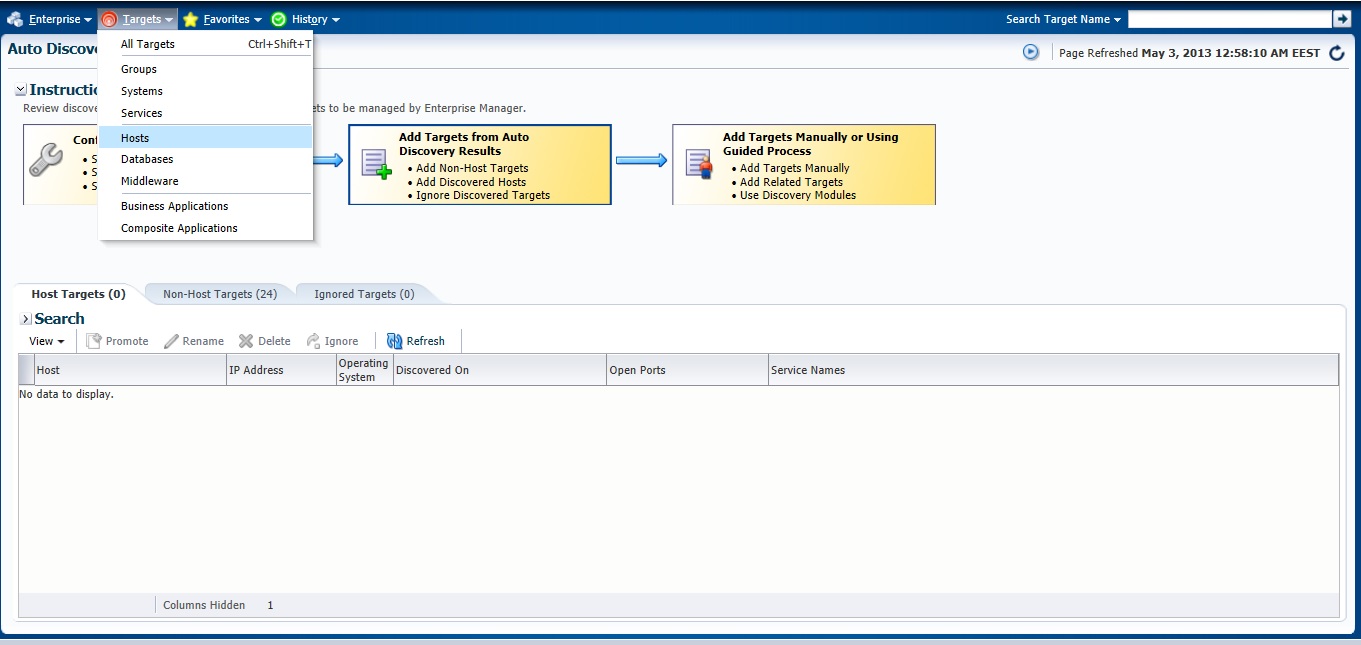
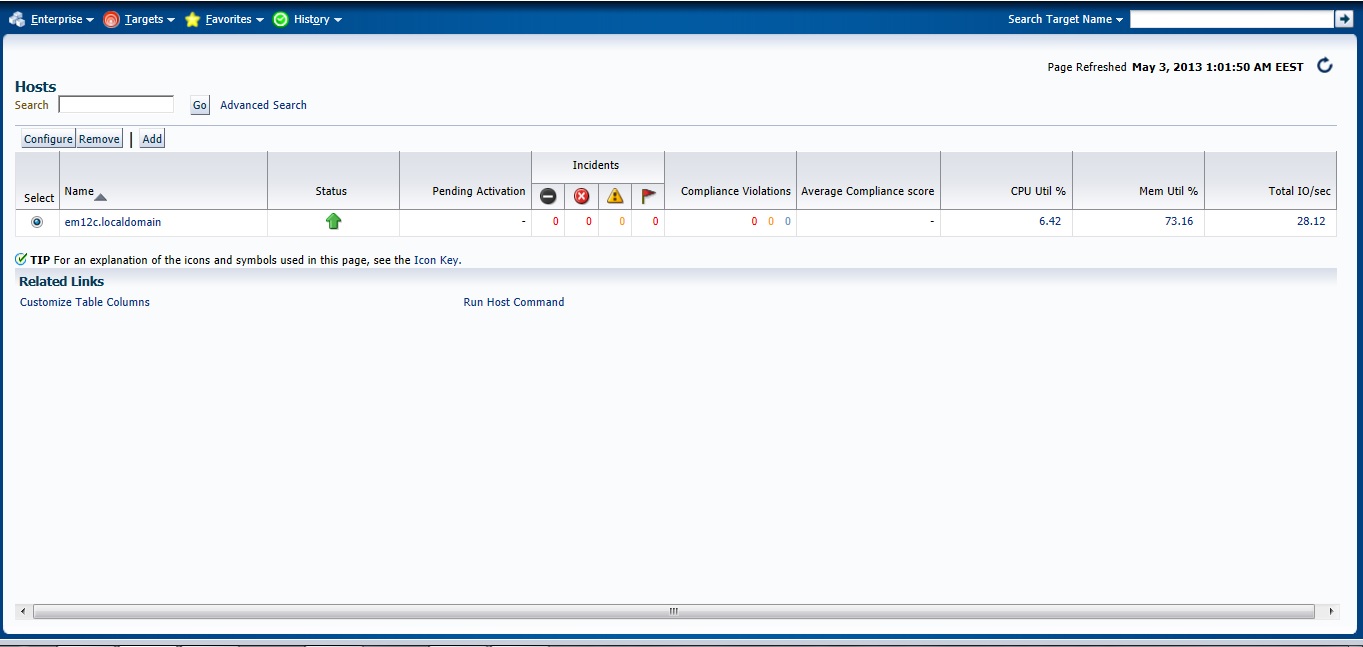
Check the Host
Next Post will be How to Add Agent Manually .
You can Download this Article From here.
Thank you
Osama Mustafa
3872 Actual Result: Port 3872 passed is busy Check complete
solution
[root@em12c Middleware]# netstat -anp | grep 3872
tcp 0 0 :::3872 :::* LISTEN 2391/java
[root@em12c Middleware]# kill -9 2391
[root@em12c Middleware]# netstat -anp | grep 3872
Deploy Again
Thank you
Osama Mustafa